Property management
All modules
Set rate plans, seasons and prices per night
Property management · 16 of 18 · 7 min read
Rate plans set which offers you sell for each room type and how the price changes across periods. In the rates calendar you set, night by night, the price, the stay rules and the rooms on sale.
Before you start: the Rate Plans and Rates calendar items appear only to users in the PMS Manager group.
Note: this article does not cover publishing rates to OTA channels, which goes through the channel manager.
Offers and adjustments
Each rate plan belongs to a room type and is one of two kinds.
- Offer: sold to guests and published to every channel as its own rate. Its change applies on the nights of its date ranges, after the adjustments. Outside those ranges the offer sells at the adjusted base price.
- Adjustment: changes the price of every offer of the room type for a season, for some days of the week or for a customer group. It is never sold or published on its own.
The price of a night starts from the room type's base price, applies the adjustments and then the offer. The same amount applies at the front desk, on the website and on every channel.
How to choose the kind:
- If you want to sell a rate with its own conditions, such as
Non-refundableat -10%, create an offer. - If you want to raise or lower all the offers in a period, such as
Weekendat +10% on Friday and Saturday orGrape harvest high seasonat +15%, create an adjustment.
In the demo every room type has the Flexible rate offer. Non-refundable exists only for the Classic Double Room and the Superior Room with Vineyard View and, having no date ranges, costs the same as Flexible rate. Grape harvest high season applies to the Superior Room with Vineyard View and the Barn Suite.
Important: adjustments change every offer of the room type. Turn a season into an adjustment instead of creating it as a separate offer.
Reading the rate plan list
The list shows the offers and adjustments of all room types.
- Open PMS › Rate Plans.
- To see the plans of one room type, choose it in the filter that opens on All Room Types.
- Press a row to open the plan.
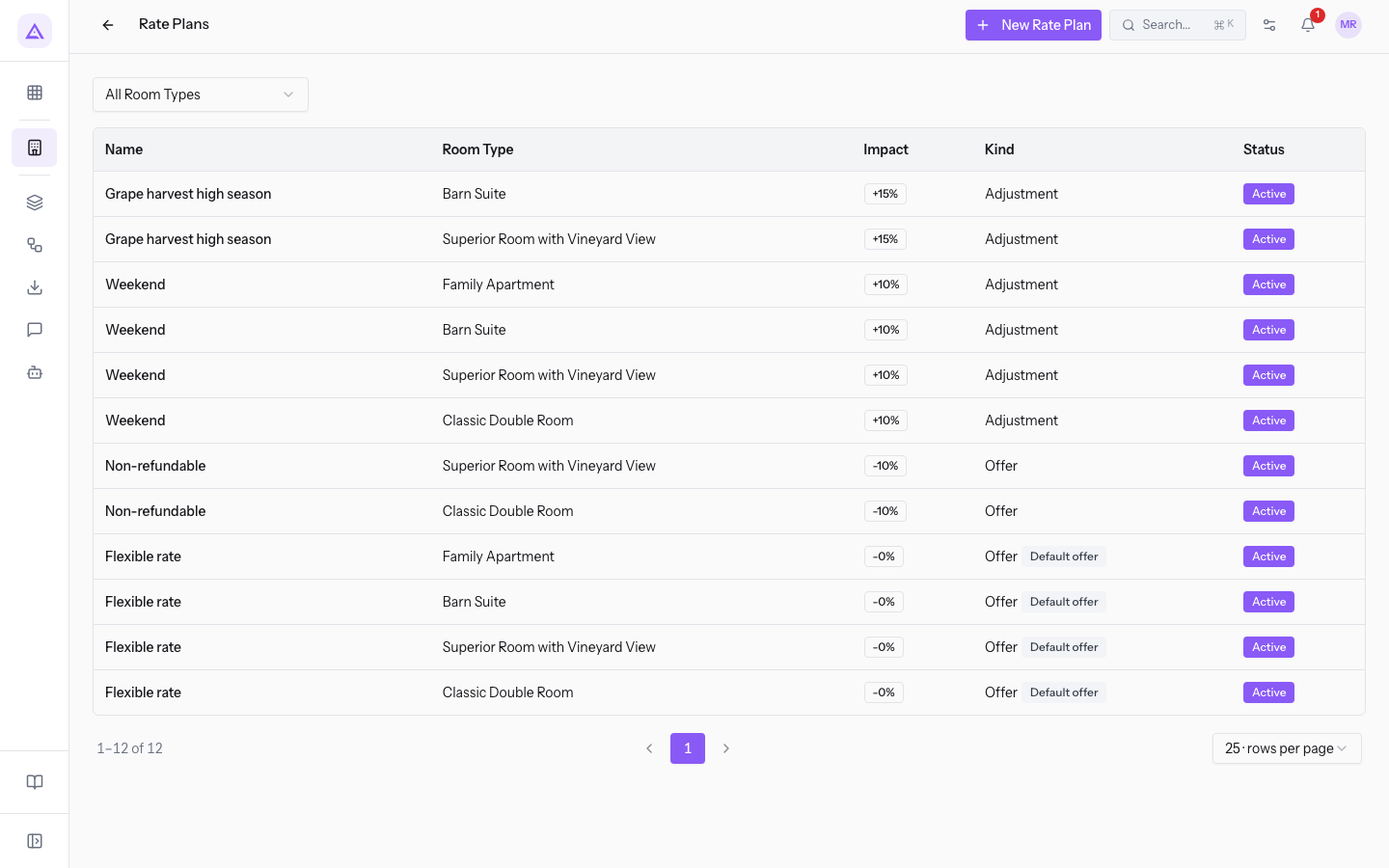
The list columns:
- Name: the name of the plan.
- Room Type: the room type the plan belongs to.
- Impact: the price change, for example
+15%. - Kind: Offer or Adjustment.
- Status: the status of the plan.
Creating a rate plan
A plan applies to one room type only. If an adjustment concerns several room types, create one plan for each: the demo has a Weekend plan for every room type.
- In PMS › Rate Plans press New Rate Plan. The New Rate Plan window opens.
- Fill in the fields described below.
- Press Create. To close without saving, press Cancel.
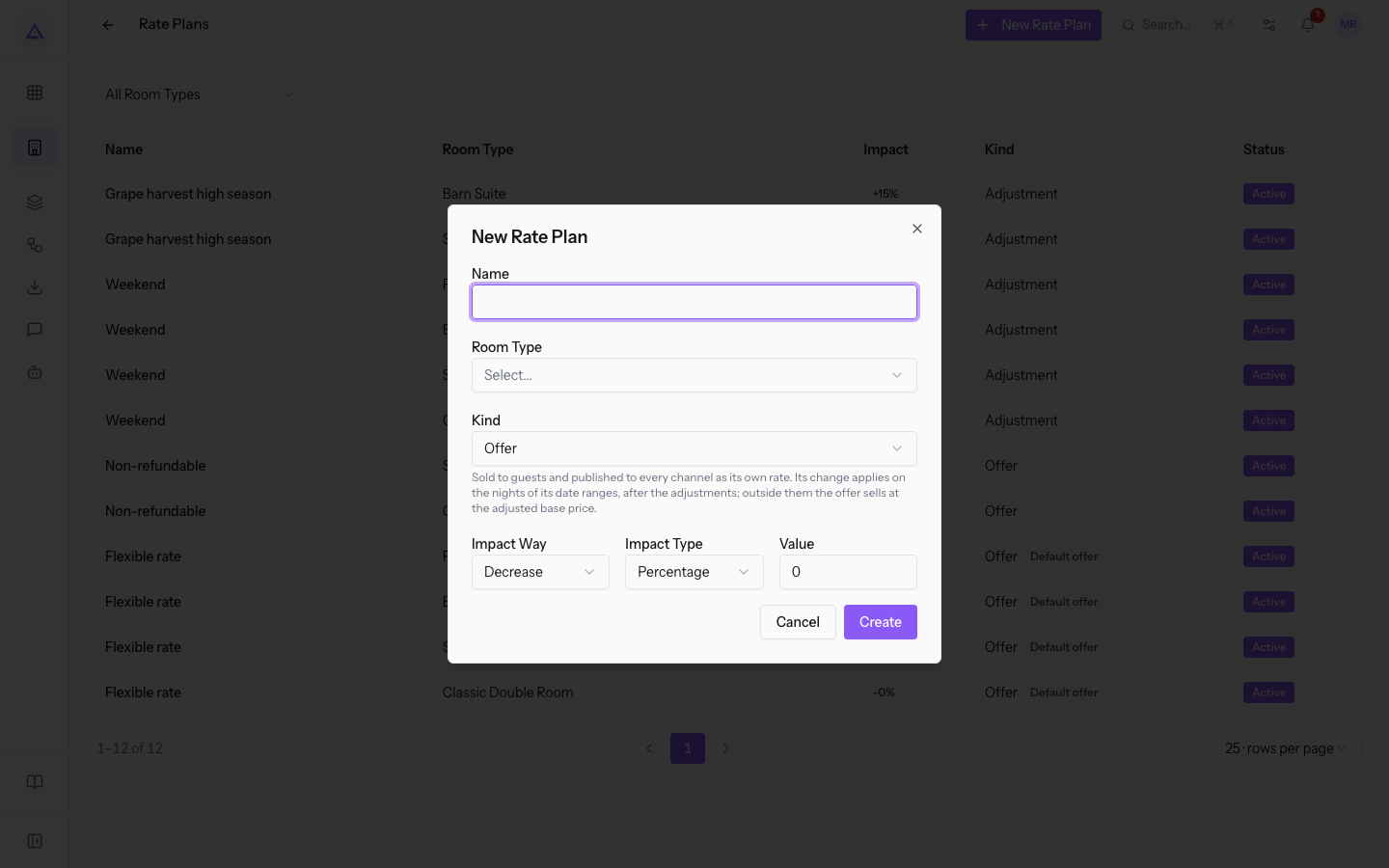
The fields of the window:
- Name: the name of the plan.
- Room Type: the room type the plan applies to. When the window opens it shows Select....
- Kind: set to Offer when the window opens. Below the field appears the explanation of the chosen kind.
- Offer: a rate sold and published on its own.
- Adjustment: a change applied to every offer of the room type.
- Impact Way: the direction of the change.
- Decrease: the default value.
- Increase
- Fix
- Impact Type: how the value is read.
- Percentage: the default value.
- Fixed
- Value: the size of the change. The
Weekendplan has Increase, Percentage and an impact of+10%.
Reading and editing a rate plan
The plan page shows the name and the kind of the plan at the top.
- In PMS › Rate Plans press the row of the plan, for example
Weekendfor theFamily Apartmentroom type. - Check the Rate plan details section: Name, Room Type, Kind with its explanation, the Active status, Impact Way, Impact Type, Value and Guest groups.
- For the other operations on the plan, use the More actions menu.
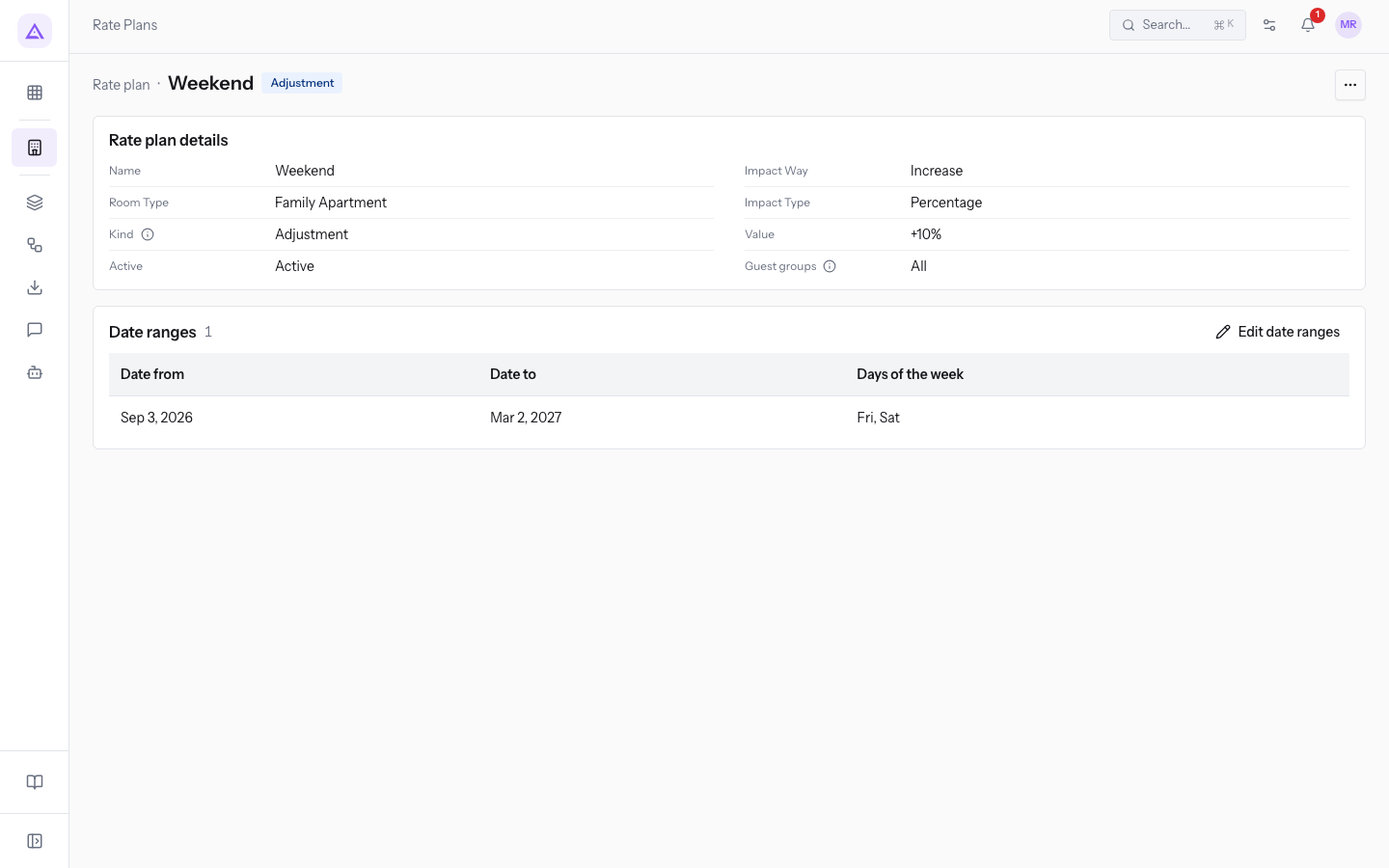
If the plan applies to all reservations, Guest groups shows All.
Setting the date ranges
Date ranges set the nights on which the plan's change applies: a date interval and, if you want, only some days of the week. This is how you define a season or a weekend.
- On the plan page, in the Date ranges section, press Edit date ranges.
- Fill in Date from and Date to. For the
Weekendplan they are06/08/2026and02/02/2027. - Choose the days of the week on which the range applies, among Mon, Tue, Wed, Thu, Fri, Sat and Sun. For
Weekendchoose Fri and Sat. - To add another interval press Add date range. To remove one press Remove date range.
- Press Save, or Cancel to leave the ranges unchanged.
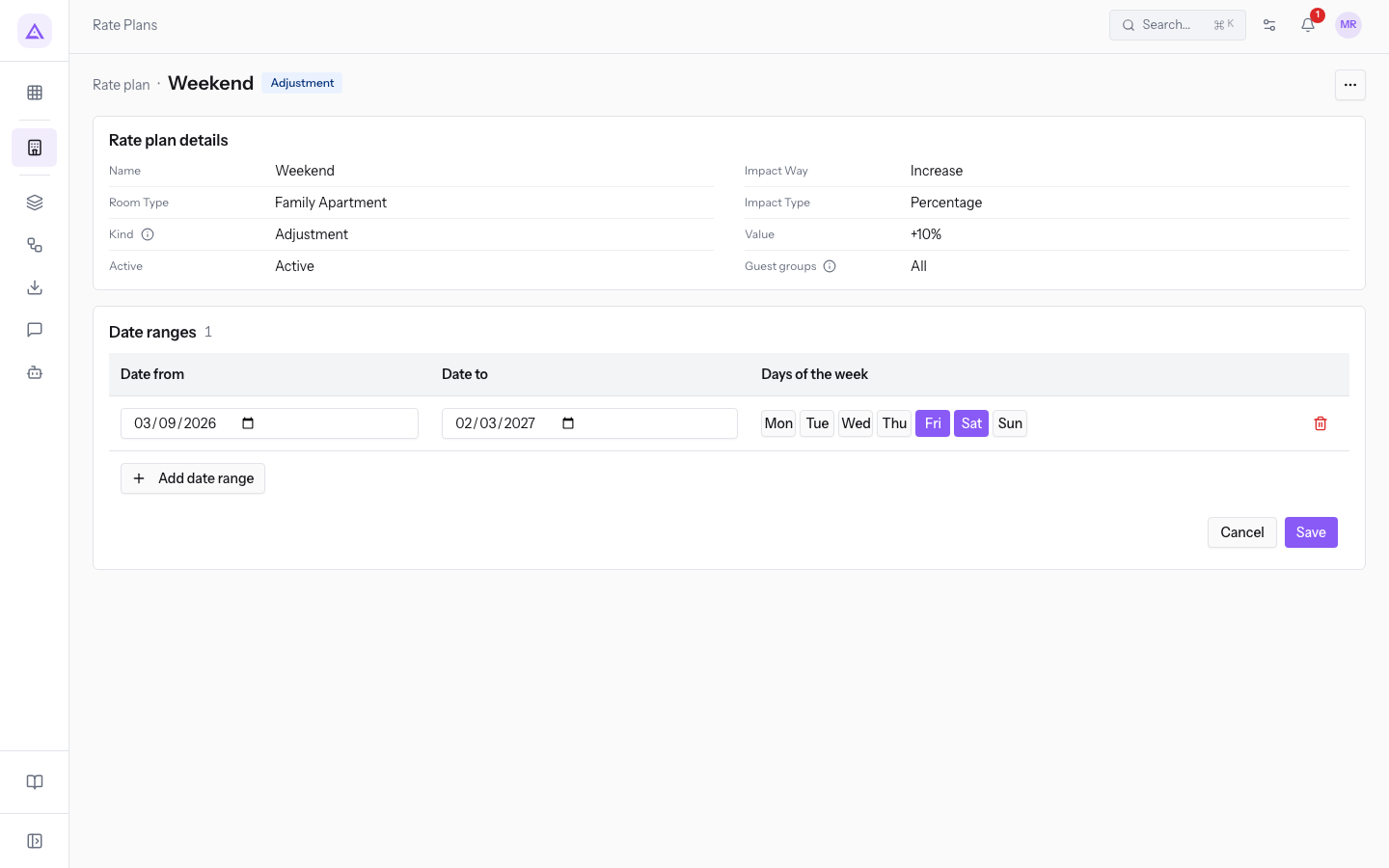
Note: an offer also sells outside its date ranges, at the adjusted base price. The ranges only set when its change applies.
Reading the rates calendar
The rates calendar shows, for each night, the price of every offer, the stay rules and the rooms on sale of every room type.
- Open PMS › Rates calendar.
- Choose the property in the field at the top.
- Choose how many nights to show with 14 nights or 31 nights.
- Move with the arrows Previous 14 nights and Next 14 nights. Press Today to return to today's date.
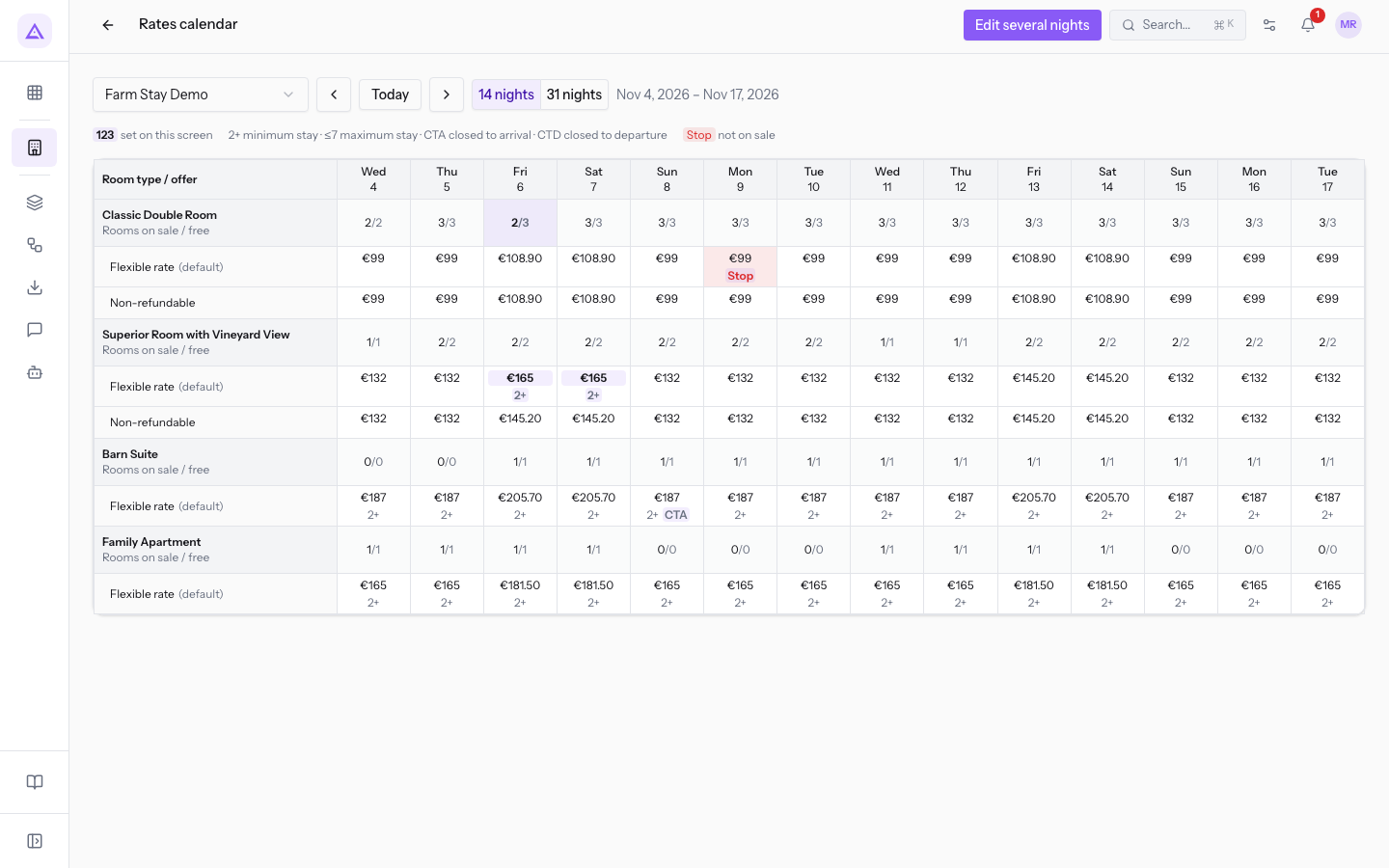
In the grid, the Room type / offer column lists each room type and, below it, its offers. The room type row shows Rooms on sale / free, for example 2/2. The offer rows show the price of the night, VAT included.
The signs in the legend:
123: a value set on this screen, to tell it from the calculated ones.2+: minimum stay of 2 nights.≤7: maximum stay of 7 nights.CTA: closed to arrival.CTD: closed to departure.Stop: the night is not on sale.
In the demo the Flexible rate of the Superior Room with Vineyard View costs €165 with a minimum stay of 2 nights in 3 and 4 days. The Barn Suite is closed to arrival in 5 days. The Flexible rate of the Classic Double Room is in Stop in 6 days, and that room type has 2 rooms on sale in 3 days.
Setting prices and rules for one or more nights
The Set rates and restrictions window changes the price, the stay rules and the rooms on sale for the nights, room types and offers you choose. What you leave alone keeps its value.
- In PMS › Rates calendar press Edit several nights. For a single night you can instead press the cell of an offer: the window opens with that night and that offer already chosen.
- Enter the interval in First night and Last night. Both are required.
- In Only on choose the days of the week, among Mon, Tue, Wed, Thu, Fri, Sat and Sun. If you choose none, the change applies to every night of the interval.
- In Apply to tick the room types (items such as Classic Double Room (rooms on sale)) and the offers to change. Rooms on sale go to the room types ticked. Prices and stay rules go to the offers ticked.
- In Values choose what to do with each item.
- Press Save.
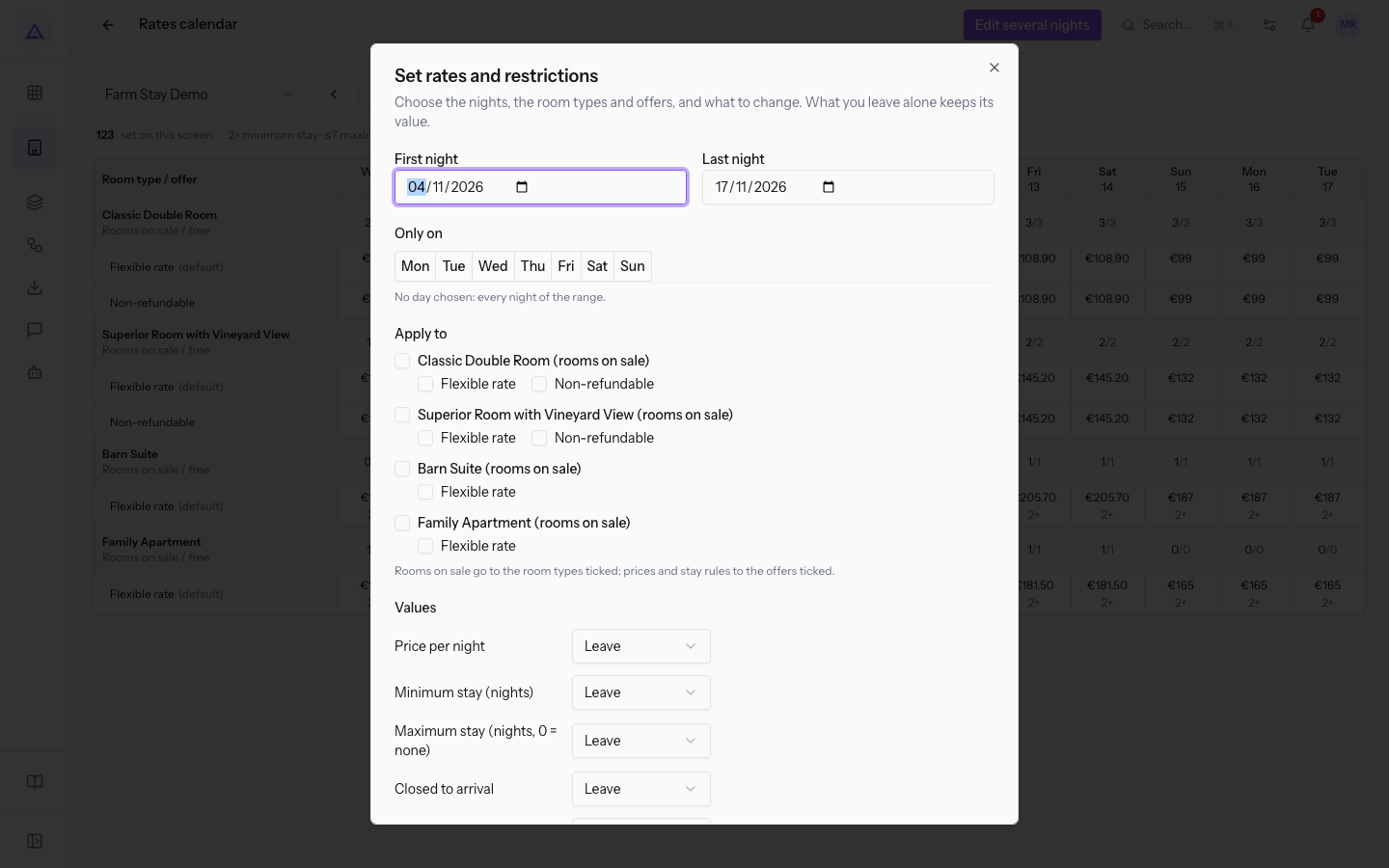
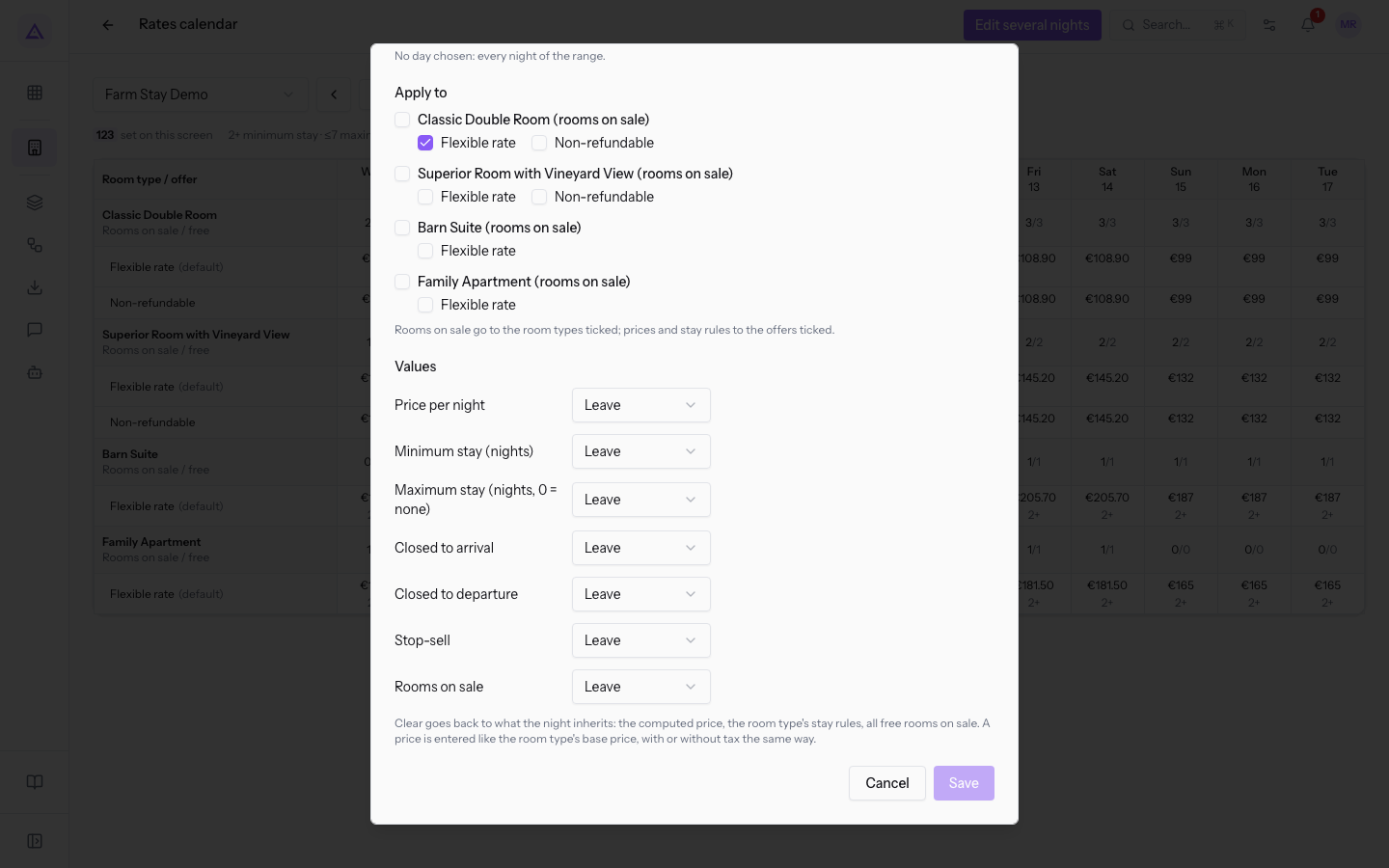
For each item in the Values section you can choose:
- Leave: the value stays as it is. This is the default choice.
- Set: enter a new value.
- Clear: returns the night to what it inherits, that is the calculated price, the room type's stay rules and all free rooms on sale.
The items:
- Price per night: entered like the room type's base price, with or without VAT the same way.
- Minimum stay (nights): the minimum number of nights.
- Maximum stay (nights, 0 = none):
0removes the limit. - Closed to arrival: no stay can start on those nights.
- Closed to departure: no stay can end on those nights.
- Stop-sell: the night is not on sale.
- Rooms on sale: how many rooms of the room type to sell.
Important: stay rules block sales from the front desk and from the website. Only a PMS Manager can book anyway, and the override stays recorded on the reservation. Channel reservations are always recorded, and any breaches are flagged.
Note: new prices apply immediately at the front desk, on the website and on the channels. Reservations already made keep their price.
See it on your company, not on a slide deck.
In 30 minutes we map the software you use today.We show you how much work and how much margin Archimedes gives back.
Show me on my business →What industry are you in?
One tap — it lets us prepare the demo around your world.
What tools do you use today?
Pick the ones you recognise — or just type them. It helps us show you how they migrate.
Last step: your details.
We reply within one working day — and right after, if you like, you pick the demo slot yourself.
We couldn't send your request. Try again, or write to us at [email protected].
By sending, you agree to your data being processed so we can get back to you about the demo. Privacy notice.
Preview form — nothing is sent from this page.
Want to schedule the demo now?
Your call: book the slot you prefer yourself, or we'll call you to arrange it.
Live availability, 30 minutes, instant confirmation. The calendar opens in a new tab.
Lock in your slot ↗We'll get back to you within one working day — and we'll join the call already knowing your world.
The calendar is open in another tab: pick a slot and the demo is booked. Can't see it? Reopen it ↗
Preview page: nothing was sent.
Our calendar is live: take the slot that suits you and the demo is booked. 30 minutes, instant confirmation, no waiting.
Lock in your slot ↗