Property management
All modules
Publish the online booking page and the cancellation policy
Property management · 17 of 18 · 4 min read
On a property's Online booking tab, you choose four things: whether the booking page is public, how reservations made from the website are confirmed, how much deposit to ask for, and what is refunded if the guest cancels.
Open the Online booking tab
Before you start: only the PMS Manager group sees Properties in the menu and can change the configuration.
In PMS › Properties, open the property and then the Online booking tab.
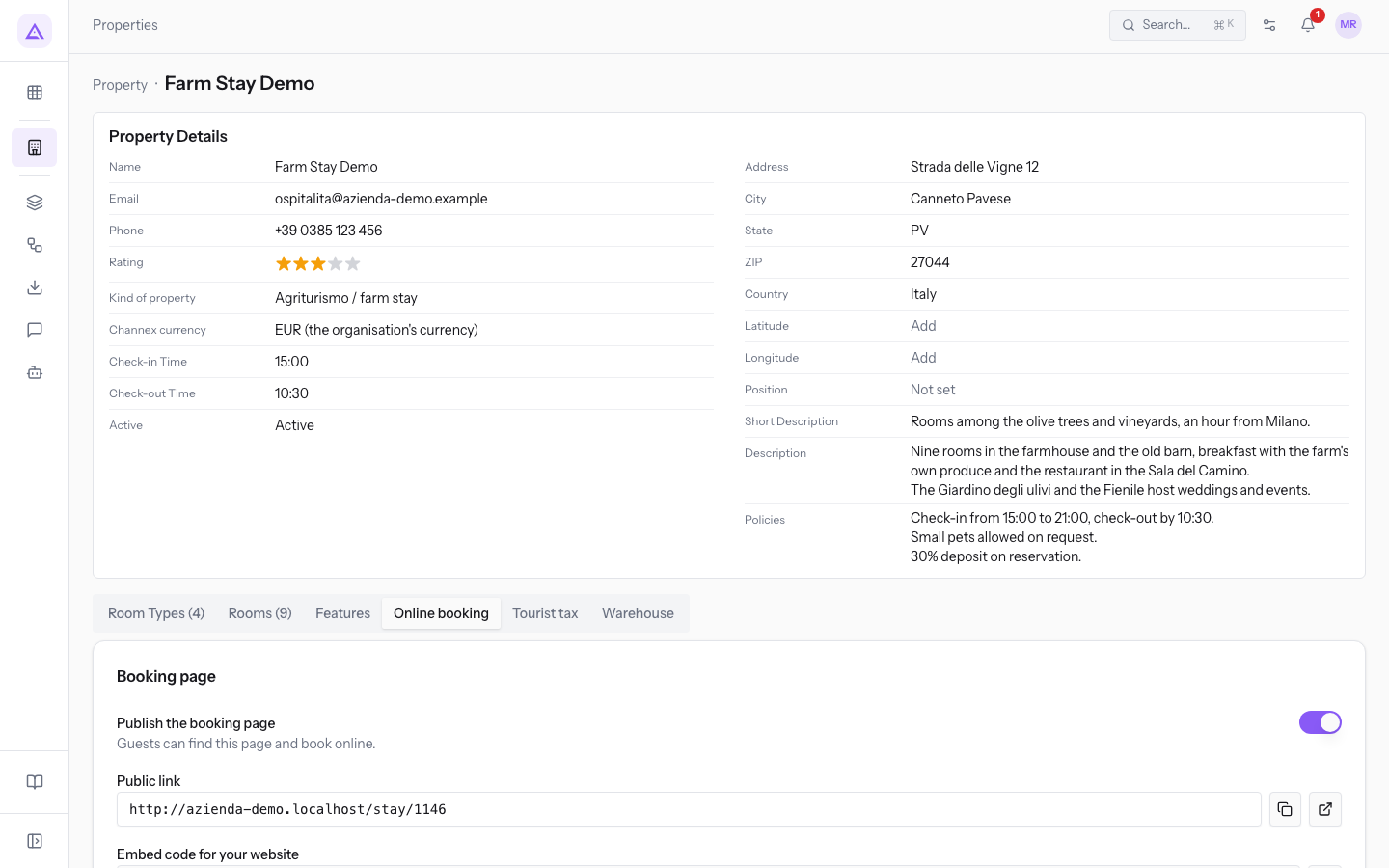
The other tabs of the property are described in Set up properties and room types. The Tourist tax tab has its own article: Check compliance deadlines and collect the tourist tax.
Publish the booking page
The booking page is the property's public page where the guest checks availability and books.
- Turn on Publish the booking page.
- Use the Public link or the Embed code for your website.
- Press Save.
The fields and buttons in this section are these:
- Publish the booking page: switch that makes the page visible to guests. It is on in the demo.
- Public link: the address of the page to give to guests.
- Embed code for your website: the code to show the page inside the property's website.
- Copy: copies the link or the code.
- Open in a new tab: opens the public page as the guest sees it.
Choose how reservations are confirmed
The How bookings are confirmed section decides what happens when a guest books from the website.
- If you want a reservation from the website to be confirmed right away, choose Instant confirmation.
- If you want to check each reservation before confirming it, choose Request to book.
With Request to book, the room stays held until the property accepts or declines it. If you do not answer within the time limit, the request expires and the guest is notified. The procedure is in Accept or decline a booking request from the website.
- Choose Instant confirmation or Request to book.
- With Request to book, enter the time limit in Answer within (hours), for example
24. - Press Save.
- Answer within (hours): the hours the property has to accept or decline the request. The field appears only with Request to book.
Set the deposit
The deposit is the amount asked from the guest when they book.
- If you do not want to ask for a deposit, choose No deposit.
- If the deposit should follow the cost of the stay, choose Percentage of the stay.
- If the deposit is the same for every stay, choose Fixed amount.
- Choose No deposit, Percentage of the stay or Fixed amount.
- With Percentage of the stay or Fixed amount, fill in Deposit amount, for example
30.00for a 30% deposit. - Press Save.
- Deposit amount: the percentage or fixed amount of the deposit. The field does not appear with No deposit.
Note: online payment of the deposit from the website requires an external payment service, such as Stripe. If the payment link cannot be created, the reservation shows a warning with the reason and the guest does not receive the payment request: create the sale order and send a payment link.
To collect the deposit at the front desk, follow Record payments and deposits for a stay.
Define the cancellation policy
The Cancellation policy section sets how much is returned to a guest who cancels, based on the days left before arrival. When you cancel a reservation, the refund is calculated according to this policy.
- Leave Refund on cancellation turned on.
- In Add a rule from the library, choose a rule. The rule is added to the policy.
- To remove a rule, press Remove rule.
- Press Save policy. The message Cancellation policy saved appears.
- Check What the guest reads: it is the text of the saved policy, and it changes only after saving.
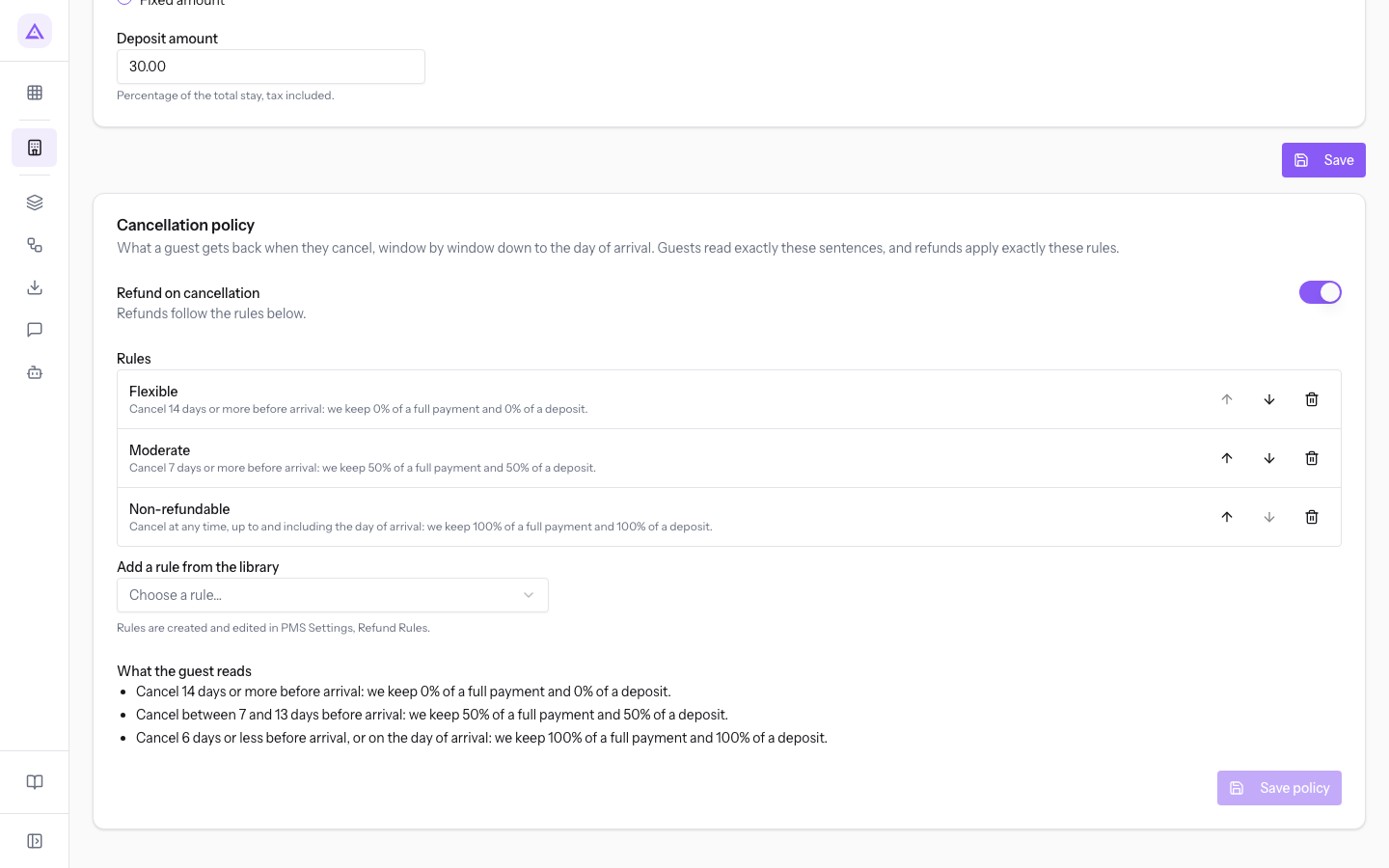
- Refund on cancellation: switch for the refund policy. It is on in the demo.
- Add a rule from the library: the list of refund rules prepared in the module settings and not yet used by the policy.
- Move up and Move down: the order of the rules. Each rule applies based on its days; the order matters only if two rules have the same days, and then the first one applies.
- What the guest reads: the policy text as the guest reads it.
Rules in the library are prepared on the Refund Rules tab of the settings: see Preparing features, beds, refund rules and extra services.
Important: if the rules do not cover all the days up to arrival, the warning This policy leaves a window undefined appears. A cancellation in that window has no defined refund, and the refund calculation declines it instead of refunding everything. Add a rule for 0 days before arrival.
Cancelling a reservation and calculating the refund are described in Cancel a booking and refund the deposit.
See it on your company, not on a slide deck.
In 30 minutes we map the software you use today.We show you how much work and how much margin Archimedes gives back.
Show me on my business →What industry are you in?
One tap — it lets us prepare the demo around your world.
What tools do you use today?
Pick the ones you recognise — or just type them. It helps us show you how they migrate.
Last step: your details.
We reply within one working day — and right after, if you like, you pick the demo slot yourself.
We couldn't send your request. Try again, or write to us at [email protected].
By sending, you agree to your data being processed so we can get back to you about the demo. Privacy notice.
Preview form — nothing is sent from this page.
Want to schedule the demo now?
Your call: book the slot you prefer yourself, or we'll call you to arrange it.
Live availability, 30 minutes, instant confirmation. The calendar opens in a new tab.
Lock in your slot ↗We'll get back to you within one working day — and we'll join the call already knowing your world.
The calendar is open in another tab: pick a slot and the demo is booked. Can't see it? Reopen it ↗
Preview page: nothing was sent.
Our calendar is live: take the slot that suits you and the demo is booked. 30 minutes, instant confirmation, no waiting.
Lock in your slot ↗