Property management
All modules
Create a booking by searching availability
Property management · 4 of 18 · 5 min read
The Search Availability page shows which room types are free for a period and a number of guests, and from there you create the reservation. It is used for reservations taken at the front desk: a phone call, a guest who walks in, or a request that came by email.
Before choosing
The search only offers a room type if it has rooms free for every night and accepts the number of adults and children entered. The reservation is created on the room type: if you do not specify a room, the system assigns the first free room of that type, and the reservation starts in the Reserved status.
- If the guest is already a contact, choose them in the confirmation window: it becomes the customer of the sale order and of the invoice.
- If the guest is not yet a contact, create one from the same window with Create new contact.
- If the dates meet a stay rule set in the Rates calendar, the room type is not sold normally: only a manager can book it anyway, with an override.
Before you start: creating reservations requires at least the Receptionist permission group. Only the PMS Manager group can override stay rules.
Opening the availability search
In PMS › Dashboard press New Booking. The Search Availability page opens, with the Search Criteria panel.
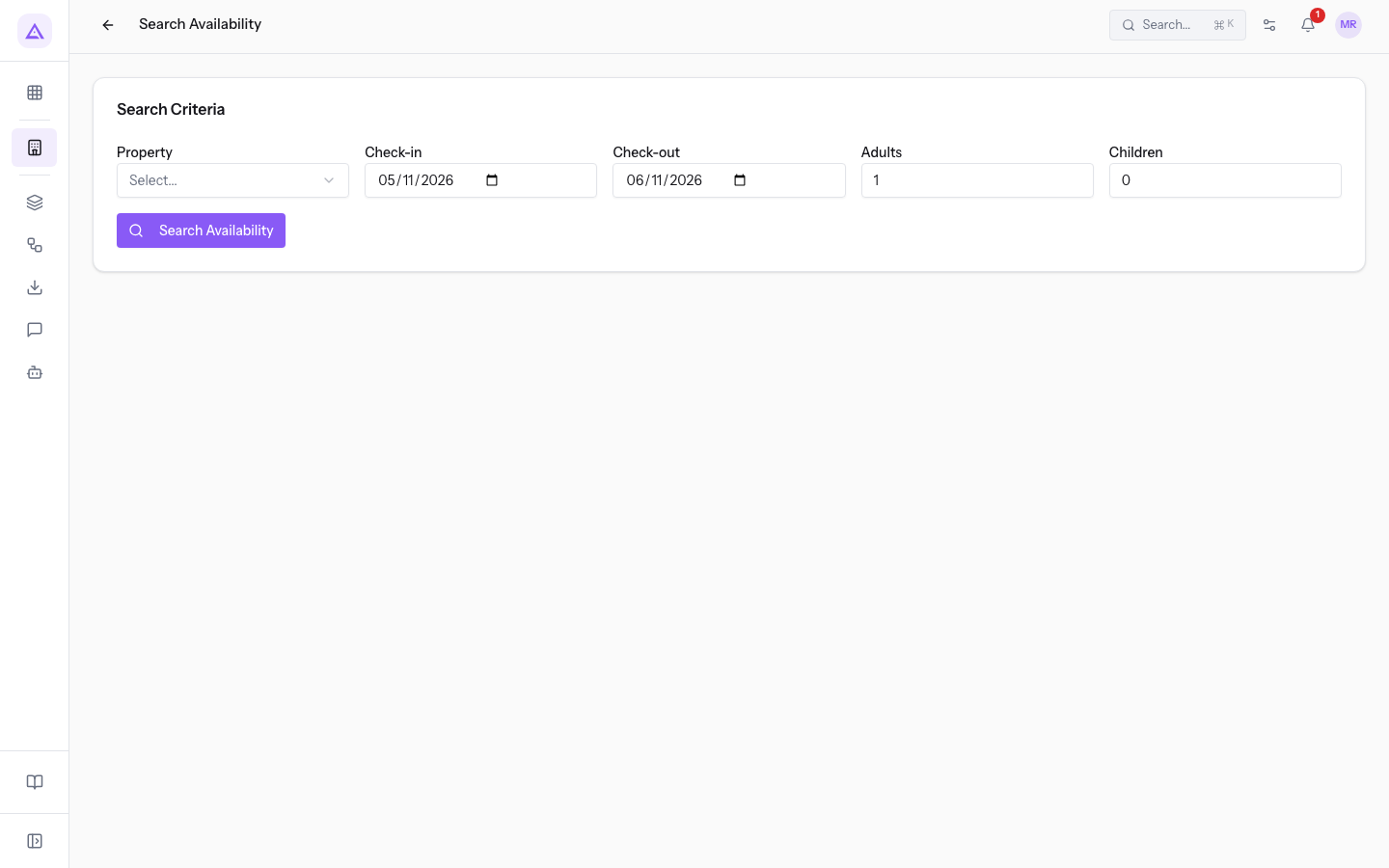
The fields in the Search Criteria panel:
- Property: the property you are searching in. When opened, the field shows Select....
- Check-in: the arrival date. When opened, it proposes tomorrow's date.
- Check-out: the departure date. When opened, it proposes the following day.
- Adults: the number of adults. The starting value is
1. - Children: the number of children. The starting value is
0.
Searching for available rooms
The search lists the room types you can sell for the dates and guests entered.
- Fill in Property, Check-in, Check-out, Adults and Children, for example
Farm stay Azienda Demo, from 7 to 9 November 2026,2adults and0children. - Press Search Availability.
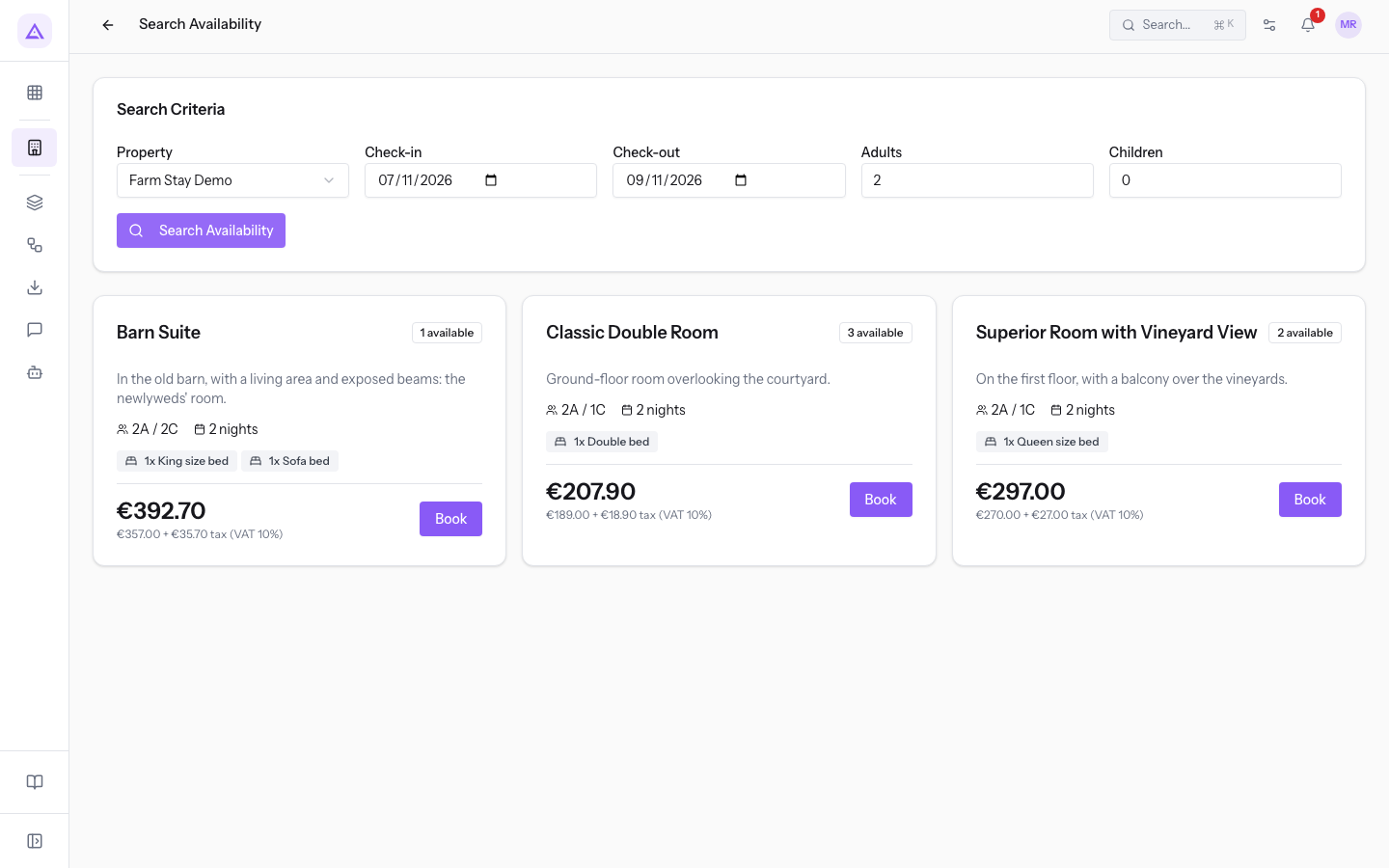
Each result is a room type, with the number of free rooms and the Book button.
If no room type has free rooms for those dates or can host that number of people, the page shows No availability found for the selected criteria. A search for 9 adults at Farm stay Azienda Demo finds no results, because the occupancy limits of the room type apply to each reservation entered by hand.
Confirming the reservation
The confirmation window summarizes the stay and collects the offer, guest and source of the reservation.
- In the result for the chosen room type press Book. The Confirm Booking - Classic Double Room window opens, with the title showing the room type.
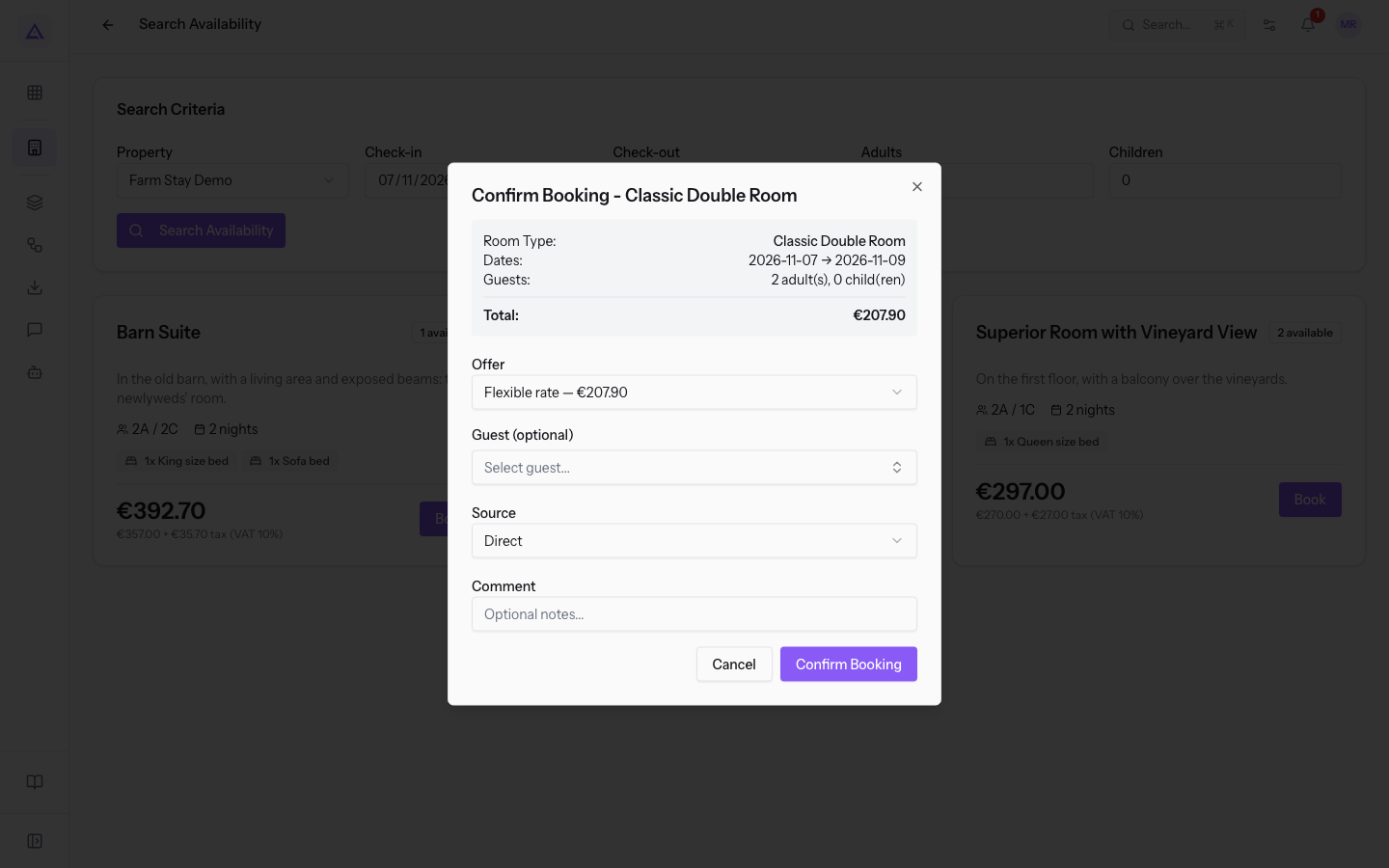
- Check the summary and choose the offer.
- In Guest (optional) press Select guest... and choose the contact.
- In Source choose where the reservation comes from.
- Press Confirm Booking.
What the window contains:
- The summary: the room type, the arrival and departure dates, and the number of adults and children from the search. These cannot be changed in the window: to change them, close the window and repeat the search.
- Offer: the list of sellable rate plans for the room type, each with the price of the stay, for example Flexible rate — €207.90 and Non-refundable — €207.90. It proposes the default offer.
- Guest (optional): the contact making the reservation. The field is not mandatory. Pressing Select guest... opens the list of contacts with:
- Search contacts...: search by name; each contact shows email and phone, useful to tell apart two contacts with the same name, such as the two for
Julia Ferris. - See more: loads more contacts from the list.
- Create new contact: creates the contact of a new guest.
- Search contacts...: search by name; each contact shows email and phone, useful to tell apart two contacts with the same name, such as the two for
- Source: where the reservation comes from. The starting value is Direct. The options:
- Direct
- OTA
- Phone
- Walk-in
- Comment: a free note on the reservation. The field is not mandatory.
Cancel and Close close the window without creating the reservation.
Note: the reservation created starts in the Reserved status. If the guest is entered, they are also the customer of the sale order created at check-out.
To work on the reservation you created, see Read and edit a booking record.
Room types closed by a stay rule
Stay rules set per night in the Rates calendar (minimum stay, closed to arrival, closed to departure) block sales at the front desk. The search shows these room types separately, with the rule that closes them.
For example, at Farm stay Azienda Demo:
- from 5 to 7 November 2026, the Barn Suite appears with the message that the "Flexible rate" offer is closed to arrival on 5 November 2026;
- from 4 to 5 November 2026, that is one night, the Barn Suite and the Family Apartment appear with the message that the "Flexible rate" offer requires a minimum stay of 2 nights from 4 November 2026.
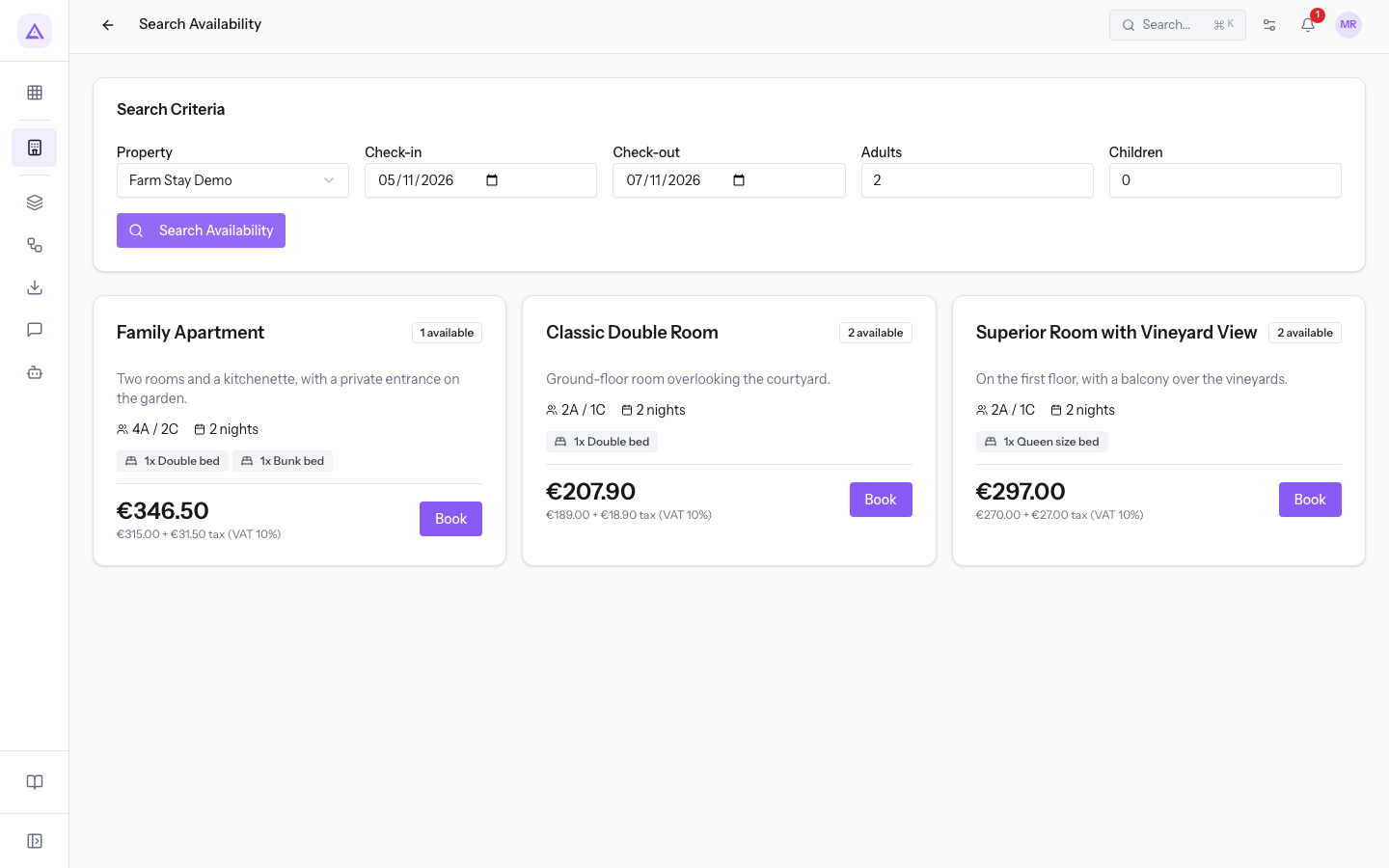
- If the guest can change dates or number of nights, repeat the search with dates that respect the rule.
- If the property decides to sell that stay anyway, a manager uses the override described below.
Reservation anyway with an override
The override lets you sell a stay that a stay rule closes.
Before you start: only managers, that is users in the PMS Manager group, can override a stay rule.
- In the closed room type press Book anyway…. The room type confirmation window opens, with the panel explaining which rule closes the dates.
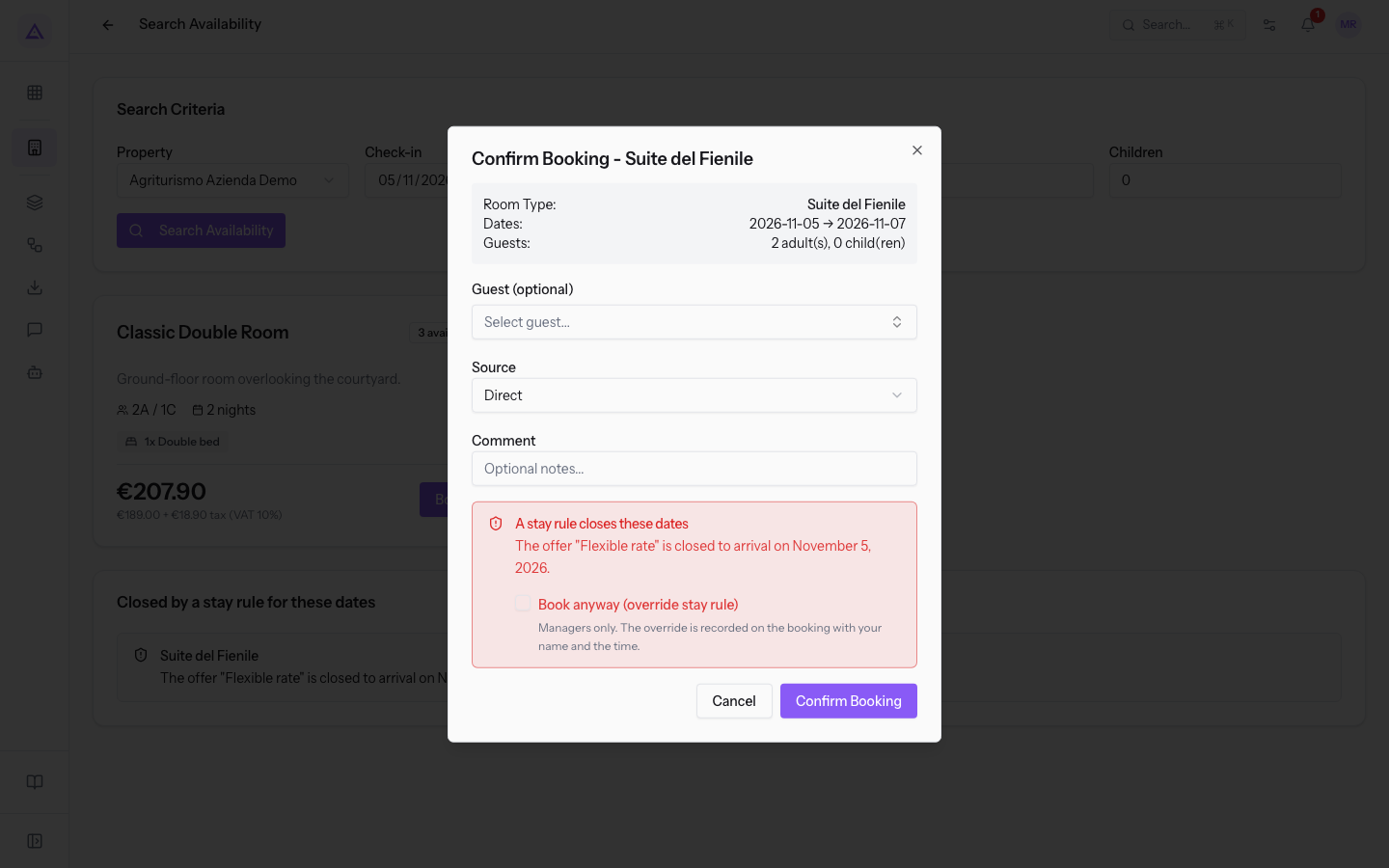
- Fill in Guest (optional), Source and Comment as in a normal reservation.
- Select Book anyway (override stay rule).
- Press Confirm Booking.
Important: the override remains recorded on the reservation.
Stay rules are set in the Rates calendar: see Set rate plans, seasons and prices per night.
See it on your company, not on a slide deck.
In 30 minutes we map the software you use today.We show you how much work and how much margin Archimedes gives back.
Show me on my business →What industry are you in?
One tap — it lets us prepare the demo around your world.
What tools do you use today?
Pick the ones you recognise — or just type them. It helps us show you how they migrate.
Last step: your details.
We reply within one working day — and right after, if you like, you pick the demo slot yourself.
We couldn't send your request. Try again, or write to us at [email protected].
By sending, you agree to your data being processed so we can get back to you about the demo. Privacy notice.
Preview form — nothing is sent from this page.
Want to schedule the demo now?
Your call: book the slot you prefer yourself, or we'll call you to arrange it.
Live availability, 30 minutes, instant confirmation. The calendar opens in a new tab.
Lock in your slot ↗We'll get back to you within one working day — and we'll join the call already knowing your world.
The calendar is open in another tab: pick a slot and the demo is booked. Can't see it? Reopen it ↗
Preview page: nothing was sent.
Our calendar is live: take the slot that suits you and the demo is booked. 30 minutes, instant confirmation, no waiting.
Lock in your slot ↗