Property management
All modules
Registering guests and their identity documents
Property management · 10 of 18 · 6 min read
The guest register collects the personal details and the identity document of every person on a reservation. It tells you who is sleeping in the property and helps you prepare the stay's obligations, such as reporting guests to the police headquarters.
You manage guests and documents in two tabs of the reservation: Guests, with the details of each person, and Documents, with the files of the identity documents.
How the guest register works
Every reservation has its own register. Register all the people of the stay, adults and children, not only the guest who made the reservation.
- If the guest travels alone, choose Single guest.
- If a family arrives, register the person leading it as Head of family and the others as Family or group member.
- If a group arrives, register the person in charge as Group leader and the others as Family or group member.
The register compares the registered guests with the adults and children on the reservation and flags what is missing. The same information feeds the obligations listed under PMS › Compliance.
Important: copies of guests' identity documents are kept for 30 days and then deleted automatically. The law requires reporting to the police headquarters, not keeping a copy. So always record the document details in the guest's record, not only the file.
Checking a reservation's guest register
In the reservation, for example AGR3K7P2, open the Guests tab.
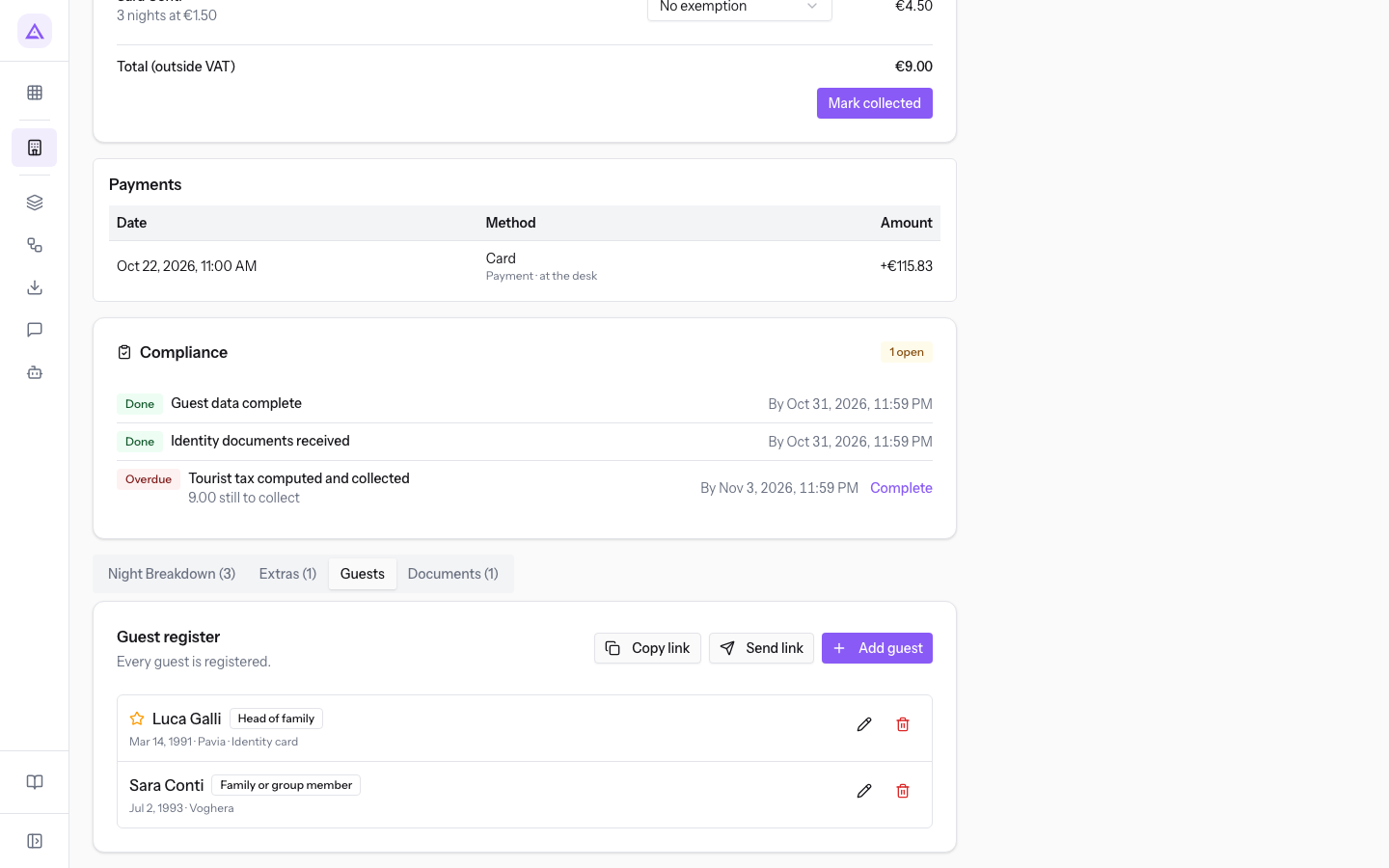
At the top of the Guest register one of these messages appears:
- Every guest is registered.: every person on the reservation is registered with the required details.
- Some guest details are still missing.: the guests are there, but at least one detail is missing. Next to the guest appears "Missing:" followed by the detail to complete.
- "1 guest still to register." or "2 guests still to register.": fewer guests are registered than people on the reservation.
- Nobody has been registered on this booking yet.: the register is empty.
For each guest the row has the Edit guest and Delete icons. Delete asks for confirmation and removes the person from the reservation's guest register.
Copy link and Send link concern the pre-arrival link, with which the guest fills in the register on their own: the first copies the link, the second sends it to the guest by email.
Demo examples:
AGR3K7P2(room 3): complete register with Luke Gallagher, Head of family, and Sarah Conway. Luke Gallagher's identity card is in the Documents (1) tab.AGR5M2Q8(room 6): the reservation is for 2 adults, but only Mark Nelson is registered, and the Documents (0) tab is empty. The register is incomplete.AGR1Q5S3: 2 adults and 1 child, registered as Sarah Conway, Rita Conti and Emma Conti, the underage granddaughter.
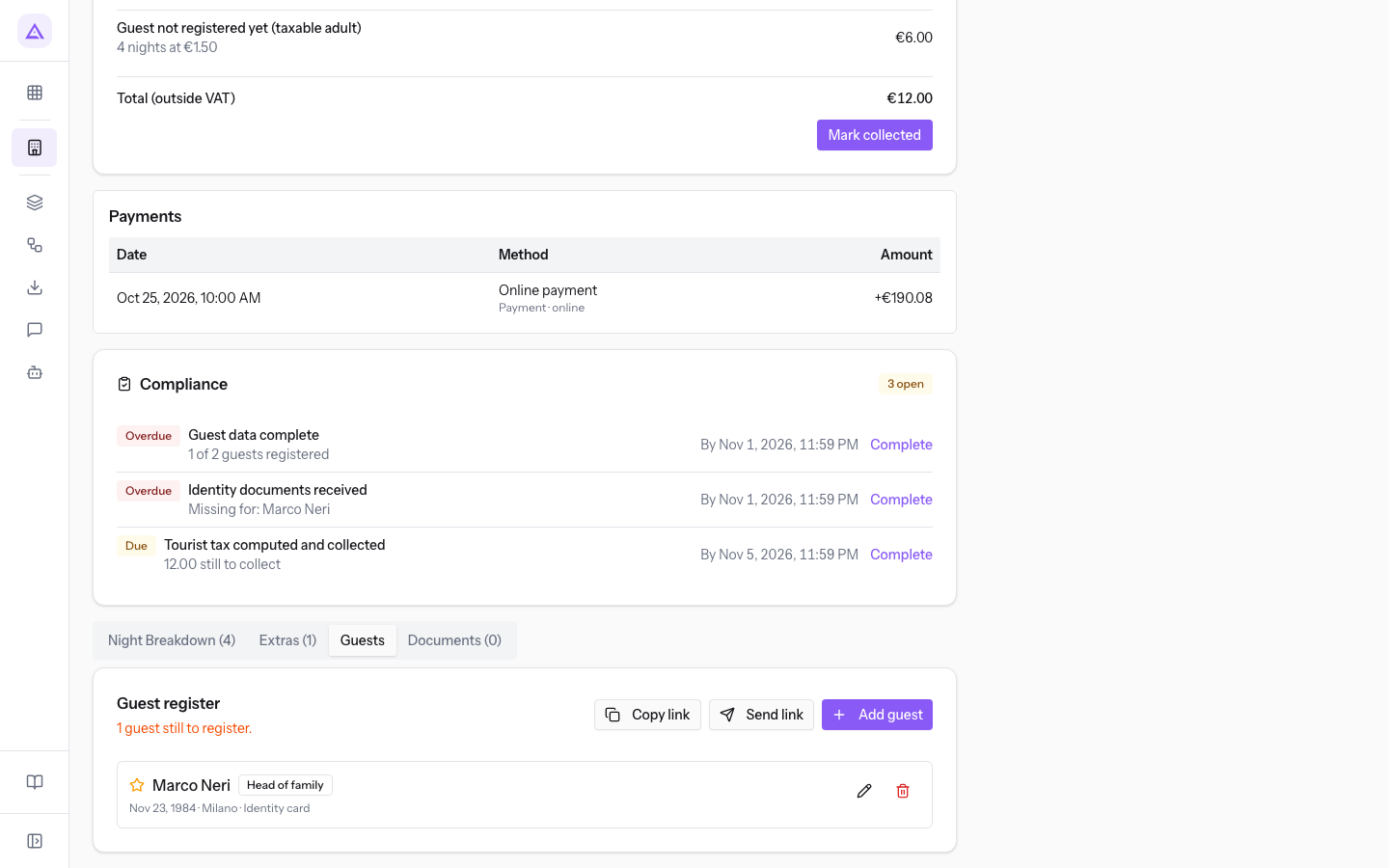
Adding a guest
Add one guest for each person missing from the register.
- In the reservation's Guests tab press Add guest. The Add guest window opens.
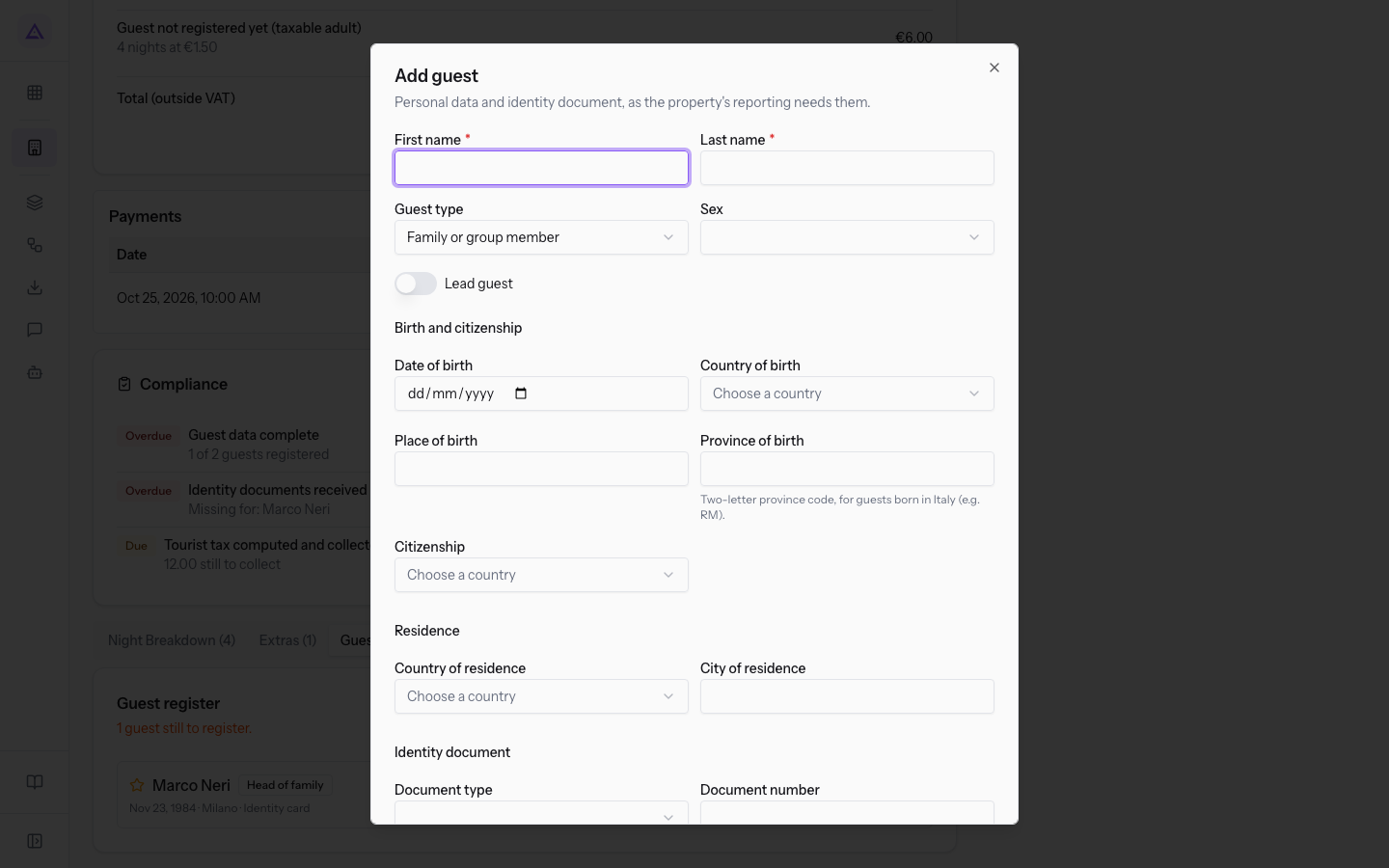
- Fill in the fields described in Guest record fields.
- Press Save. To leave without saving, press Cancel.
Editing a guest's details
Edit a guest to complete the details the register flags as missing, or to correct them.
- In the Guests tab press Edit guest on the guest's row. The Edit guest window opens with the details already entered.
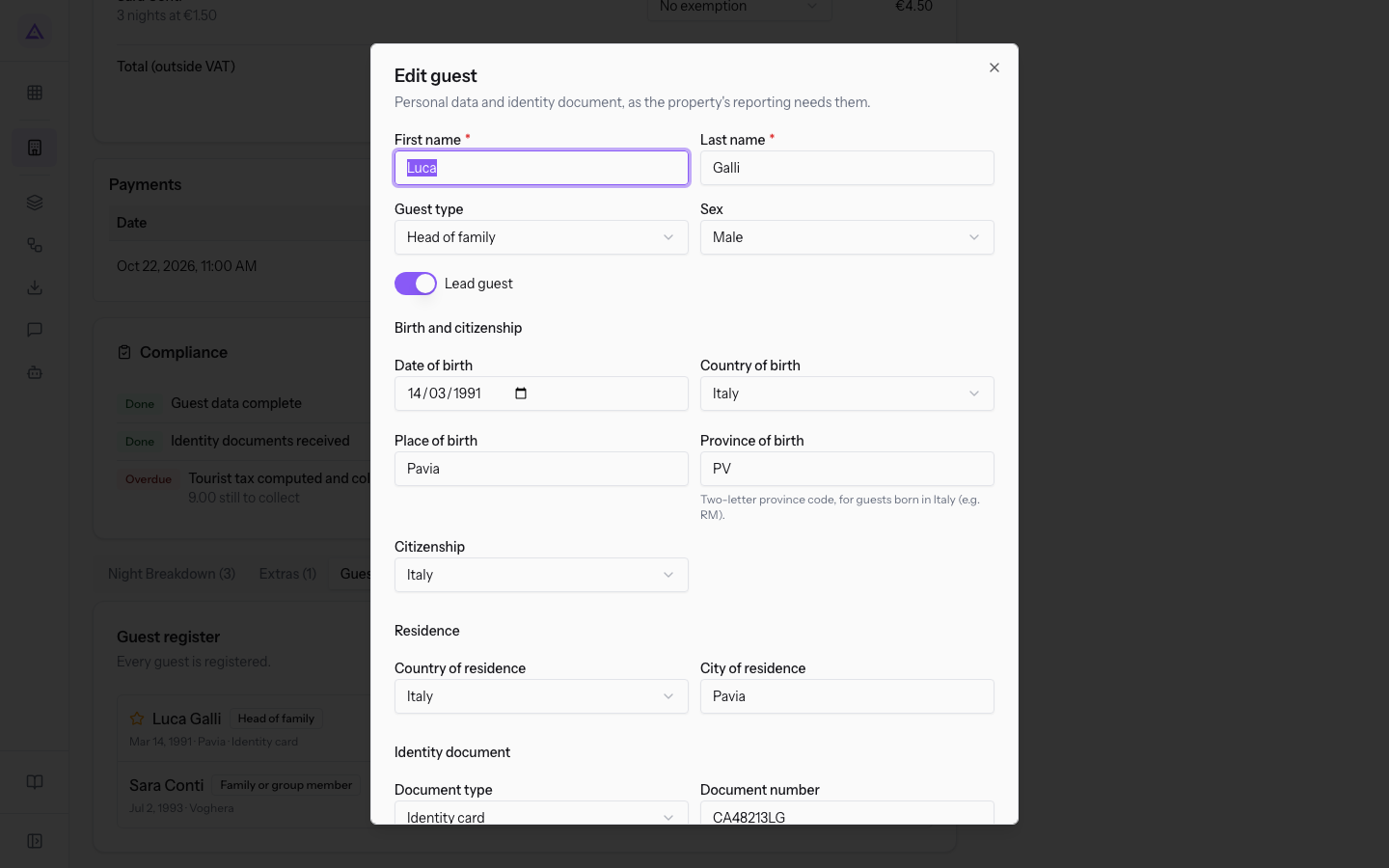
- Update the fields and press Save.
Guest record fields
The Add guest and Edit guest windows have the same fields: the personal details and the identity document required by the property's communications.
- First name and Last name: the guest's first and last name. The fields are required.
- Guest type: the person's role in the stay. For a new guest the proposed value is Family or group member.
- Single guest: someone staying alone.
- Head of family: someone leading a family.
- Group leader: someone leading a group.
- Family or group member: any other person of the family or group.
- Lead guest: switch on for the guest who leads the family or group.
- Sex: Male or Female.
Birth and citizenship section:
- Date of birth.
- Place of birth: the municipality of birth.
- Province of birth: the province code, for those born in Italy.
- Country of birth: the country of birth, to choose from the list.
- Citizenship: the country of citizenship, to choose from the list.
Residence section:
- Country of residence: the country of residence, to choose from the list.
- City of residence.
Identity document section:
- Document type: Identity card, Passport, Driving licence or Other.
- Document number.
- Place of issue: the authority or municipality that issued the document, for example
Comune di Pavia. - Country of issue: the country that issued the document.
Contact section:
- Email and Phone: the guest's contact details.
Note: the document details are entered in the guest's record. The document file is uploaded separately, in the Documents tab.
Uploading the identity document
The Documents tab keeps the document files of the reservation. The number in brackets shows how many files there are, for example Documents (1) in AGR3K7P2 and Documents (0) in AGR5M2Q8.
- Open the reservation's Documents tab.
- Under File choose the photo or scan of the document.
- Under Guest choose who the document belongs to, and under Kind the type of document.
- Press Upload. The message Document uploaded. appears.
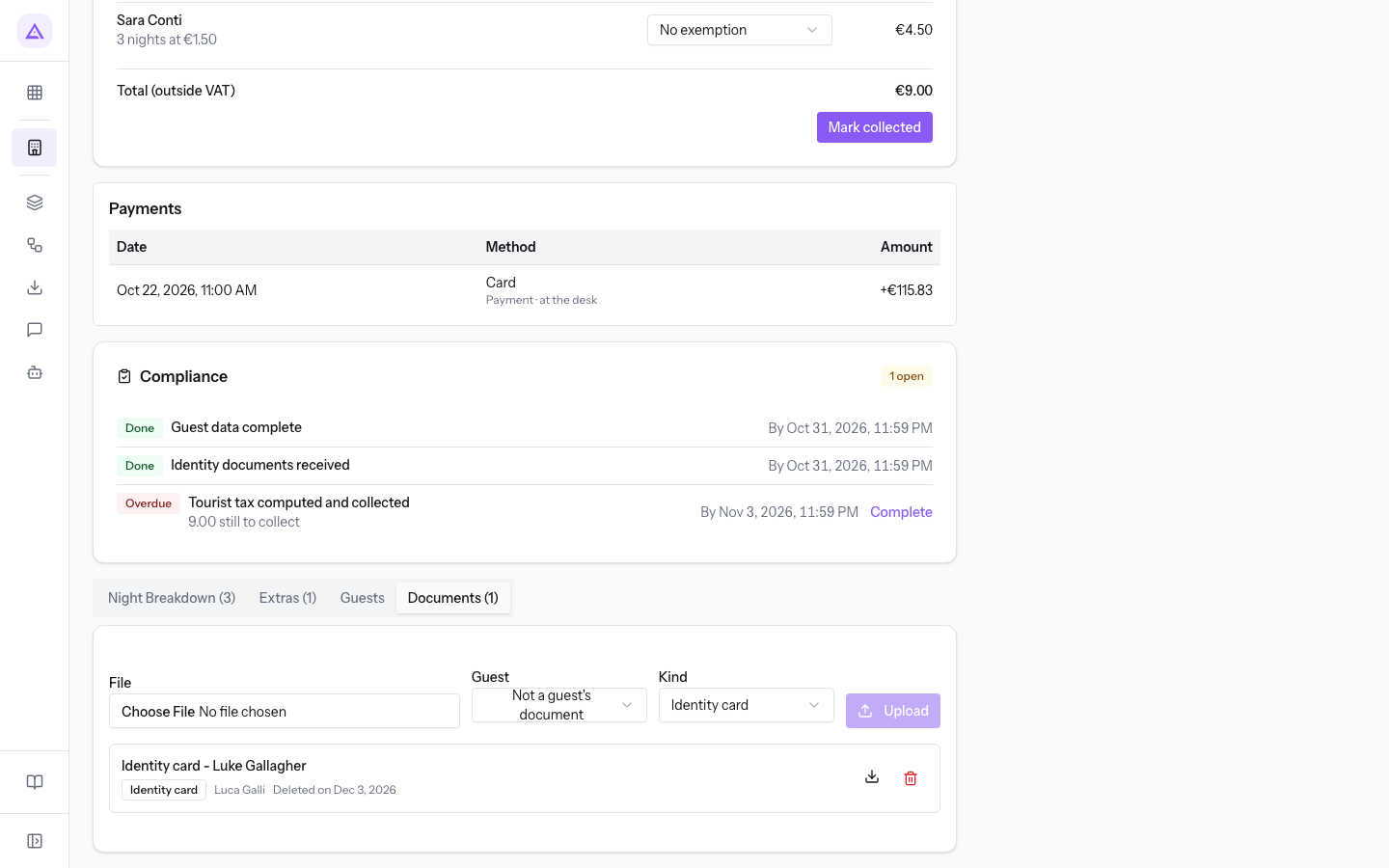
The upload fields:
- File: the document file.
- Guest: the list of registered guests. The proposed value is Not a guest's document: choose it for a file that does not belong to a person on the register.
- Kind: Identity card (proposed), Passport, Driving licence or Other.
Next to each file, Deleted on shows the day the file will be deleted automatically.
Tip: register the guest in the Guests tab first. Only registered guests appear in the Guest field.
Downloading or deleting a document
For each uploaded file the Documents tab has the Download and Delete buttons.
- To open a copy of the file press Download.
- To remove the file press Delete and confirm the question Delete this document?. The message Document deleted. appears.
If there is no file, the tab shows No documents on this booking.
Important: copies of documents are deleted automatically after 30 days. Download the file only if you need it during the stay; the document details remain in the guest's record.
See it on your company, not on a slide deck.
In 30 minutes we map the software you use today.We show you how much work and how much margin Archimedes gives back.
Show me on my business →What industry are you in?
One tap — it lets us prepare the demo around your world.
What tools do you use today?
Pick the ones you recognise — or just type them. It helps us show you how they migrate.
Last step: your details.
We reply within one working day — and right after, if you like, you pick the demo slot yourself.
We couldn't send your request. Try again, or write to us at [email protected].
By sending, you agree to your data being processed so we can get back to you about the demo. Privacy notice.
Preview form — nothing is sent from this page.
Want to schedule the demo now?
Your call: book the slot you prefer yourself, or we'll call you to arrange it.
Live availability, 30 minutes, instant confirmation. The calendar opens in a new tab.
Lock in your slot ↗We'll get back to you within one working day — and we'll join the call already knowing your world.
The calendar is open in another tab: pick a slot and the demo is booked. Can't see it? Reopen it ↗
Preview page: nothing was sent.
Our calendar is live: take the slot that suits you and the demo is booked. 30 minutes, instant confirmation, no waiting.
Lock in your slot ↗