Property management
All modules
Accept or decline a booking request from the website
Property management · 9 of 18 · 4 min read
When the property confirms reservations on request, a guest who books from the public page sends a request, not a confirmed reservation. The reservation page shows the request and lets you accept or decline it.
When requests arrive
You only receive requests if, in the Online booking tab of the property, under How bookings are confirmed, Request to book is selected. With Instant confirmation, a reservation from the website is confirmed right away.
- If you want to check every reservation before confirming it, choose Request to book.
- If you want the guest to get confirmation straight away, choose Instant confirmation.
To check the setting, go to PMS › Properties, open the property, then the Online booking tab.
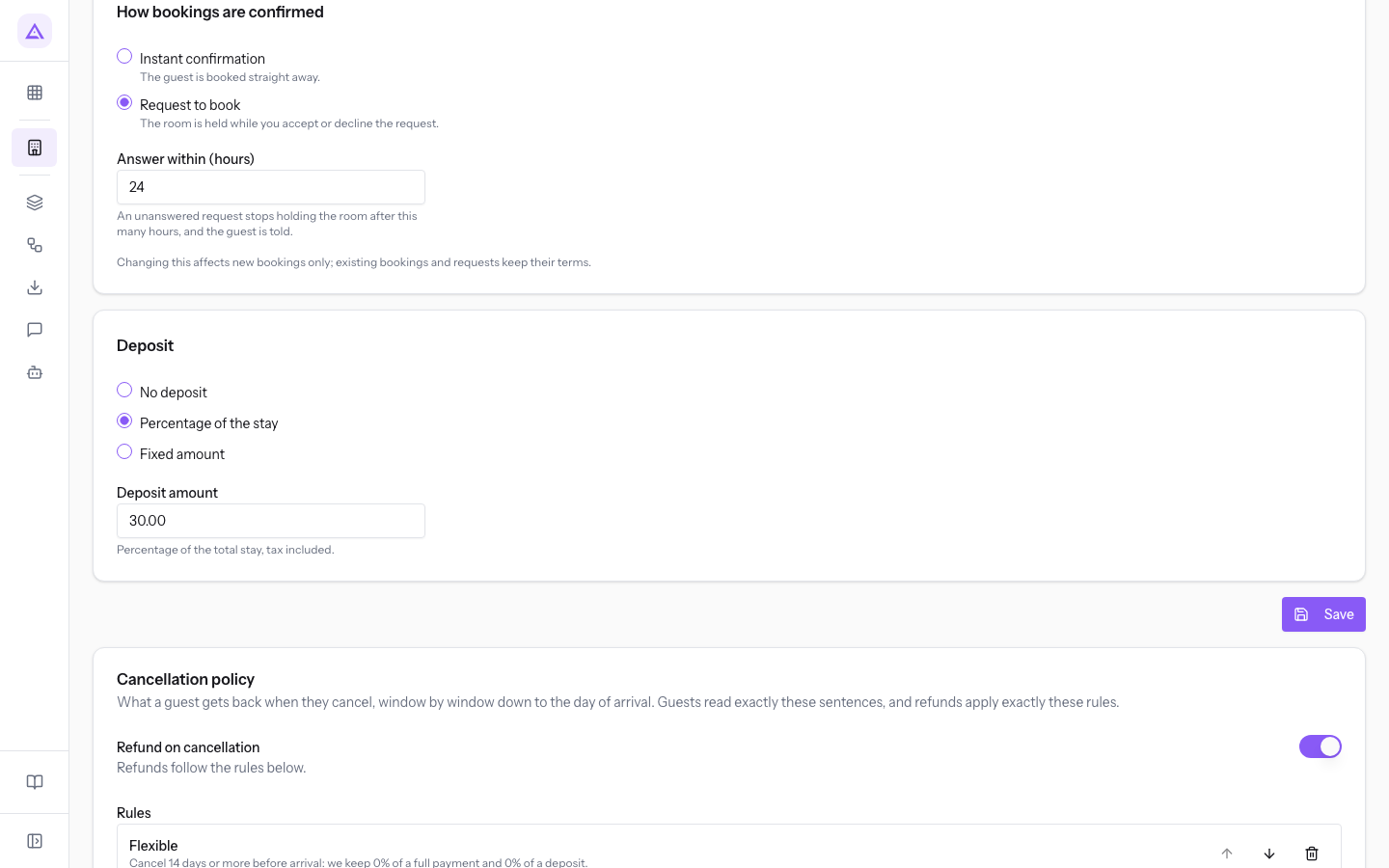
- Instant confirmation: the reservation from the website is confirmed without action from the property.
- Request to book: the reservation from the website stays pending until the property responds.
- Answer within (hours): the time you have to respond to a request. In the demo it is
24.
Press Save to record the changes.
Statuses of a request
A request holds the room from the moment the guest sends it: the room cannot be sold to others while the request is open. A request moves to only one of the following statuses.
- Request: the request is open and waiting for your response. The room stays held.
- Reserved: you accepted the request. It becomes a confirmed reservation.
- Declined: you declined the request. The room goes back on sale.
- Expired: no one responded before the deadline. The room goes back on sale and the guest receives an email.
- Withdrawn: the guest withdrew the request from the management link for their reservation. The room goes back on sale.
When a request ends as Declined, Expired or Withdrawn, any sale order for the stay is cancelled and anything the guest has already paid is refunded in full, without applying the cancellation policy.
Important: after the deadline the request can no longer be accepted.
Opening a request
In PMS › Bookings, press All and then the row of the request, for example AGR3P7L6.
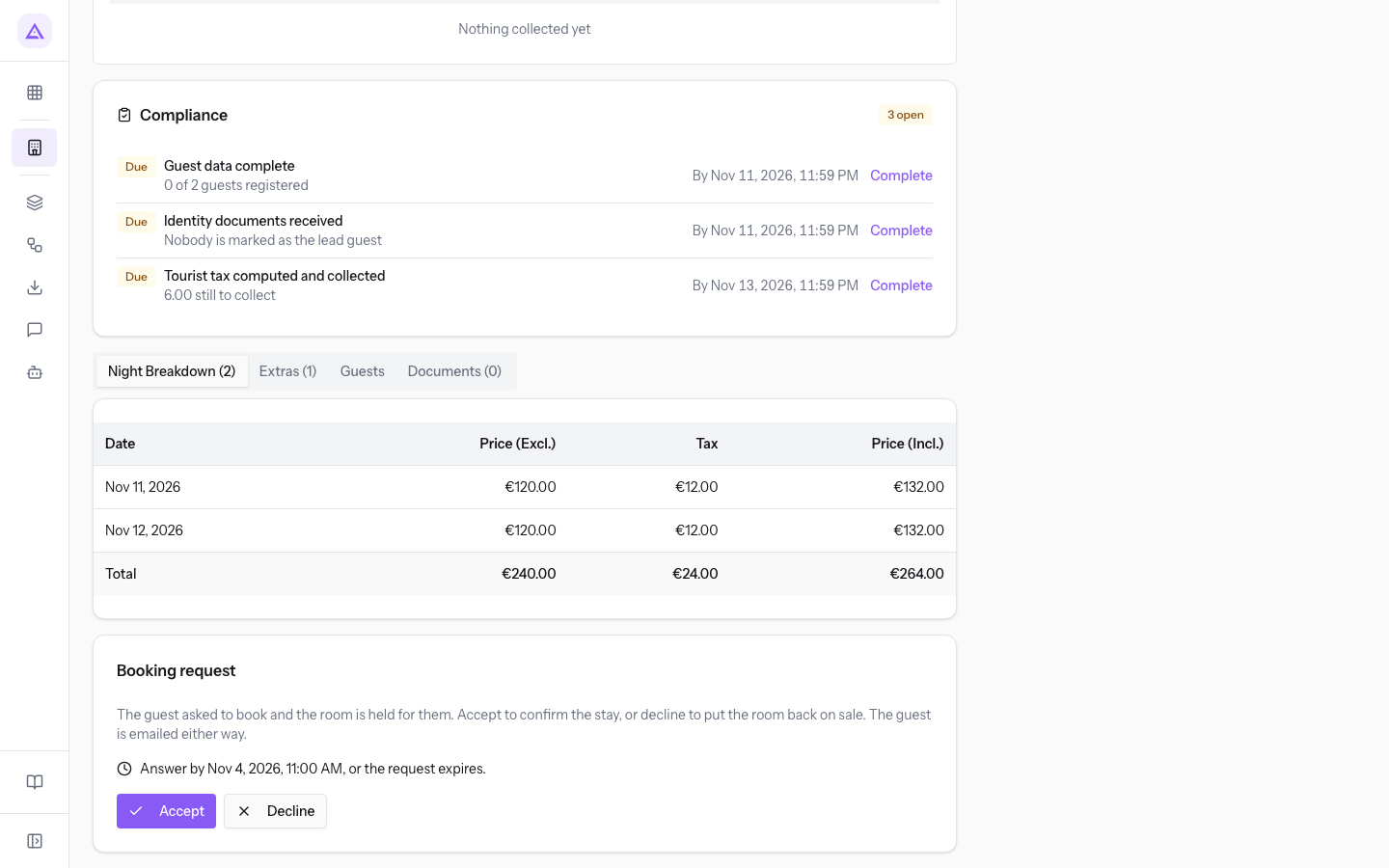
The page shows the Request status and the stay details: in the demo, the property Farm stay Azienda Demo, the room type Superior Room with Vineyard View, the guest Frances Russell, the channel Website, the comment Website request: asks whether the room has a balcony., two nights under Night Breakdown (2), and the Deposit unpaid flag.
The Booking request panel shows:
- the text
The guest asked to book and the room is held for them. Accept to confirm the stay, or decline to put the room back on sale. The guest is emailed either way. - the response deadline, in the form «Answer by Nov 1, 2026, 11:00 AM, or the request expires.»; the date follows the property's Answer within (hours) value.
- the Accept and Decline buttons.
Accepting a request
Accept the request when you want to confirm the reservation. The room was already held, so no new availability check is needed.
- On the request page, press Accept.
- In the Accept this request? window, press Accept to confirm, or Cancel to go back to the page.
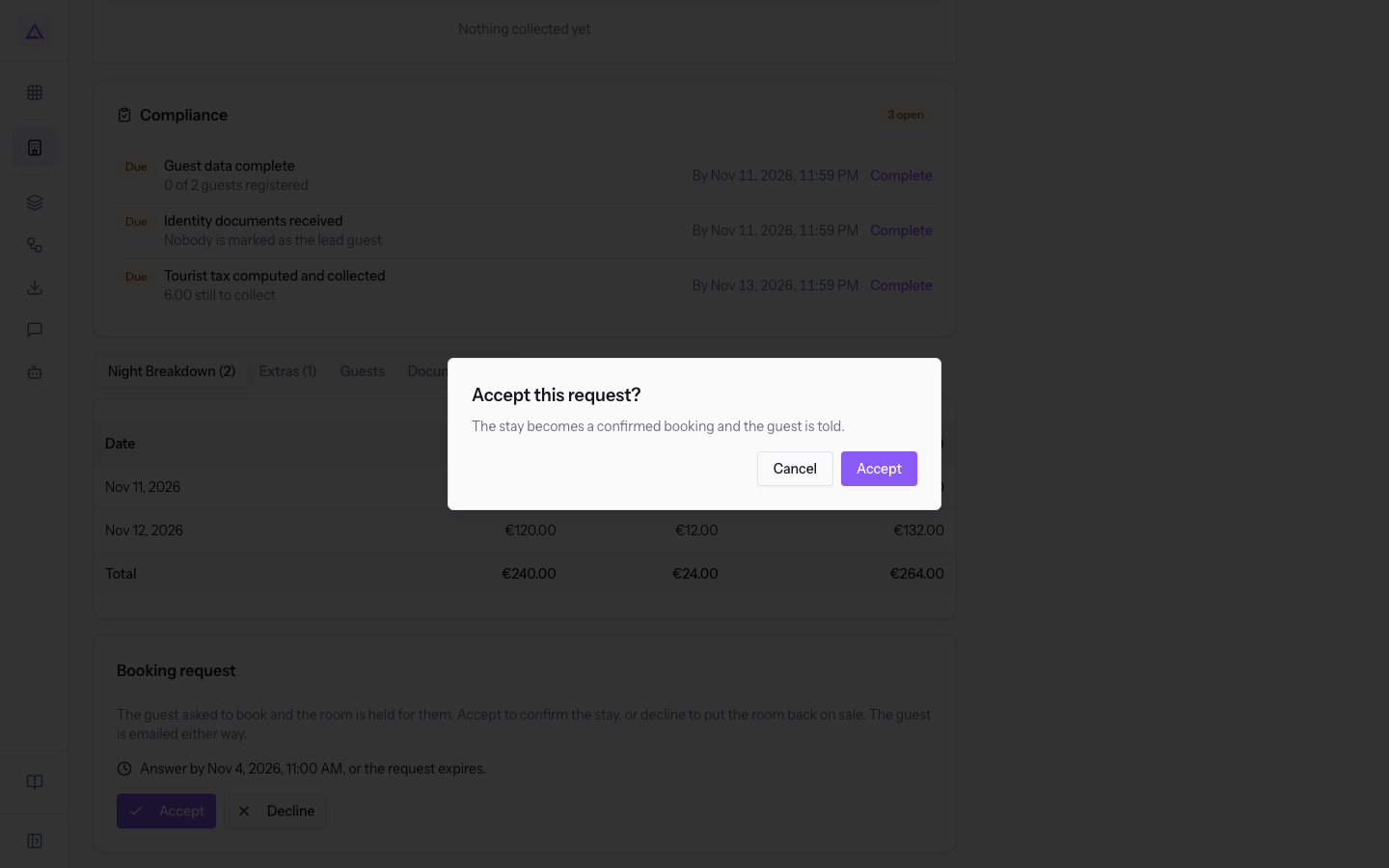
The window explains that the stay becomes a confirmed reservation and that the guest is notified.
After confirming:
- the reservation moves to the Reserved status;
- if the property asks for a deposit, the payment request is created at this point, not when the guest sent the request;
- the guest receives an acceptance email.
Note: the response sends a real email to the guest. In the demo, open the window and press Cancel.
Declining a request
Decline the request when you cannot or do not want to host the stay.
- On the request page, press Decline.
- In the Decline this request? window, press Decline to confirm, or Cancel to go back to the page.
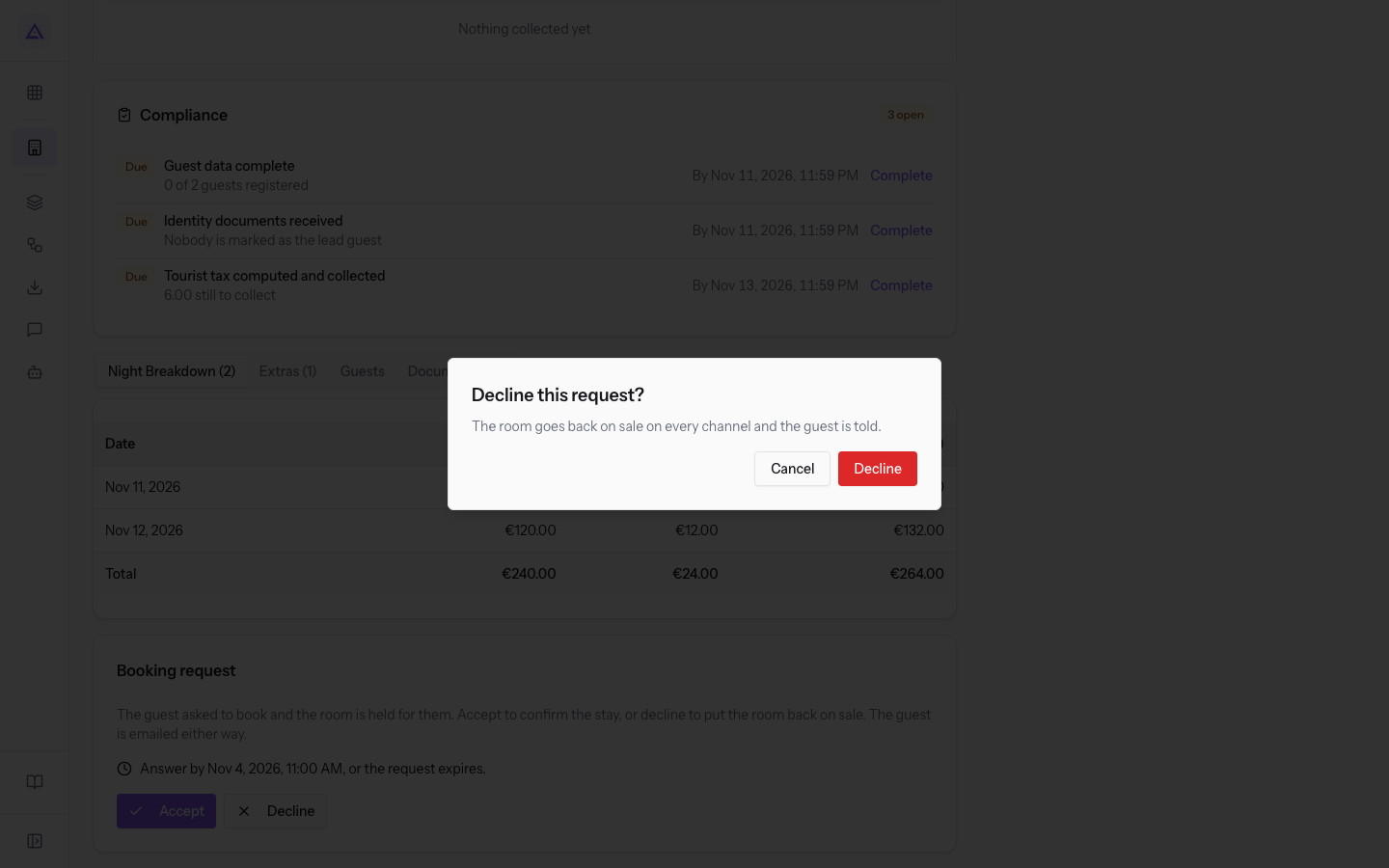
The window explains that the room goes back on sale on all channels and that the guest is notified.
After confirming, the request moves to the Declined status, the room becomes available again for those dates, and the guest receives an email. If the guest had already paid, the amount is refunded in full.
Note: declining also sends a real email to the guest. In the demo, open the window and press Cancel.
See it on your company, not on a slide deck.
In 30 minutes we map the software you use today.We show you how much work and how much margin Archimedes gives back.
Show me on my business →What industry are you in?
One tap — it lets us prepare the demo around your world.
What tools do you use today?
Pick the ones you recognise — or just type them. It helps us show you how they migrate.
Last step: your details.
We reply within one working day — and right after, if you like, you pick the demo slot yourself.
We couldn't send your request. Try again, or write to us at [email protected].
By sending, you agree to your data being processed so we can get back to you about the demo. Privacy notice.
Preview form — nothing is sent from this page.
Want to schedule the demo now?
Your call: book the slot you prefer yourself, or we'll call you to arrange it.
Live availability, 30 minutes, instant confirmation. The calendar opens in a new tab.
Lock in your slot ↗We'll get back to you within one working day — and we'll join the call already knowing your world.
The calendar is open in another tab: pick a slot and the demo is booked. Can't see it? Reopen it ↗
Preview page: nothing was sent.
Our calendar is live: take the slot that suits you and the demo is booked. 30 minutes, instant confirmation, no waiting.
Lock in your slot ↗