Property management
All modules
Read and edit a booking record
Property management · 5 of 18 · 8 min read
The reservation page gathers the stay, the money, the nights, the extras and the discussion on one page. From here you correct the guest, the number of guests, the source and the comment, change dates, room and offer, and add extras.
Open the reservation page
The page is titled Booking followed by the confirmation code. In PMS › Bookings, press the row of the reservation, for example AGR2H9T5 for Helen Bright.
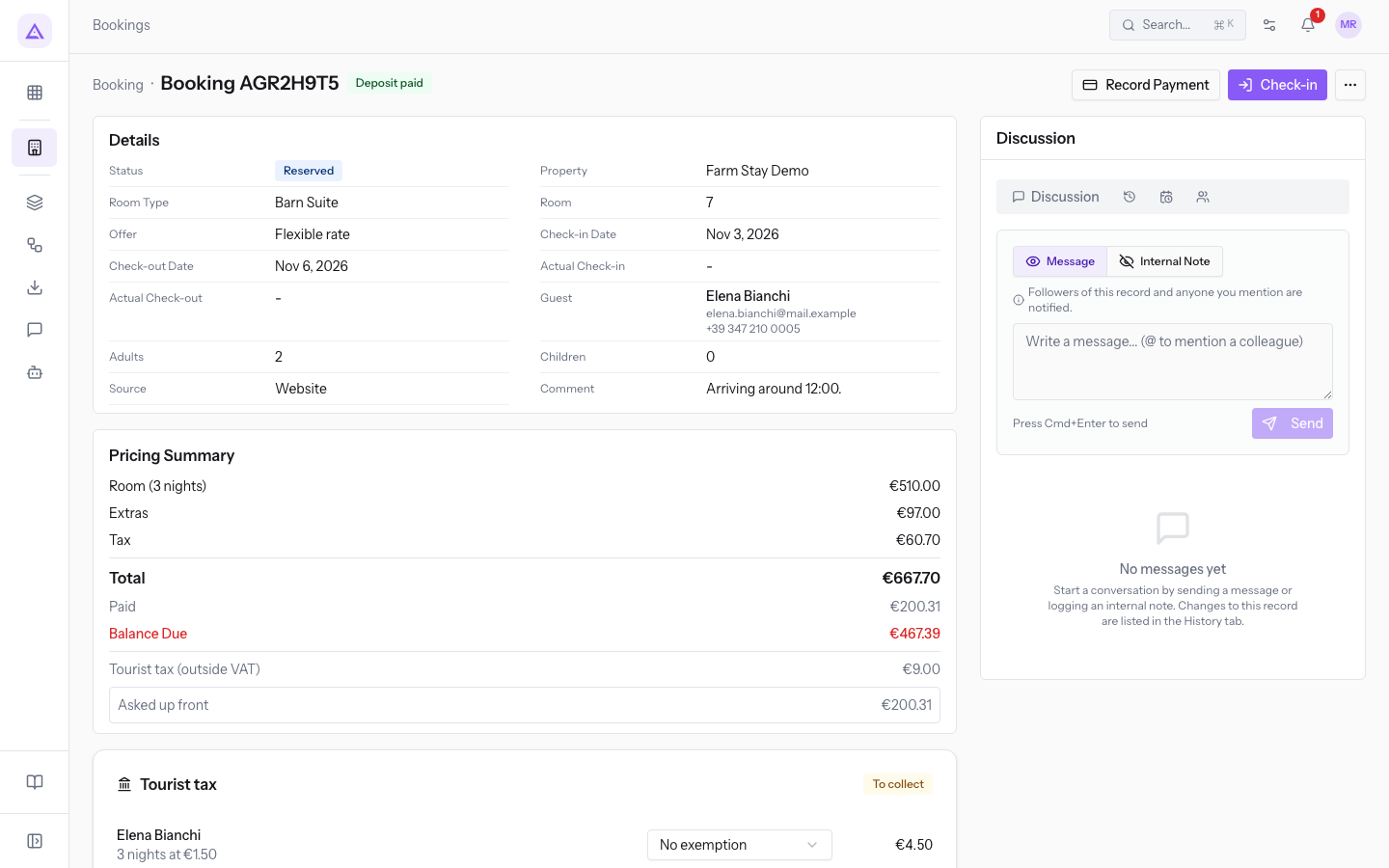
The top of the page has the header with the buttons. Below it are the sections Details, Pricing Summary, Tourist tax, Payments and Compliance, then the tabs for nights, extras, guests and documents. On the right is the Discussion panel.
The header
The header shows the reservation code, the deposit status and the actions available in the current status.
- Deposit paid / Deposit unpaid: shows whether the deposit requested by the property has been collected.
AGR2H9T5shows Deposit paid. - Main button: changes with the status. On a Reserved reservation it is Check-in, as in
AGR2H9T5; on a Checked In reservation it is Check-out, as inAGR5M2Q8for Mark Nelson. - Record Payment: opens the window to record a payment.
- More actions: the ⋯ menu with the other operations. On
AGR2H9T5it contains Modify dates or room, Mark as no-show, Send guest booking link, Create Sale Order, Calculate Refund and Cancel Booking.
Important: Send guest booking link immediately sends an email to the guest.
Check-in, check-out, no-show, payments, cancellation and the sale order each have a dedicated article. This article covers Modify dates or room.
Edit the reservation data
The Details section shows the status, the Property, the Room Type, the Room, the Offer and the dates. This data is not edited here: the room, offer and dates are changed with Modify dates or room. The guest, the number of guests, the source and the comment are edited by pressing the value, without opening a window.
- Press the value to change, for example the guest name
Helen Bright. - Type or choose the new value.
- To keep the value as it was, press Cancel.
The fields are these:
- Guest: the contact the reservation is under, with email and phone. Pressing it opens the search Search a guest by name, email or phone...; Clear selection removes the chosen guest.
- Adults and Children: the number of adults and children.
- Source: where the reservation came from. On
AGR2H9T5it is Website. The options are:- Direct
- OTA
- Phone
- Walk-in
- Website
- Comment: a free note on the reservation.
The Tourist tax section contains each guest's exemption and the Mark collected button; the Compliance section holds the stay's obligations. They are described in the article on compliance and the tourist tax.
Note: the occupancy limits of the room type also apply when you change the number of guests by hand.
Important: Checked Out, Cancelled and No-show are closed statuses: dates, room and extras can no longer be changed. After Cancelled or No-show, or when a sale order exists, the guest cannot be changed either, because the order has already copied the customer.
If the reservation comes from a channel, the page shows a notice: dates and cancellation are managed on the channel, while you can still move the guest to another room of the same type, edit notes and extras, and record check-in and check-out.
Read the amounts of the stay
The Pricing Summary section summarizes what the stay costs and what is still to be collected.
- Balance Due: the amount still to be paid, that is the total minus what has already been collected. For
AGR2H9T5it is€540.54, out of a total of€772.20. - Paid: how much the guest has already paid. If they have paid more than due, Overpaid appears.
- Asked up front and Still to receive: the deposit requested by the property and the part not yet collected.
The Payments list shows each payment with date, time, method and amount; on AGR2H9T5 there is the online deposit payment. How to record a payment is explained in the article on payments and deposits.
Check the price of each night
The Night Breakdown tab lists one row for each night of the stay, with its price. The number in brackets is the number of nights: AGR5M2Q8 for Mark Nelson shows Night Breakdown (4).
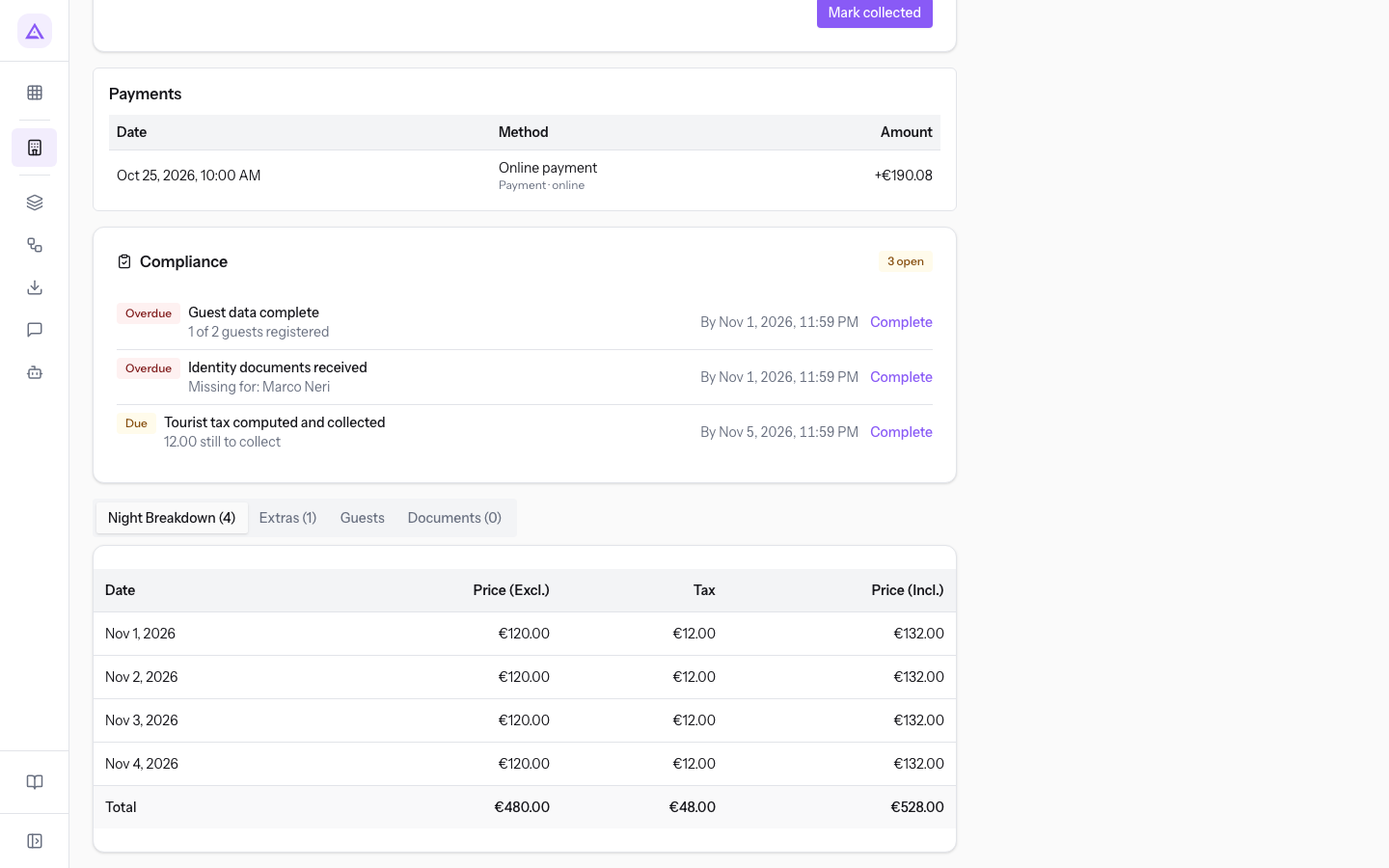
For each night the row shows:
- Price (Excl.): the price of the night without VAT.
- Tax: the tax applied to the night.
- Price (Incl.): the price of the night with VAT.
Each night keeps the price calculated when the reservation was made. Friday and Saturday nights may cost more because of the adjustments in the rate plan, such as the Weekend adjustment in the demo.
Add and remove extras
The Extras tab lists the extras of the reservation. AGR2H9T5 shows Extras (2): Farm breakfast and Early check-in.
- Open the Extras tab.
- To add an extra, choose an item in Add extra....
- To change the quantity, type the number in Qty.
- To remove an extra, press Remove extra in its row.
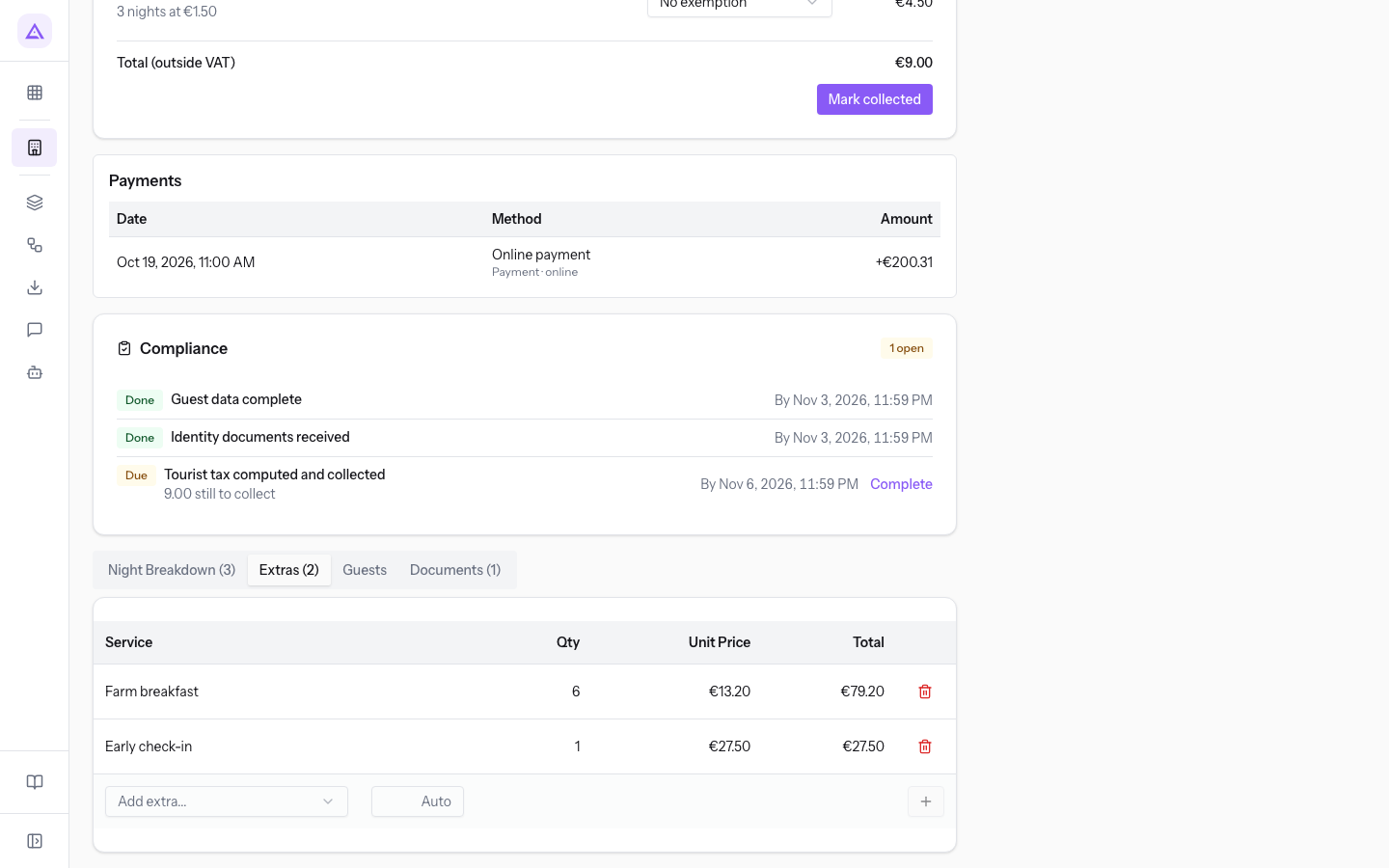
Each row shows the extra, the quantity, the Unit Price and the total.
Extras calculated per night or per person follow the nights and guests automatically: if you extend the stay or add a guest, the quantity updates. The exception is a quantity entered by hand, which stays as typed.
- If you want the extra to follow the stay, leave the calculated quantity.
- If the guest asked for a specific quantity, type it in Qty: it will not change with the dates.
Change dates, room or offer
The Modify dates or room item opens the Modify booking window, which is used to change the dates of the stay, the room or the offer.
Before changing the dates, consider how the price is calculated:
- Nights already booked keep their price; only the added nights are priced at today's rates.
- Changing the offer recalculates the price of each night.
- If the guest extends the stay, only Check-out Date changes: the nights already paid do not change price.
- If the guest moves to another rate, change the offer: the whole stay is recalculated.
- In the reservation page, press More actions and choose Modify dates or room.
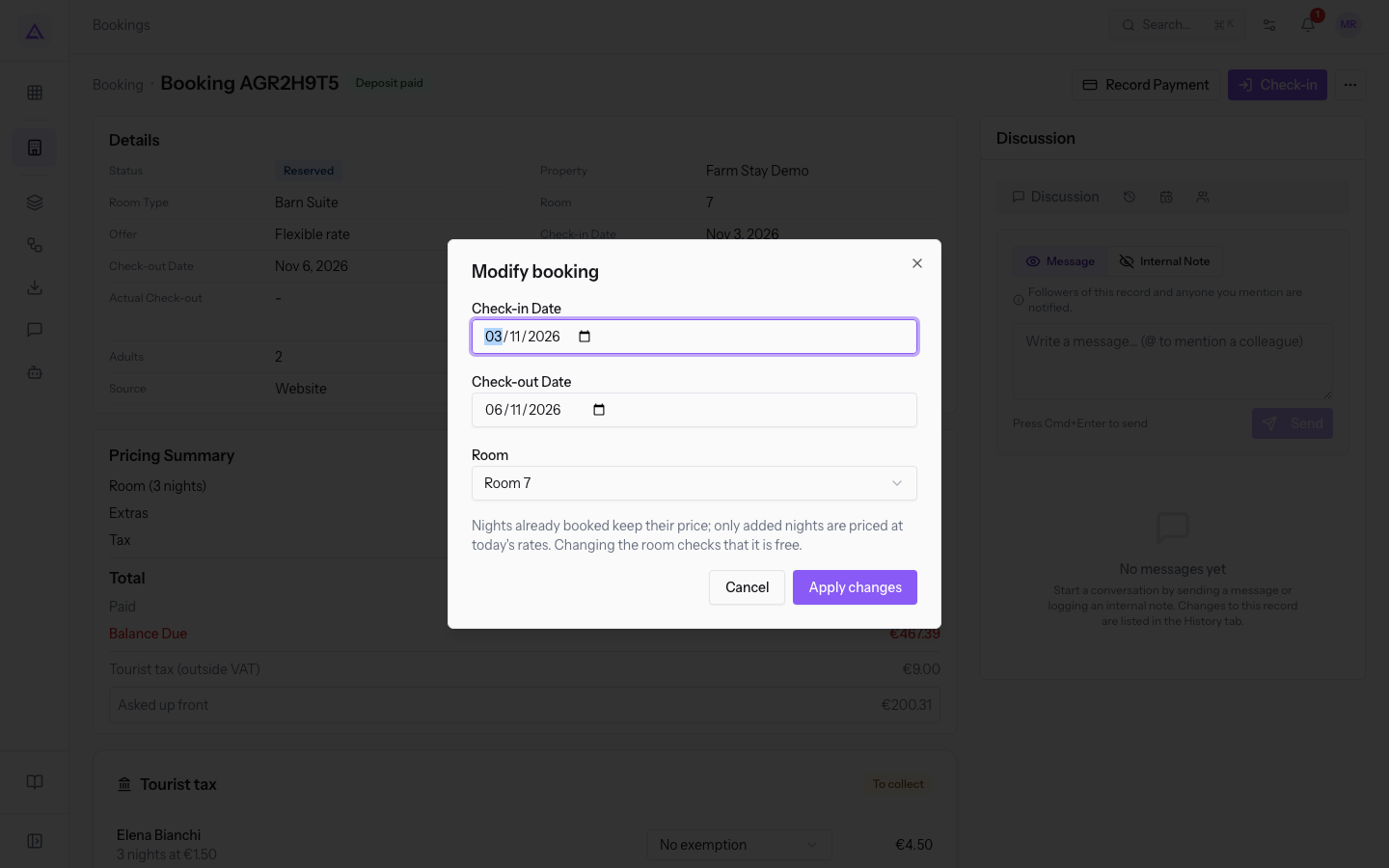
- Change the fields you need. To shorten
AGR2H9T5by one night, move Check-out Date from03/11/2026to02/11/2026. - Read the new total below the fields:
Total changes from €772.20 to €557.70: -€214.50.
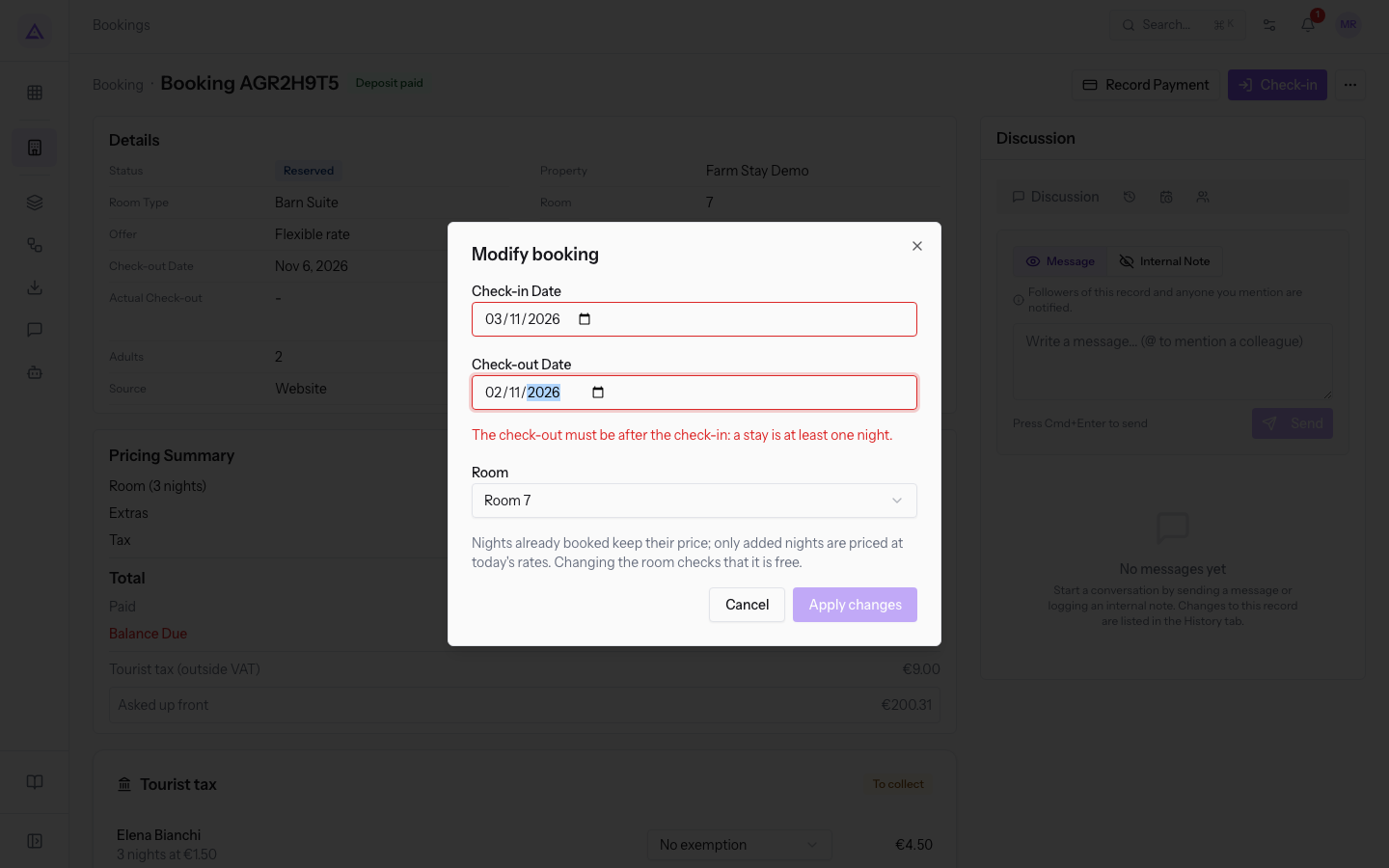
- Press Apply changes. To leave without saving, press Cancel.
The fields of the window are these:
- Check-in Date: the arrival date. For a guest already in house it cannot be changed, and the window explains this with the message
The guest is checked in, so the arrival date can't change. - Check-out Date: the departure date. It must be after the check-in, because a stay lasts at least one night.
- Room: the assigned room, chosen among those of the same type. Changing the room checks that the new room is free.
- Offer: the rate plan. It appears only if the room type has more than one offer: it appears on
AGR5M2Q8, not onAGR2H9T5. - Move from the night of: appears only when you change the room of a guest already in house. The previous nights stay recorded on the room where the guest slept.
Below the fields, the window shows by how much the total changes before you confirm.
Note: the stay rules of the rate calendar (minimum and maximum stay, closed to arrival or departure) also apply to the new dates.
Check the extras you set by hand
If you change dates or guests and the reservation has per-night or per-person extras with a quantity you typed in by hand, the window Check the extras you set by hand appears.
The window explains that the stay has changed and that those extras, although charged per night or per guest, kept the quantity you set by hand. Check the quantities and, if needed, correct them in the Extras tab with the Qty field.
Discussion and history
The Guests and Documents (1) tabs contain the guest register and their identity documents, described in the article on guest registration.
The panel on the right collects the reservation's history:
- Discussion: messages about the reservation. Press Message, write in the field and press Send; with Internal Note you write a note visible only to staff.
- History: the change history of the reservation.
- Tasks: activities scheduled on the reservation.
- Followers: who follows the reservation.
See it on your company, not on a slide deck.
In 30 minutes we map the software you use today.We show you how much work and how much margin Archimedes gives back.
Show me on my business →What industry are you in?
One tap — it lets us prepare the demo around your world.
What tools do you use today?
Pick the ones you recognise — or just type them. It helps us show you how they migrate.
Last step: your details.
We reply within one working day — and right after, if you like, you pick the demo slot yourself.
We couldn't send your request. Try again, or write to us at [email protected].
By sending, you agree to your data being processed so we can get back to you about the demo. Privacy notice.
Preview form — nothing is sent from this page.
Want to schedule the demo now?
Your call: book the slot you prefer yourself, or we'll call you to arrange it.
Live availability, 30 minutes, instant confirmation. The calendar opens in a new tab.
Lock in your slot ↗We'll get back to you within one working day — and we'll join the call already knowing your world.
The calendar is open in another tab: pick a slot and the demo is booked. Can't see it? Reopen it ↗
Preview page: nothing was sent.
Our calendar is live: take the slot that suits you and the demo is booked. 30 minutes, instant confirmation, no waiting.
Lock in your slot ↗