Property management
All modules
Create the sale order and invoice for a stay
Property management · 12 of 18 · 5 min read
A stay's bill is closed with a sale order made out to the guest, with the lines for the nights, the extras and the tourist tax. From the reservation page you create the order, if it is missing, and then the invoice.
How the sale order comes about
Usually the order does not need to be created by hand: check-out creates it automatically. Sometimes, however, creation fails. In that case check-out is still valid, because the guest has already left the room and the bill cannot block it. The reservation shows the warning, and the order is created from the page.
- If the guest has checked out and the page shows the No bill yet box, create the order with Create Sale Order.
- If the order already exists, open it with View Sale Order and create the invoice with Create Invoice.
- If the stay changed after invoicing, follow the next step shown in the The invoice no longer matches this stay notice.
When the order is created, the customer is copied from the reservation. From that moment the reservation's guest can no longer be changed.
Note: an extra linked to a product leaves the property's warehouse at the moment the guest is invoiced.
Recognizing a stay with no bill
If a closed stay has no sale order, the reservation page flags it at the top. In PMS › Bookings press the Checked Out status button and then the reservation, for example AGR6J3W1 of Verdi Construction S.p.A.
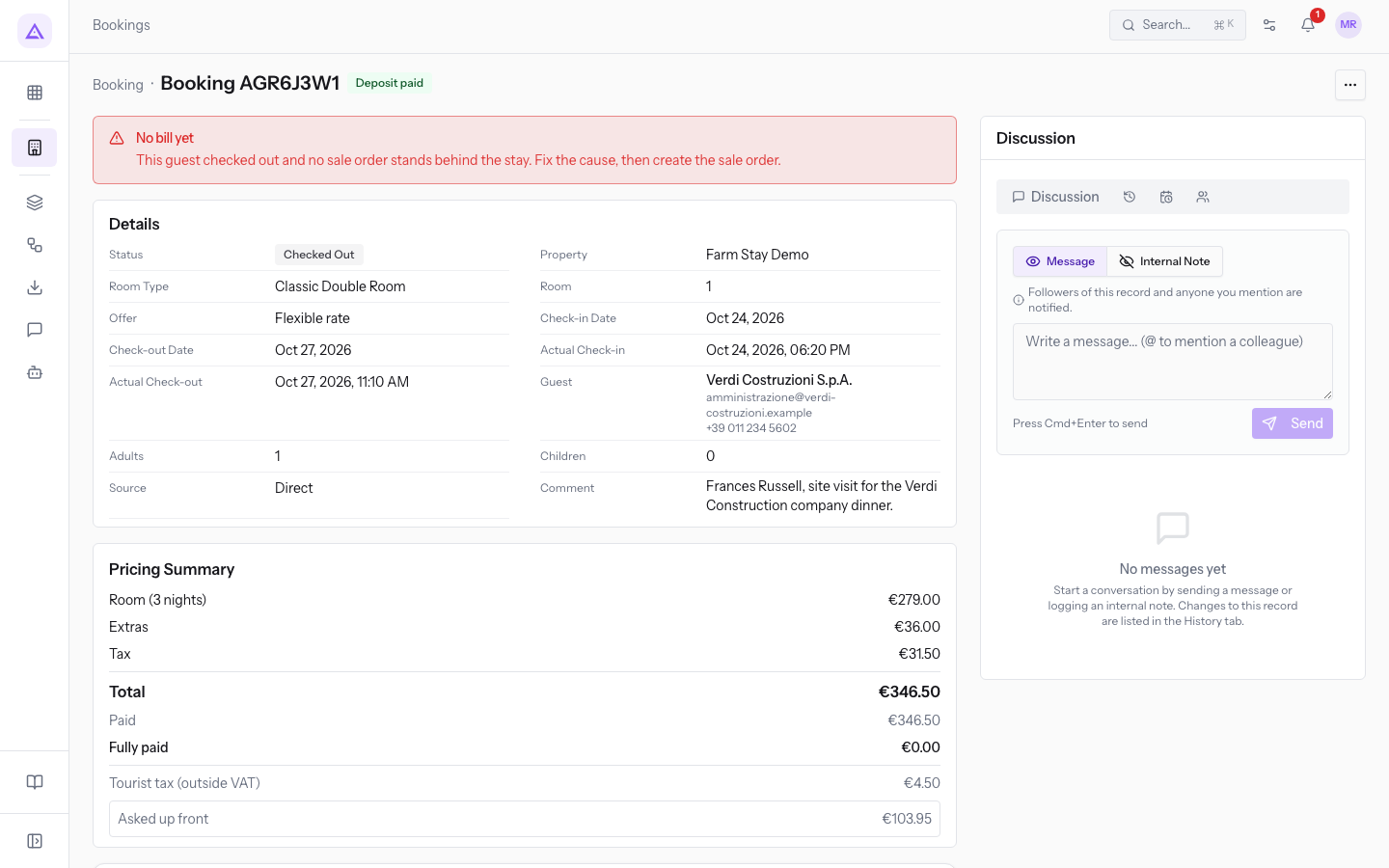
The No bill yet box reads: «This guest checked out and no sale order stands behind the stay. Fix the cause, then create the sale order.» In the demo it shows AGR6J3W1, paid by bank transfer and with no order.
Note: if automatic creation failed at check-out, the message also gives the reason: «The guest checked out but no sale order could be created: …». Fix the cause shown first.
Creating the sale order
The order is created from the ⋯ menu on the reservation page.
Before you start: to create the order you must be able to edit reservations, so you must belong to the Receptionist or PMS Manager group. The Sales and Invoicing modules are also required.
- On the reservation page press the ⋯ menu (More actions).
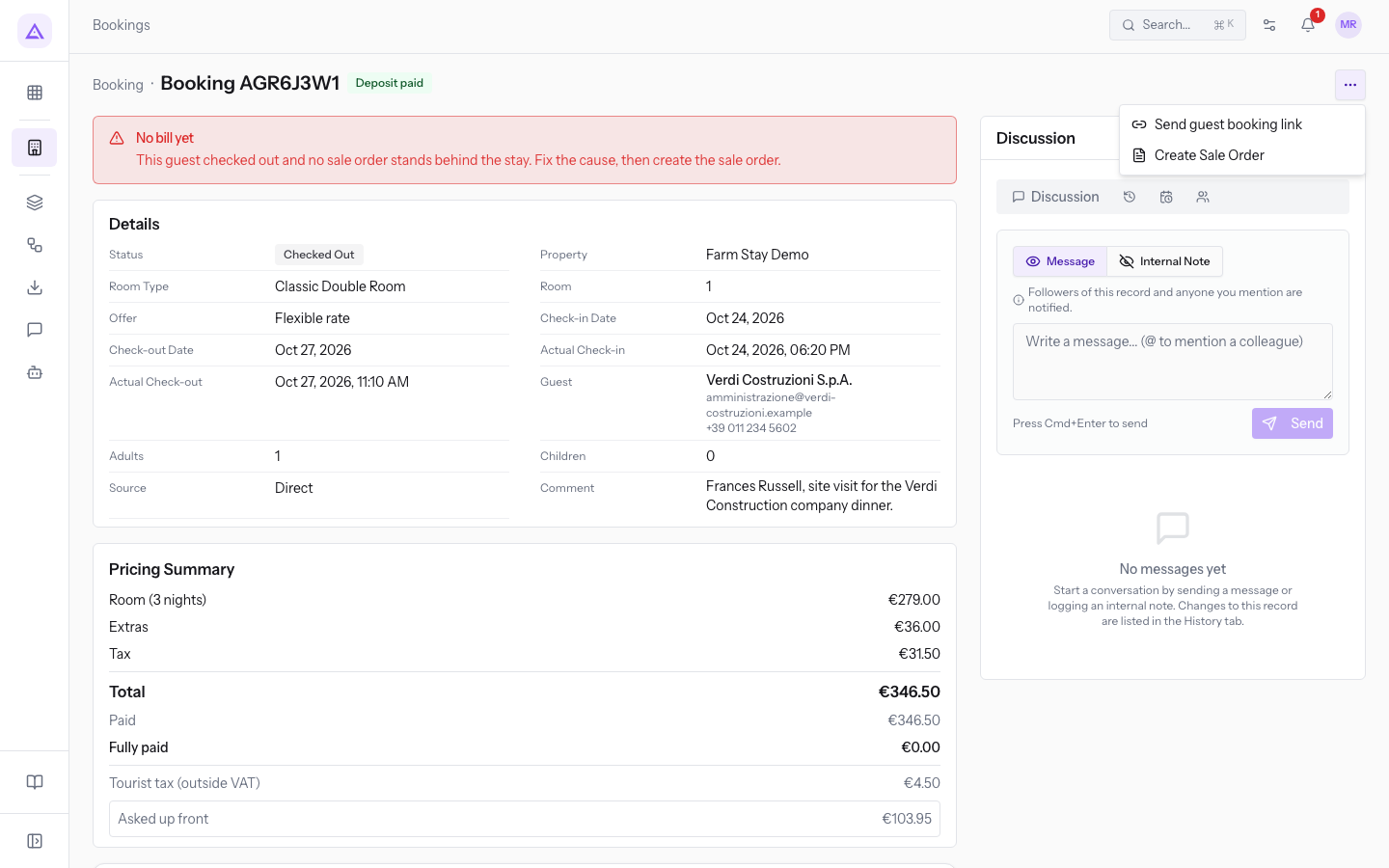
- Choose Create Sale Order. The message Sale order created appears.
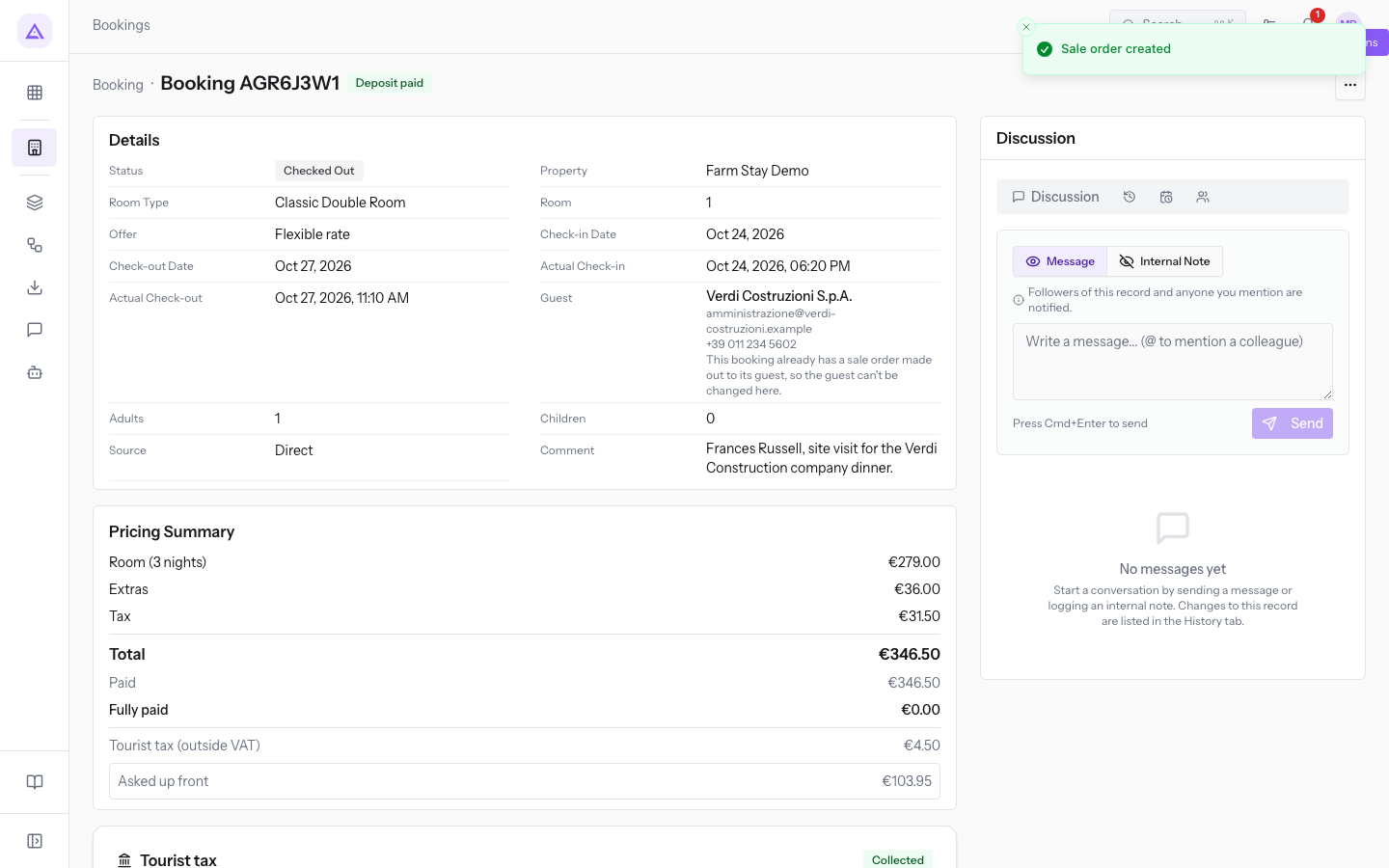
After creation:
- The No bill yet box disappears.
- In the reservation details the Sale Order section appears, with the link to the order.
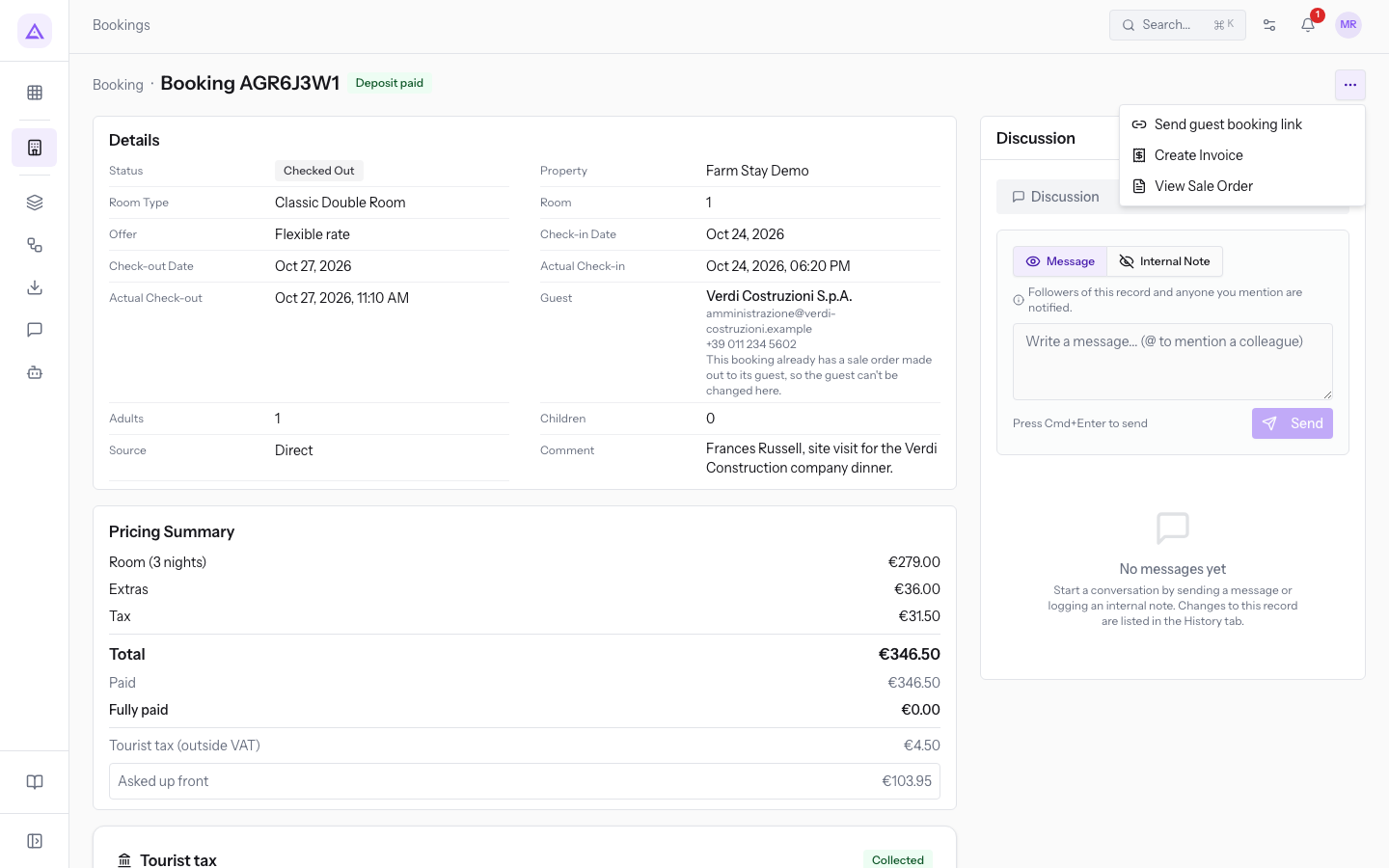
- In the ⋯ menu, in place of Create Sale Order, there are View Sale Order and Create Invoice.
A reservation has only one sale order. If one already exists, the message A sale order already exists for this booking appears.
Checking the order in Sales
The order created from the stay opens in the Sales module like any other order. On the reservation page press the link in the Sale Order section, or choose View Sale Order from the ⋯ menu.
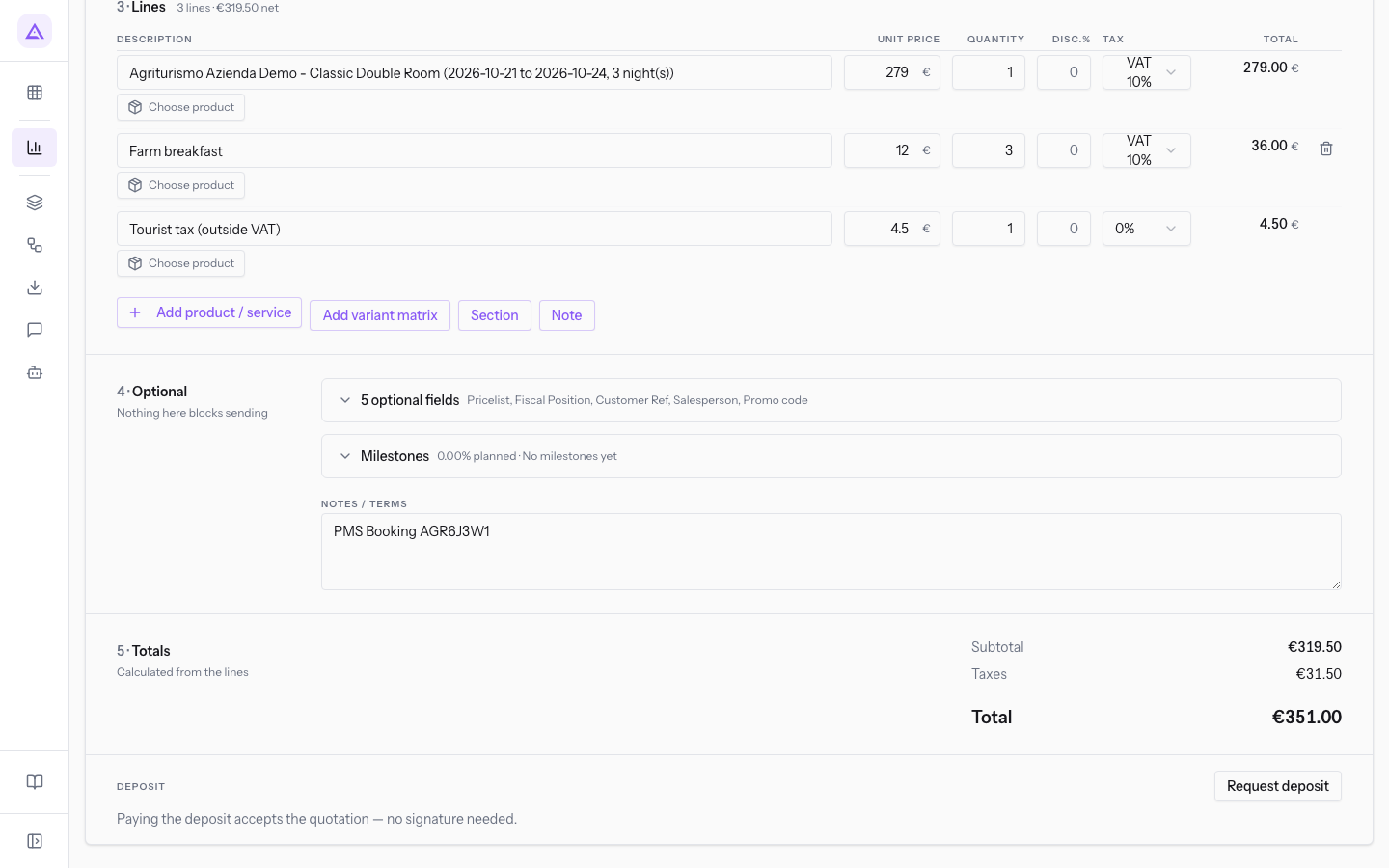
The order starts in Draft status, titled Quotation followed by the order number. From here it continues like other orders, with the buttons Save draft, Send to customer and Convert to order.
The data copied from the reservation is:
- Customer: the reservation's guest, for example
Verdi Construction S.p.A.. The same contact is also used for the addresses. - Nights line: one line with the property, the room type, the dates and the number of nights. It carries the VAT 10% tax.
- Extras lines: one line for each extra on the reservation, with the VAT 10% tax.
- Tourist tax (outside VAT): the tourist tax line, with the 0% tax. It is kept separate because it applies per person and per night and is outside the scope of VAT.
- NOTES / TERMS: contains the reservation code.
Important: the order has no Payment Terms and shows payment terms is still missing. Choose them before confirming the order.
Creating the invoice
Once the order exists, you can create the invoice directly from the reservation page: press the ⋯ menu (More actions) and choose Create Invoice.
The invoice is created from the reservation's sale order. From that moment the invoiced lines no longer follow changes to the stay.
If the stay changes after the order or invoice
While the order is not invoiced, changes to the stay update it. After invoicing, however, the order is no longer updated. If the stay changes, the reservation page shows the The invoice no longer matches this stay notice. The notice gives the order total, the stay total and the difference, then the next step.
The text and the next step depend on the reason:
- Order already invoiced: «The stay changed after its sale order was invoiced, so the bill was not updated.» If the stay costs less than what was invoiced, the next step is «Next step: issue a credit note for the difference from the sale order.»
- Deposit being paid: «The guest is paying the deposit on this order right now, so the order was left as it was.» The next step is «Once the payment has finished, bring the order up to date.» Once the payment is finished, press Update sale order. The message Sale order updated to match the stay. appears.
- Order created before the reservation recorded its lines: «This sale order was raised before the booking recorded which lines it wrote, so it is not updated automatically.» The next step is «Next step: open the sale order and bring its lines in line with the stay by hand.»
In the notice, Open sale order opens the order. When an invoice exists, Open invoice is also present.
Note: Update sale order appears only when a deposit is being paid and only if you can edit the reservation. Lines already invoiced are never rewritten.
Important: with an early check-out, an order already confirmed keeps charging all the booked nights. Correct it by hand after check-out.
See it on your company, not on a slide deck.
In 30 minutes we map the software you use today.We show you how much work and how much margin Archimedes gives back.
Show me on my business →What industry are you in?
One tap — it lets us prepare the demo around your world.
What tools do you use today?
Pick the ones you recognise — or just type them. It helps us show you how they migrate.
Last step: your details.
We reply within one working day — and right after, if you like, you pick the demo slot yourself.
We couldn't send your request. Try again, or write to us at [email protected].
By sending, you agree to your data being processed so we can get back to you about the demo. Privacy notice.
Preview form — nothing is sent from this page.
Want to schedule the demo now?
Your call: book the slot you prefer yourself, or we'll call you to arrange it.
Live availability, 30 minutes, instant confirmation. The calendar opens in a new tab.
Lock in your slot ↗We'll get back to you within one working day — and we'll join the call already knowing your world.
The calendar is open in another tab: pick a slot and the demo is booked. Can't see it? Reopen it ↗
Preview page: nothing was sent.
Our calendar is live: take the slot that suits you and the demo is booked. 30 minutes, instant confirmation, no waiting.
Lock in your slot ↗