Property management
All modules
See occupancy on the calendar and close a room for some nights
Property management · 13 of 18 · 5 min read
The Booking Calendar shows the status of each room in a property, night by night. From here you open a reservation, close a room for some nights, and put it back on sale.
Reading the calendar
The calendar shows 14 nights, starting from yesterday, with one row per room.
- Open PMS › Calendar.
- Choose the property in the field at the top. If there is only one property, it is already selected.
- Use the arrows on the left and right to move 7 days back or forward. Press Today to return to the period that starts from yesterday. The period shown appears next to the buttons.
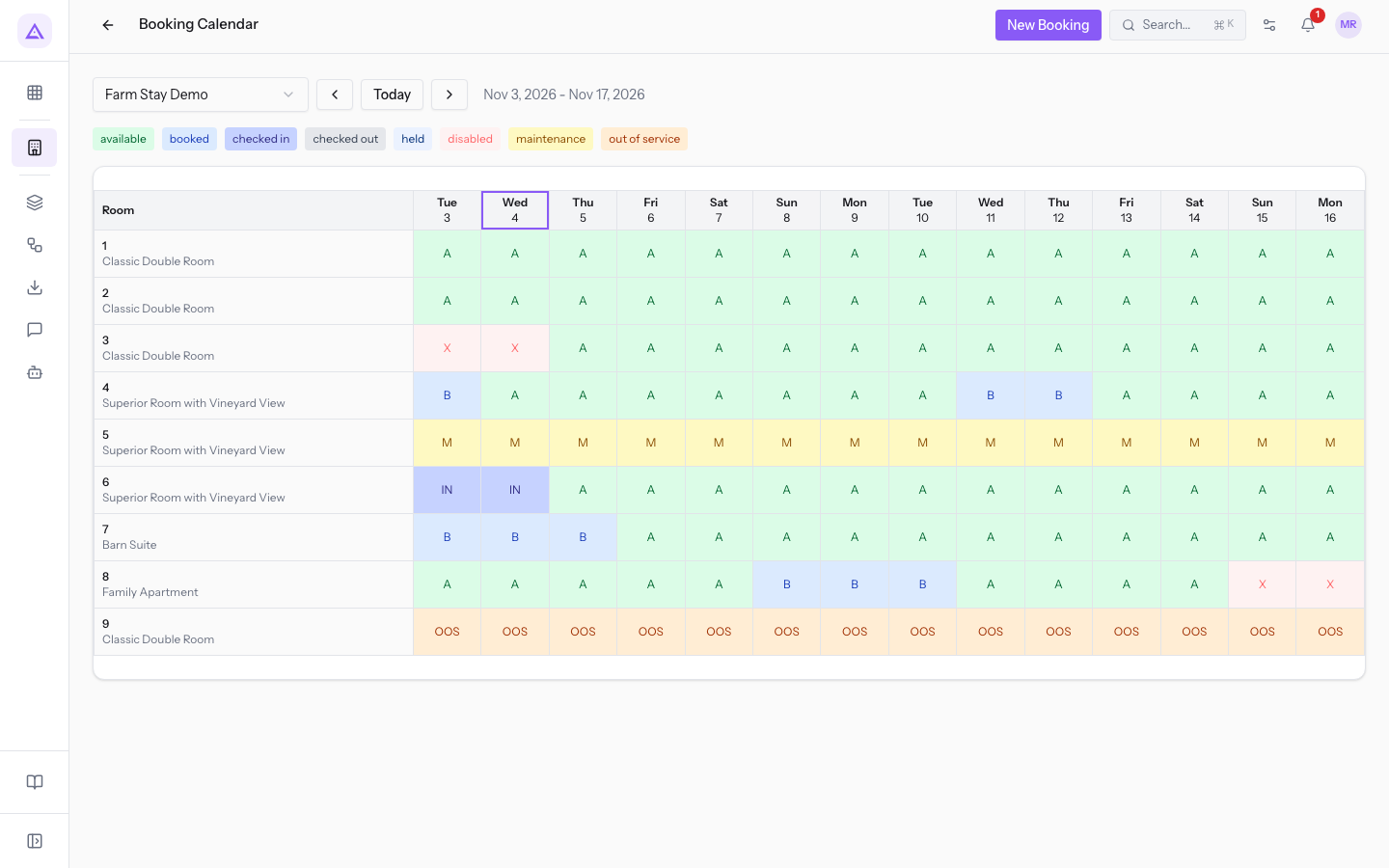
The grid works like this:
- Room: the first column shows the room number and its type.
- Day columns: the day of the week and the day number. The Saturday and Sunday columns have a darker background, and today's column is highlighted with a border.
- Cells: each cell is one night, with a code and a colour.
Above the grid, the legend shows the colours of the statuses. These codes appear in the cells:
A: available, green. The room is on sale for that night.B: booked, blue.IN: checked in, indigo. The guest is in the room, like Mark Nelson in room 6.OUT: checked out, grey.H: held, light blue. A night held by a guest who is booking from the website.X: disabled, light red. The room is closed for that night, like room 3 from today for two nights.M: maintenance, yellow. All nights of a room in Maintenance status, like room 5.OOS: out of service, orange. All nights of a room in Out of service status, like room 9.
Hover over a cell to read the room number, date and status. The tooltip adds:
- on a free night,
click to close this room; - on a closed night, the reason for the closure in brackets and
click to reopen; - on a held night, the time until which the room is held by a guest from the website.
Note: the calendar refreshes itself every 30 seconds while the page is open, and when you come back to the page. Nights held from the website appear and disappear without reloading.
Opening a reservation or creating a new one
Press a B, IN or OUT cell: the reservation page for that night opens. The IN cell of room 6 opens reservation AGR5M2Q8 of Mark Nelson.
For a new reservation, press New Booking at the top right: the availability search opens.
Note: New Booking appears only for users who can create reservations.
Closing a room for some nights
Closing a room removes it from sale for the chosen nights: reservations and all connected channels stop selling it. Use closing for a short interruption of a few nights; for a room that is out of use with no reopening date, use the room status, Maintenance or Out of service.
- If the room should be closed from a specific night, press the free cell for that night.
- If the room should be closed from today, press the room number in the first column: the window proposes as first night the first night shown that has not passed yet.
- In PMS › Calendar, press an
Acell of the room, or the room number. The Close room window opens, with the room number in the title. - Check First night closed and set Back on sale from.
- Write the Reason, for example Boiler service.
- Read the summary below the fields and press Close room.
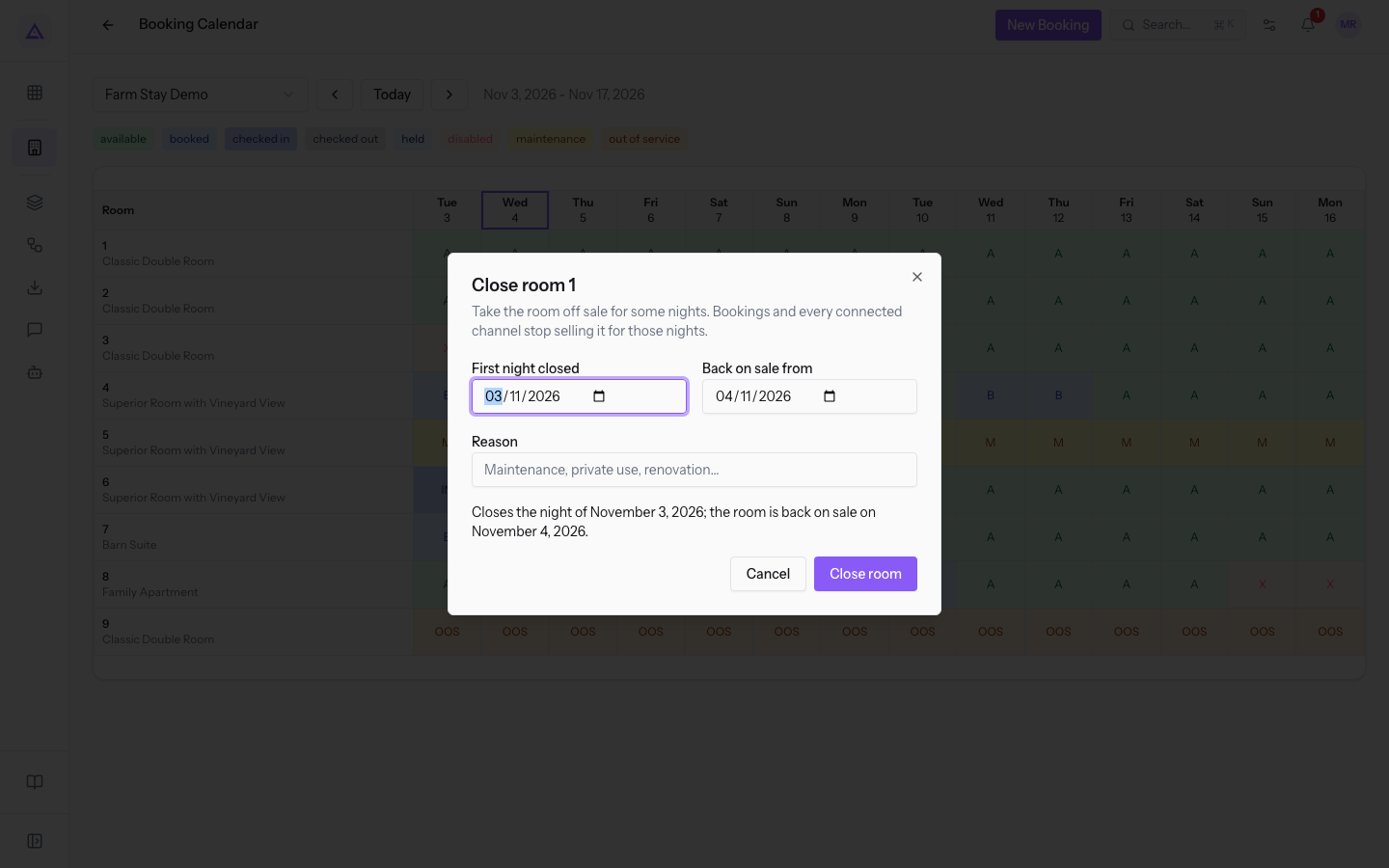
The closed nights appear in the calendar with the code X. Press Cancel to close the window without saving.
The fields of the window:
- First night closed: the first night in which the room is not on sale. It is filled with the night you pressed. The field is required.
- Back on sale from: the first day on which the room goes back on sale. It is filled with the day after the first night, so it proposes just one closed night. The night of this day is not closed. The field is required.
- Reason: the reason for the closure, up to 255 characters. It appears in the tooltip of the closed nights. The field is optional.
The summary statuses in words which nights are closed: the closed night, or the first and last closed night, and the day the room goes back on sale. To close a room for tonight and tomorrow night, set Back on sale from to the day after tomorrow.
Important: if Back on sale from is not after First night closed, the summary shows in red
This closes no night: the day it is back on sale must come after the first night closed.and Close room stays disabled.
Reopening a closed room
Reopening deletes the closure and puts the room back on sale for all the nights of that closure.
- In PMS › Calendar, press an
Xcell of the room. A confirmation opens asking whether to reopen the room. - Press Reopen. To leave the room closed, press Cancel.
The nights of the closure go back to A in the calendar.
Note: reopening applies to the whole closure, not only to the night you press. To shorten a closure, reopen it and close the room again for the nights that remain.
See it on your company, not on a slide deck.
In 30 minutes we map the software you use today.We show you how much work and how much margin Archimedes gives back.
Show me on my business →What industry are you in?
One tap — it lets us prepare the demo around your world.
What tools do you use today?
Pick the ones you recognise — or just type them. It helps us show you how they migrate.
Last step: your details.
We reply within one working day — and right after, if you like, you pick the demo slot yourself.
We couldn't send your request. Try again, or write to us at [email protected].
By sending, you agree to your data being processed so we can get back to you about the demo. Privacy notice.
Preview form — nothing is sent from this page.
Want to schedule the demo now?
Your call: book the slot you prefer yourself, or we'll call you to arrange it.
Live availability, 30 minutes, instant confirmation. The calendar opens in a new tab.
Lock in your slot ↗We'll get back to you within one working day — and we'll join the call already knowing your world.
The calendar is open in another tab: pick a slot and the demo is booked. Can't see it? Reopen it ↗
Preview page: nothing was sent.
Our calendar is live: take the slot that suits you and the demo is booked. 30 minutes, instant confirmation, no waiting.
Lock in your slot ↗