Property management
All modules
Preparing features, beds, refund rules and extra services
Property management · 18 of 18 · 5 min read
The PMS Settings page holds the catalogs the module uses for properties, room types and reservations: property features, bed types, refund rules and extras. Prepare these items once, then pick them where needed.
Opening the PMS settings
Before you start: the Property options entry is visible only to users in the PMS Manager group.
The page's four tabs are built the same way: a list with the Add button and a window to create or edit an item.
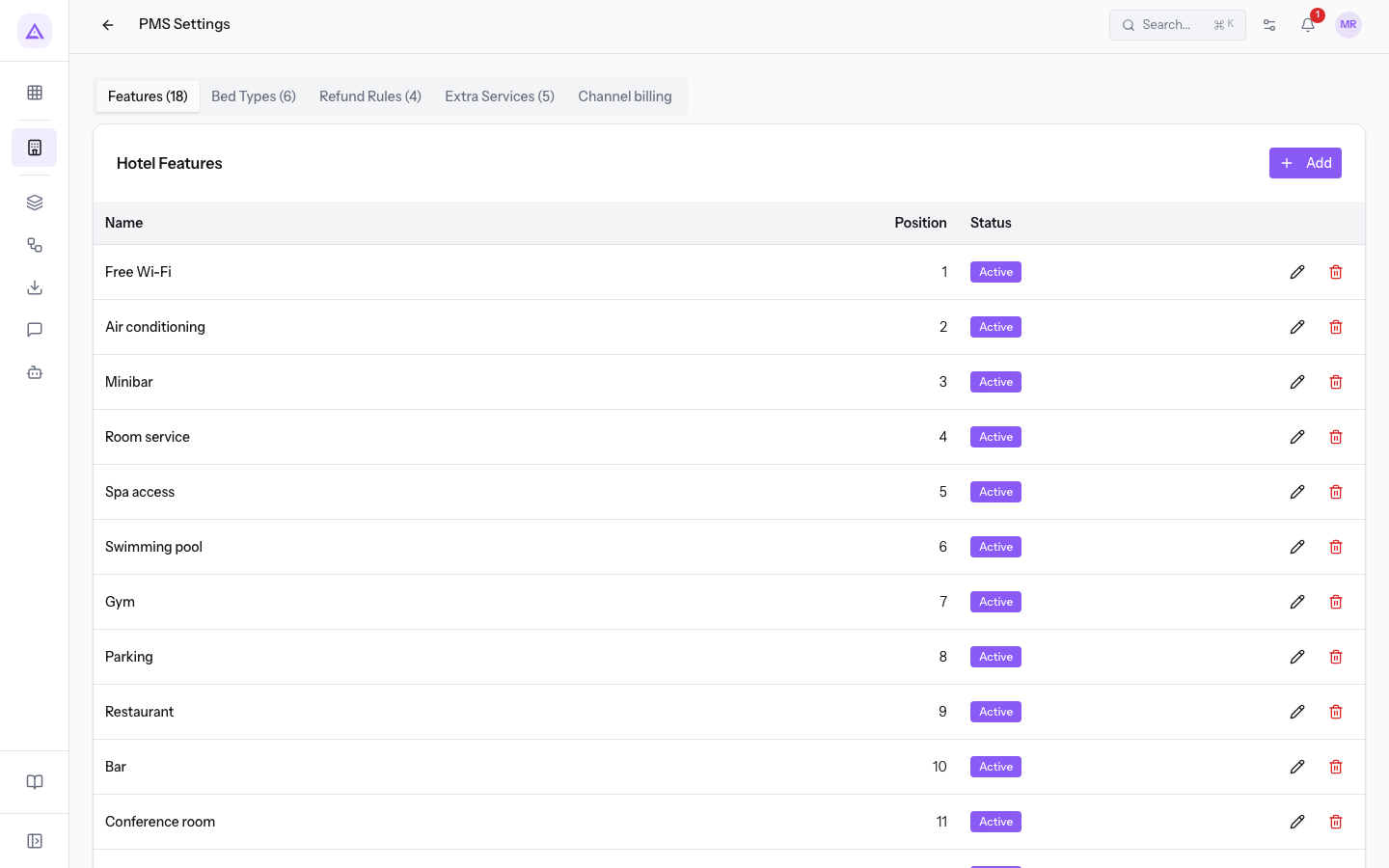
Open PMS › Property options: the PMS Settings page opens. Choose the Features, Bed Types, Refund Rules or Extra Services tab. Next to the tab name you will see the number of items.
Note: the Channel billing tab concerns reservations that arrive from OTA channels and is not covered in this article.
Features
Features describe the property's services, for example Free Wi-Fi. In the demo the tab holds 18 of them.
The Hotel Features list has the columns Name, Position and Status.
- On the Features tab, press Add. The New feature window opens.
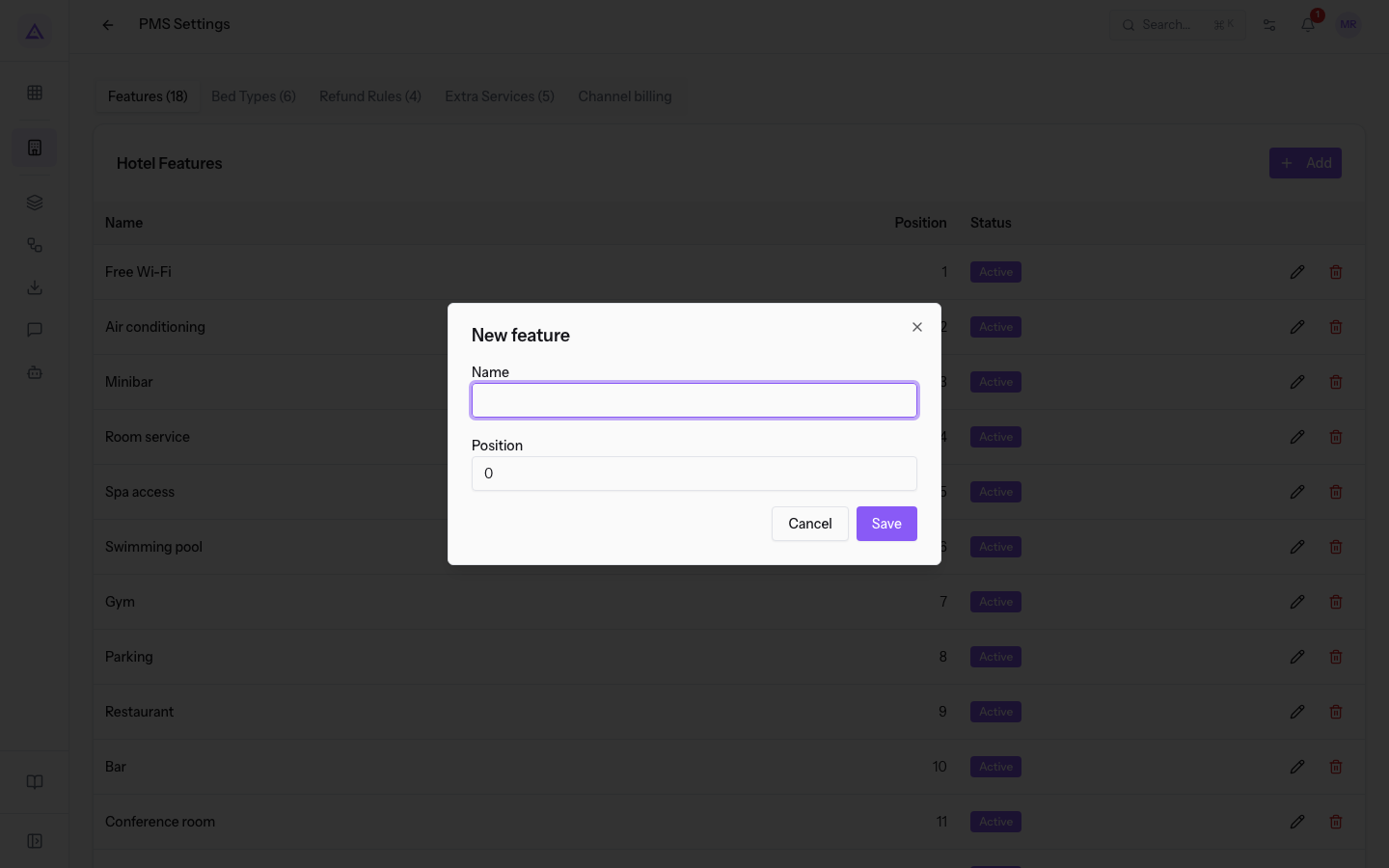
- Fill in the fields and press Save. Press Cancel to close the window without saving.
Window fields:
- Name: the name of the feature.
- Position: the number that sets the feature's order in the list.
Bed types
Bed types indicate the beds a room type can have, for example Sofa bed. In the demo the tab holds 6 of them.
The Bed Types list has the columns Name, Length (m) and Width (m).
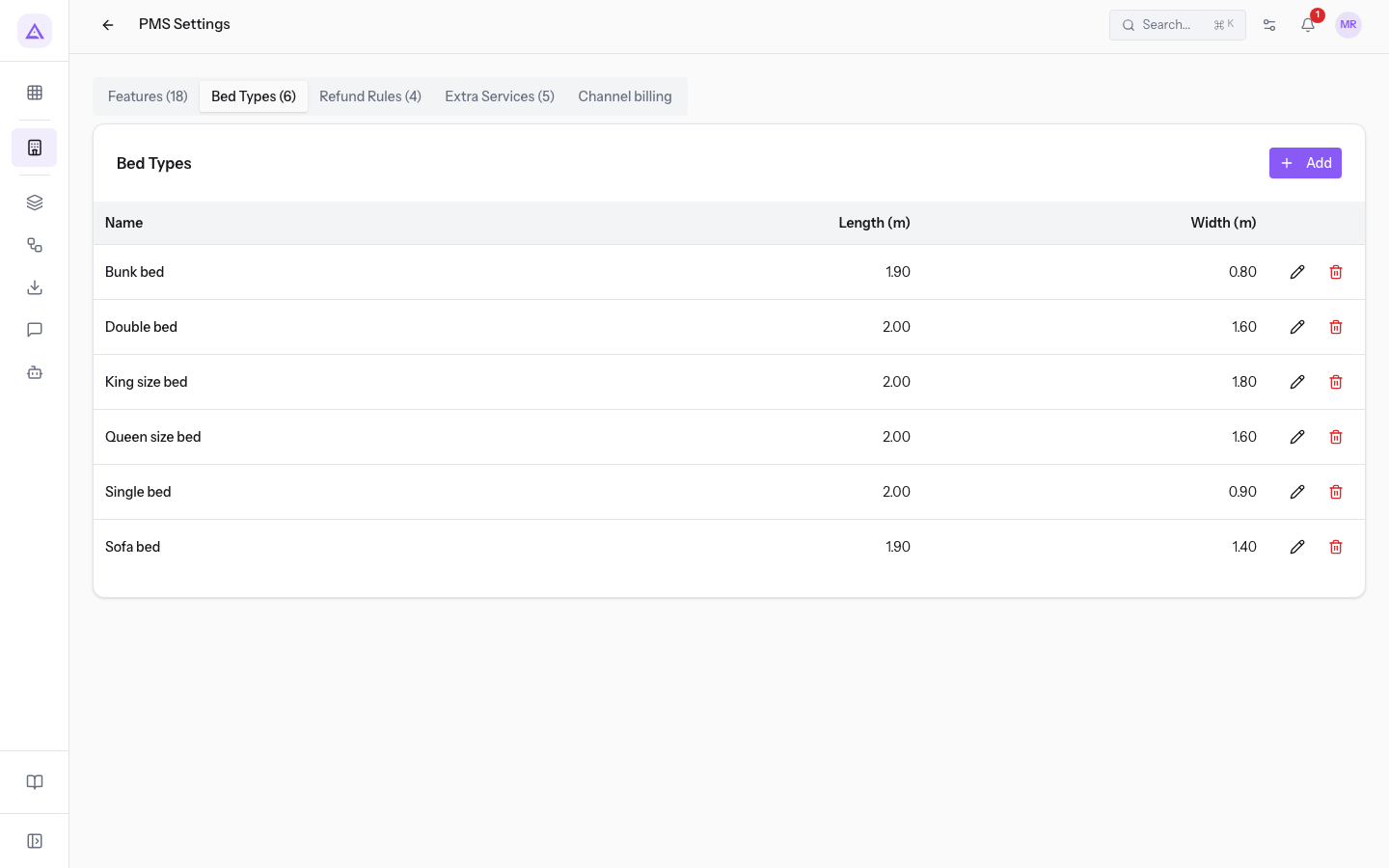
- On the Bed Types tab, press Add. The New bed type window opens.
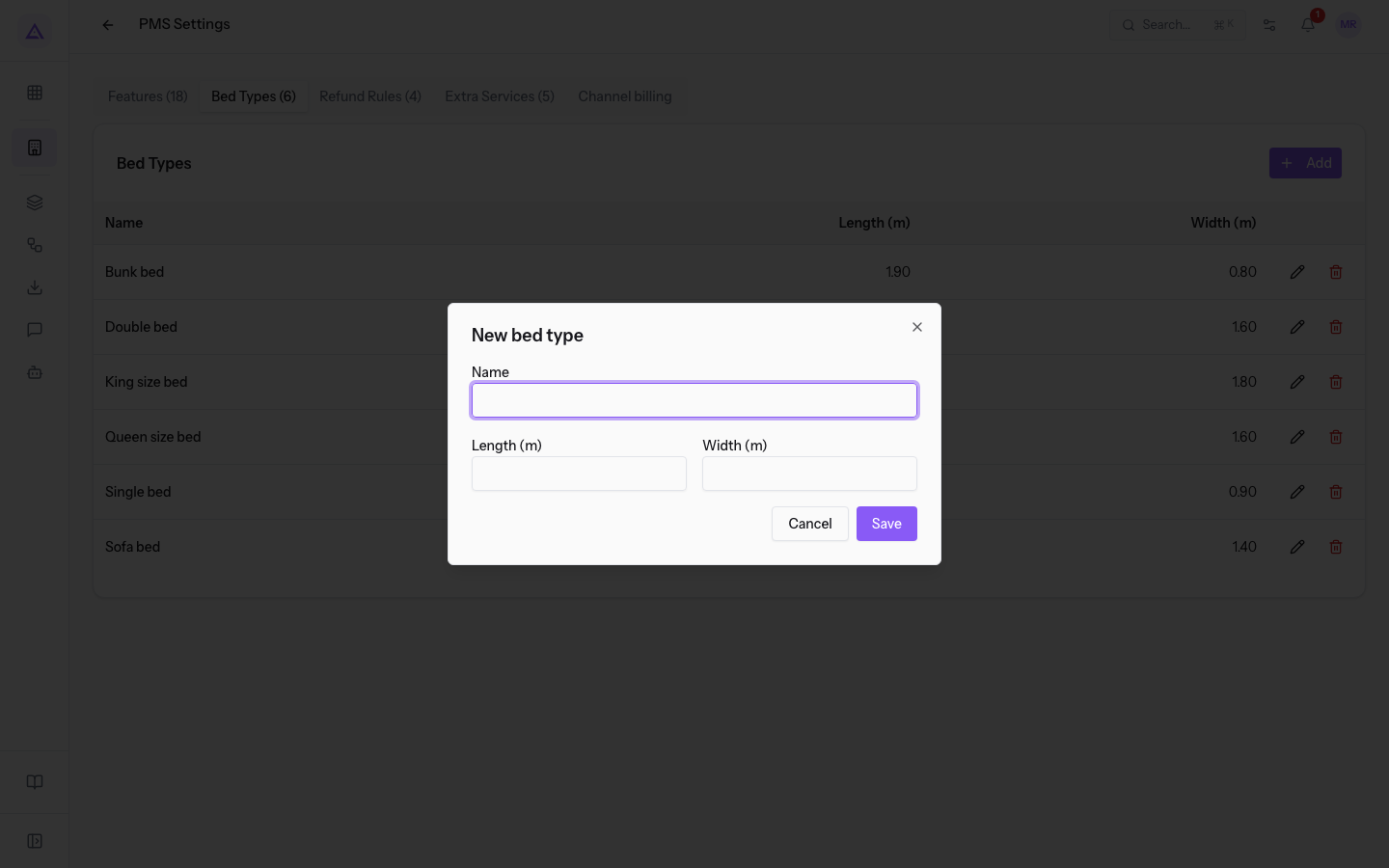
- Fill in the fields and press Save.
Window fields:
- Name: the name of the bed.
- Length (m): the length of the bed in metres.
- Width (m): the width of the bed in metres.
Refund rules
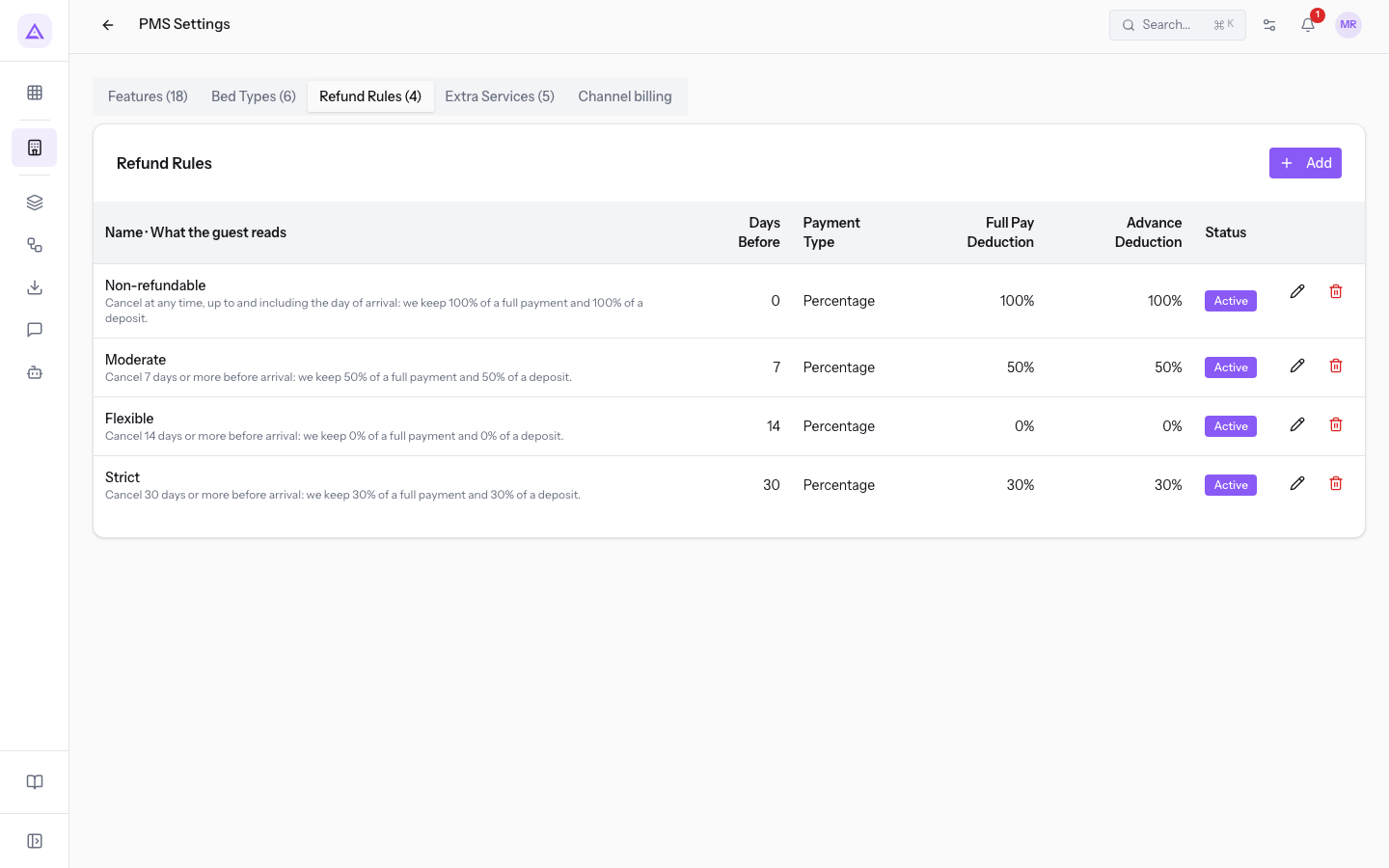
Refund rules set how much is returned to the guest who cancels, based on how many days before arrival they cancel. The properties' cancellation policies are built from these rules, which are created and edited only in PMS Settings, on the Refund Rules tab. In the demo the tab holds 4 of them, including Moderate.
The list shows the rule name with the text the guest reads, and the columns Days Before, Payment Type, Full Pay Deduction, Advance Deduction and Status.
Before creating a rule, choose how to express the deduction:
- If you want to keep a share proportional to the amount, choose Percentage.
- If you always want to keep the same amount, choose Fixed.
- On the Refund Rules tab, press Add. The New refund rule window opens.
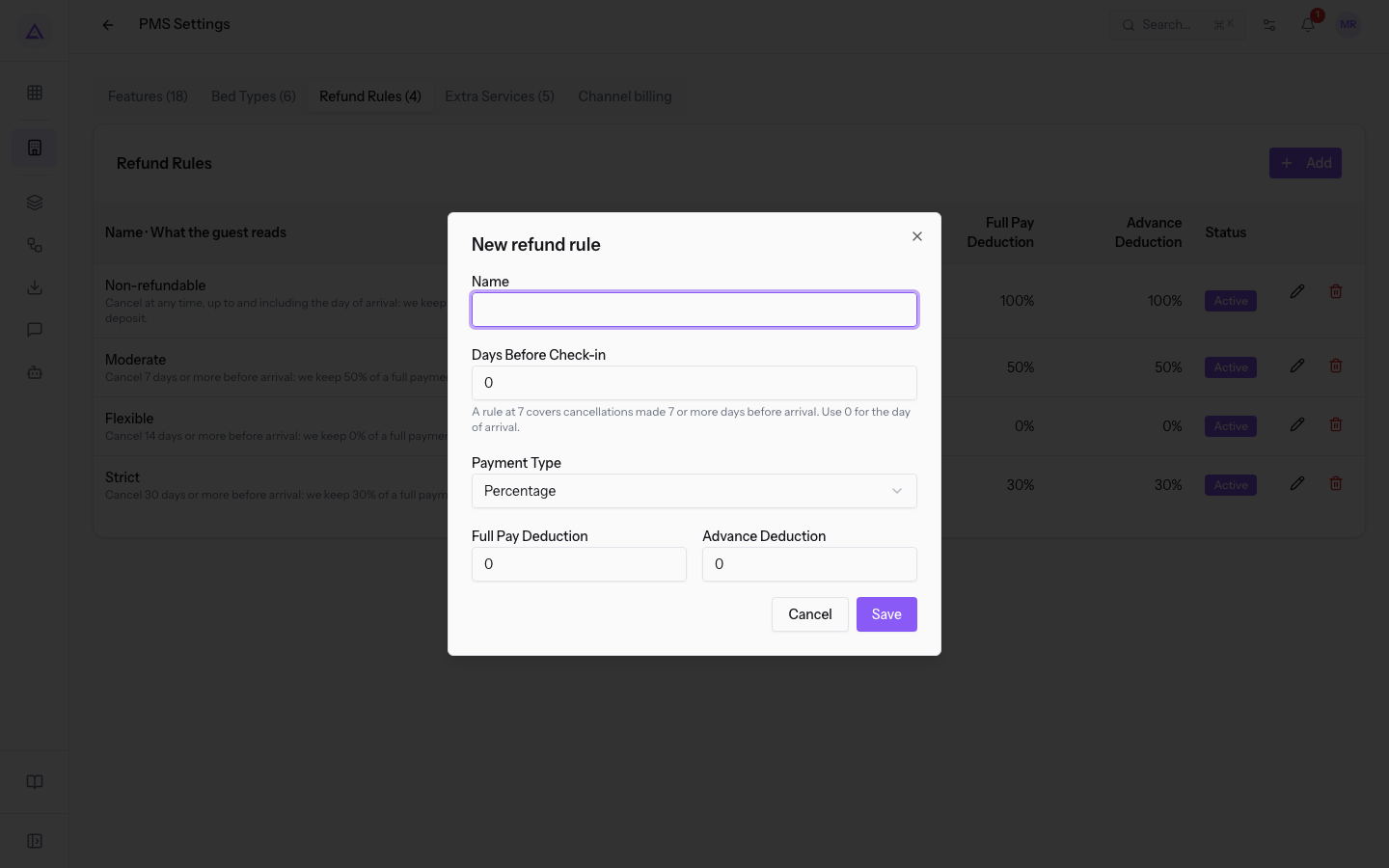
- Fill in the fields and press Save.
Window fields:
- Name: the name of the rule.
- Days Before Check-in: how many days before arrival the rule applies. A rule with 7 covers cancellations made 7 or more days before arrival. Use 0 for the arrival day.
- Payment Type: how the deductions are expressed.
- Percentage: the deduction is a percentage. It is the proposed value.
- Fixed: the deduction is a fixed amount.
- Full Pay Deduction: the deduction applied to a fully paid stay.
- Advance Deduction: the deduction applied to the deposit paid.
Important: when a reservation is cancelled, the refund is calculated using the property's cancellation policy.
Extra services
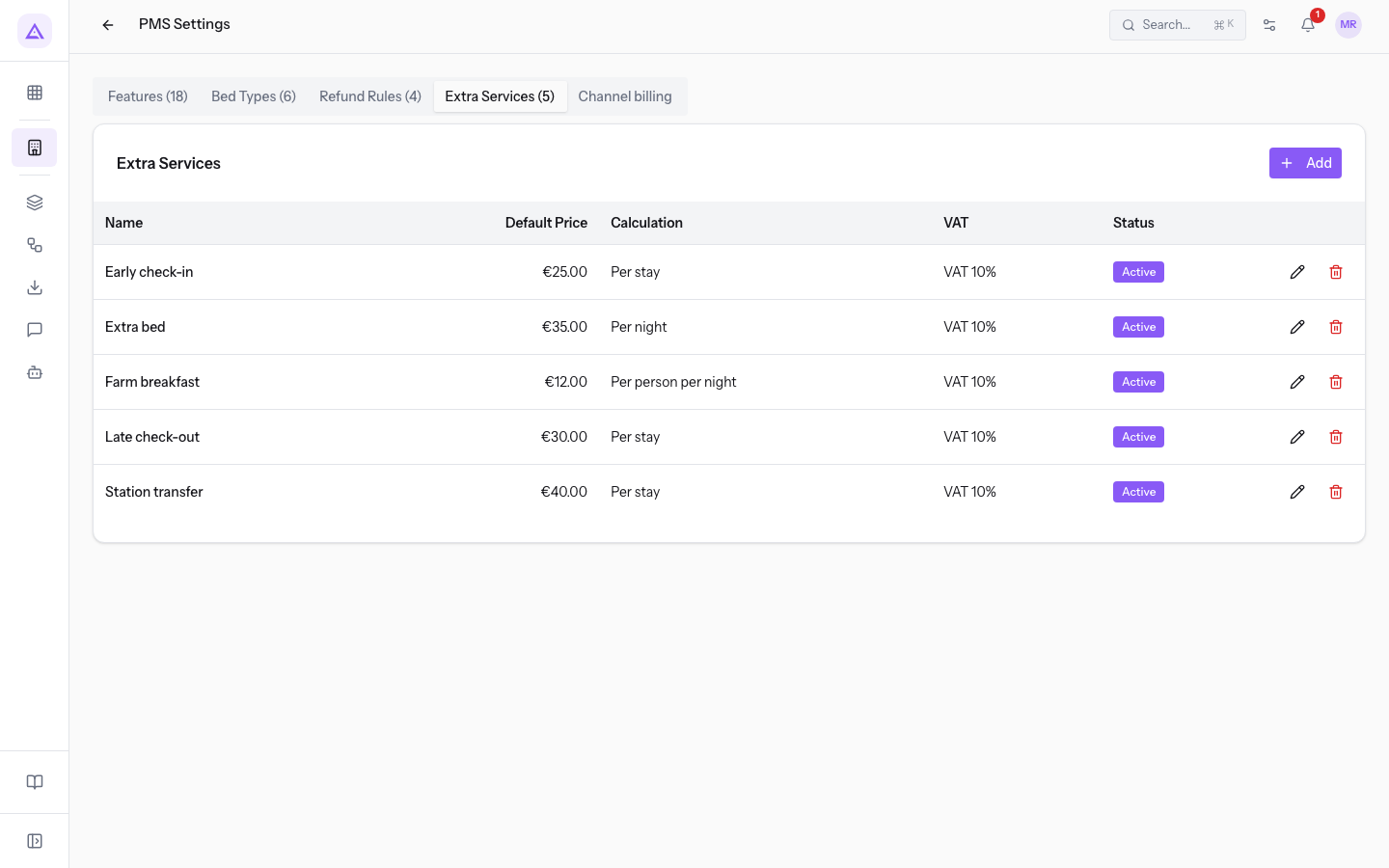
Extras are what you sell in addition to the overnight stay. In the demo the tab holds 5 of them: Early check-in (€25.00 per stay), Late check-out (€30.00 per stay), Farm breakfast (€12.00 per person per night), Extra bed (€35.00 per night) and Station transfer (€40.00 per stay), all with 10% VAT and active.
The list has the columns Name, Default Price, Calculation, VAT and Status.
The calculation sets how the price follows the stay:
- If the extra is paid once, like a transfer, choose Per Stay.
- If it is paid every night, like an extra bed, choose Per Night.
- If it is paid for each guest, choose Per Person.
- If it is paid for each guest and each night, like breakfast, choose Per Person per Night.
Extras priced per night or per person follow the reservation's nights and guests on their own, unless the quantity is entered by hand.
- On the Extra Services tab, press Add. The New extra service window opens.
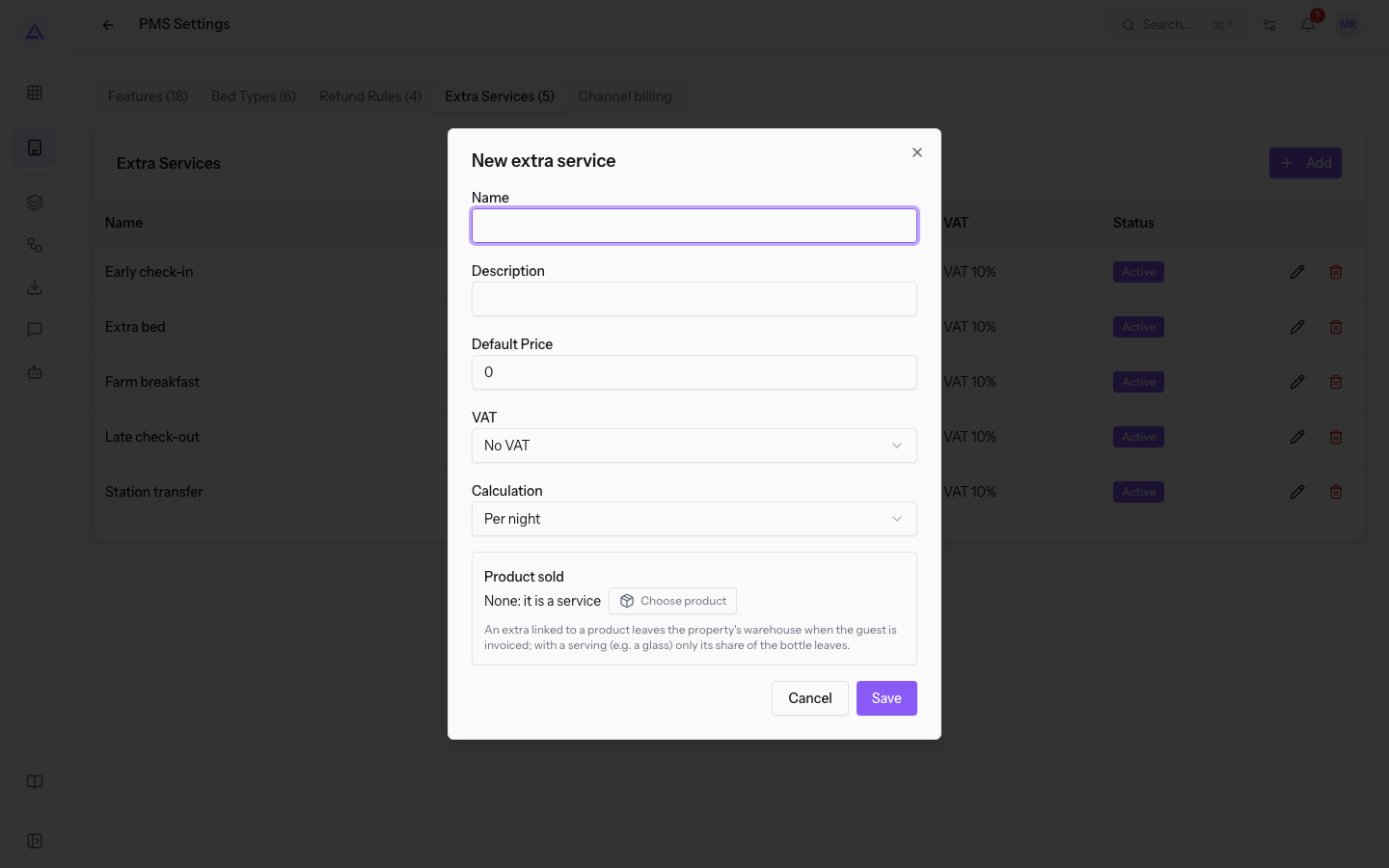
- Fill in the fields and press Save.
Window fields:
- Name: the name of the extra.
- Description: the text that describes the extra.
- Default Price: the price of the extra.
- VAT: the rate applied. The proposed value is No VAT.
- No VAT
- VAT 22%
- VAT 10%
- VAT 4%
- Calculation: how the price is counted. The proposed value is Per Night. Options: Per Stay, Per Night, Per Person, Per Person per Night.
- Product sold: the product linked to the extra. Without a product the field shows
None: it is a service; to link one, press Choose product. An extra linked to a product leaves the property's stock when the guest is invoiced; with a portion, such as a glass, only its share of the bottle leaves.
Editing or deleting an item
Every catalog item can be edited or deleted. The edit window has the same fields as creation and is titled Edit feature, Edit bed type, Edit refund rule or Edit extra service.
To delete an item, press Delete in its row and confirm the message Delete this item? This cannot be undone.
Important: deletion is permanent.
See it on your company, not on a slide deck.
In 30 minutes we map the software you use today.We show you how much work and how much margin Archimedes gives back.
Show me on my business →What industry are you in?
One tap — it lets us prepare the demo around your world.
What tools do you use today?
Pick the ones you recognise — or just type them. It helps us show you how they migrate.
Last step: your details.
We reply within one working day — and right after, if you like, you pick the demo slot yourself.
We couldn't send your request. Try again, or write to us at [email protected].
By sending, you agree to your data being processed so we can get back to you about the demo. Privacy notice.
Preview form — nothing is sent from this page.
Want to schedule the demo now?
Your call: book the slot you prefer yourself, or we'll call you to arrange it.
Live availability, 30 minutes, instant confirmation. The calendar opens in a new tab.
Lock in your slot ↗We'll get back to you within one working day — and we'll join the call already knowing your world.
The calendar is open in another tab: pick a slot and the demo is booked. Can't see it? Reopen it ↗
Preview page: nothing was sent.
Our calendar is live: take the slot that suits you and the demo is booked. 30 minutes, instant confirmation, no waiting.
Lock in your slot ↗