Property management
All modules
Record payments and deposits for a stay
Property management · 7 of 18 · 4 min read
From a reservation's page you record the guest's payments: the deposit the property asks for, the balance at departure, or a partial payment during the stay.
How deposit and balance work
The deposit is the amount the property asks for before the stay. It is calculated from the property's rule applied to the total reservation, VAT included. In the demo organization, Farm stay Azienda Demo asks for 30% of the stay. If the property does not ask for a deposit, the amount requested is zero.
Each payment you record is added to what has already been collected. The part of the deposit still to collect is the deposit requested minus what the guest has already paid, and it never goes below zero.
- If the guest pays the deposit when reserving, record the deposit amount: the signal at the top becomes Deposit paid.
- If the guest has not paid anything yet, the page shows Deposit unpaid.
- If the guest settles at departure, record the amount shown in Balance Due.
Note: a payment recorded by hand is never recognized as a duplicate. Two identical payments recorded twice remain two separate payments: check the Payments list before recording a new one.
Note: online deposit payment from the website is not described in this article, because it requires an external payment service.
Reading the payments section
The reservation page shows the deposit signal at the top and, in the Pricing Summary and Payments sections, how much is due and how much has been collected. In PMS › Bookings, press the reservation row, for example AGR3K7P2.
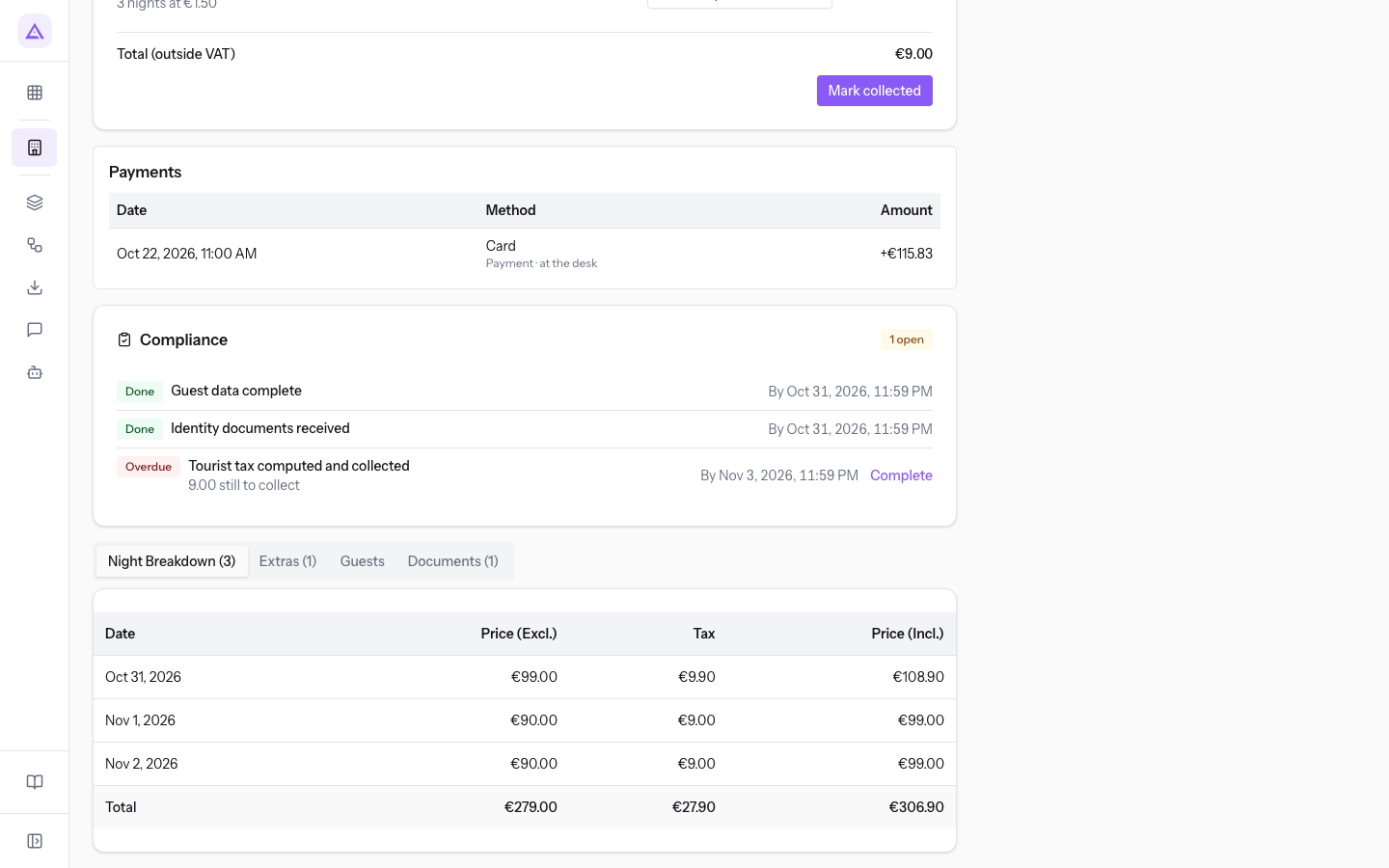
The items in the section:
- Paid: how much the guest has paid. On a cancelled reservation, refunds appear separately, under Already given back.
- Balance Due: how much is still to be collected. For
AGR3K7P2for Luke Gallagher it is€270.27. - Overpaid: the amount collected beyond what is due.
- Fully paid: the reservation has nothing left to collect.
- Asked up front: the deposit the property asks for under its rule.
- Still to receive: the part of the deposit not yet paid. If the deposit is paid in full, this row does not appear.
- Payments: the list of recorded payments. If there are none, Nothing collected yet appears.
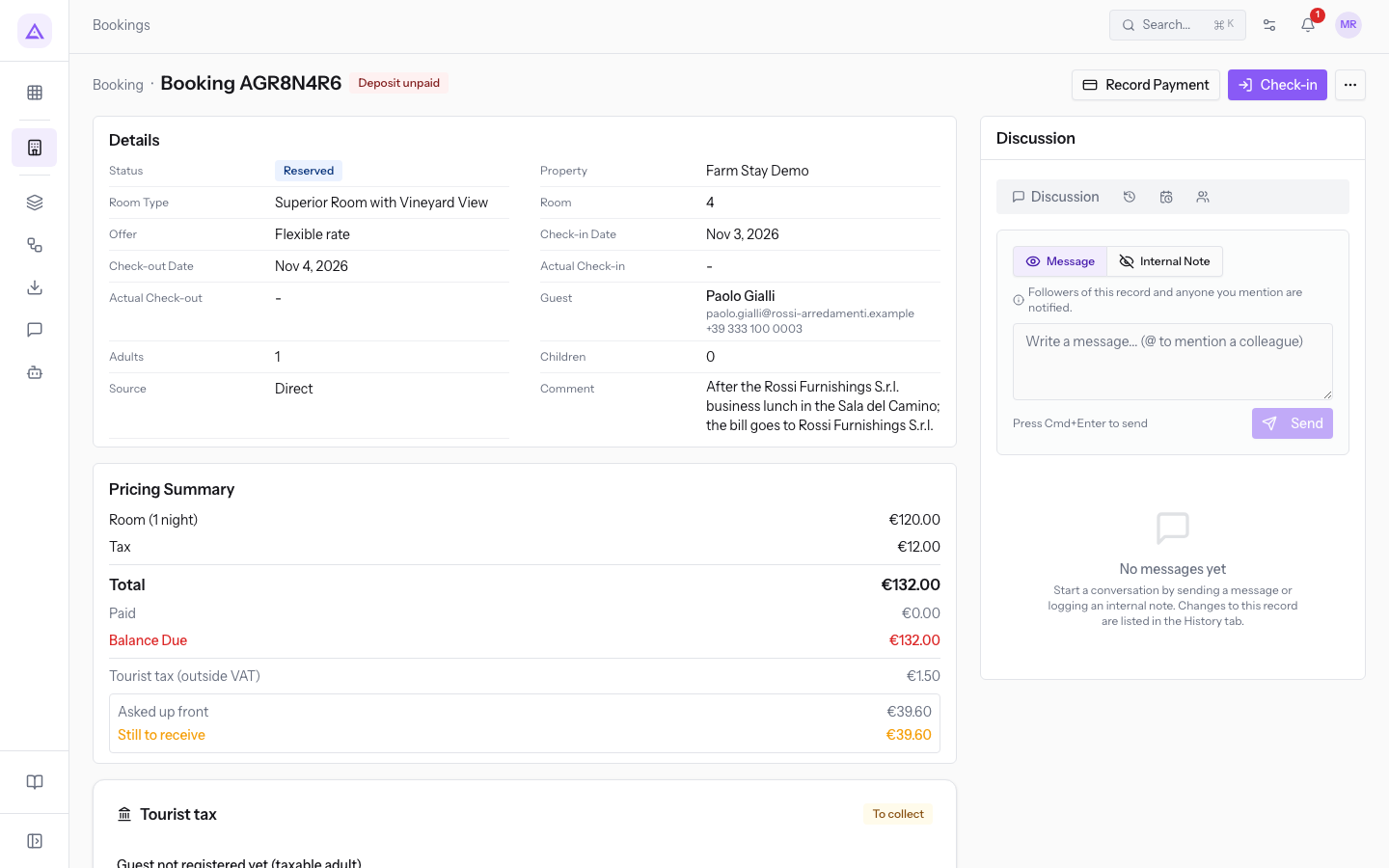
The signals at the top, next to the title:
- Deposit paid: the requested deposit has been collected, as for
AGR3K7P2, which paid by card. - Deposit unpaid: the requested deposit has not yet been collected, as for
AGR8N4R6for Paul Gale, with no payment at all, and Balance Due€167.20.
Recording a payment
Record a payment each time the guest pays an amount, for the deposit or for the balance.
Before you start: recording a payment requires the Receptionist or PMS Manager permission. With PMS User you can view the reservation without changing it.
- On the reservation page, press Record Payment. The Record Payment window opens.
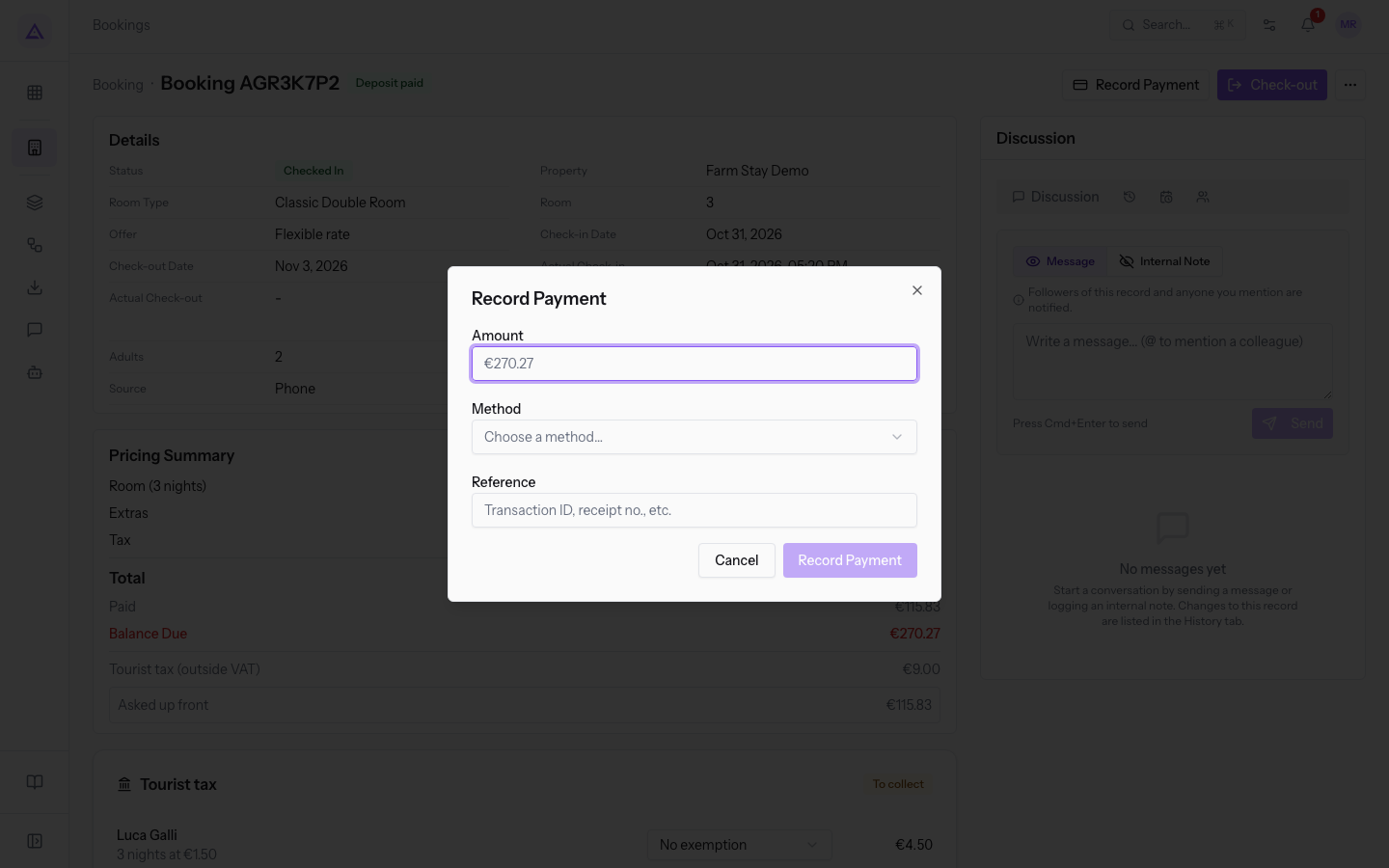
- Fill in the fields described below.
- Press Record Payment. The message Payment recorded appears and the payment is added to the Payments list.
To close the window without recording anything, press Cancel.
The fields in the window:
- Amount: the amount paid. The empty field suggests the balance due as a hint. The minimum amount is €0.01.
- Method: how the guest paid. If you do not choose a method, the payment is recorded as Other.
- Cash
- Card
- Bank transfer
- Other
- Reference: a reference for the payment, for example the transaction ID from the card reader or the receipt number. The field is optional.
Tip: for a bank transfer, write the transfer description or the bank operation number in Reference, so you can find the payment when reconciling.
Examples from the demo
AGR3K7P2, Luke Gallagher, room 3: the deposit was paid by Card and the page shows Deposit paid. At departure, the Balance Due of€270.27remains to be collected: record it with Record Payment, choosing the method the guest used.AGR8N4R6, Paul Gale, room 4: no payment recorded, Deposit unpaid signal, Balance Due€167.20.AGR6J3W1, Verdi Construction S.p.A.: deposit and balance paid by Bank transfer, Deposit paid signal, Fully paid€0.00. To open it, press Checked Out in the Bookings list, then theAGR6J3W1row. The No bill yet box does not concern payments: it says the stay has no sale order. See Create the sale order and invoice for a stay.
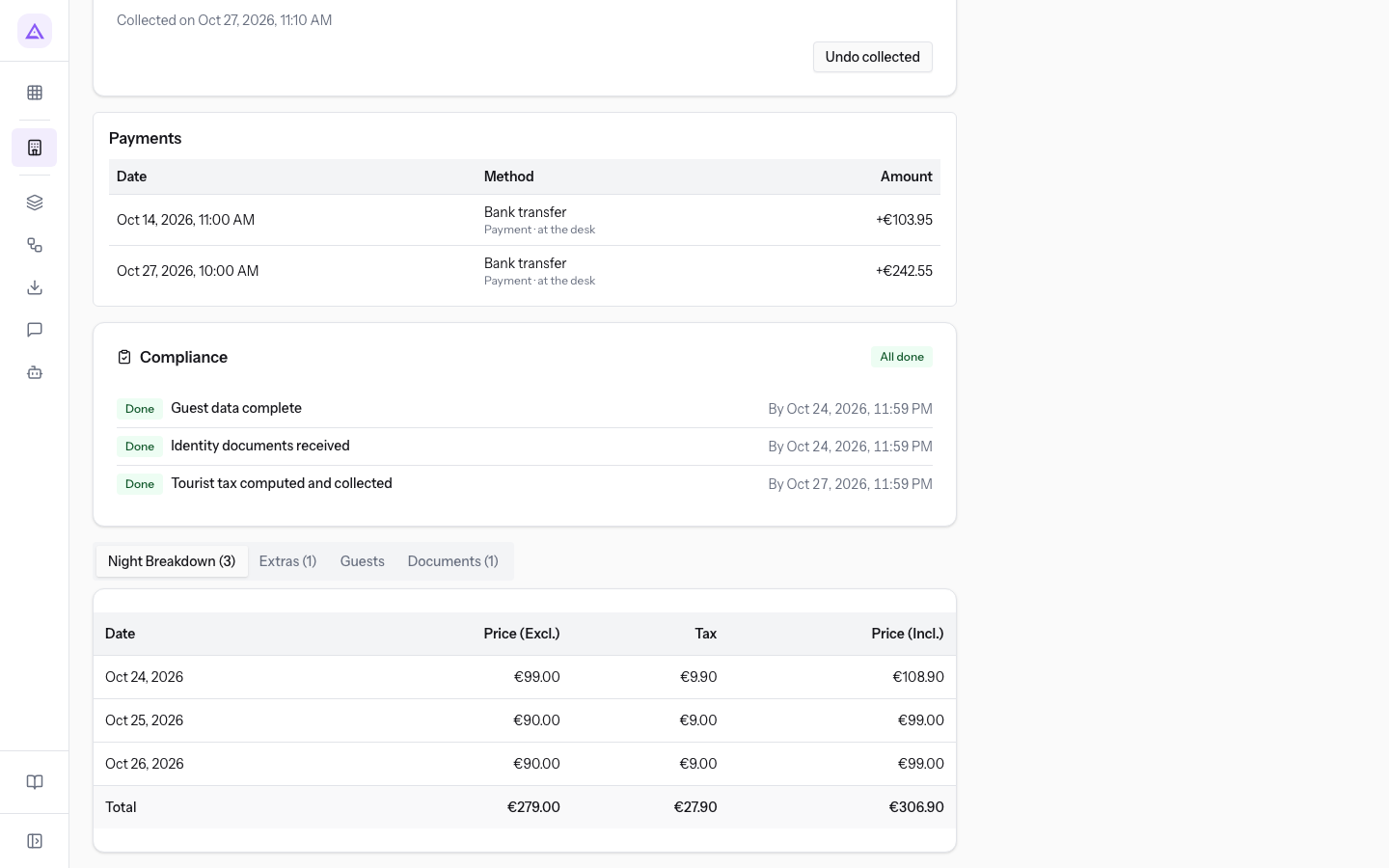
Note: refunds to the guest after a cancellation appear in the same Payments list as negative amounts.
See it on your company, not on a slide deck.
In 30 minutes we map the software you use today.We show you how much work and how much margin Archimedes gives back.
Show me on my business →What industry are you in?
One tap — it lets us prepare the demo around your world.
What tools do you use today?
Pick the ones you recognise — or just type them. It helps us show you how they migrate.
Last step: your details.
We reply within one working day — and right after, if you like, you pick the demo slot yourself.
We couldn't send your request. Try again, or write to us at [email protected].
By sending, you agree to your data being processed so we can get back to you about the demo. Privacy notice.
Preview form — nothing is sent from this page.
Want to schedule the demo now?
Your call: book the slot you prefer yourself, or we'll call you to arrange it.
Live availability, 30 minutes, instant confirmation. The calendar opens in a new tab.
Lock in your slot ↗We'll get back to you within one working day — and we'll join the call already knowing your world.
The calendar is open in another tab: pick a slot and the demo is booked. Can't see it? Reopen it ↗
Preview page: nothing was sent.
Our calendar is live: take the slot that suits you and the demo is booked. 30 minutes, instant confirmation, no waiting.
Lock in your slot ↗