Property management
All modules
Cancel a booking and refund the deposit
Property management · 8 of 18 · 6 min read
When a guest gives up the stay, or when a reservation arrived twice, you cancel it from its page. Then you refund the part of the deposit set by the property's cancellation policy.
How it works
Cancelling and refunding are two separate steps. First the reservation moves to the Cancelled status and the room goes back on sale. Then you calculate the refund and record it with Refund Guest.
- You can cancel a reservation only if it is in the Reserved or Checked In status. You cannot cancel from the desk a guest who is already in house: their stay closes with the check-out. Only a channel can cancel a stay that has already started.
- Reservations that come from a channel are cancelled on the channel. The room stays sold until the channel sends the change.
- If the guest does not show up, do not cancel the reservation: mark it as no-show. In this case the guest receives nothing, because it is not a cancellation.
- The amount to refund is decided by the property's cancellation policy, not by the person who records it.
The policy is set in the property's Online booking tab, in the Cancellation policy section. Each rule says how many days before arrival it applies and how much it keeps. The rules for Farm stay Azienda Demo are:
- Flexible: full refund from 14 days or more before arrival.
- Moderate: 50% refund between 7 and 13 days before.
- Non-refundable: no refund from 6 days before until the arrival day.
Important: the policy must have a rule for every moment, up to arrival. If a cancellation falls in a window with no rule, the refund calculation declines it instead of refunding everything. In this case add a rule for 0 days before arrival.
Cancelling a reservation
Use the Cancel Booking entry in the reservation's menu. Before cancelling, the window asks you to confirm.
Before you start: to cancel a reservation you must belong to the Receptionist or PMS Manager group. The PMS User group can see reservations but cannot change them.
- On the reservation page, for example
AGR7B5Y4of Julia Ferris, press the ⋯ (More actions) button. The menu contains Modify dates or room, Mark as no-show, Send guest booking link, Create Sale Order, Calculate Refund and Cancel Booking.
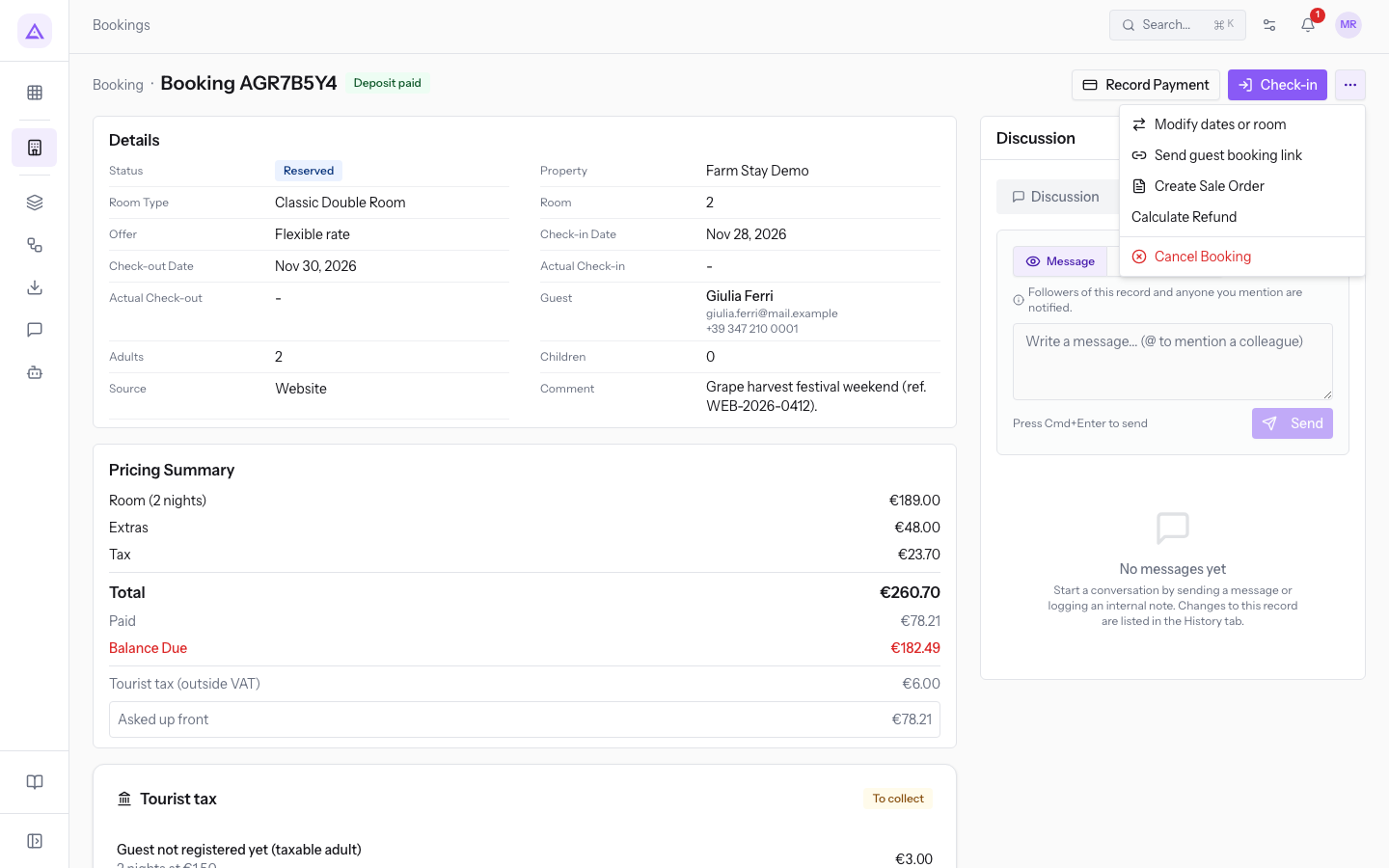
- Choose Cancel Booking. The Cancel this booking? window opens, listing what happens after confirmation:
- the room goes back on sale for the reservation's dates;
- the payment already collected must be refunded: you must calculate and settle the refund right after;
- the guest receives an email telling them about the cancellation.
- Press Cancel booking to confirm. Press Keep booking to close the window without changing anything.
Important: confirming sends the email to the guest immediately. To do a test with a real reservation, press Keep booking.
After confirmation the reservation moves to the Cancelled status. It is a closed status: you can no longer change dates, room, extras or guest. If the guest had paid the deposit, the page shows the Refund open signal and the Refund Guest button, even when the calculated refund is €0.00.
Calculating the refund
The Calculate Refund entry shows how much the guest is owed under the cancellation policy. The calculation records nothing.
- In PMS › Bookings press Cancelled and then the row, for example
AGR7B5Y5of Julia Ferris. The page shows Deposit paid and Refund open.
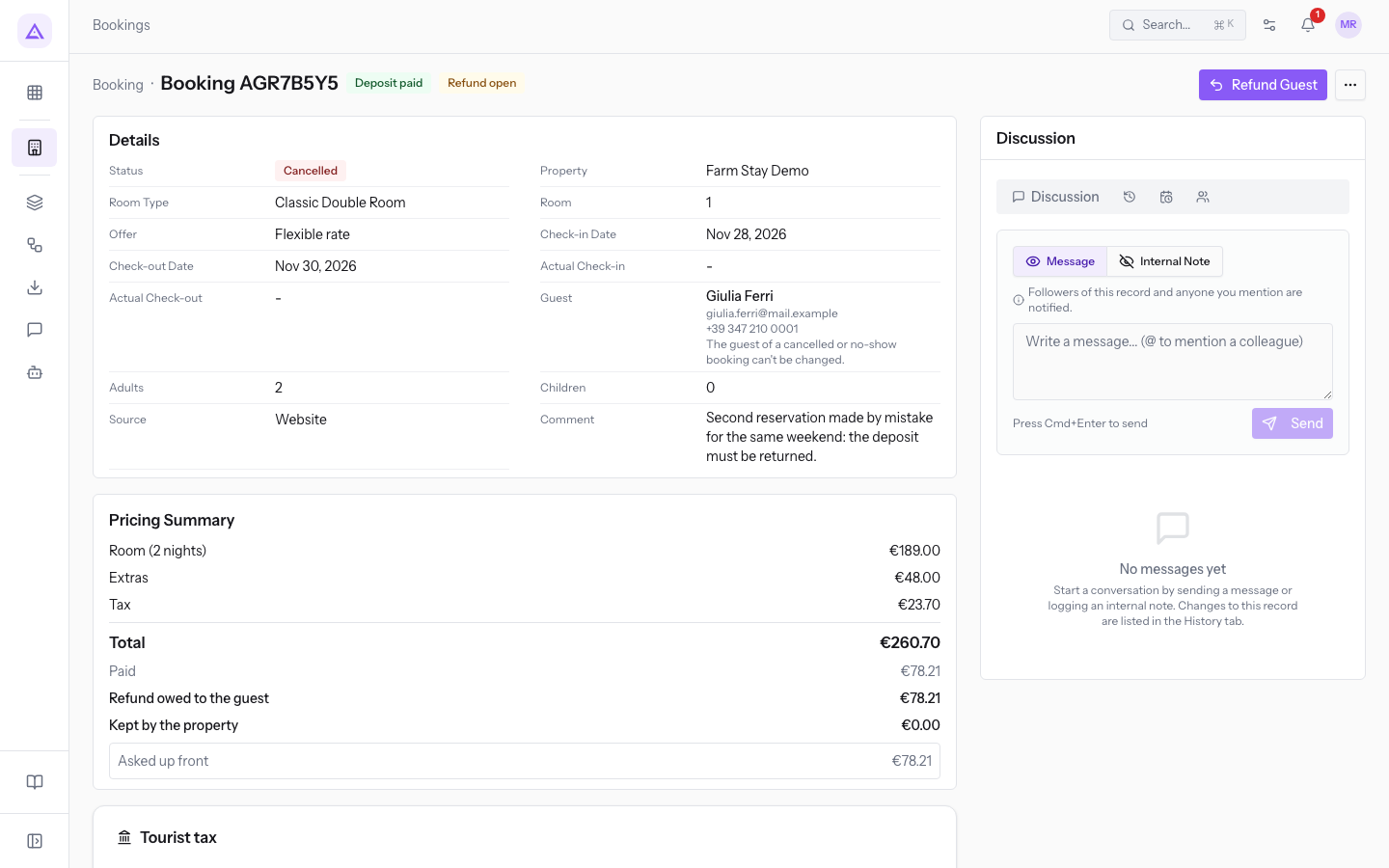
- Press the ⋯ (More actions) button and choose Calculate Refund. The Refund Calculation panel appears in the page.
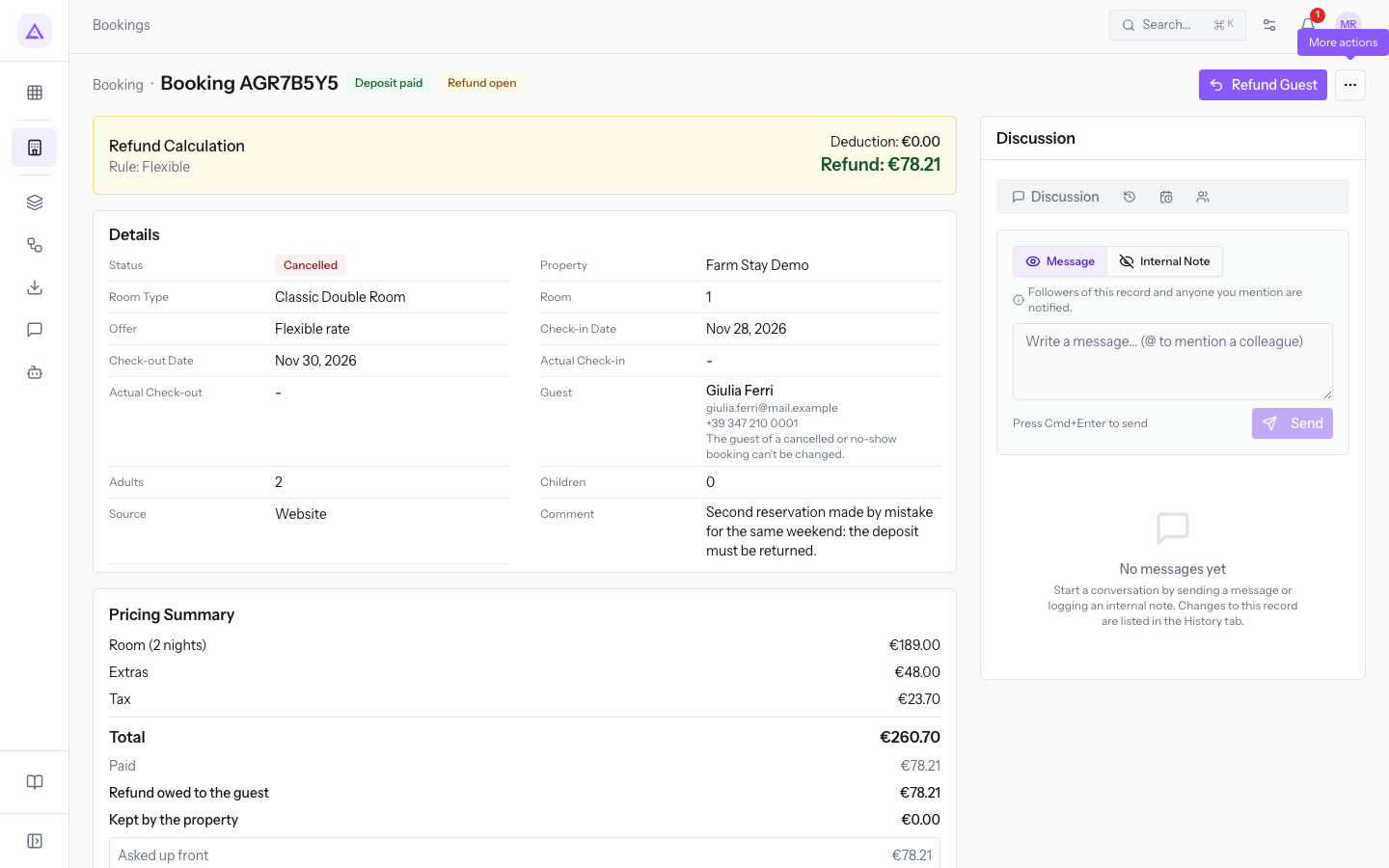
The panel contains:
- Rule: the cancellation policy rule applied to the reservation. For
AGR7B5Y5the panel showsRule: Non-refundable, because it was cancelled a few days before arrival. - Deduction: the amount the property keeps, here €78.21.
- Refund: the amount to give back to the guest, here €0.00.
Giving the deposit back to the guest
The Refund Guest button records the calculated refund. It appears on cancelled reservations that still have a refund to pay.
- On the cancelled reservation's page, press Refund Guest. The Refund Guest window opens. At the top the window reminds you that the amount is decided by the cancellation policy, that online payments go back to the card that paid, and that the rest is recorded as returned by hand.
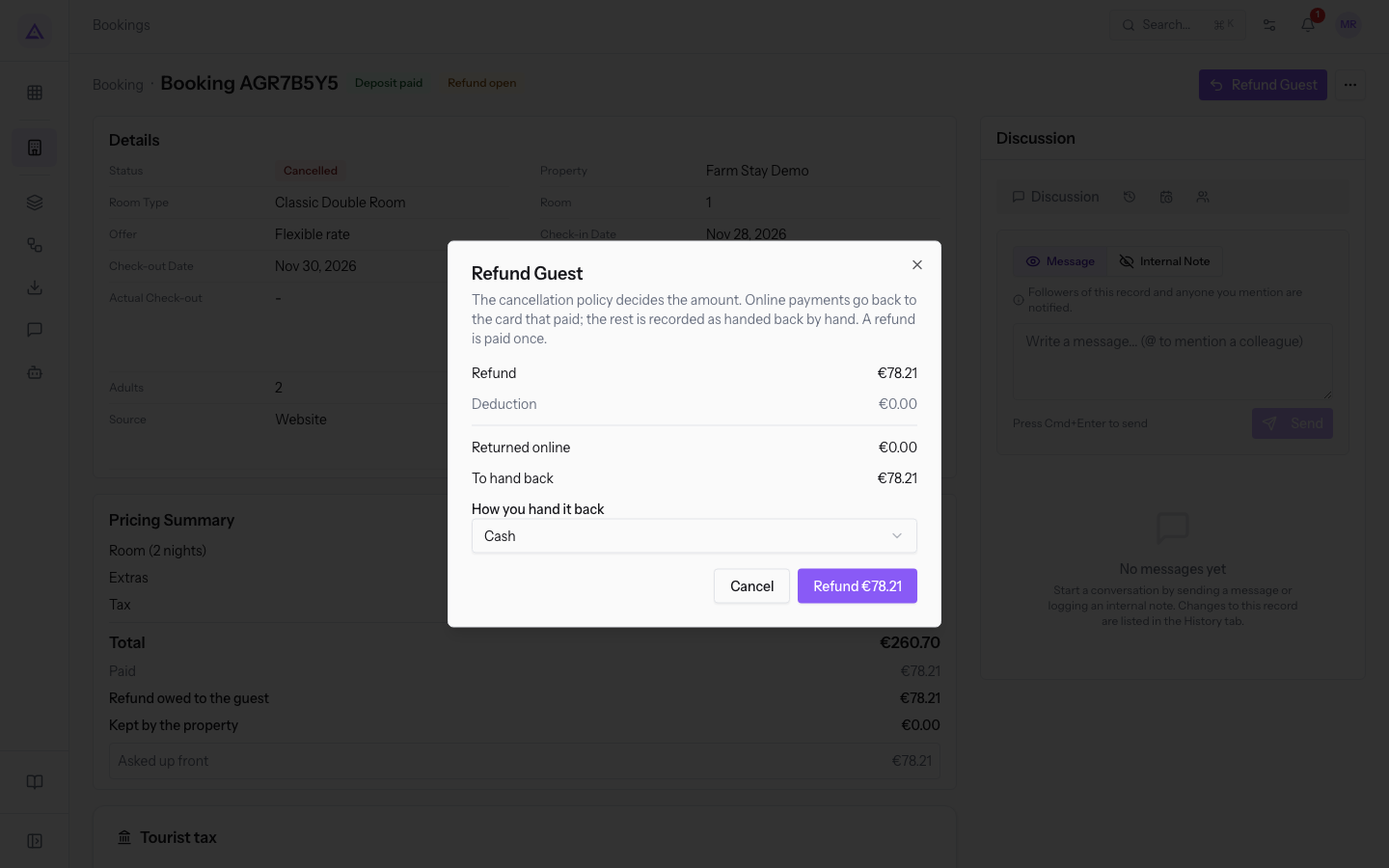
The window contains:
- Refund: the amount to give back under the cancellation policy.
- Deduction: the part the property keeps.
- Already given back: how much has already been returned to the guest. It appears only if a refund has already been made.
- Returned online: the part that goes back to the card.
- To hand back: the part you return.
- How you hand it back: how you return that part by hand. It appears only if there is an amount to hand back.
- Press the button that carries the refund amount, here Refund €0.00. Press Cancel to close the window without recording anything.
- The Refund settled message appears.
Note: each refund is paid only once. Once the refund is recorded, the Refund Guest button no longer appears in the page.
Recognizing a reservation already refunded
The page says whether the refund of a cancelled reservation has already been made.
- Refund open, at the top next to the title: the refund has not yet been recorded, as for
AGR7B5Y5. - Refund settled with the date, above the Payments list: the refund is recorded, as for
AGR9F1X3of Anna Russell, cancelled more than 14 days in advance with the deposit returned in full. In the Payments list the refund appears as a negative amount (-€148.50), in the Pricing Summary as Already given back, and the page does not show the Refund Guest button. - "Refund partly settled": the message that appears when a part is still to be returned, with the amount still due.
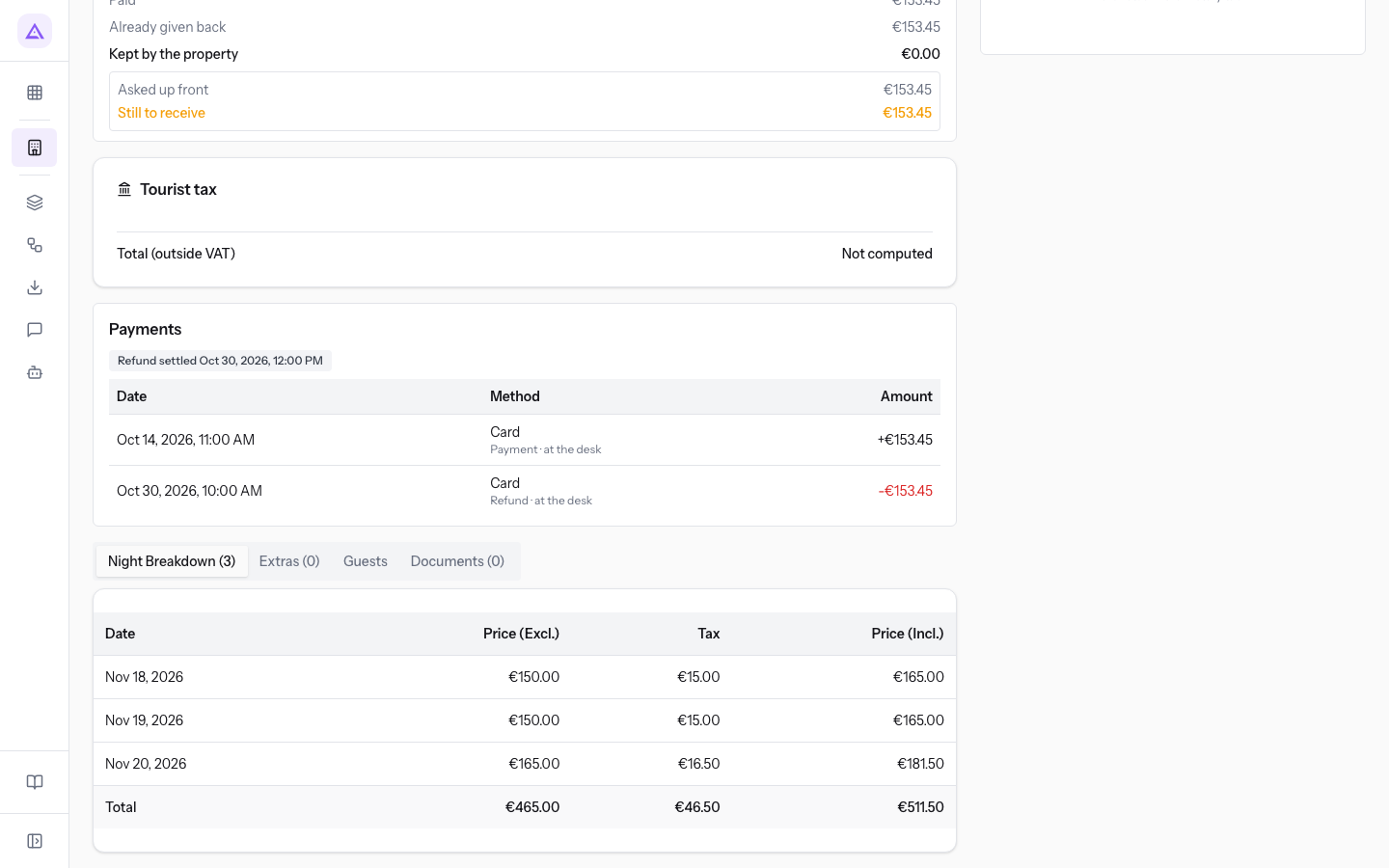
Note: after a full refund the page shows Deposit unpaid and Still to receive, because the amount has gone back to the guest. On a cancelled reservation there is nothing to collect.
Note: a No-show reservation does not follow this procedure. It is not a cancellation and the guest receives nothing.
See it on your company, not on a slide deck.
In 30 minutes we map the software you use today.We show you how much work and how much margin Archimedes gives back.
Show me on my business →What industry are you in?
One tap — it lets us prepare the demo around your world.
What tools do you use today?
Pick the ones you recognise — or just type them. It helps us show you how they migrate.
Last step: your details.
We reply within one working day — and right after, if you like, you pick the demo slot yourself.
We couldn't send your request. Try again, or write to us at [email protected].
By sending, you agree to your data being processed so we can get back to you about the demo. Privacy notice.
Preview form — nothing is sent from this page.
Want to schedule the demo now?
Your call: book the slot you prefer yourself, or we'll call you to arrange it.
Live availability, 30 minutes, instant confirmation. The calendar opens in a new tab.
Lock in your slot ↗We'll get back to you within one working day — and we'll join the call already knowing your world.
The calendar is open in another tab: pick a slot and the demo is booked. Can't see it? Reopen it ↗
Preview page: nothing was sent.
Our calendar is live: take the slot that suits you and the demo is booked. 30 minutes, instant confirmation, no waiting.
Lock in your slot ↗