Property management
All modules
Finding a booking in the list
Property management · 3 of 18 · 4 min read
The Bookings list collects all the reservations for the properties: the upcoming arrivals, the guests currently in house, the completed stays, the cancellations and the no-shows. From here you search for a reservation by code or by guest, narrow the list with filters and status, and open it.
Opening the reservations list
Open PMS › Bookings. When it opens, the All button is active and the reservations are sorted by check-in date, from the furthest in the future to the oldest.
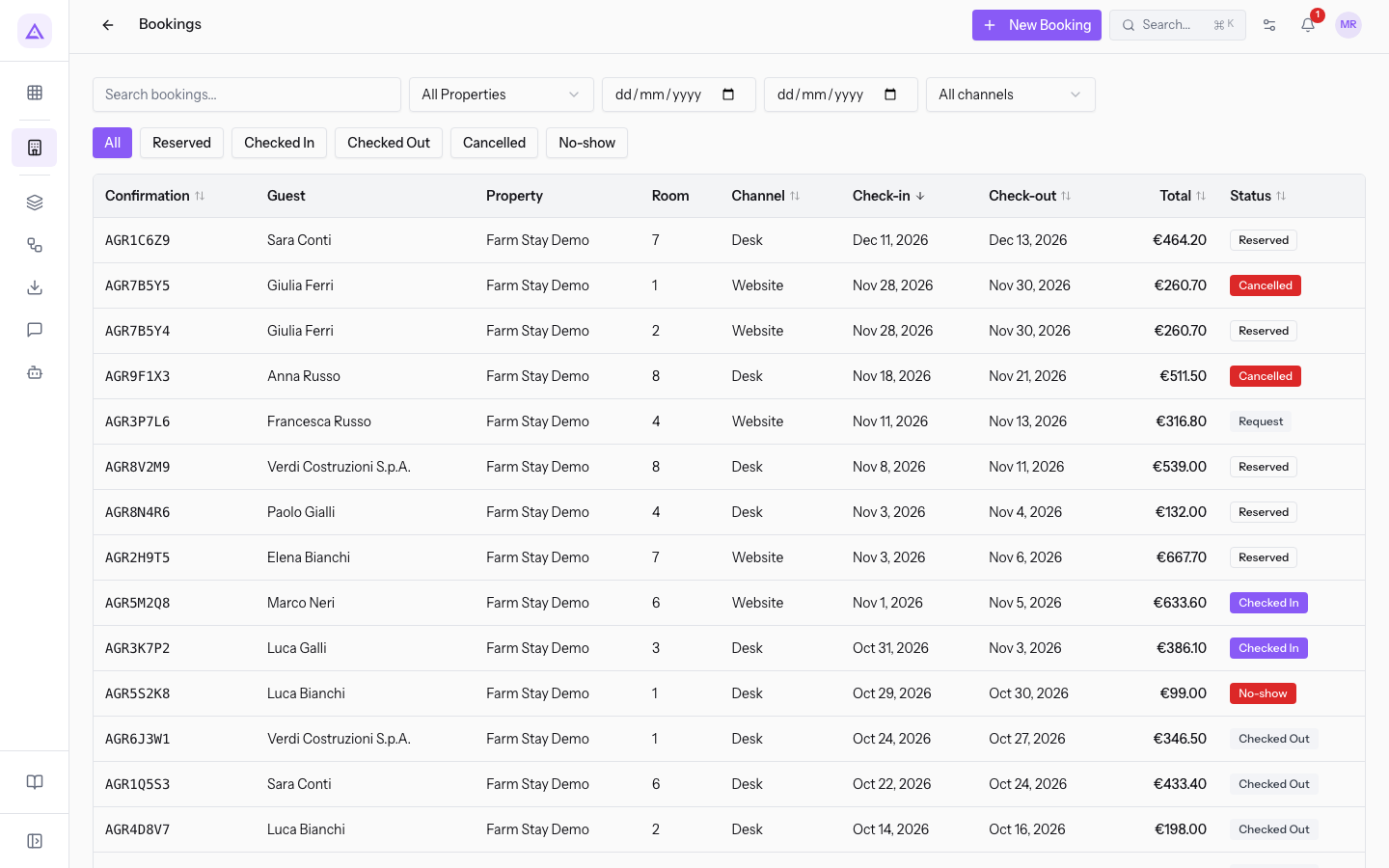
The list shows 25 reservations per page. If there are more, the total and the page numbers appear at the bottom.
The New Booking button opens the availability search to create a reservation. It appears only to users who are allowed to create reservations.
The columns of the list are these:
- Confirmation: the 8-character confirmation code, for example
AGR3K7P2. - Guest: the contact the reservation is in the name of.
- Property: the property.
- Room: the number of the assigned room.
- Channel: where the reservation came from.
- Check-in: the arrival date.
- Check-out: the departure date.
- Total: the amount of the stay, VAT included.
- Status: the status of the reservation.
Searching by code or by guest
In the Search bookings... field, type the confirmation code or the guest's name and press Enter. With Mark Nelson the list shows AGR5M2Q8 and AGR2W8E5.
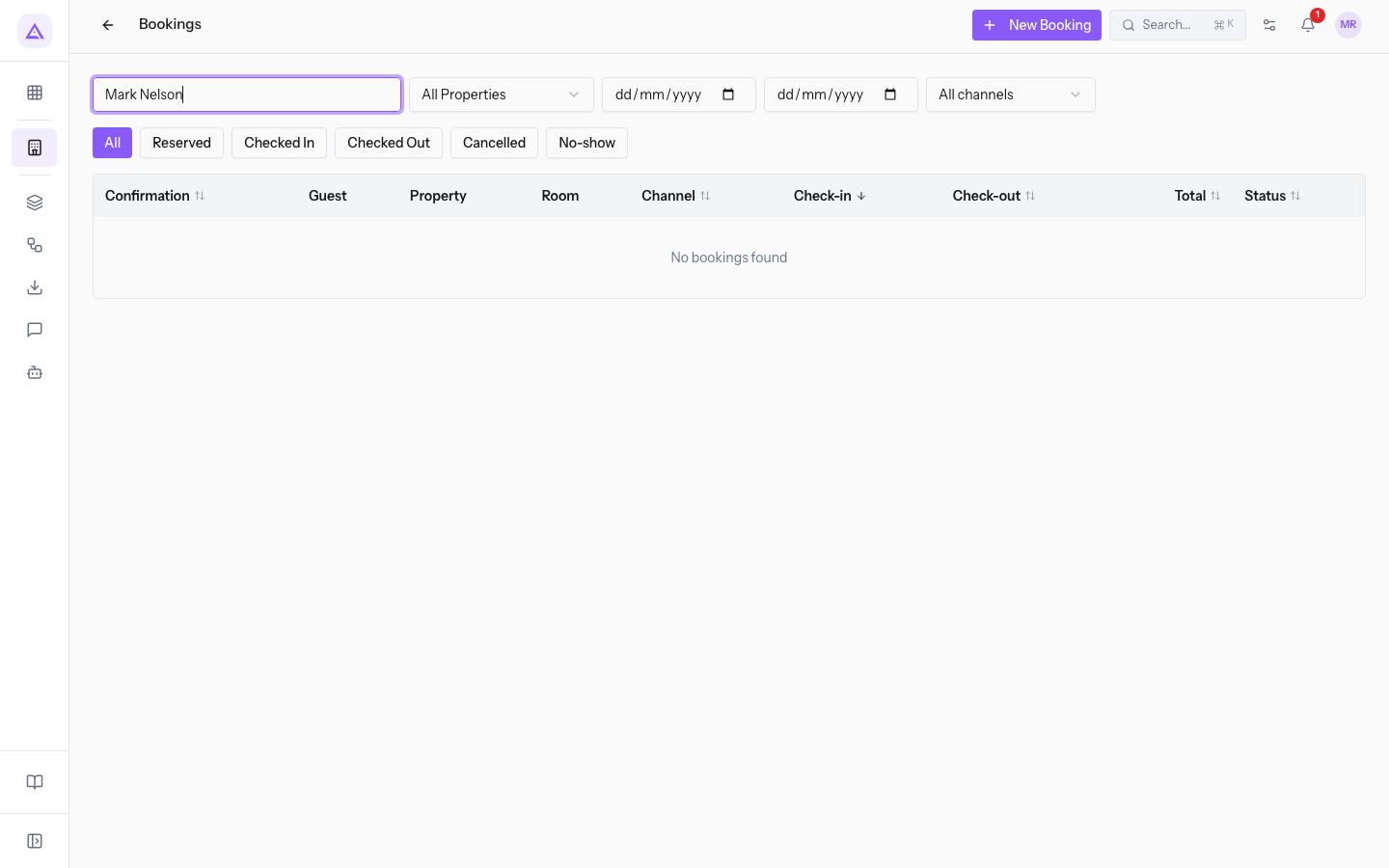
Note: the search only runs when you press Enter. The filters, the status buttons and the sorting, on the other hand, update the list as soon as you change them.
Filtering by property, dates and channel
The filters above the list can be combined with each other and with the search.
- All Properties: shows the reservations of all properties. Choose a property to see only its reservations.
- The two date fields: limit the list to a date range. Leave them empty to apply no date limit.
- Channel: filters by where the reservation came from.
- All channels: no filter. This is the starting value.
- Desk: the reservations entered by the property.
- Website: the reservations that came from the public booking page.
- OTA channels: the reservations that came from the booking portals through the channel manager.
Filtering by status
The status buttons show only one group of reservations. The active button is highlighted.
- All: all reservations, in every status.
- Reserved: the confirmed stays that have not started yet. In the demo: AGR8N4R6 (Paul Gale), AGR2H9T5 (Helen Bright), AGR7B5Y4 (Julia Ferris), AGR8V2M9 (Verdi Construction S.p.A.) and AGR1C6Z9 (Sarah Conway).
- Checked In: the guests currently in house. In the demo: AGR3K7P2 (Luke Gallagher, room 3) and AGR5M2Q8 (Mark Nelson, room 6).
- Checked Out: the completed stays. In the demo: AGR6J3W1, AGR4D8V7, AGR1Q5S3 and AGR2W8E5.
- Cancelled: the cancelled reservations. In the demo: AGR7B5Y5 (Julia Ferris) and AGR9F1X3 (Anna Russell).
- No-show: the guests who did not arrive. In the demo: AGR5S2K8 (Luke Bright).
Important: the Request status has no button. A request that arrived from the website, such as AGR3P7L6 from Frances Russell, appears only under All.
Sorting the list
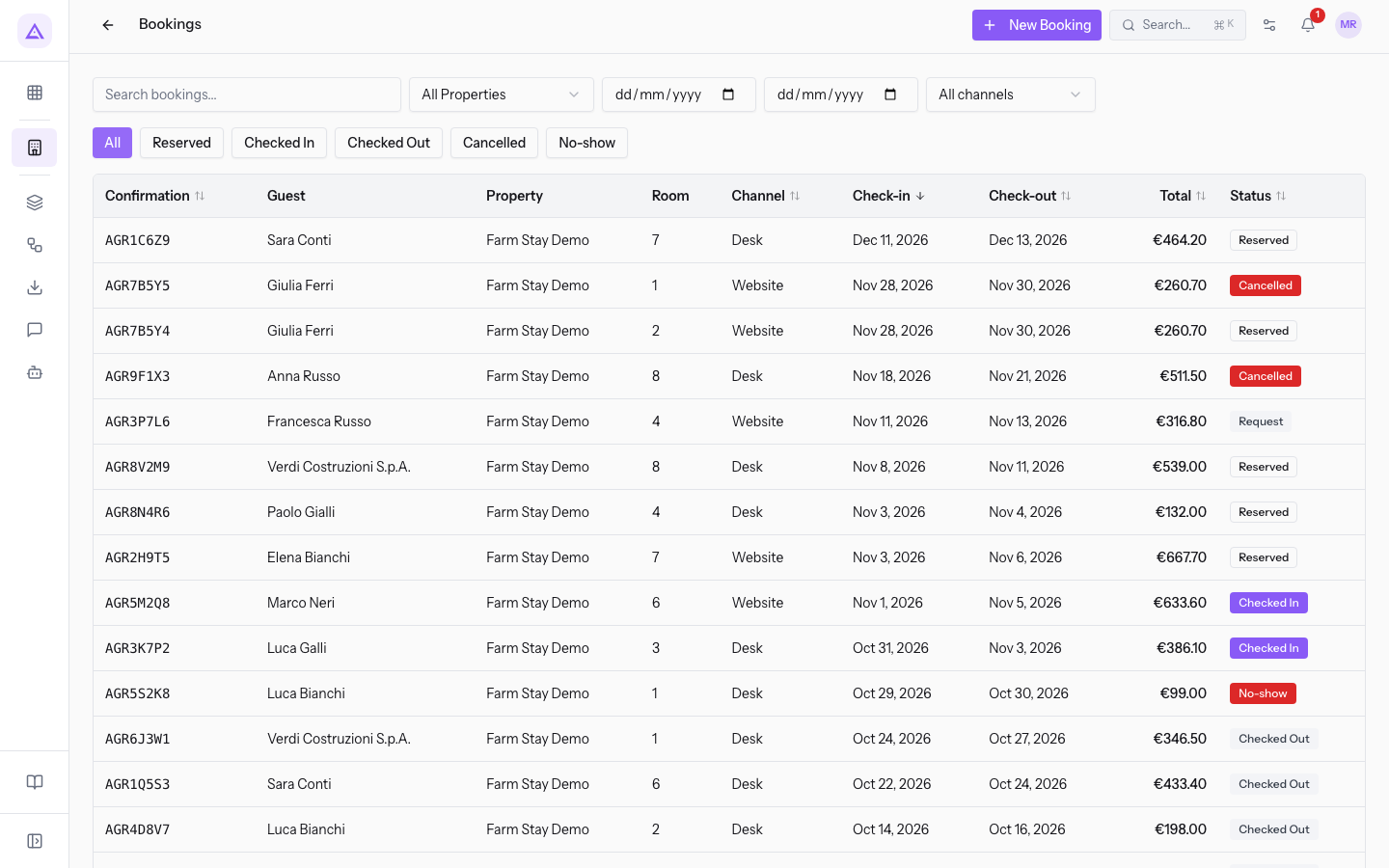
Press the header of a column among Confirmation, Channel, Check-in, Check-out, Total and Status: the list sorts in descending order. Press the same header again to reverse the order. An arrow next to the name shows the column and the sort direction.
Note: the Guest, Property and Room columns cannot be sorted. To find a guest, use the search.
Opening a reservation
Press anywhere on the row. With the row AGR3K7P2 the Booking AGR3K7P2 page opens, with the status, the stay details, the payments and buttons such as Record Payment and Check-out.
See it on your company, not on a slide deck.
In 30 minutes we map the software you use today.We show you how much work and how much margin Archimedes gives back.
Show me on my business →What industry are you in?
One tap — it lets us prepare the demo around your world.
What tools do you use today?
Pick the ones you recognise — or just type them. It helps us show you how they migrate.
Last step: your details.
We reply within one working day — and right after, if you like, you pick the demo slot yourself.
We couldn't send your request. Try again, or write to us at [email protected].
By sending, you agree to your data being processed so we can get back to you about the demo. Privacy notice.
Preview form — nothing is sent from this page.
Want to schedule the demo now?
Your call: book the slot you prefer yourself, or we'll call you to arrange it.
Live availability, 30 minutes, instant confirmation. The calendar opens in a new tab.
Lock in your slot ↗We'll get back to you within one working day — and we'll join the call already knowing your world.
The calendar is open in another tab: pick a slot and the demo is booked. Can't see it? Reopen it ↗
Preview page: nothing was sent.
Our calendar is live: take the slot that suits you and the demo is booked. 30 minutes, instant confirmation, no waiting.
Lock in your slot ↗