Property management
All modules
Managing rooms, maintenance and out-of-service rooms
Property management · 14 of 18 · 5 min read
The Rooms list collects the physical rooms of each property, each with number, floor, room type and status. From here you create rooms, take them off sale for maintenance or because they are out of service, and check the stays and closures planned for each room.
Room status and closures for some nights
Each room has one of these statuses: Active, Maintenance, Out of Service. A room in Maintenance or Out of Service is not on sale.
The module has no cleaning schedule: maintenance is marked with the room status and with the calendar closures.
- If the room stays unusable with no end date, change its Status: in the demo room 5 is in Maintenance, room 9 in the Torretta is Out of Service.
- If the room needs to be closed only for some nights, leave the status Active and close it from the Calendar with Close room: the room goes back on sale from the date indicated. In the demo room 3 is closed from today for two nights for the bathroom check.
Before you start: the Rooms menu is shown to users in the Receptionist and PMS Manager groups. The PMS User group does not see it.
Finding a room in the list
The list shows all the rooms of the properties, with their status.
- Open PMS › Rooms.
- To narrow the list, choose a property in the All Properties filter and a room type in the All Room Types filter.
- Press All, Active, Maintenance or Out of Service to see only the rooms in that status. With Maintenance the demo shows only room 5.
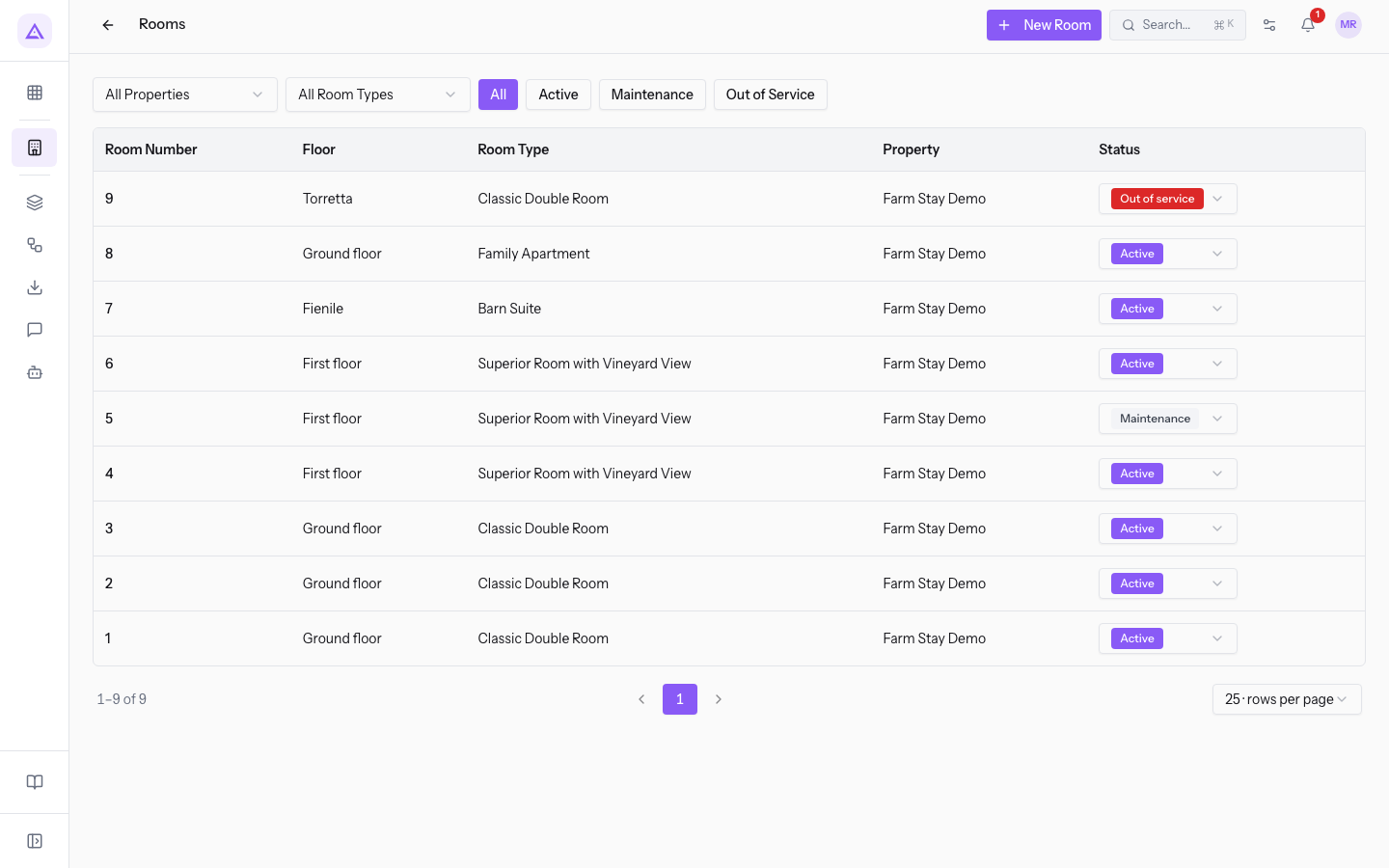
The columns of the list:
- Room Number: the room number. Pressing it opens the room page.
- Floor: the floor or the part of the building, for example
Torrettafor room 9. - Room Type: the room type that is sold.
- Property: the property of the room.
- Status: the room status, editable directly in the row.
Taking a room off sale
Change the status from the list row when a room cannot host anyone.
- In PMS › Rooms open the menu of the Status column in the room's row.
- Choose Maintenance or Out of Service. To put the room back on sale, choose Active again.
- If the room has upcoming stays, the window Room 7 has stays still to come appears, with the chosen room number. The text shows how many stays are coming.
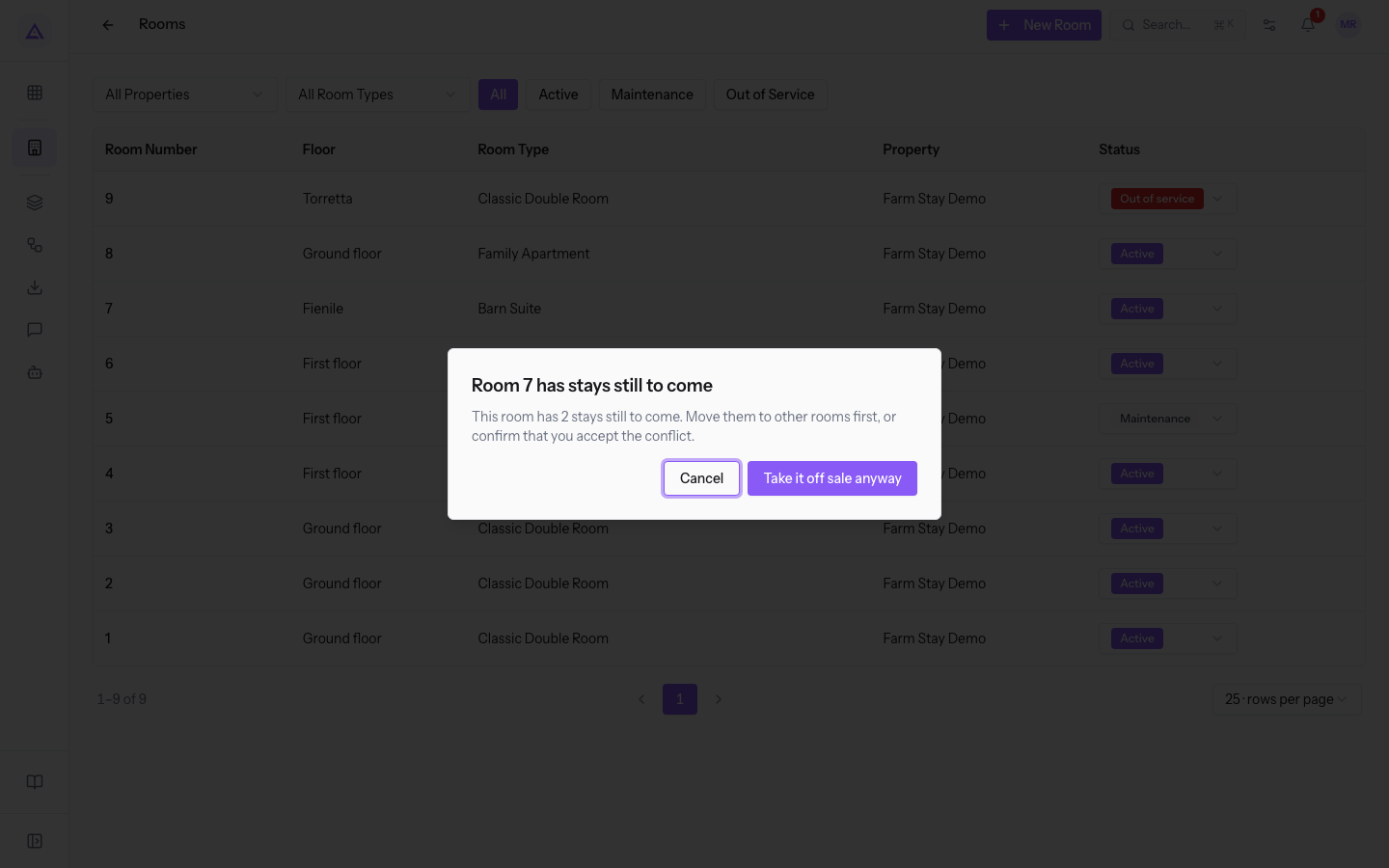
- In the window press Cancel to leave the room as it is, or Take it off sale anyway to change the status and accept the conflict.
Important: before taking a room with upcoming stays off sale, move those stays to other rooms. The window asks you to do this before confirming.
Creating a room
Create one room for each physical room of the property.
- In PMS › Rooms press New Room.
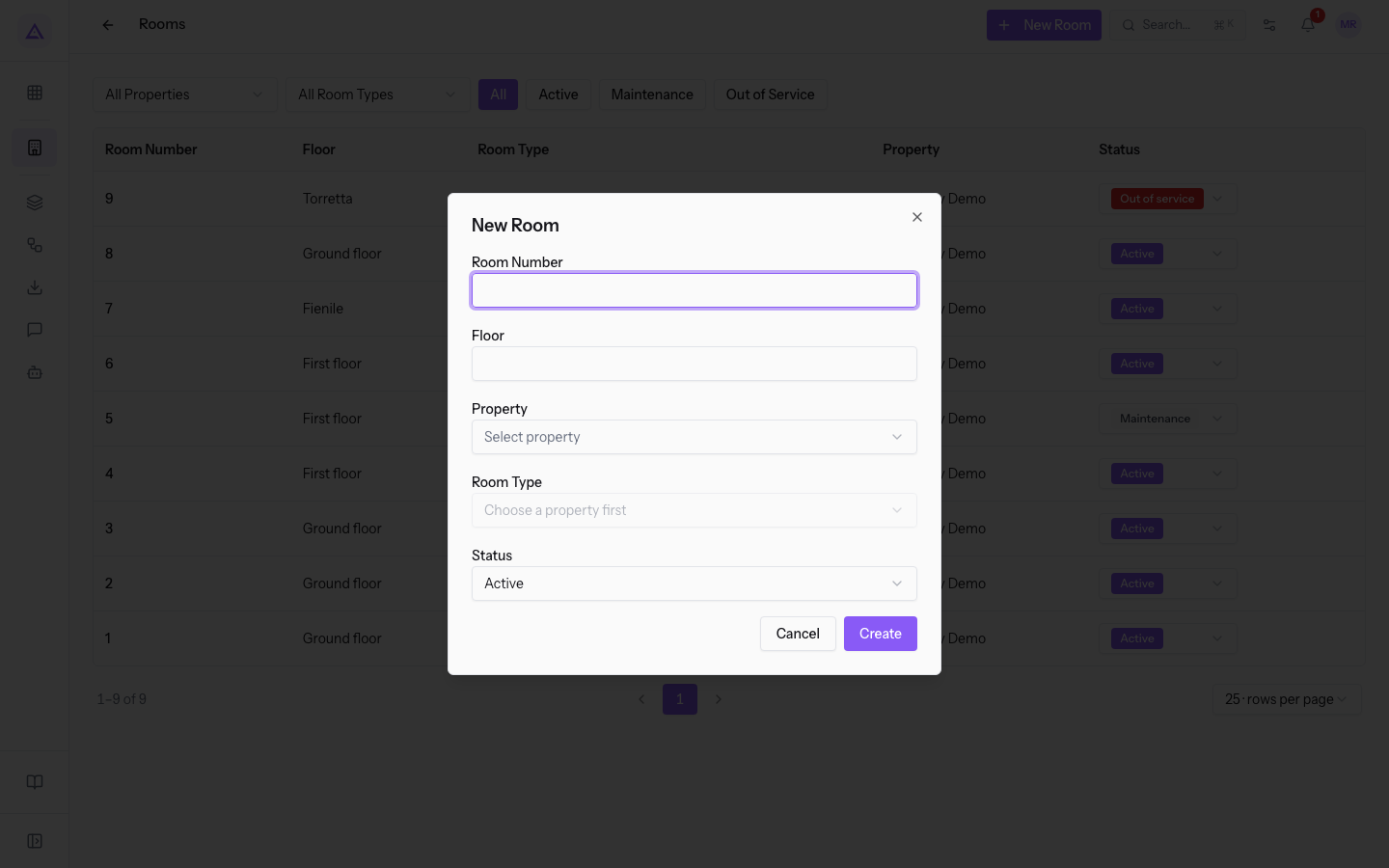
- Fill in the fields and press Create. With Cancel you close the window without creating the room.
The fields of the window:
- Room Number: the room number.
- Floor: the floor or the part of the building.
- Property: the property, to be chosen from the existing ones; when opened it shows Select property.
- Room Type: the room type. Until you choose the property the field shows Choose a property first; after the choice it shows Select room type and the room types of that property.
- Status: the starting status, Active if you do not change it.
- Active: the room is on sale.
- Maintenance: the room is not on sale.
- Out of Service: the room is not on sale.
Reading a room page
The page summarizes the room's data and shows the stays and closures that concern it. In PMS › Rooms press the room number, for example 7: the Room 7 page opens.
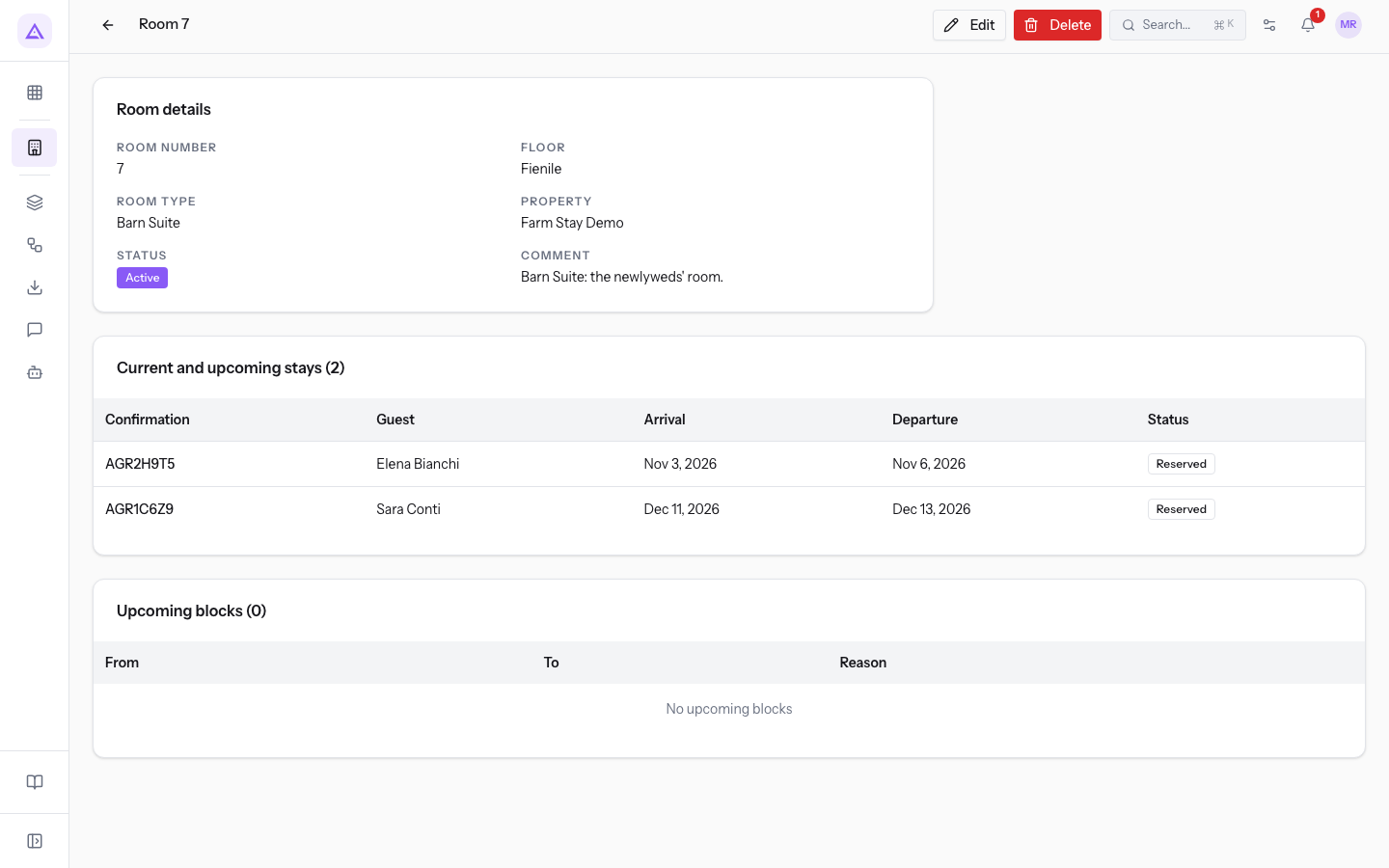
The sections of the page:
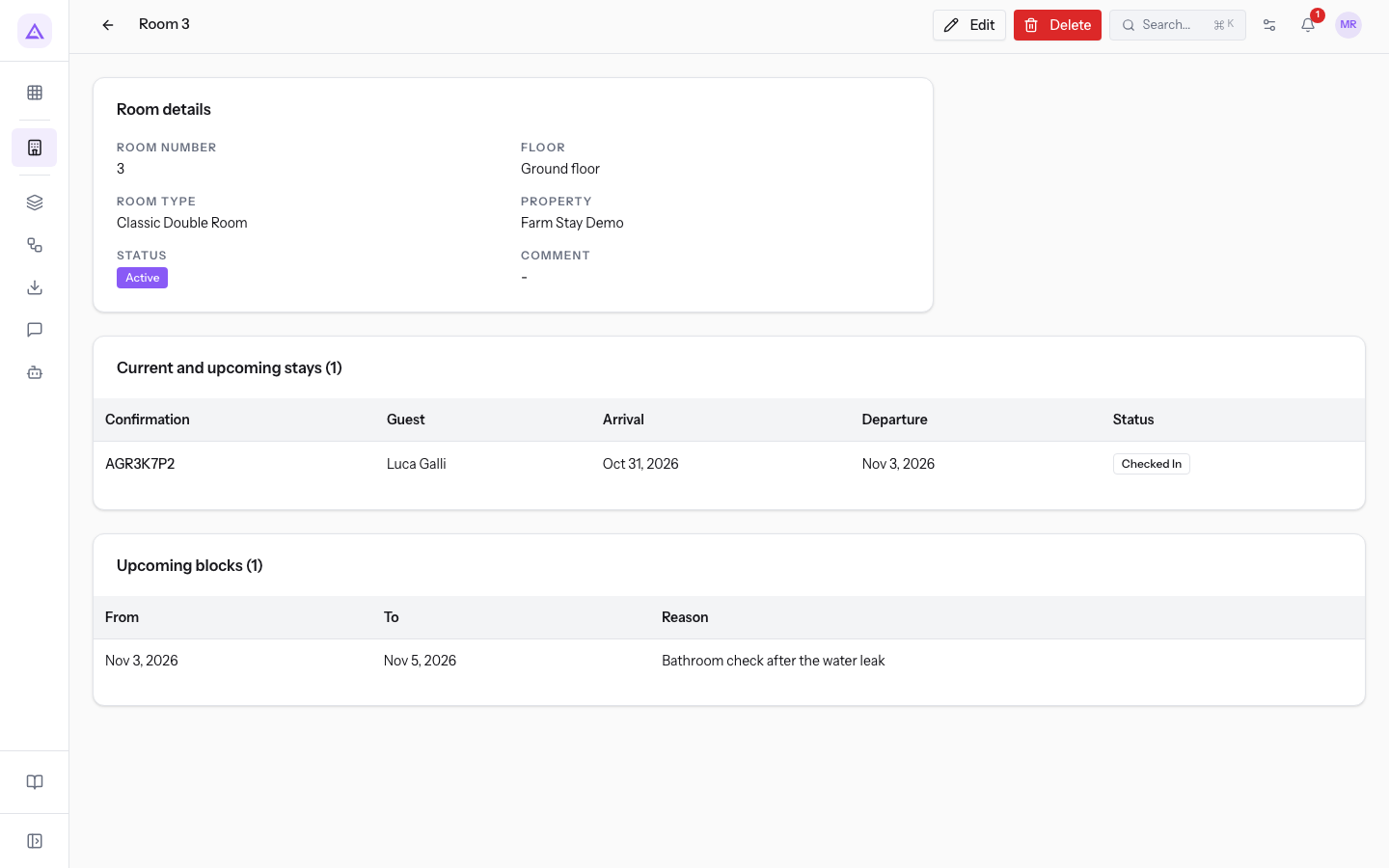
- Room details: number, floor, room type, property, status and Comment.
- Current and upcoming stays: the room's reservations not yet concluded, with the number in brackets in the section title. Room 7 has AGR2H9T5, the arrival today of Helen Bright, and AGR1C6Z9, the wedding night of Sarah Conway. Pressing the code opens the reservation. With no stays No current or upcoming stays appears.
- Upcoming blocks: the room's closures for some nights set from the Calendar, with their number in brackets in the section title. Room 3 has the closure for the bathroom check.
Editing a room
Edit the room's data, including the status, from its page.
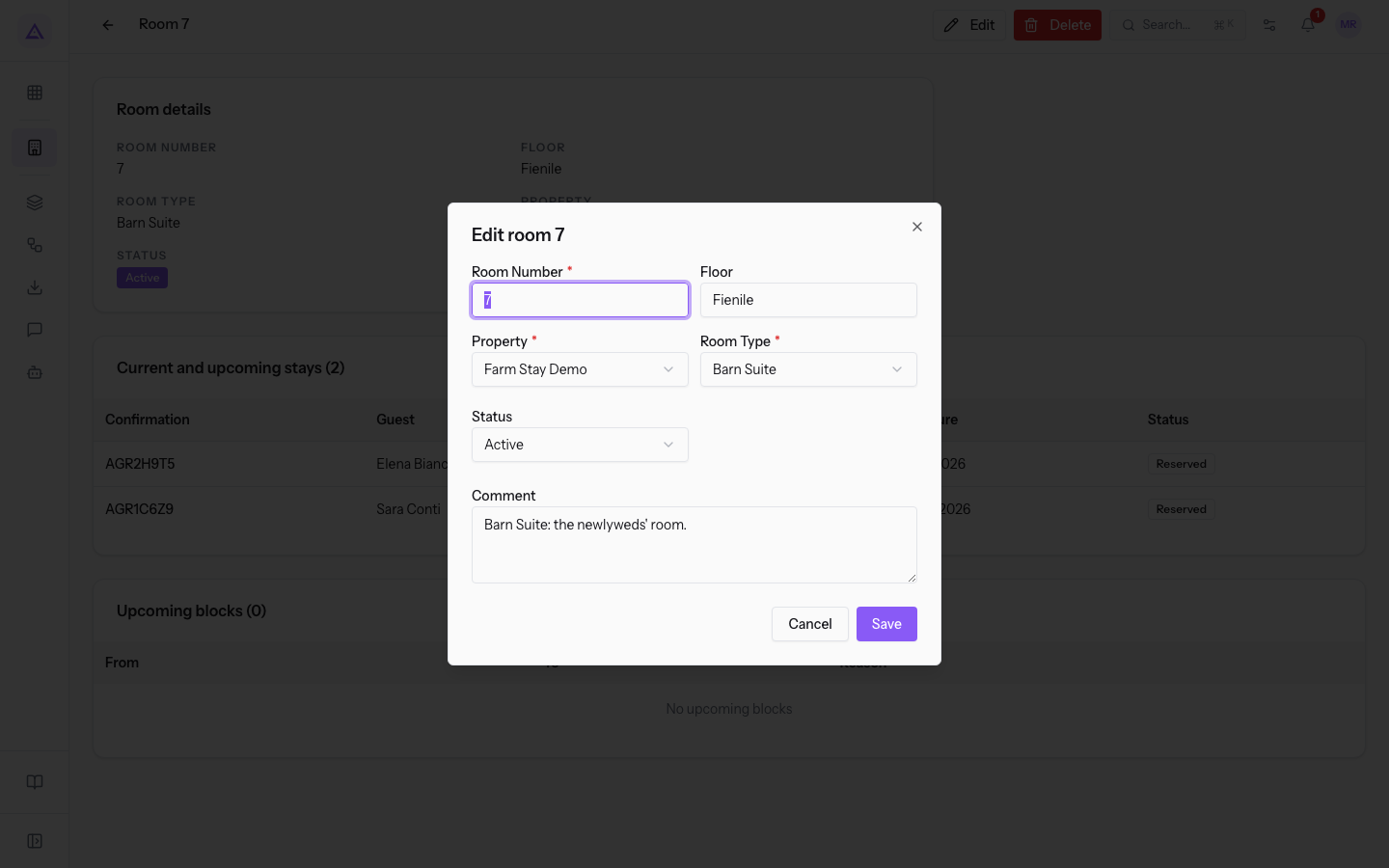
- On the room page press Edit. The Edit room 7 window opens.
- Change the fields and press Save.
The window has the same fields as New Room plus Comment:
- Room Number: required.
- Floor: optional.
- Property: required.
- Room Type: required.
- Status: Active, Maintenance or Out of Service.
- Comment: a free note on the room, for example the reason for maintenance. It appears in the Room details.
Deleting a room
Delete a room only when it no longer exists.
- On the room page press Delete. A confirmation appears asking whether to delete the room, with its number.
- Confirm. The room disappears from the lists, the calendar and the availability.
Note: a room with a current or upcoming stay cannot be deleted. To stop selling it, set it to Out of Service.
See it on your company, not on a slide deck.
In 30 minutes we map the software you use today.We show you how much work and how much margin Archimedes gives back.
Show me on my business →What industry are you in?
One tap — it lets us prepare the demo around your world.
What tools do you use today?
Pick the ones you recognise — or just type them. It helps us show you how they migrate.
Last step: your details.
We reply within one working day — and right after, if you like, you pick the demo slot yourself.
We couldn't send your request. Try again, or write to us at [email protected].
By sending, you agree to your data being processed so we can get back to you about the demo. Privacy notice.
Preview form — nothing is sent from this page.
Want to schedule the demo now?
Your call: book the slot you prefer yourself, or we'll call you to arrange it.
Live availability, 30 minutes, instant confirmation. The calendar opens in a new tab.
Lock in your slot ↗We'll get back to you within one working day — and we'll join the call already knowing your world.
The calendar is open in another tab: pick a slot and the demo is booked. Can't see it? Reopen it ↗
Preview page: nothing was sent.
Our calendar is live: take the slot that suits you and the demo is booked. 30 minutes, instant confirmation, no waiting.
Lock in your slot ↗