Property management
All modules
Set up properties and room types
Property management · 15 of 18 · 6 min read
The property is the accommodation you sell: a farm stay, a bed & breakfast or a holiday home. Room types are the categories you sell within it. On these screens you create properties and, for each room type, set the base price, occupancy, length of stay, beds and extras.
Before you start: the Properties and Room Types menu items appear only to users in the PMS Manager group.
Choosing how to organize properties and room types
Create one property for each accommodation, with its own address and check-in and check-out times. Each room type and each room belongs to only one property.
- If several rooms have the same price, the same occupancy and the same beds, create one room type and assign it all the rooms.
- If a room has a different price or occupancy, for example
Barn Suite, create a separate room type for it.
The room type sets the occupancy limits, which apply to every reservation entered by hand. When a reservation does not specify a room, it takes the first free room of the room type.
The property list
The list shows the organization's properties.
- Open PMS › Properties.
- Search for a property with Search properties... or filter with All, Active or Inactive.
- Press a row to open the property's page.
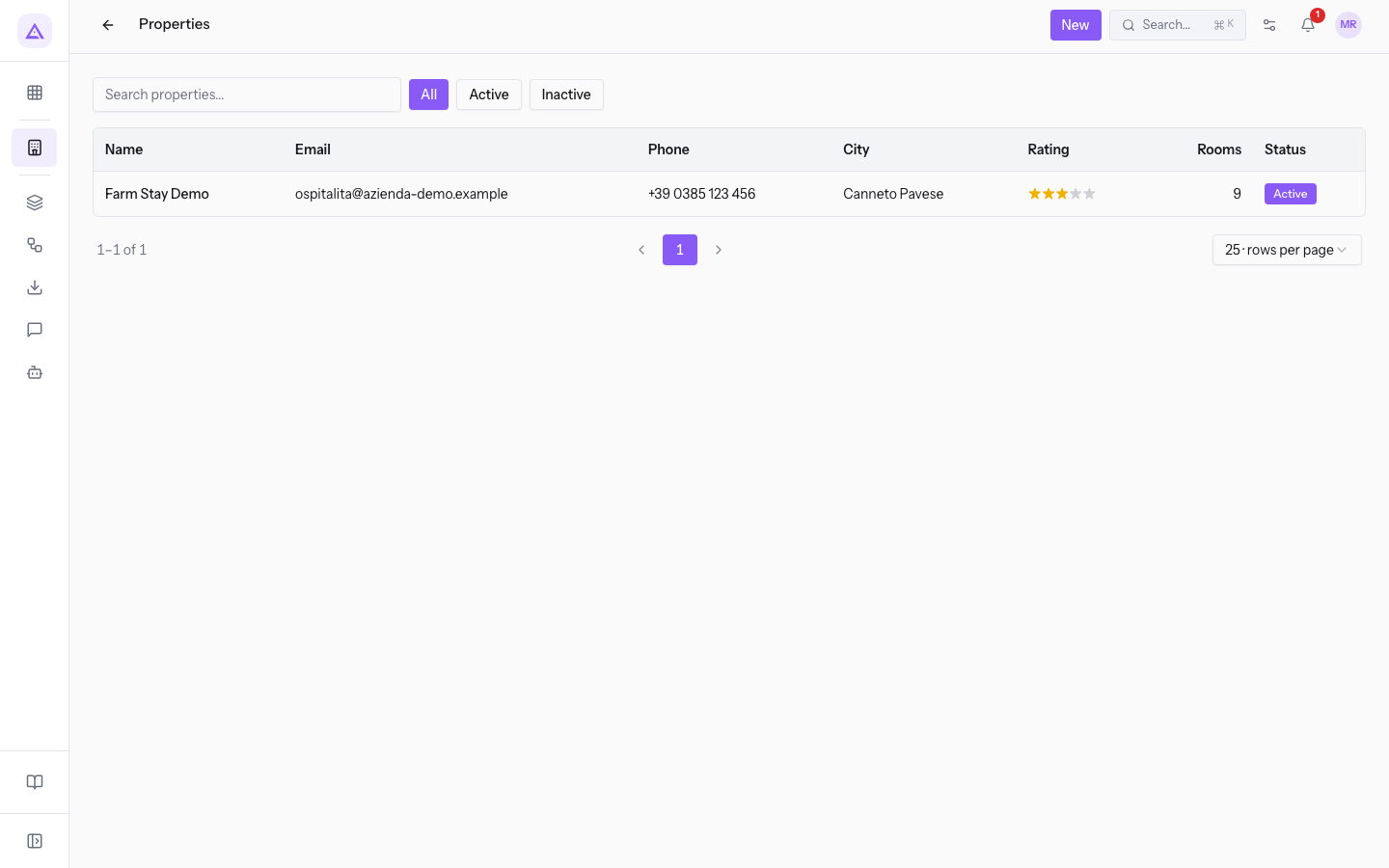
The list columns are Name, Email, Phone, City, Rating, Rooms and Status. The demo includes the row Farm stay Azienda Demo, in Canneto Pavese.
Creating a property
A new property starts with its contact details and address.
- In PMS › Properties, press New.
- Fill in the fields on the New Property page.
- Press Save. To leave without saving, press Cancel.
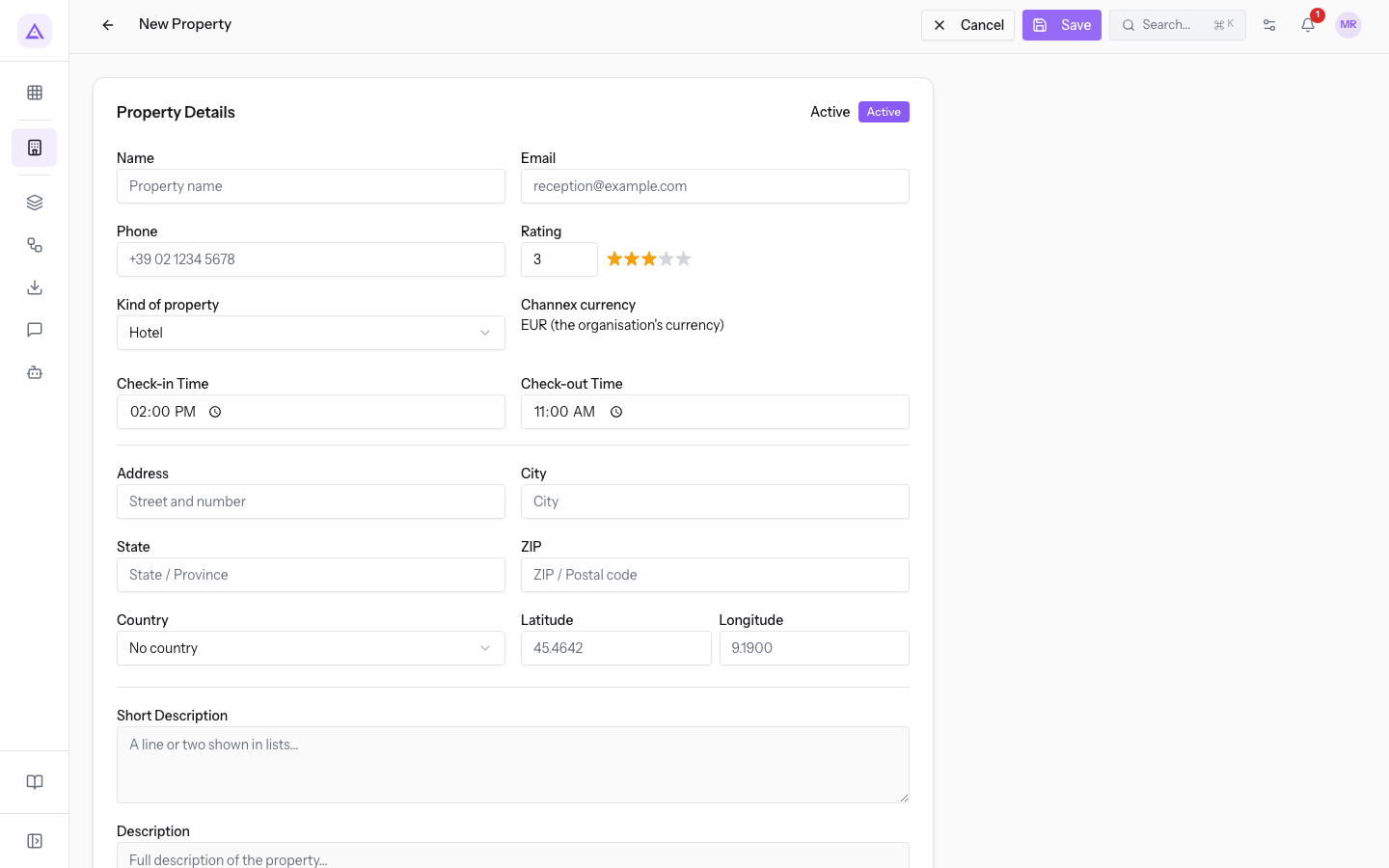
The fields on the property page are the same as when creating it:
- Name: the name of the property.
- Email and Phone: the property's contact details.
- Rating: the property's stars, from one to five.
- Kind of property: the category of the accommodation. The proposed value is Hotel.
- Hotel, Bed & breakfast, Guest house, Farm stay / farm stay, Country house, Apartment, Holiday home.
- Channex currency: the property's currency on the channel manager. In the demo it is
EUR (the organisation's currency). - Check-in Time and Check-out Time: the arrival and departure times. The proposed values are
02:00 PMand11:00 AM. - Address: the street, with the hint
Street and number, then City, State, ZIP and Country. - Latitude and Longitude: the property's location.
- Short Description: one or two lines shown in lists.
- Description: the full property description.
- Policies: the house rules, for example check-in times, pets and deposit.
- Status: a new property starts Active.
Editing property details
On the property page, you edit each detail directly in its value.
- In PMS › Properties, press the property's row.
- In the Property Details panel, press the value to change, for example
Farm stay / farm stayin the Kind of property field. - Choose or type the new value.
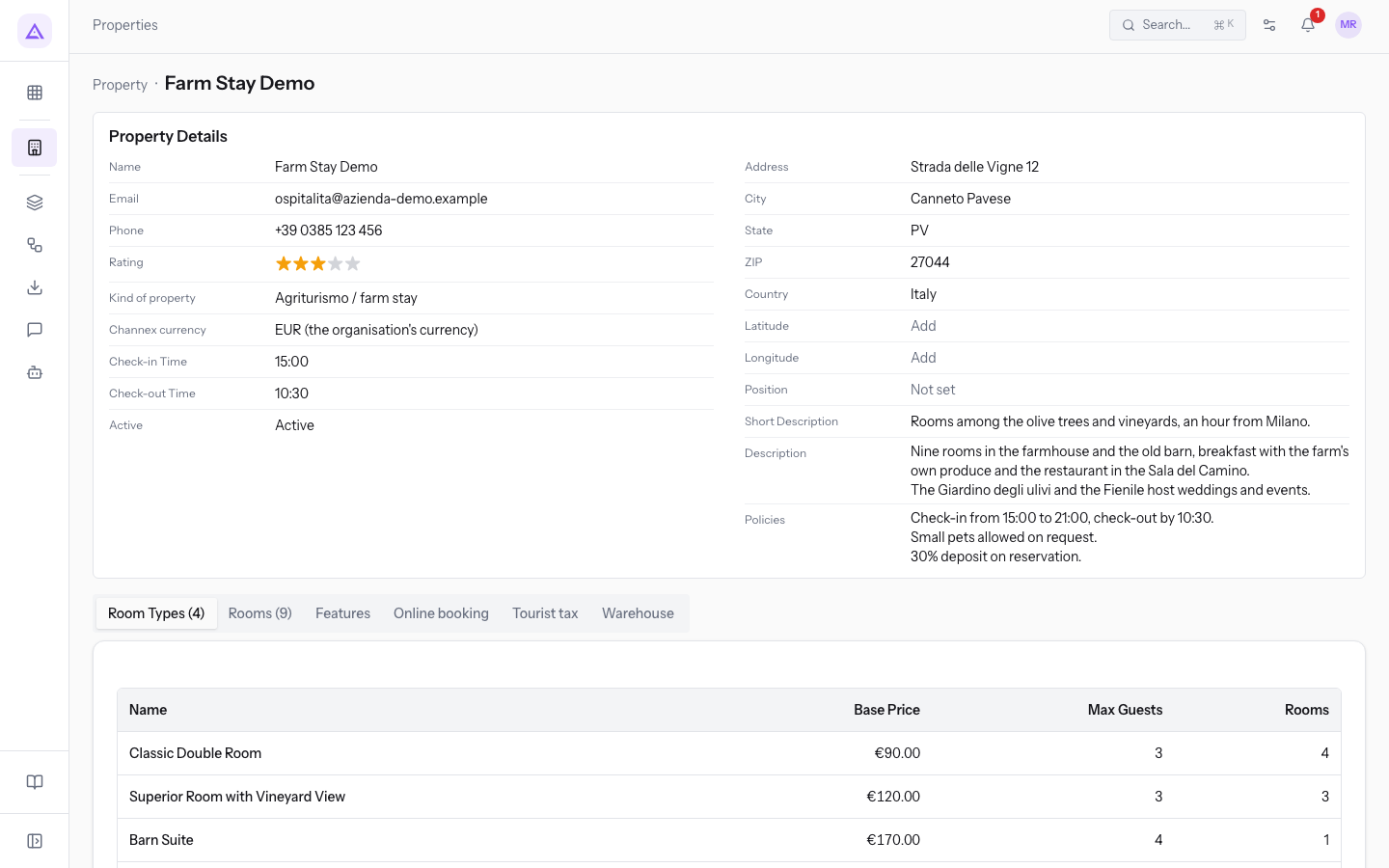
Below the details are the tabs Room Types (4), Rooms (9), Features, Online booking, Tourist tax and Warehouse. The number in brackets counts the property's room types and rooms.
Note: the Online booking and Tourist tax tabs are described in their own articles.
Viewing a property's room types and rooms
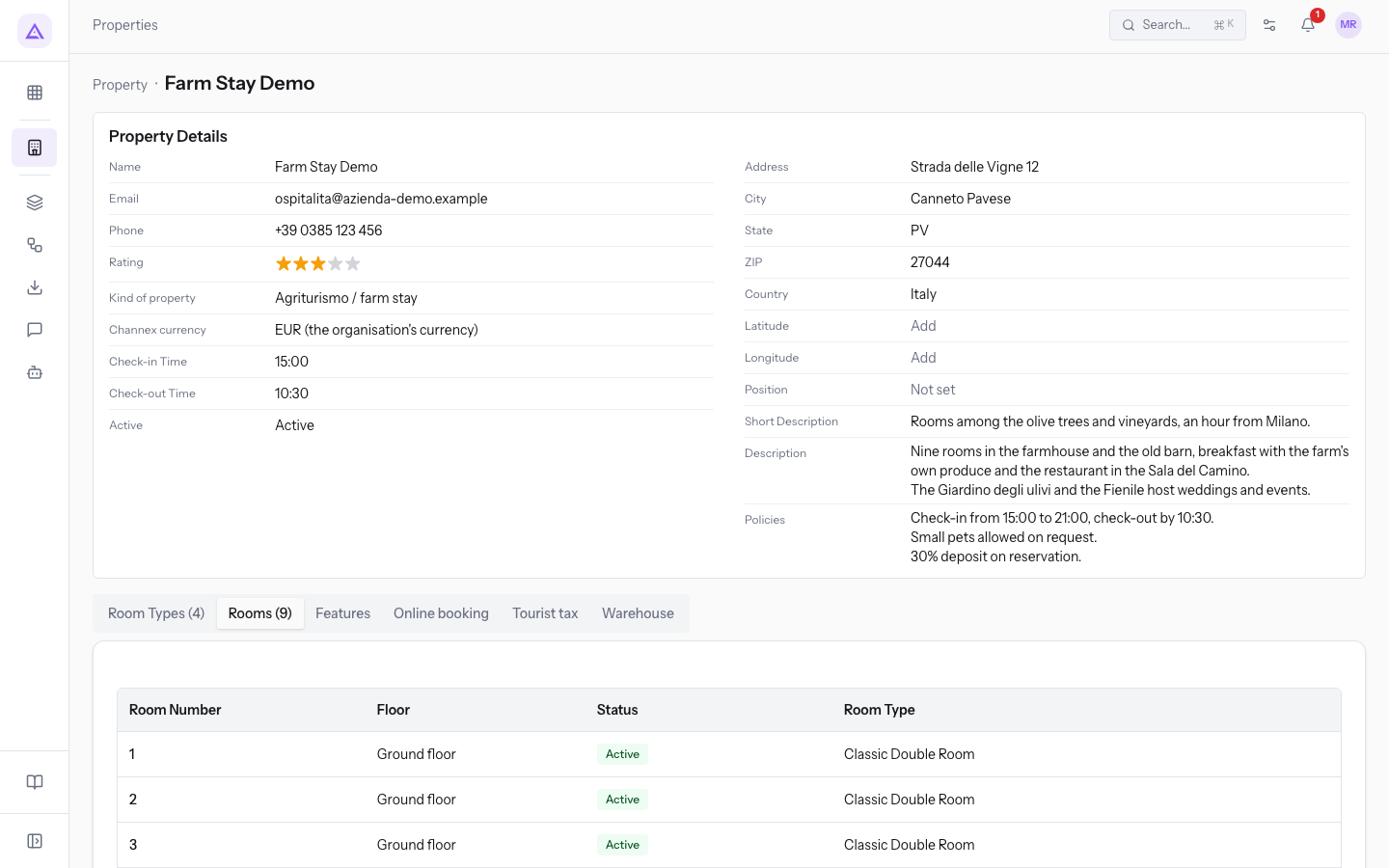
The Room Types and Rooms tabs list what belongs to the property. In the demo, there are 4 room types and rooms 1 to 9.
Setting the property's features
Features describe the property's amenities.
In the Features tab, tick the features the property has and untick the ones it lacks.
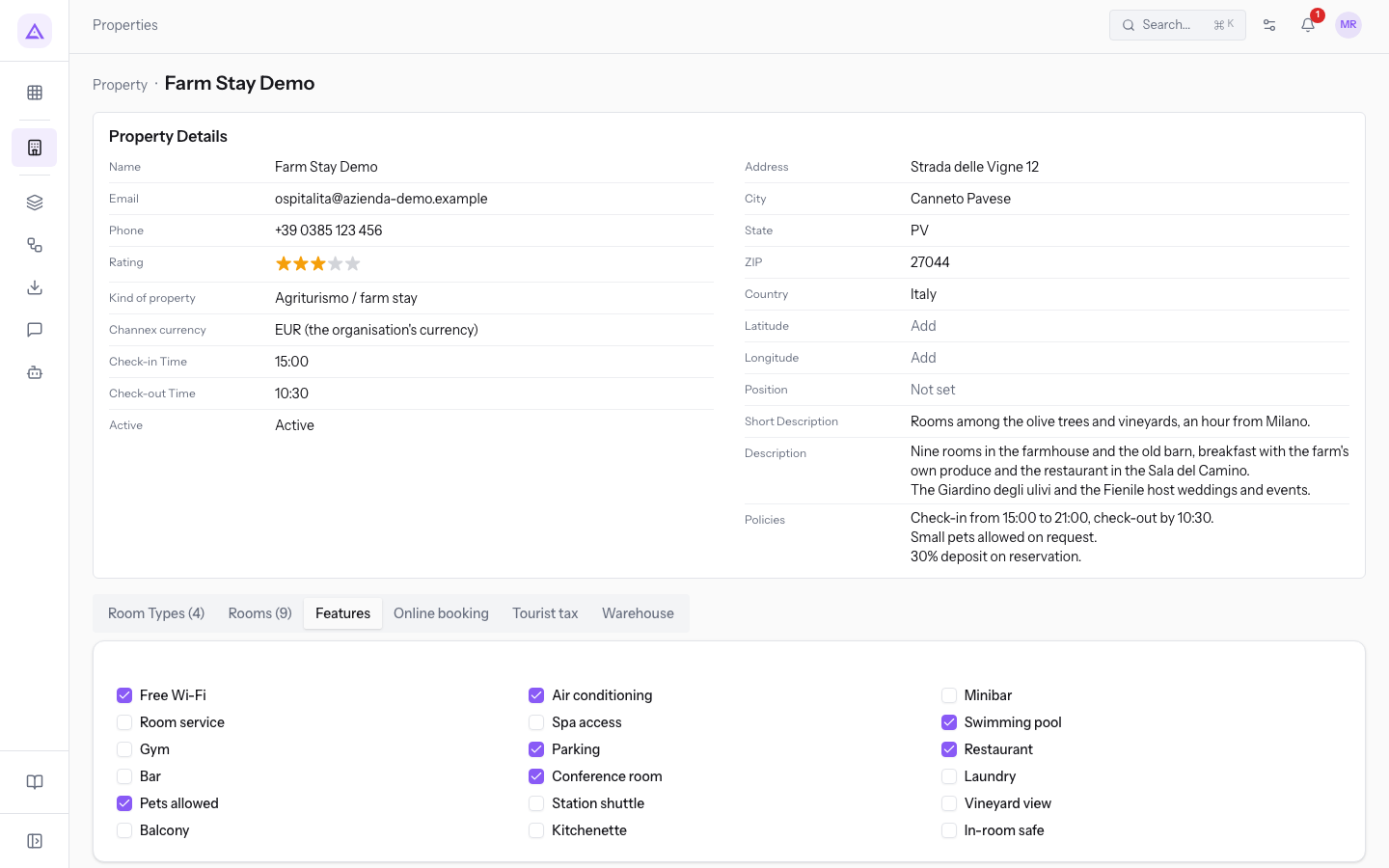
The list includes, among others, Free Wi-Fi, Air conditioning, Minibar, Swimming pool, Parking, Restaurant, Bar, Conference room, Pets allowed, Station shuttle, Vineyard view and In-room safe. In the demo, the ticked features are Free Wi-Fi, Air conditioning, Swimming pool, Parking, Restaurant, Conference room and Pets allowed.
Choosing the warehouse for extras
Extras linked to a product are taken out of a warehouse. In the Warehouse tab, choose the warehouse in the Warehouse extras leave from field. The proposed value is Organisation's default warehouse.
The room type list
The list shows the room types of all properties.
- Open PMS › Room Types.
- Filter by property with All Properties, search with Search..., or filter with All, Active or Inactive.
- Press a row to open the room type's page.
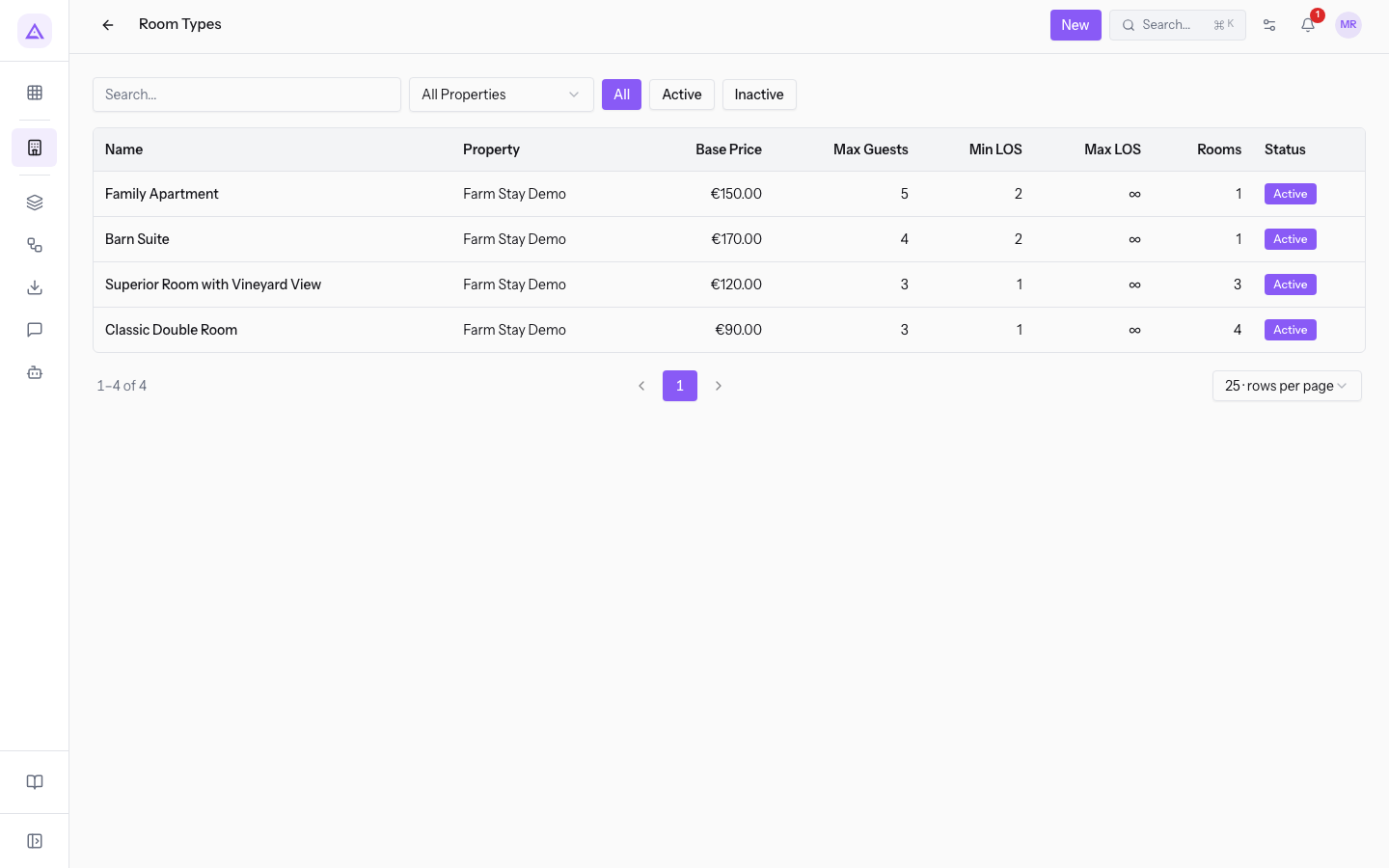
The columns are Name, Property, Base Price, Max Guests, Min LOS, Max LOS, Rooms and Status.
Creating a room type
A room type belongs to a property and sets its price and occupancy.
- In PMS › Room Types, press New.
- Fill in the fields on the New Room Type page.
- Press Save.
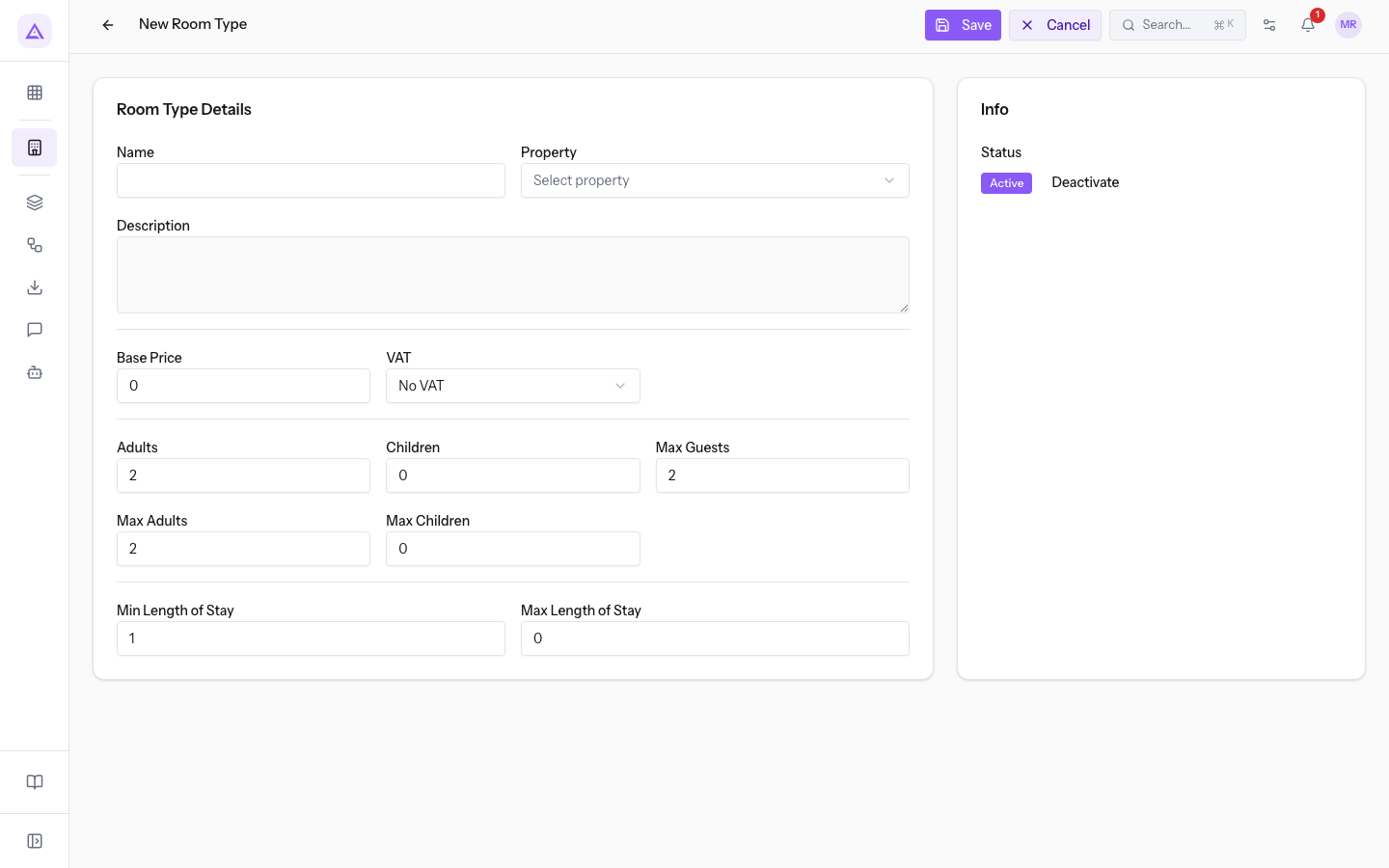
The fields in the Room Type Details panel are:
- Name: the name of the room type.
- Property: the property it belongs to, chosen from Select property.
- Description: the text that describes the room type.
- Base Price: the price per night. The proposed value is
0. - VAT: the VAT rate for the base price.
- No VAT, VAT 22%, VAT 10%, VAT 4%.
- Adults and Children: the proposed values are
2and0. - Max Adults and Max Children: the maximum number of adults and children.
- Max Guests: the maximum number of guests. The proposed value is
2. - Min Length of Stay: the minimum number of nights. The proposed value is
1. - Max Length of Stay: the maximum number of nights. The proposed value is
0. On the Barn Suite page, the maximum stay is Unlimited. - Deactivate: removes the room type from the active ones.
Editing a room type
On the room type page, you edit each detail directly in its value.
- In PMS › Room Types, press the row, for example
Barn Suite. - Press the value to change:
€170.00opens the Base Price field. - Type the new value.
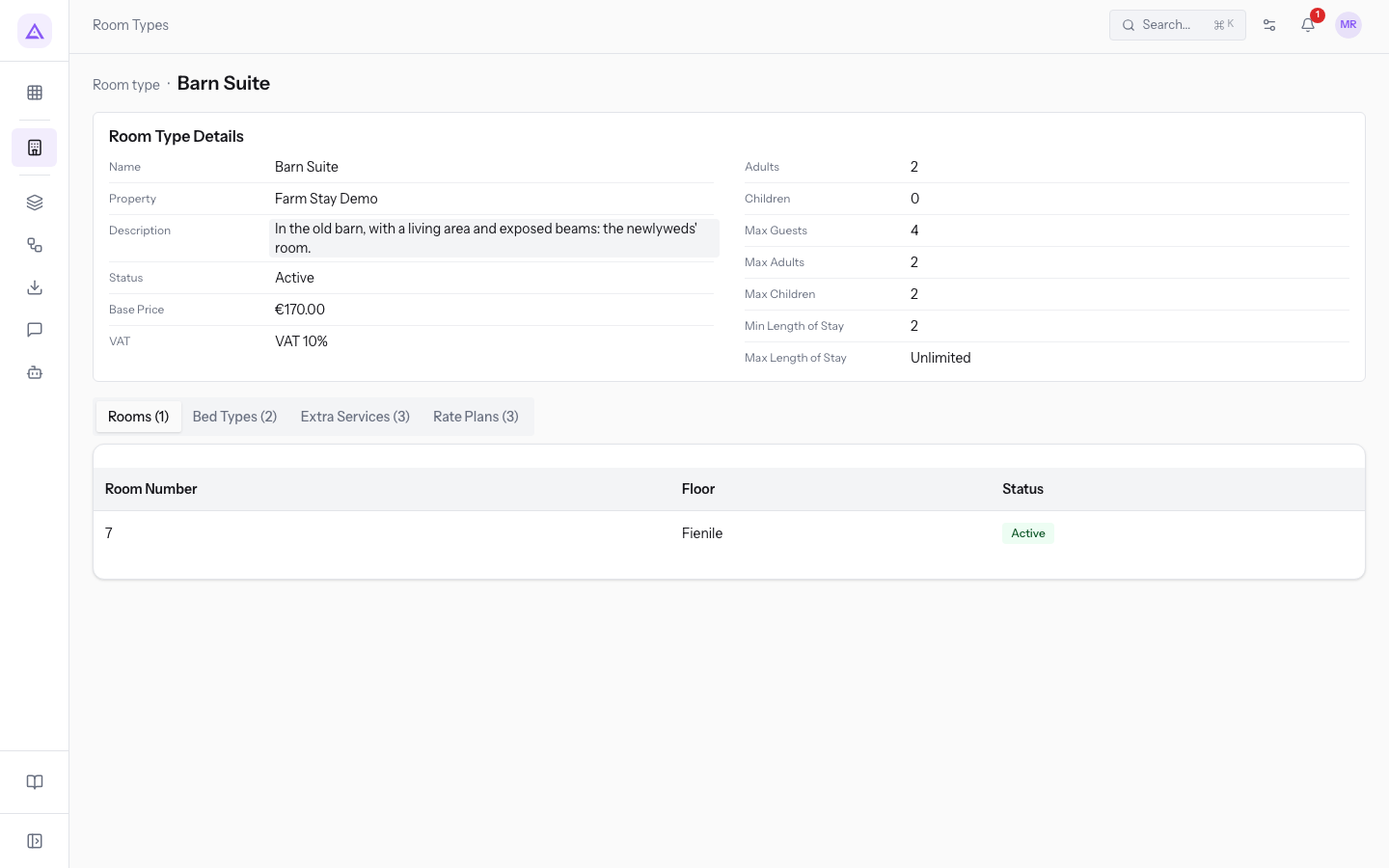
In the demo, the Barn Suite has a Base Price of €170.00 with VAT 10%.
Important: a new price applies immediately at the front desk, on the website and on all channels. Reservations already made keep their price.
Below the details, the page has the sections Rooms, Bed Types, Extra Services and Rate Plans, with the number of items in brackets.
Setting the room type's beds
The Bed Types section lists the room type's beds.
- In the Bed Types tab, press Edit beds.
- For each bed, choose the Bed type and enter the Quantity.
- To add another bed, press Add bed type. To remove a bed, press Remove bed type.
- Press Save beds, or Cancel.
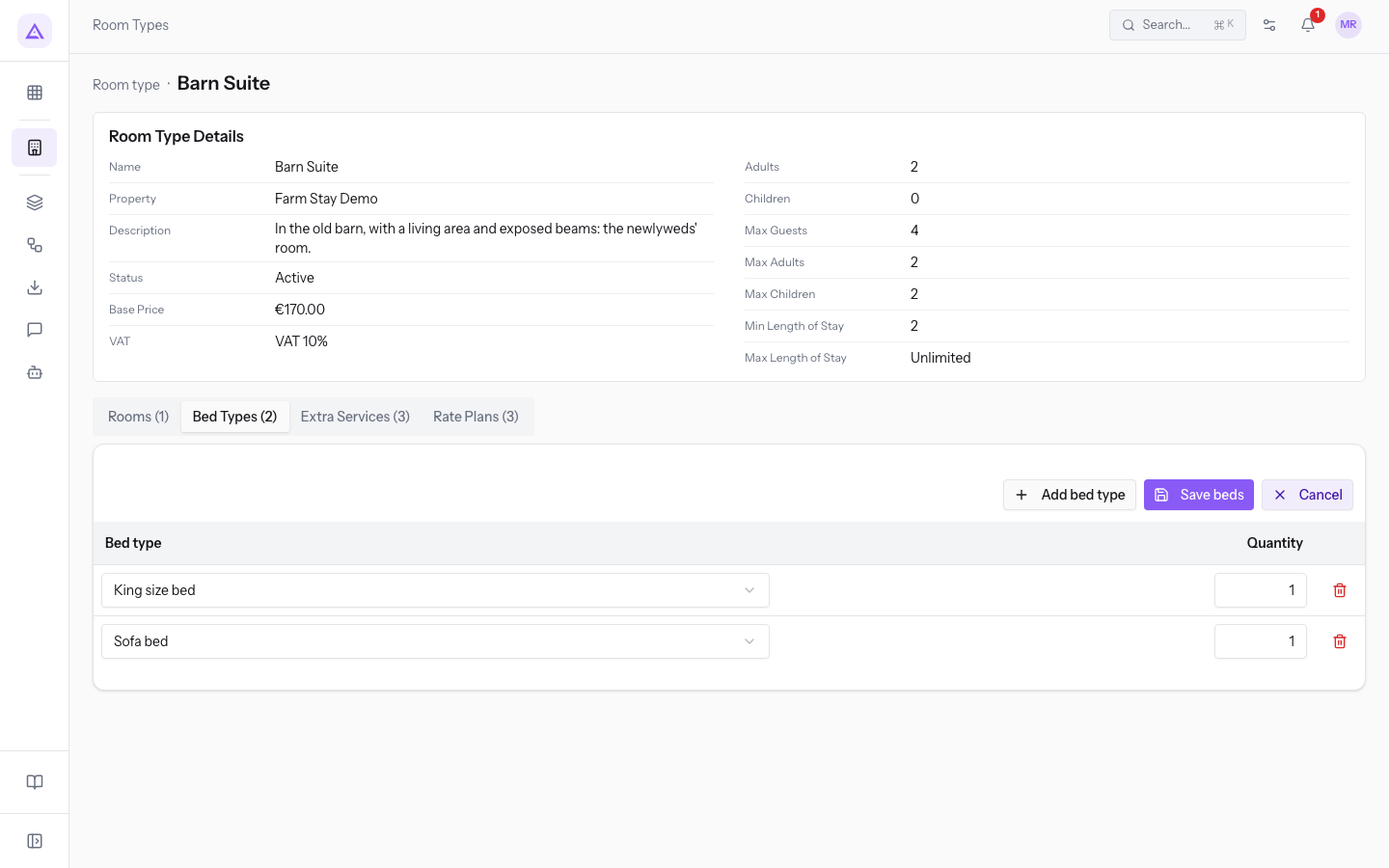
- Bed type: the bed, chosen from the module's bed types.
- Quantity: the number of beds of that type.
In the demo, the Barn Suite has a King size bed and a Sofa bed.
Extra services and rate plans for the room type
The Extra Services section lists the extras the room type offers. The Rate Plans section lists the room type's offers and adjustments. The Barn Suite has three.
For each extra, the room type can use the extra's Default Price or a Price Override. Extras charged per night or per person follow the reservation's nights and guests automatically.
See it on your company, not on a slide deck.
In 30 minutes we map the software you use today.We show you how much work and how much margin Archimedes gives back.
Show me on my business →What industry are you in?
One tap — it lets us prepare the demo around your world.
What tools do you use today?
Pick the ones you recognise — or just type them. It helps us show you how they migrate.
Last step: your details.
We reply within one working day — and right after, if you like, you pick the demo slot yourself.
We couldn't send your request. Try again, or write to us at [email protected].
By sending, you agree to your data being processed so we can get back to you about the demo. Privacy notice.
Preview form — nothing is sent from this page.
Want to schedule the demo now?
Your call: book the slot you prefer yourself, or we'll call you to arrange it.
Live availability, 30 minutes, instant confirmation. The calendar opens in a new tab.
Lock in your slot ↗We'll get back to you within one working day — and we'll join the call already knowing your world.
The calendar is open in another tab: pick a slot and the demo is booked. Can't see it? Reopen it ↗
Preview page: nothing was sent.
Our calendar is live: take the slot that suits you and the demo is booked. 30 minutes, instant confirmation, no waiting.
Lock in your slot ↗