Property management
All modules
Check in, check out and mark a no-show
Property management · 6 of 18 · 6 min read
From the reservation page, record the guest's arrival (check-in) and departure (check-out), end a stay before the planned date, and mark as no-show anyone who does not arrive.
How the reservation status changes
Each action moves the reservation to a different status. You can read the status in the reservation page, under Status in Details.
- Check-in: moves from Reserved to Checked In. It can only be done from Reserved.
- Check-out: moves from Checked In to Checked Out. It can only be done from Checked In, and it creates the stay's sale order by itself.
- Mark as no-show: moves from Reserved to No-show. It can only be done from Reserved and starting from the arrival day.
Checked Out, Cancelled and No-show are closed statuses: dates, room and extras can no longer be changed.
How to choose:
- If the guest arrives on the planned day, press Check-in.
- If the guest arrives before the booked date and the room is free, press Check-in and confirm the early arrival.
- If the guest leaves on the planned day, press Check-out.
- If the guest leaves before the planned day, use End stay early.
- If the guest does not arrive and did not cancel, use Mark as no-show. For a cancellation, use Cancel Booking instead.
To open a reservation, in PMS › Bookings type the code in Search bookings..., press Enter and press the row.
Check in
Before you start: check-in and check-out require the Receptionist or PMS Manager permission group.
Record the guest's arrival when they enter the room. In the reservation page, for example AGR8N4R6 for Paul Gale, room 4, arriving today, press Check-in.
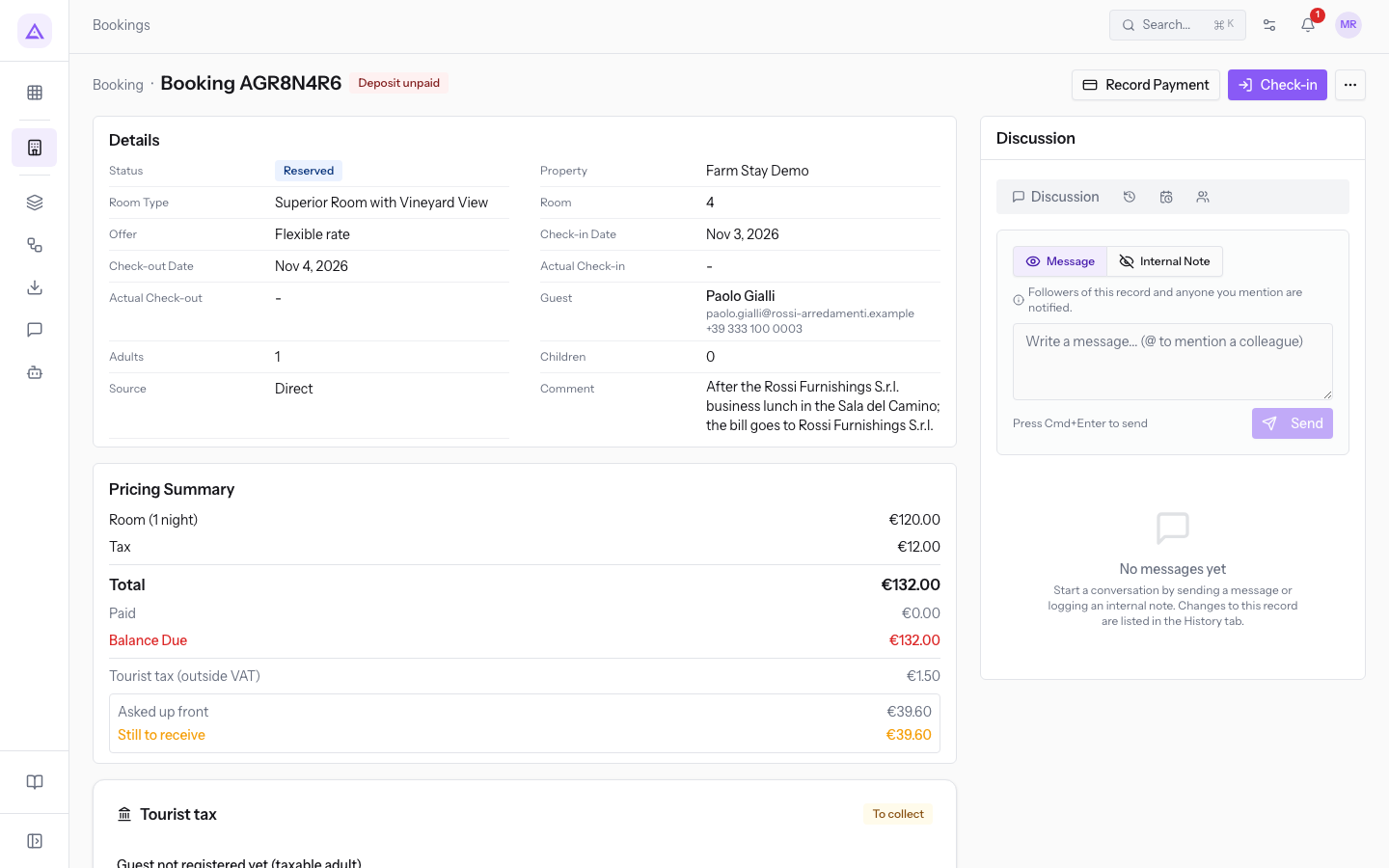
If the arrival is today, check-in is recorded right away, with no further confirmation. The status becomes Checked In and the Check-out button appears in place of Check-in.
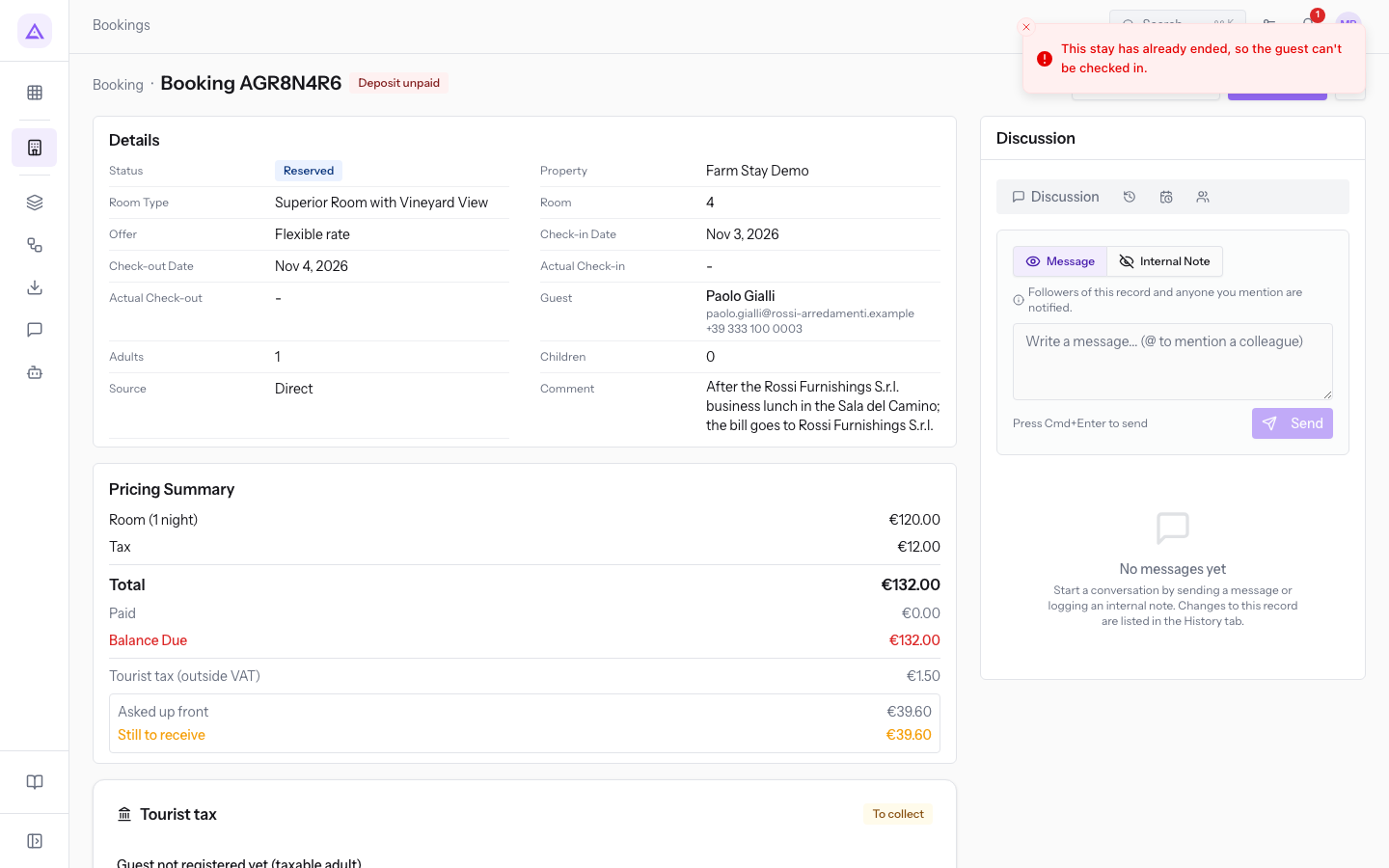
Note: check-in does not collect any money. For
AGR8N4R6the page still shows Deposit unpaid and Balance Due €167.20. Payments are recorded with Record Payment.
Check in before the arrival date
If the guest arrives before the booked date, check-in can be brought forward. This is only possible if the room is free from today until the arrival date. The stay starts from today, and the added nights are charged at today's rates.
- In the reservation page, for example
AGR1C6Z9, which starts on Nov 13, 2026, press Check-in. The Check in before the arrival date? window opens. - Read the summary: the window shows the reservation's start date, says the room is occupied from tonight, and how many nights are added at today's rates.
- Press Check-in to confirm, or Cancel to leave the reservation as it is.
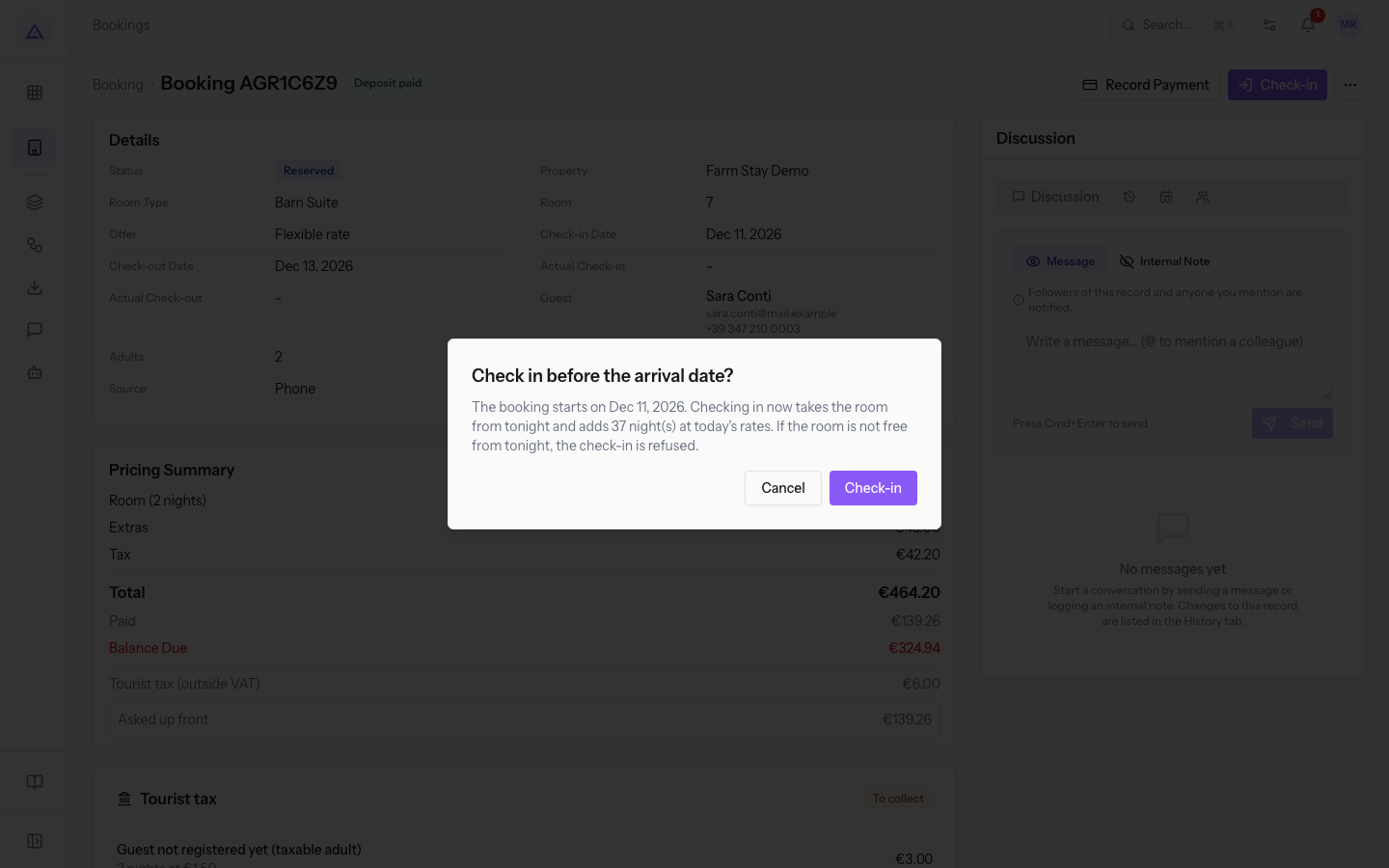
Important: early check-in does not apply to reservations that came from a channel, because the dates belong to the channel.
Check out
Record the guest's departure when they leave the room. The reservation status must be Checked In.
- In the reservation page, check the Balance Due and the tourist tax. For
AGR3K7P2for Luke Gallagher, room 3, leaving today, Balance Due is €270.27 and the tax still has to be collected with Mark collected. - Press Check-out.
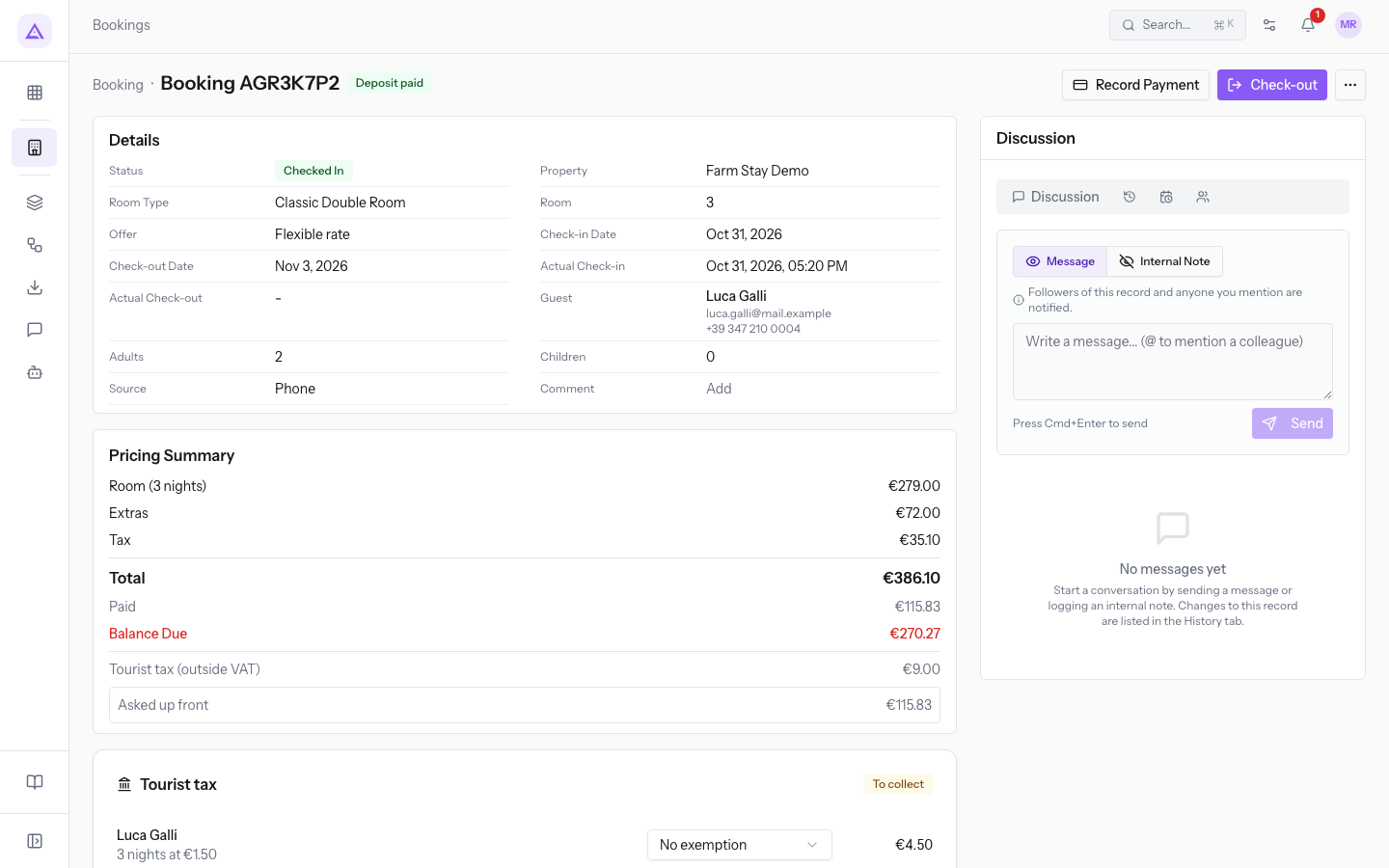
Check-out is recorded right away. The status becomes Checked Out, the Check-out button disappears, and the page shows a Sale Order section with the created order, in the demo SO/2026/00008.
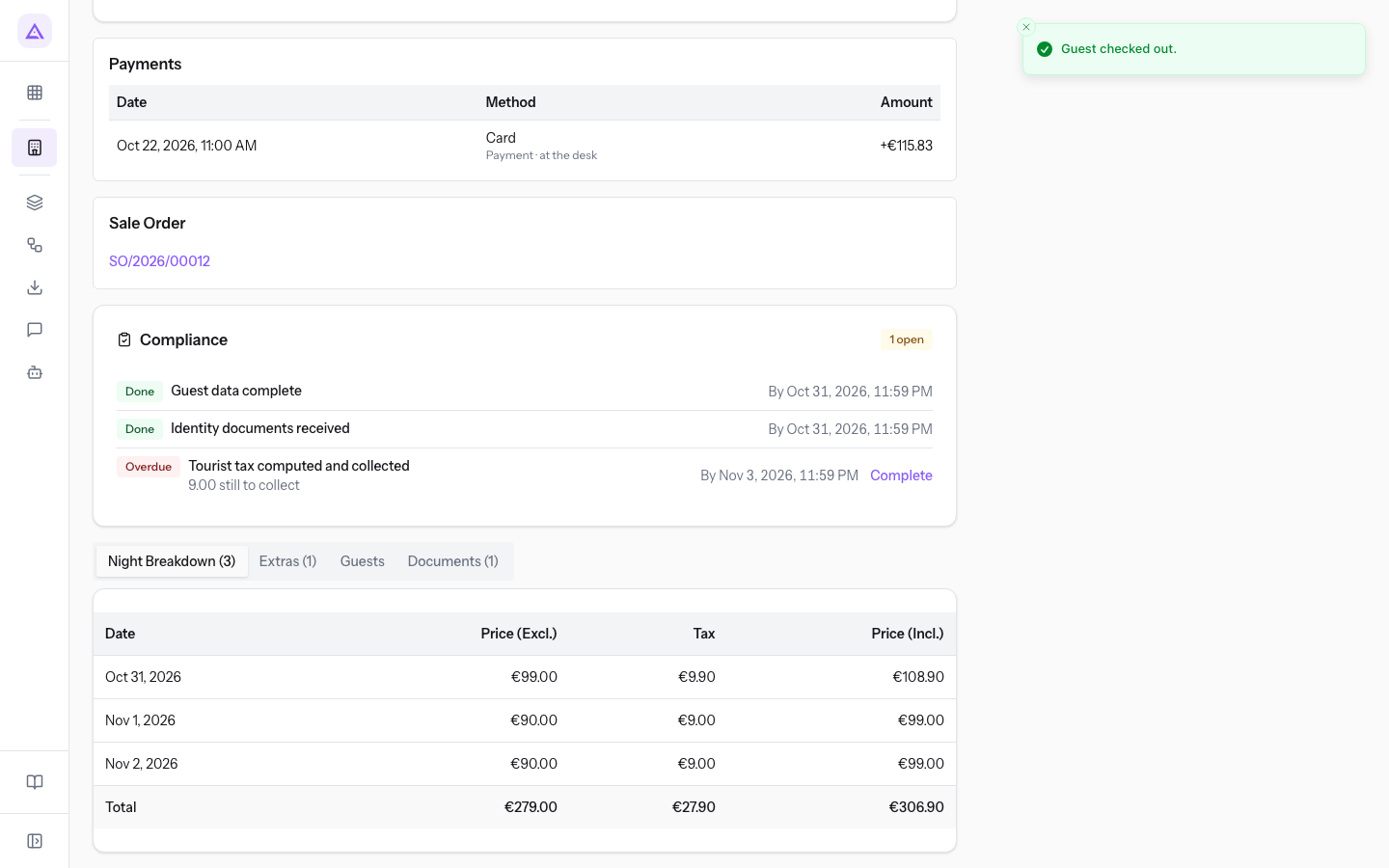
Important: check-out does not close the bill. Any uncollected balance and tourist tax still need to be collected after check-out.
If the sale order cannot be created, check-out is still valid, because the guest has already left the room. The page shows the message «The guest checked out but no sale order could be created: …», with the reason. Fix the cause, then use Create Sale Order from the More actions menu.
End the stay early
Use this when a guest currently staying leaves before the planned date, like Mark Nelson (AGR5M2Q8, room 6), who was due to leave the day after tomorrow.
- In the reservation page press More actions and choose End stay early. The option only appears on reservations in Checked In status.
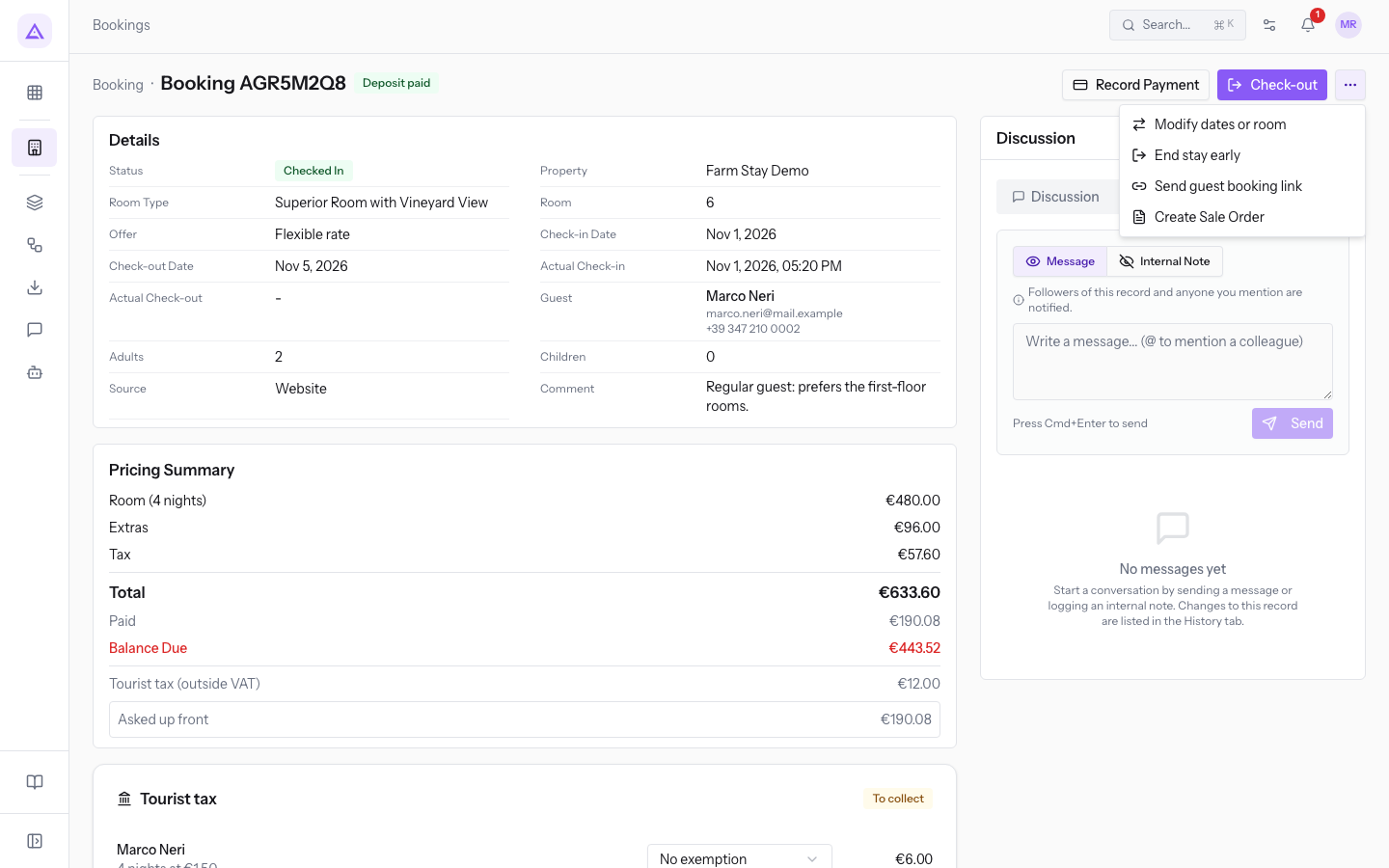
- The Check the guest out early? window opens. It shows the new end date of the stay (today) and says the remaining nights go back on sale, here and on the channels.
- Choose how to bill with the Charge the unused nights anyway (the bill keeps every booked night) checkbox.
- Press Check-out to confirm, or Cancel.
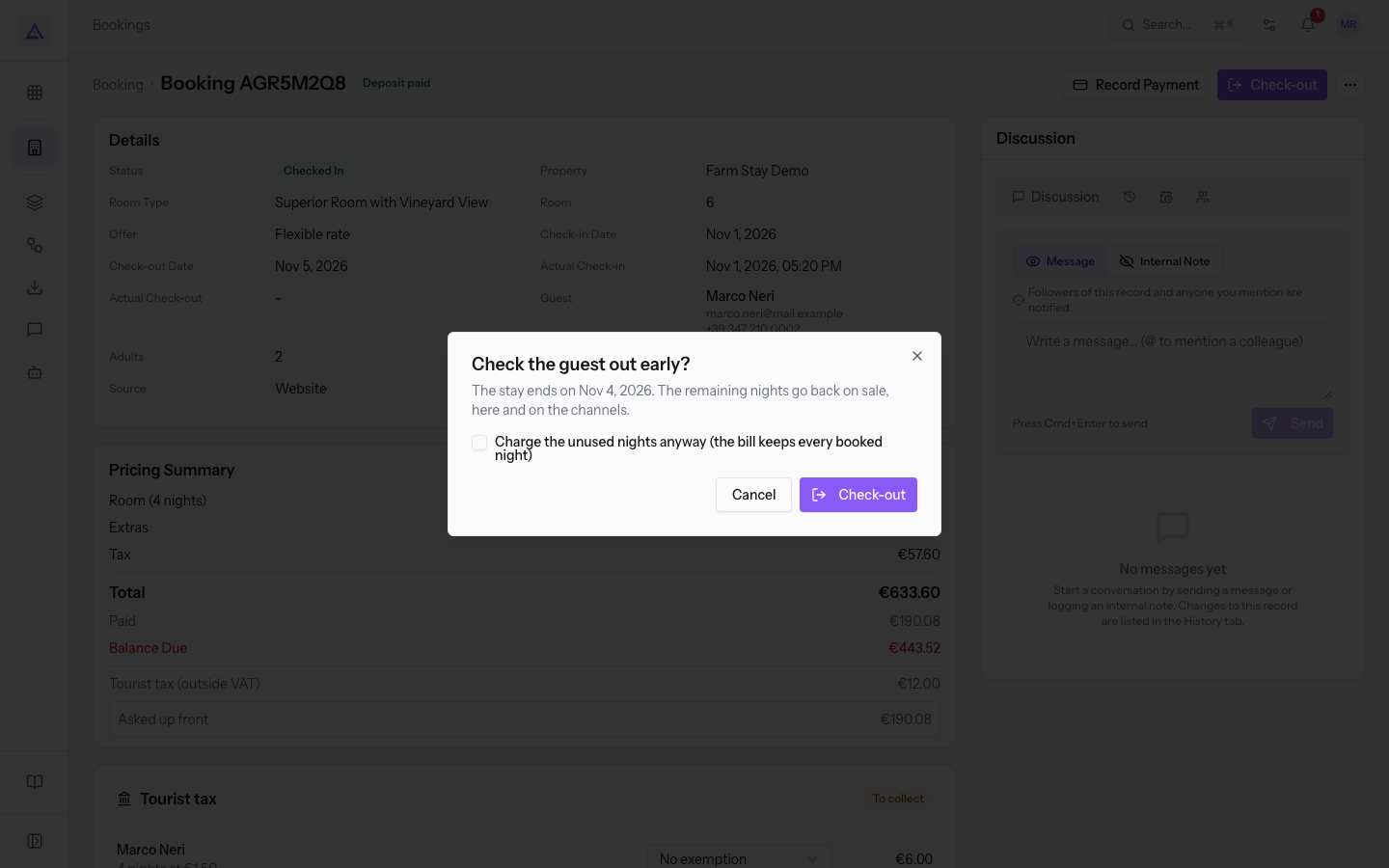
Fields in the window:
- Charge the unused nights anyway (the bill keeps every booked night): unchecked by default.
- Unchecked: the bill follows the nights the guest used. Leave it unchecked if the guest pays only for the nights they stayed.
- Checked: the bill keeps every booked night. Check it if the stay terms require payment for the whole period.
In both cases the unused nights go back on sale.
Important: if the stay's sale order is already confirmed, it is not updated. Correct it by hand.
Mark as no-show
Mark a reservation as no-show when the guest does not arrive and did not cancel. A no-show is not a cancellation: the nights from today go back on sale, and nothing is sent to the guest.
- In the reservation page, for example
AGR8N4R6with arrival today, press More actions and choose Mark as no-show. The option appears on reservations in Reserved status.
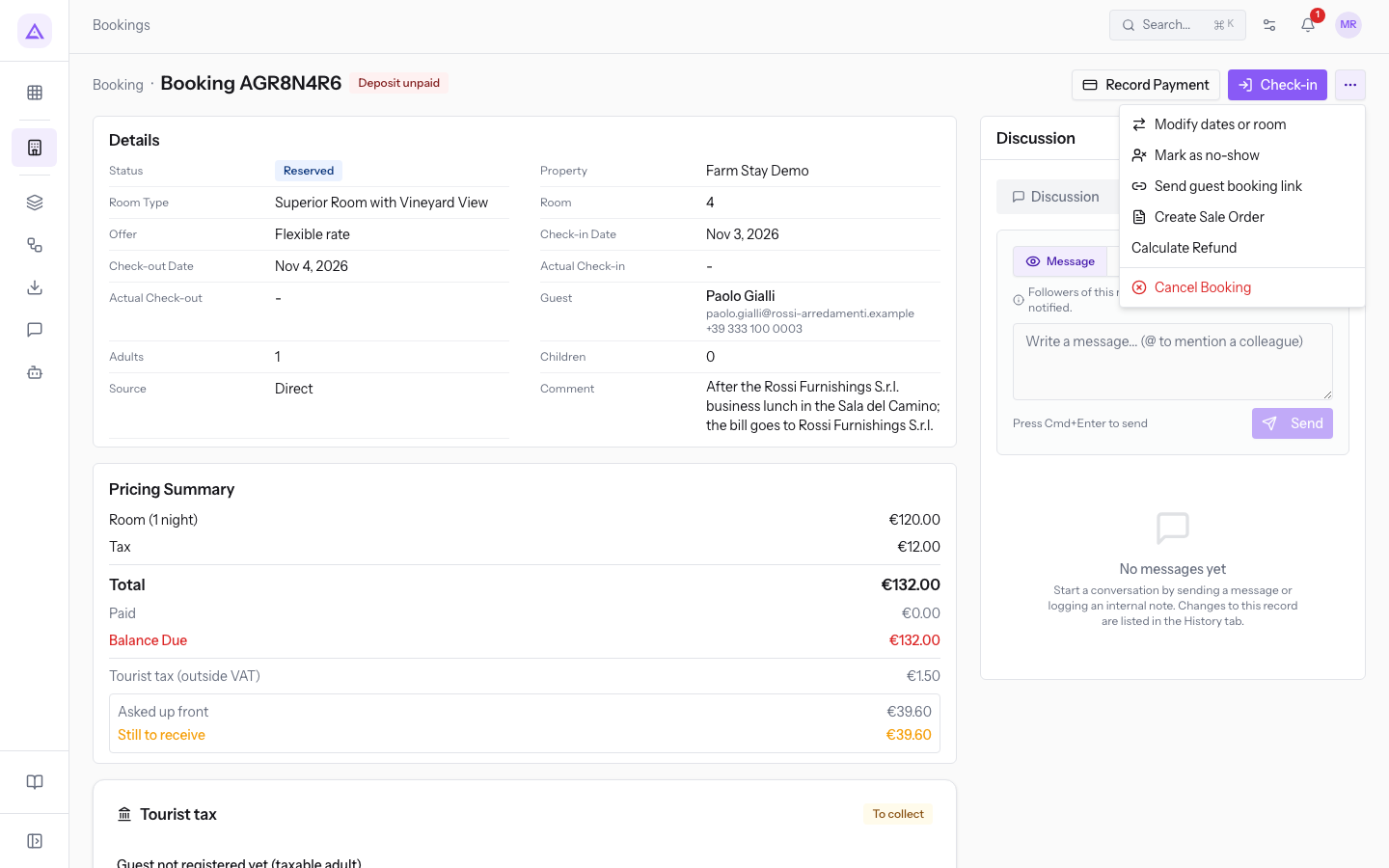
- The Mark this booking as a no-show? window opens. It explains that the remaining nights go back on sale and are published on the channels, and that no email is sent to the guest.
- Press Mark as no-show to confirm, or Cancel.
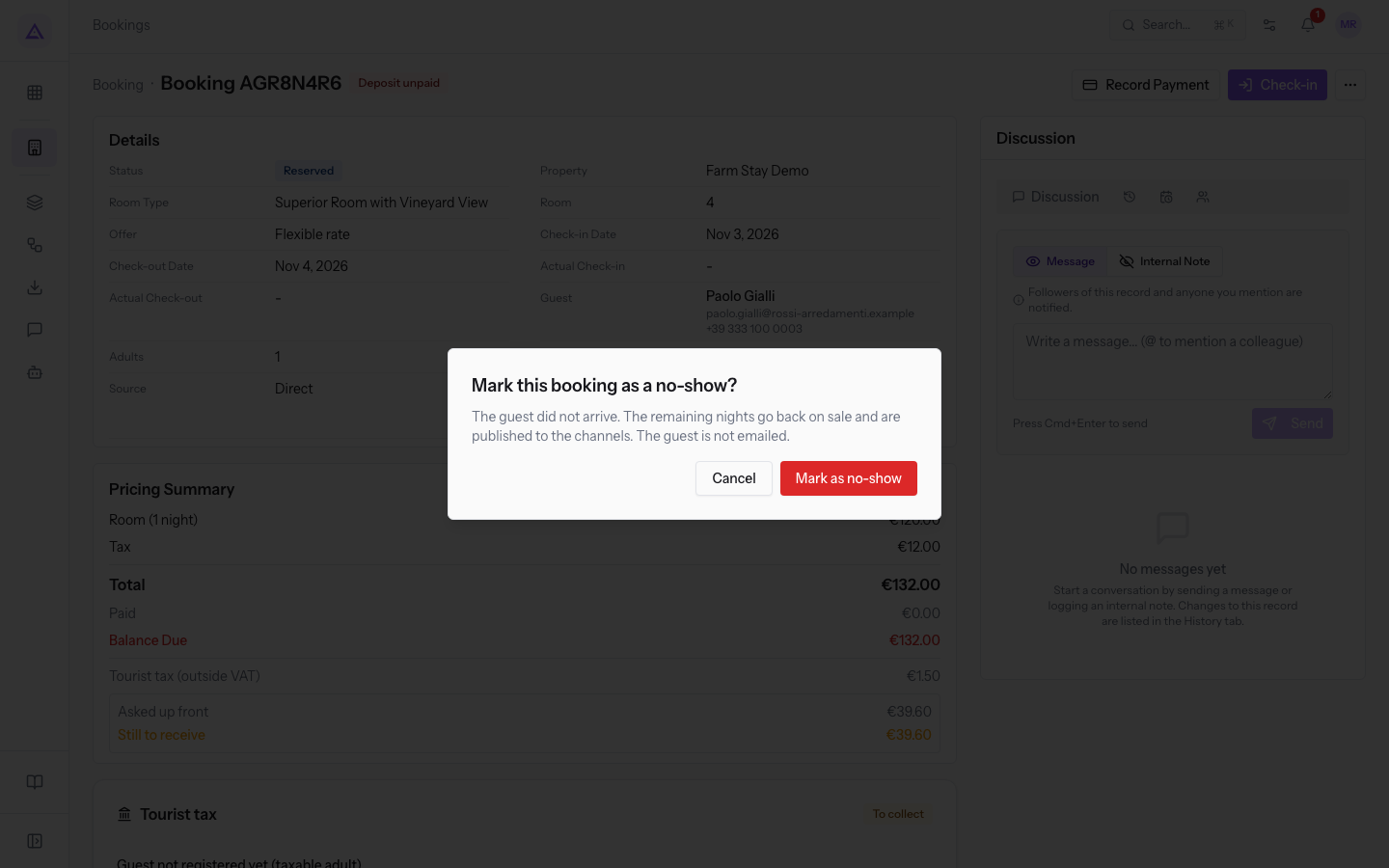
Note: a no-show can only be marked from the arrival day onward.
How a No-show reservation looks
On a No-show reservation page the status is No-show, and the Check-in, Check-out and Record Payment buttons are gone. AGR5S2K8 for Luke Bright, room 1, shows Deposit paid and Kept by the property: the deposit stays with the property, and the comment notes it.
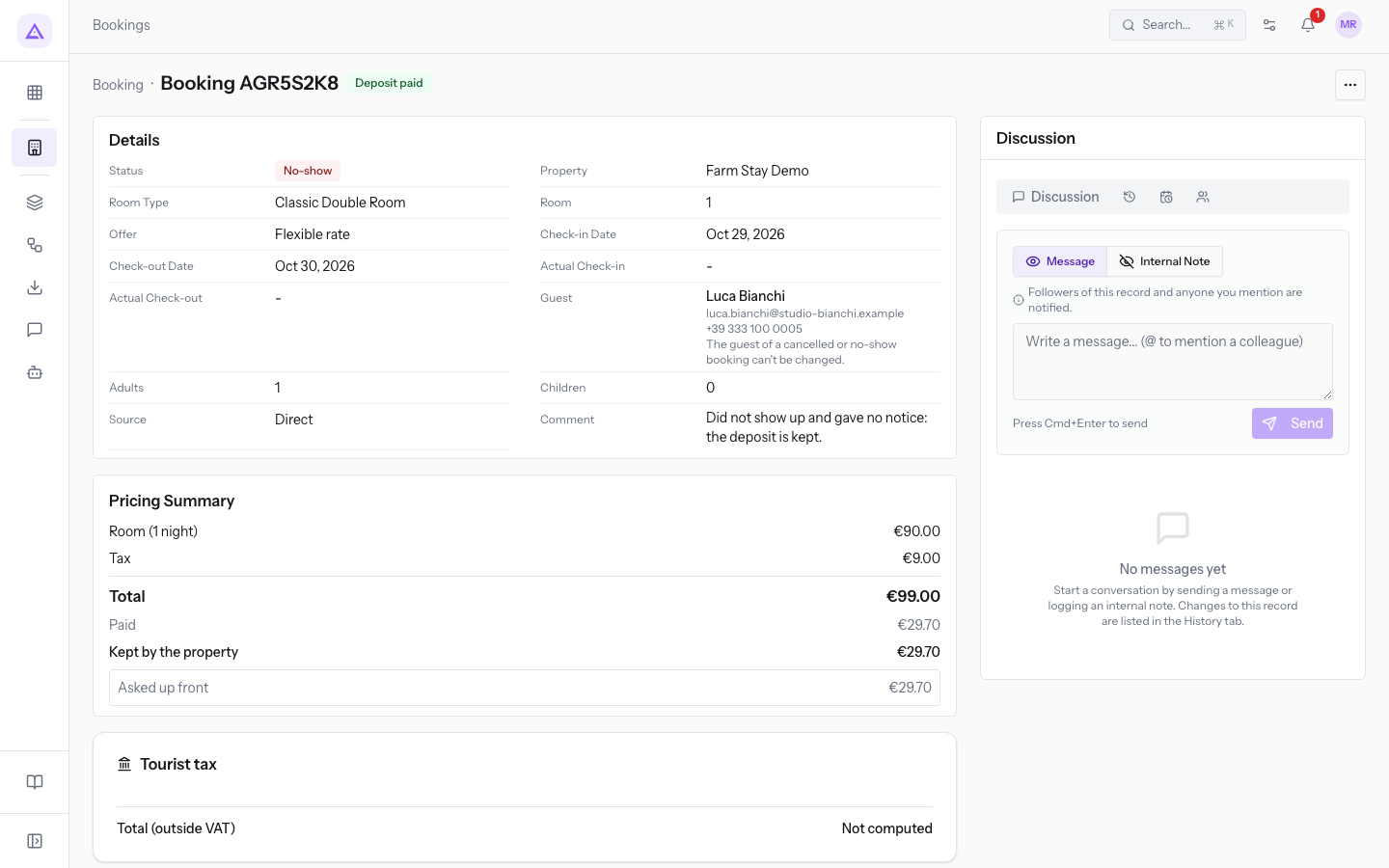
To find no-shows, press the No-show status button in PMS › Bookings.
Note: for reservations that came from Booking.com there is also the Report no-show to Booking.com option, with the confirmation Report the no-show to Booking.com?. It requires the Booking.com connection from the channel manager, which is not active in the demo.
See it on your company, not on a slide deck.
In 30 minutes we map the software you use today.We show you how much work and how much margin Archimedes gives back.
Show me on my business →What industry are you in?
One tap — it lets us prepare the demo around your world.
What tools do you use today?
Pick the ones you recognise — or just type them. It helps us show you how they migrate.
Last step: your details.
We reply within one working day — and right after, if you like, you pick the demo slot yourself.
We couldn't send your request. Try again, or write to us at [email protected].
By sending, you agree to your data being processed so we can get back to you about the demo. Privacy notice.
Preview form — nothing is sent from this page.
Want to schedule the demo now?
Your call: book the slot you prefer yourself, or we'll call you to arrange it.
Live availability, 30 minutes, instant confirmation. The calendar opens in a new tab.
Lock in your slot ↗We'll get back to you within one working day — and we'll join the call already knowing your world.
The calendar is open in another tab: pick a slot and the demo is booked. Can't see it? Reopen it ↗
Preview page: nothing was sent.
Our calendar is live: take the slot that suits you and the demo is booked. 30 minutes, instant confirmation, no waiting.
Lock in your slot ↗