Property management
All modules
Keep an eye on the day from the room dashboard
Property management · 2 of 18 · 4 min read
The PMS module dashboard summarizes the property's situation on one page: how many rooms are on sale, how many reservations are open, who arrives and who leaves today, the occupancy and the revenue of the last month. It is useful at the start of the shift at the front desk, to see the arrivals to prepare and the departures to close.
Opening the dashboard
Before you start: the dashboard numbers and charts come from the reservations. To see them you need at least the read permission for reservations, included in the PMS User group and in the higher groups.
Open PMS › Dashboard. The Property Management page opens, with the number cards at the top and the two charts below.
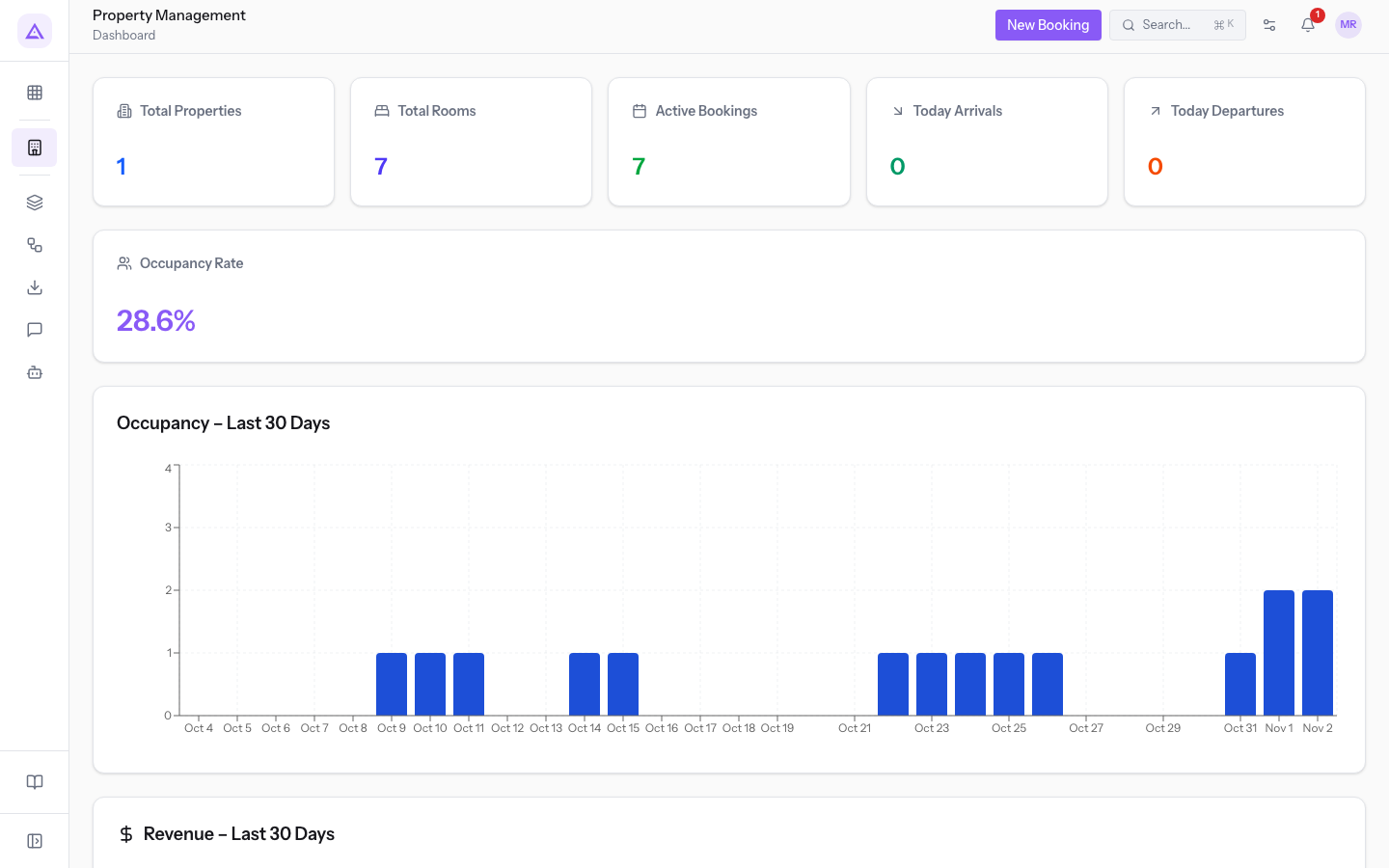
In the top right there is the New Booking button, to record a reservation without going through the list.
Note: "today" is the property's date, the same one used by the online booking page. Today's arrivals and departures follow this date.
The number cards
Each card shows a count updated when the page opens. The values shown are those of the demo, for the Farm stay Azienda Demo.
- Total Properties: the number of active properties. In the demo
1, the Farm stay Azienda Demo. - Total Rooms: the number of rooms with active status. Rooms under maintenance or out of service are not counted. In the demo
7: rooms 1 to 9 except 5, under maintenance, and 9, out of service. - Active Bookings: the number of reservations in Reserved or Checked In status. Reservations in Request, Checked Out, Cancelled and No-show status are not counted. In the demo
7. - Today Arrivals: the number of reservations in Reserved status that start today. In the demo
3: AGR8N4R6 of Paul Gale (room 4), AGR2H9T5 of Helen Bright (Barn Suite) and AGR7B5Y4 of Julia Ferris (room 2). A reservation leaves the count at check-in, because it moves to Checked In. - Today Departures: the number of reservations in Checked In status that end today, that is the guests in house who must leave. In the demo
1: AGR3K7P2 of Luke Gallagher (room 3). A reservation leaves the count at check-out.
Tip: if Today Arrivals or Today Departures do not drop to zero at the end of the day, there are still check-ins or check-outs to record.
The occupancy rate
The Occupancy Rate box shows the share of rooms occupied right now.
- The rate is the number of reservations in Checked In status divided by the Total Rooms, as a percentage with one decimal.
- Reservations in Reserved status are not counted, even if the arrival is today: they enter the rate only after the check-in.
- In the demo the rate is
28.6%: 2 guests in house (Luke Gallagher in room 3 and Mark Nelson in room 6) out of 7 rooms.
Note: rooms under maintenance or out of service are not among the Total Rooms, so they do not lower the rate.
The charts for the last 30 days
Below the cards, two charts show the trend of the last month, day by day.
- Occupancy – Last 30 Days: for each night it shows the Occupied rooms, that is the number of reservations that cover that night. Reservations in Reserved, Checked In and Checked Out status are counted; Request, Cancelled and No-show are not counted.
- Revenue – Last 30 Days: for each day it adds up the price of the nights of the same reservations, with two series.
- Revenue (tax incl.): the price of the nights with VAT.
- Revenue (tax excl.): the price of the nights without VAT.
Important: the occupancy chart also counts Reserved and Checked Out reservations, while the Occupancy Rate counts only the guests in house. The two values of today can therefore be different.
The revenue in the chart follows the price of each night of the reservation: a cancelled reservation or one marked as no-show leaves the chart.
See it on your company, not on a slide deck.
In 30 minutes we map the software you use today.We show you how much work and how much margin Archimedes gives back.
Show me on my business →What industry are you in?
One tap — it lets us prepare the demo around your world.
What tools do you use today?
Pick the ones you recognise — or just type them. It helps us show you how they migrate.
Last step: your details.
We reply within one working day — and right after, if you like, you pick the demo slot yourself.
We couldn't send your request. Try again, or write to us at [email protected].
By sending, you agree to your data being processed so we can get back to you about the demo. Privacy notice.
Preview form — nothing is sent from this page.
Want to schedule the demo now?
Your call: book the slot you prefer yourself, or we'll call you to arrange it.
Live availability, 30 minutes, instant confirmation. The calendar opens in a new tab.
Lock in your slot ↗We'll get back to you within one working day — and we'll join the call already knowing your world.
The calendar is open in another tab: pick a slot and the demo is booked. Can't see it? Reopen it ↗
Preview page: nothing was sent.
Our calendar is live: take the slot that suits you and the demo is booked. 30 minutes, instant confirmation, no waiting.
Lock in your slot ↗