Projects
All modules
Understanding which projects need attention
Projects · 13 of 17 · 6 min read
The Points of attention page lists in-progress projects that have at least one issue and, for each, explains the reason: for example, an exceeded budget, an overdue task, an expired milestone, or an upcoming closing date. Use it to decide which project to address first.
There is no single score. Each row shows the signals that placed the project in the list. Each signal triggers based on a threshold that the organisation sets in the project settings.
Opening the points of attention
The signals also appear at the bottom of the projects summary, in the Points of attention section.
- Open Projects › Summary.
- Scroll down to the Points of attention section.
- Press a counter, for example Overdue tasks, to filter the list by that signal. To return to the full list press the first counter, Projects needing attention, or All signals.
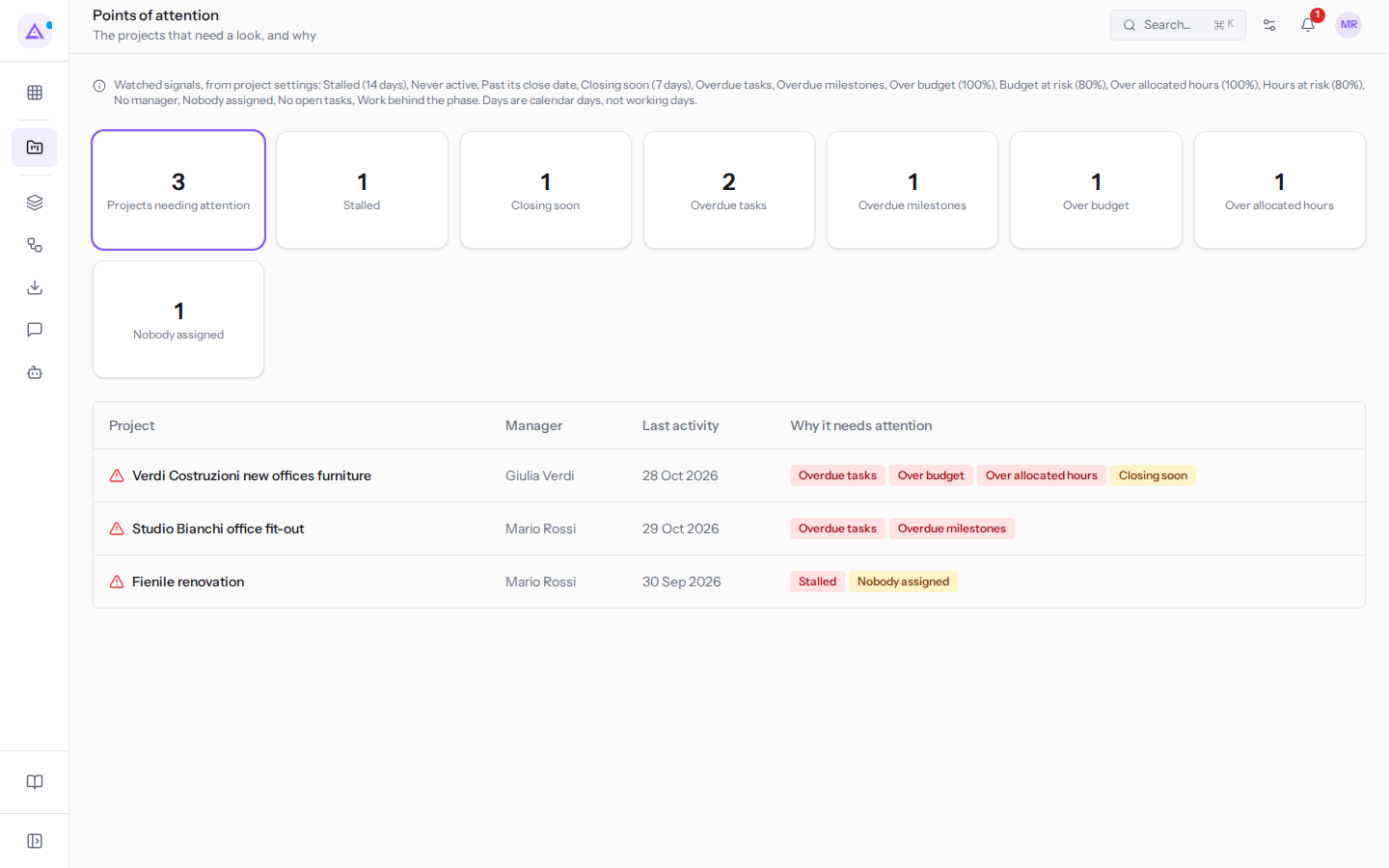
Below the title, the page shows the monitored signals and their thresholds, for example Stalled (14 days) and Closing soon (7 days).
Reading the list
Each row is a project with at least one active signal. For each project you see:
- the project name;
- the project manager, for example Giulia Verdi;
- Last activity: the date of the last activity recorded on the project;
- Why it needs attention: the signals affecting the project, one per reason.
Press the row to open the project. Press a signal to navigate to where it can be resolved: task signals open the Tasks tab, Overdue milestones opens Milestones, budget signals open Overview, hour signals open Time Tracking, Stalled and Never active open Log.
The list only includes in-progress projects. A completed or cancelled project is closed and does not appear, and the same applies to a project in a closed stage. The list shows at most 50 projects.
Note: the page is reserved for the organisation owner and administrators, not the Project Manager group. Only projects you can see are shown.
Severity and project order
Each signal has a severity, Critical or Warning. A critical signal indicates a problem that is already occurring. A warning indicates a risk or gap to keep an eye on.
Projects are sorted from most to least severe:
- first those with more critical signals;
- when tied, those with more warnings;
- when still tied, those stalled for longer; a project that was never active comes before the others.
For example, the list may look like this:
| Project | Manager | Why it needs attention |
|---|---|---|
| Verdi Costruzioni new offices furniture | Giulia Verdi | Overdue tasks, Over budget, Over allocated hours, Closing soon |
| Studio Bianchi office fit-out | Mario Rossi | Overdue tasks, Overdue milestones, Work behind the phase |
Verdi Costruzioni new offices furniture is first: it has three critical signals and one warning. It closes within the Closing soon threshold and has exceeded both the budget (113% used) and the allocated hours (170% used).
Studio Bianchi office fit-out has an overdue task and an overdue, unmet milestone. It also has an open task in a stage the project has already passed. To work on overdue tasks, see Working on a task.
Available signals
Each signal monitors one aspect of the project. Some signals have a threshold in days or percentage; others either trigger or they do not.
| Signal | Severity | When it triggers | Default threshold |
|---|---|---|---|
| Stalled | Critical | No activity on the project for more days than the threshold | 14 days |
| Never active | Warning | No activity recorded on the project | — |
| Past its close date | Critical | The expected closing date has passed | — |
| Closing soon | Warning | The expected closing date falls within the threshold days | 7 days |
| Overdue tasks | Critical | At least one open task has a past due date | — |
| Overdue milestones | Critical | At least one unmet milestone has a past due date | — |
| Over budget | Critical | Actual cost reaches the budget percentage | 100% |
| Budget at risk | Warning | Actual cost reaches the budget percentage | 80% |
| Over allocated hours | Critical | Recorded hours reach the percentage of allocated hours | 100% |
| Hours at risk | Warning | Recorded hours reach the percentage of allocated hours | 80% |
| No manager | Warning | The project has no manager | — |
| Nobody assigned | Warning | No open task has an assignee | — |
| No open tasks | Warning | The project has no open tasks | — |
| Work behind the phase | Critical | A task is still open in a stage the project has already left | — |
Rules that apply to the calculation:
- A task due today is not yet overdue. Cancelled tasks do not count.
- A project with no budget, or with no allocated hours, does not receive budget or hour signals.
- Only one signal appears for budget and hours: if the project exceeds the Over budget threshold, Budget at risk does not also appear.
- Nobody assigned only triggers if no open task has an assignee. If some tasks are assigned, the signal does not appear.
- Days are calendar days, not working days.
Choosing which signals to monitor
Signals and thresholds are configured in the Attention signals tab of the project settings. They apply to all projects in the organisation.
Note: Projects › Settings only appears in the menu for the Project Manager group.
A signal that is not in the list is never evaluated. It does not appear on the Points of attention page, its counters, or alerts. If you monitor only Budget at risk, the signal also appears for a project that has exceeded the budget.
- If you want to know when a project is approaching a limit, monitor Budget at risk and Hours at risk together with Over budget and Over allocated hours.
- If a signal is not useful to you, remove it: it disappears from the list and from alerts.
- Open Projects › Settings.
- Open the Attention signals tab.
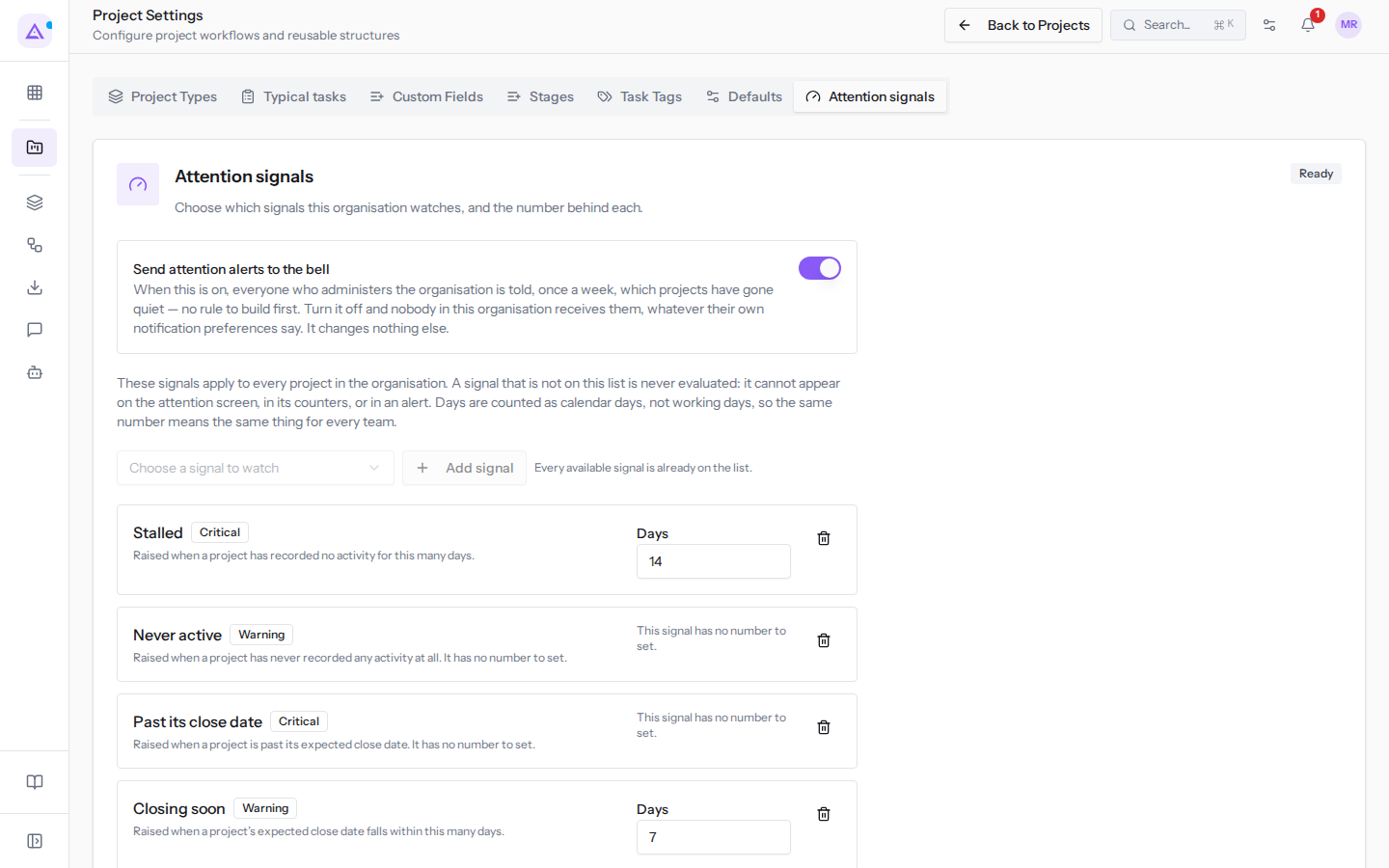
- To add a signal, select it in Choose a signal to watch and press Add signal.
- To remove a signal, press the bin icon next to its name.
- Set the thresholds for signals that have one.
- Press Save signals. The Attention signals saved message appears.
The tab contains these fields:
- Send attention alerts to the bell: if this option is on, organisation administrators receive a weekly notification in the bell with the list of stalled projects. If you turn it off, no one receives it. It is on by default.
- Choose a signal to watch: the list of signals to add.
- Days: the threshold for Stalled and Closing soon, from 1 to 365 days. The suggested values are 14 for Stalled and 7 for Closing soon.
- Percent: the threshold for budget and hour signals.
- Over budget and Over allocated hours: from 1 to 500. A value above 100 tolerates a small overrun. The suggested value is 100.
- Budget at risk and Hours at risk: from 1 to 100. The suggested value is 80.
Important: if you remove all signals, the Points of attention page remains empty.
See it on your company, not on a slide deck.
In 30 minutes we map the software you use today.We show you how much work and how much margin Archimedes gives back.
Show me on my business →What industry are you in?
One tap — it lets us prepare the demo around your world.
What tools do you use today?
Pick the ones you recognise — or just type them. It helps us show you how they migrate.
Last step: your details.
We reply within one working day — and right after, if you like, you pick the demo slot yourself.
We couldn't send your request. Try again, or write to us at [email protected].
By sending, you agree to your data being processed so we can get back to you about the demo. Privacy notice.
Preview form — nothing is sent from this page.
Want to schedule the demo now?
Your call: book the slot you prefer yourself, or we'll call you to arrange it.
Live availability, 30 minutes, instant confirmation. The calendar opens in a new tab.
Lock in your slot ↗We'll get back to you within one working day — and we'll join the call already knowing your world.
The calendar is open in another tab: pick a slot and the demo is booked. Can't see it? Reopen it ↗
Preview page: nothing was sent.
Our calendar is live: take the slot that suits you and the demo is booked. 30 minutes, instant confirmation, no waiting.
Lock in your slot ↗