Projects
All modules
Log time and approve it
Projects · 10 of 17 · 5 min read
Logged time shows how much time was spent on a project and its tasks, for example for a site visit, a client meeting, or furniture assembly. You can log time manually or with the timer, have it approved or rejected, and review your time across all projects.
How time is counted
A time entry counts toward the project only after approval. Until it is approved, it is recorded but does not contribute to the project's hours or cost.
The cost of an entry is calculated by multiplying the hours by the entry's rate. If the entry has no rate, the calculation uses the organisation's default hourly rate.
The default rate is set in the Default hourly rate field on the Defaults tab of the module settings. For example, if it is 50: the 9 approved hours of Studio Bianchi office fit-out cost €450.00.
Choose how to log time based on the work:
- If the work is already done and you know the duration, use Log Time on the project card.
- If you are currently working on a task, use the task timer: the time is logged when you stop it.
Log time on a project
From the project card you can log time against the project itself or against one of its tasks. To open a project card see View and edit a project card.
- Open the project, for example
Studio Bianchi office fit-out. - Click the clock button in the header (Log Time). The Log Time dialog opens.
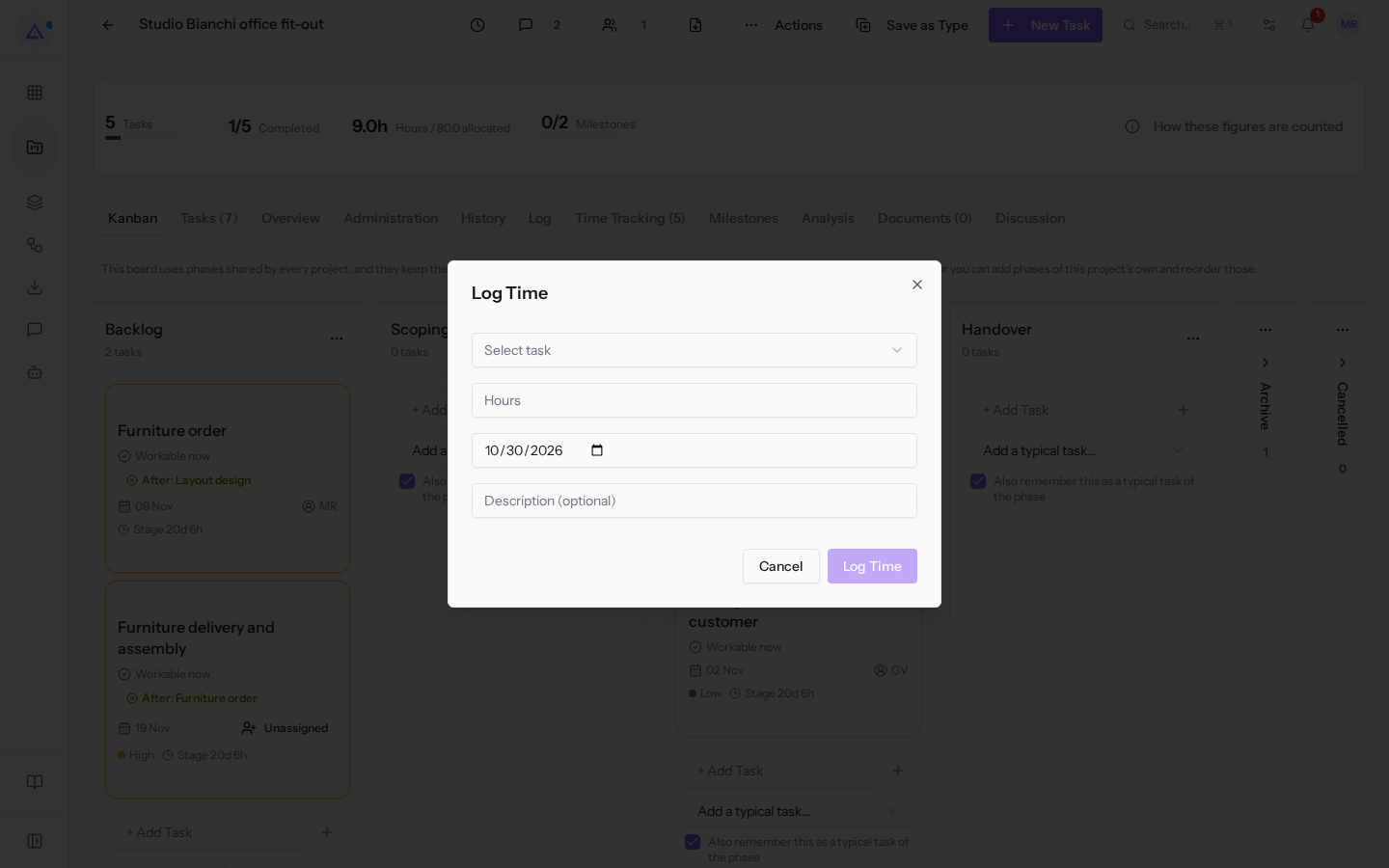
- Fill in the fields and click Log Time. To close without saving, click Cancel.
Dialog fields:
- Select task: the task against which you are logging time. The list shows the project's tasks, for example
Layout designorWeekly check with the customer.- No specific task — log against the project: logs the time against the project without linking it to a task.
- Hours: the number of hours worked.
- Description (optional): a note about the work done, for example
Weekly check.
Log time with a task timer
The timer measures time while you work on a task. When you stop it, the time is logged against the task.
- Open the task, for example
Layout designfrom the project's Kanban tab. - Click More actions and choose Start Timer.
- When done, click More actions and choose Stop Timer. The timer stops and the time is logged.
Note: no timer is stopped at the end of the day. A timer left running overnight continues until someone stops it or until the task leaves the stage, and records the entire period as a single entry, which you can then correct.
The timer can also start and stop automatically with the task's stage. The option is Start the timer when a task moves into the work-in-progress phase, on the Defaults tab of the settings, and is disabled unless you enable it.
- With the option enabled, moving a task into a stage marked as in-progress starts the timer for the person who moved it, but only if they are already assigned to the task.
- Moving the task out of a work-in-progress stage stops all running timers on it and logs their time. Moving it between two work-in-progress stages stops nothing.
- A task that already has a running timer does not receive a second one.
Approve or reject time
Time logged on a project appears on the Time Tracking tab of the project card. From here, time is approved or rejected.
- Open the project, for example
Studio Bianchi office fit-out. - Click the Time Tracking tab. The number of entries appears next to the name, for example 5.
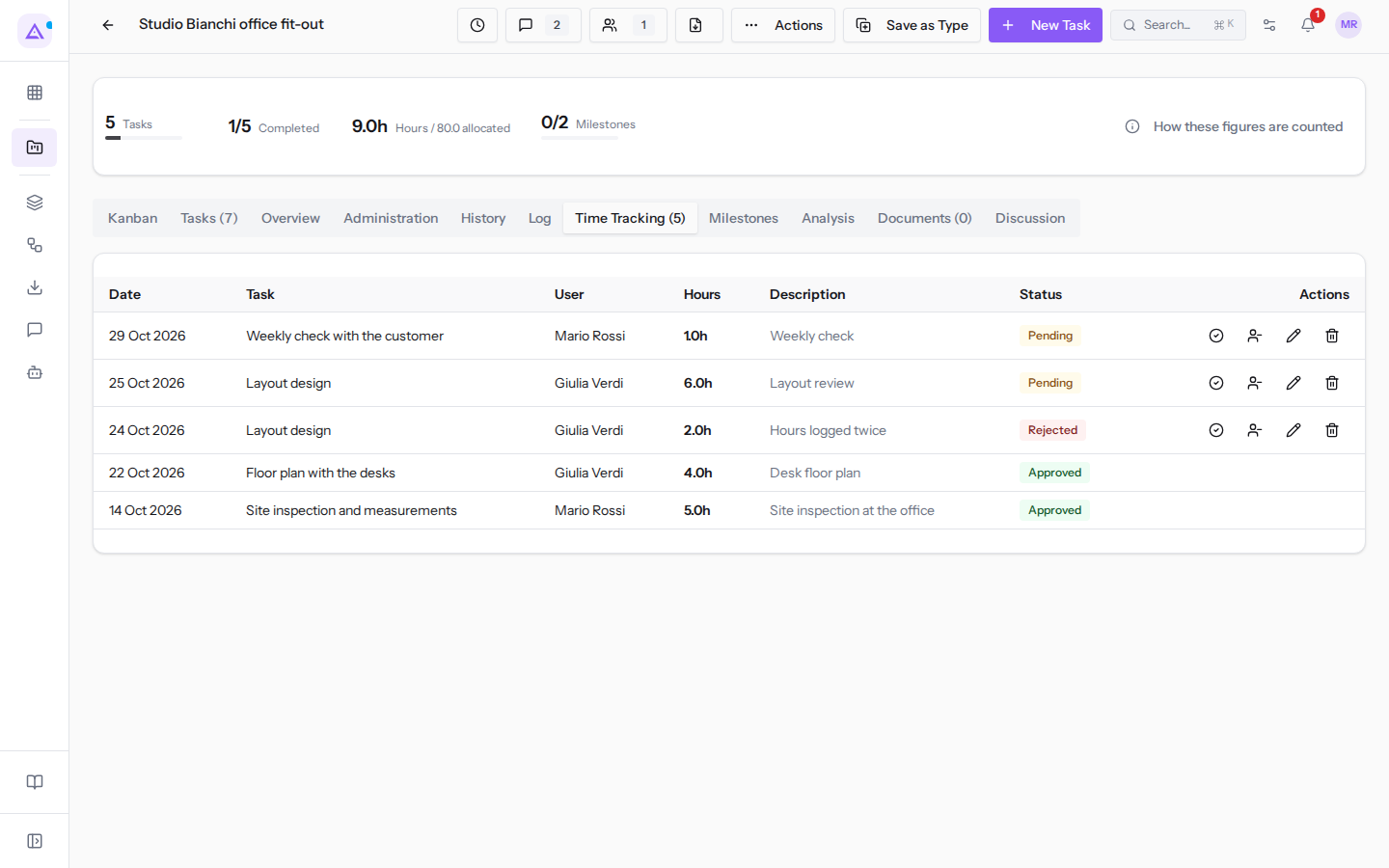
- On the entry row, click the checkmark icon (Approve) to make it count toward the project, or the person-minus icon (Reject) to exclude it. The two icons appear only for the Project Manager group and only on unapproved entries. You cannot approve your own time.
Each entry has a status: Pending until someone evaluates it, Approved or Rejected. A rejected entry can still be approved.
In the project header, the Hours figure shows the project's hours against the allocated hours, for example 9.0h out of 80.0 allocated. To understand how it is calculated, click How these figures are counted.
Edit or delete an entry
From the Time Tracking tab you can edit an entry or delete it.
You can edit or delete your own entries as long as they are not approved or billed; the Project Manager group can do so on everyone's entries, but approved or billed entries are locked for everyone.
- On the Time Tracking tab, click the pencil icon (Edit entry) on the row you want to edit. The Edit entry dialog opens.
- Edit the fields and click Save.
Dialog fields:
- Hours: the number of hours in the entry, for example
1.00. - Description (optional): the note for the entry, for example
Weekly check.
To delete an entry, click the bin icon (Delete entry) on its row and confirm with Delete entry.
View your time
The My Time page gathers all the time you have logged, across every project. It opens from Projects › My Time.
- Open Projects › My Time.
- Set the period using the From and To fields.
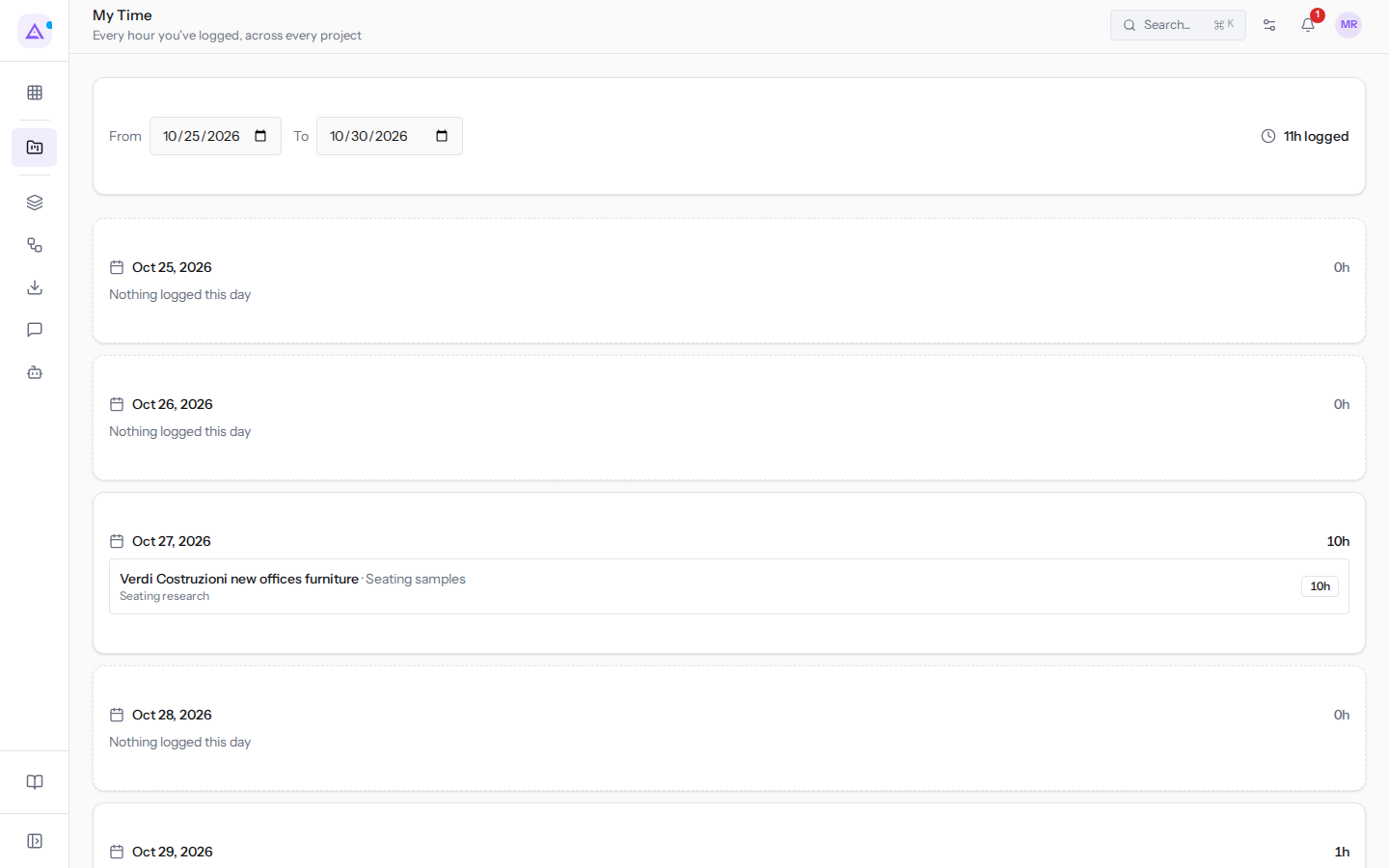
The page shows:
- the total time logged in the period, for example
11h logged; - entries grouped by day, with the daily total. Each entry shows the project, task, description, and hours, for example
Verdi Costruzioni new offices furniture · Seating samples.
Days with no time remain in the list with the label Nothing logged this day.
See it on your company, not on a slide deck.
In 30 minutes we map the software you use today.We show you how much work and how much margin Archimedes gives back.
Show me on my business →What industry are you in?
One tap — it lets us prepare the demo around your world.
What tools do you use today?
Pick the ones you recognise — or just type them. It helps us show you how they migrate.
Last step: your details.
We reply within one working day — and right after, if you like, you pick the demo slot yourself.
We couldn't send your request. Try again, or write to us at [email protected].
By sending, you agree to your data being processed so we can get back to you about the demo. Privacy notice.
Preview form — nothing is sent from this page.
Want to schedule the demo now?
Your call: book the slot you prefer yourself, or we'll call you to arrange it.
Live availability, 30 minutes, instant confirmation. The calendar opens in a new tab.
Lock in your slot ↗We'll get back to you within one working day — and we'll join the call already knowing your world.
The calendar is open in another tab: pick a slot and the demo is booked. Can't see it? Reopen it ↗
Preview page: nothing was sent.
Our calendar is live: take the slot that suits you and the demo is booked. 30 minutes, instant confirmation, no waiting.
Lock in your slot ↗