Projects
All modules
Search and filter projects in the list
Projects · 5 of 17 · 4 min read
The Projects › All Projects page lists the organisation's projects and lets you find them by name, status, manager, tag, or favourite. For example, you can find a paused project to resume, the projects of a specific manager, or those of a key customer.
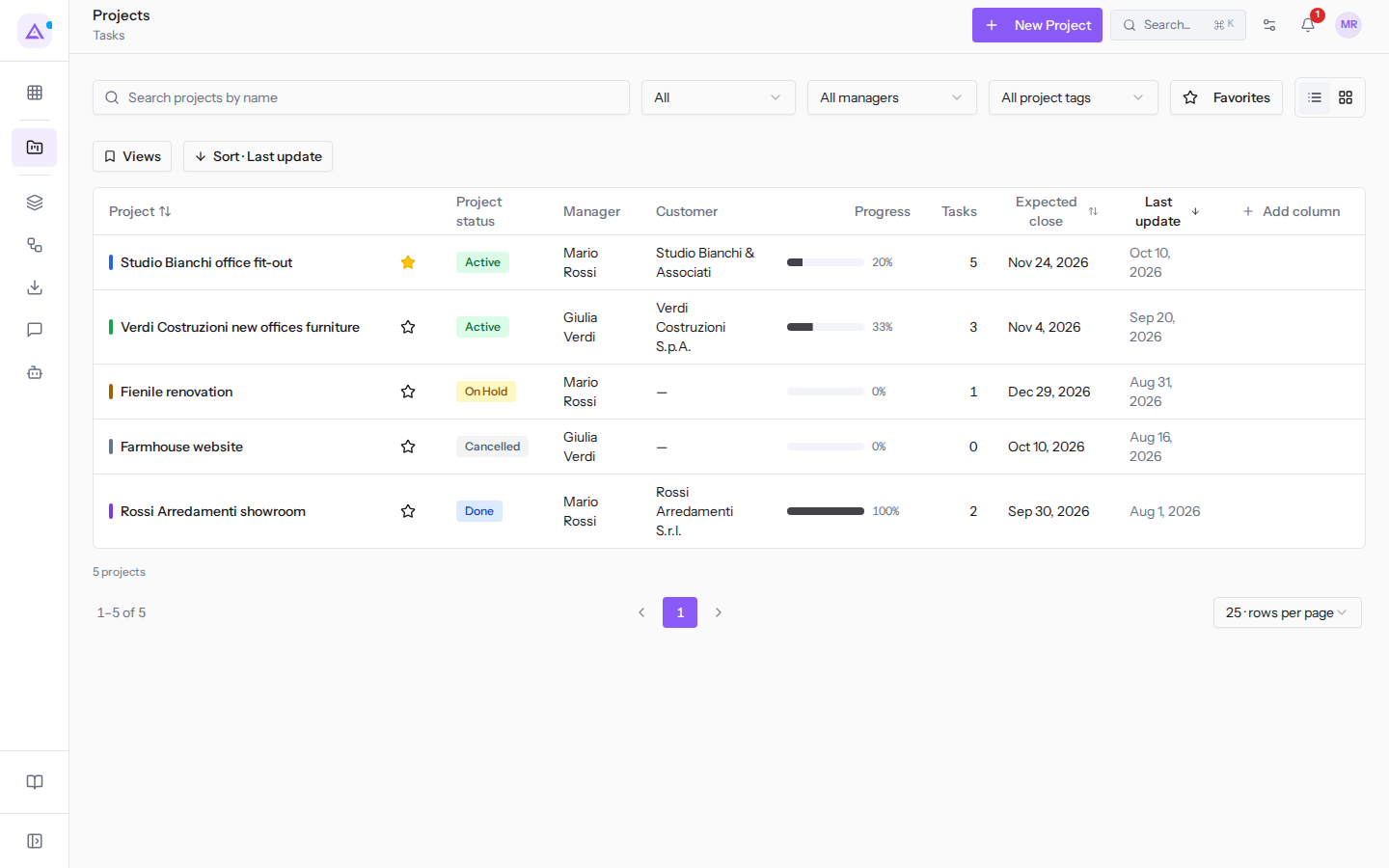
Search for a project by name
The search box finds projects by name.
- Open Projects › All Projects.
- Type part of the name in the Search projects by name box.
- The list shows only the projects that match the text you typed.
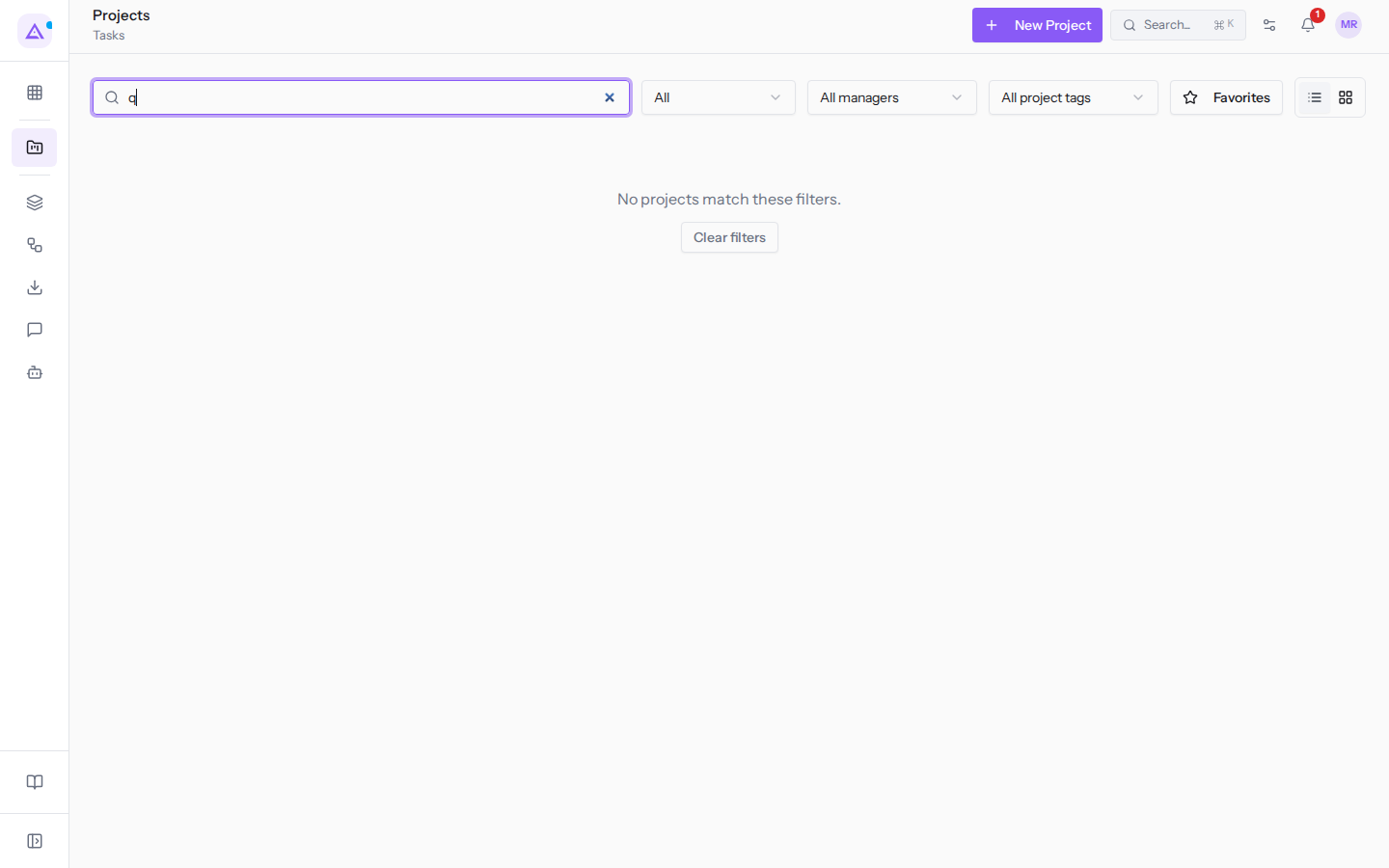
If no project matches, the page shows the message No projects match these filters. and the Clear filters button. Click Clear filters to return to the full list.
Filter by status, manager, and tag
The filters above the list combine with the search and with each other. Use the status to separate active projects from those on hold or closed. Use the manager or tag to narrow the list to a group of projects.
- Open the Project status list, which starts at All, and choose a status.
- Open the Manager list, which starts at All managers, and choose a person.
- Open the Project tags list, which starts at All project tags, and choose a tag.
The page filters:
- Project status: shows only the projects in the chosen status.
- All: all projects, regardless of status.
- Active: projects in progress, for example Studio Bianchi office fit-out.
- On Hold: suspended projects. For example Fienile renovation.
- Done: completed projects. For example Rossi Arredamenti showroom.
- Cancelled: cancelled projects. For example Farmhouse website.
- Manager: shows only the projects belonging to the chosen person, for example
Mario Rossi. - Project tags: shows only the projects with the chosen tag. For example
Farmhouse,Office furniture, andKey account.
Note: the project status is different from the phase. A project can be in a phase and have the status On Hold, like Fienile renovation.
Mark and find favourite projects
Favourites let you quickly find the projects you follow most often.
- In the project row, click the star next to the name.
- Click Favorites above the list.
- The list shows only the projects marked as favourites, for example Studio Bianchi office fit-out.
Read the list columns
In the list view each row is a project.
- Project: the project name.
- the star, with no heading: marks the project as a favourite.
- Project status: the project status, for example Active.
- Manager: the person responsible for the project.
- Customer: the project's customer.
- Progress: the project's completion percentage.
- Tasks: the number of tasks in the project.
- Expected close: the project's expected close date.
- Last update: when the project was last modified.
Sort the list
By default the list is sorted by Last update.
- Click Sort · Last update.
- Choose Project, Expected close, or Last update.
You can also click the column headings Project, Expected close, and Last update to sort the list by that column.
Choose which columns to show
You can add or remove columns, including those for custom project fields such as On-site contact.
- Click Add column.
- Search for the field in Search a field… or scroll the list.
- Select the field's checkbox to show it as a column, or deselect it to hide it. For example select On-site contact, which is not visible by default.
- Use Move column left and Move column right to change the column order.
- Click Reset columns to return to the default columns.
Custom fields are defined in the module settings. To add one, read Adding custom fields and setting default values.
Switch between list view and card view
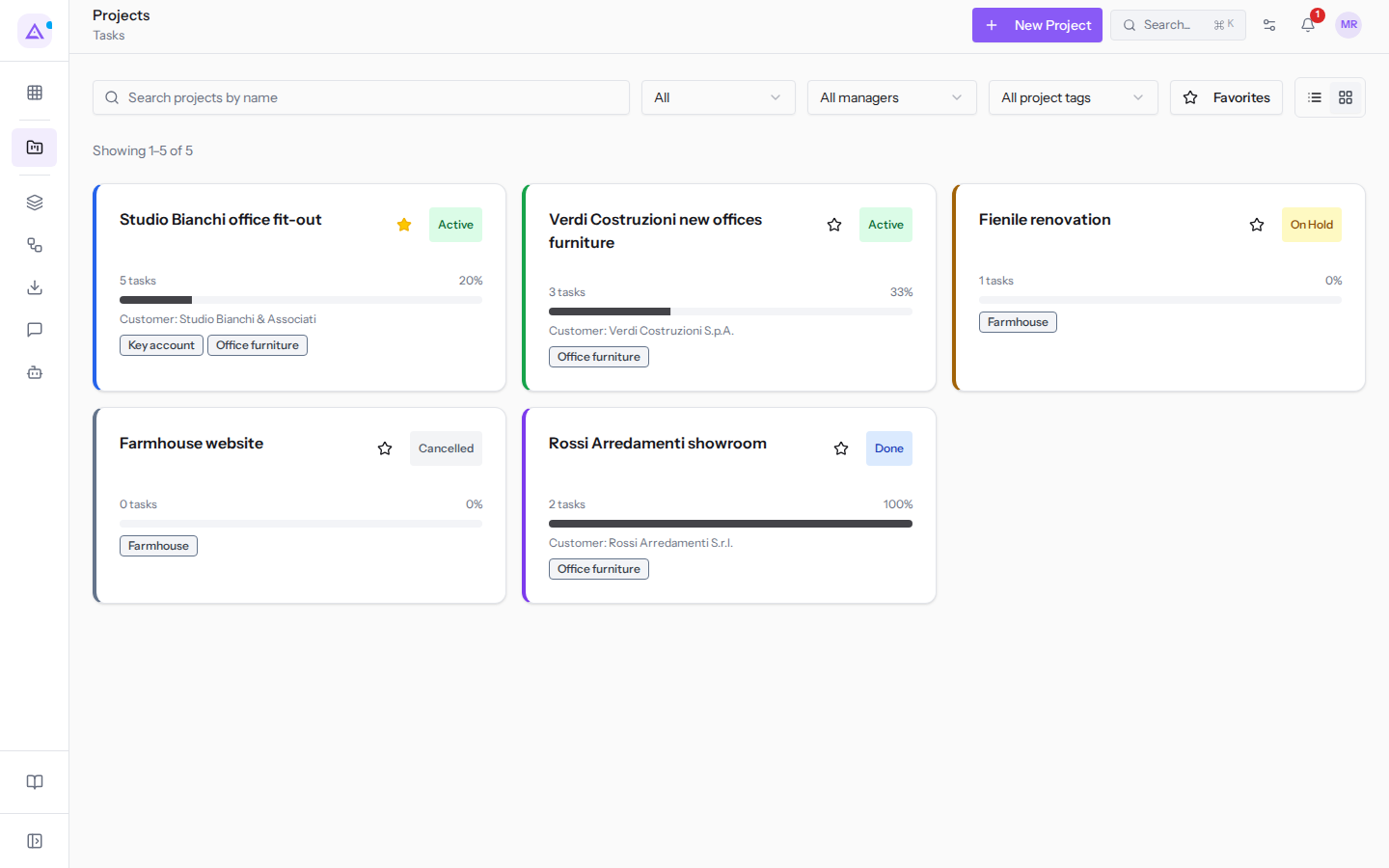
The list view shows projects in a table with columns. The card view shows a tile for each project with status, number of tasks, progress, and customer. Search, filters, and Favorites remain available in both views.
- Click Card view to see projects as cards.
- Click List view to return to the table.
Page through the list
At the bottom of the list you will find the controls for paging.
- Rows per page: how many rows to show on each page.
- 25 · rows per page: the default value.
- 50 · rows per page
- 100 · rows per page
- The ‹ and › arrows: move to the page before or after the current one.
See it on your company, not on a slide deck.
In 30 minutes we map the software you use today.We show you how much work and how much margin Archimedes gives back.
Show me on my business →What industry are you in?
One tap — it lets us prepare the demo around your world.
What tools do you use today?
Pick the ones you recognise — or just type them. It helps us show you how they migrate.
Last step: your details.
We reply within one working day — and right after, if you like, you pick the demo slot yourself.
We couldn't send your request. Try again, or write to us at [email protected].
By sending, you agree to your data being processed so we can get back to you about the demo. Privacy notice.
Preview form — nothing is sent from this page.
Want to schedule the demo now?
Your call: book the slot you prefer yourself, or we'll call you to arrange it.
Live availability, 30 minutes, instant confirmation. The calendar opens in a new tab.
Lock in your slot ↗We'll get back to you within one working day — and we'll join the call already knowing your world.
The calendar is open in another tab: pick a slot and the demo is booked. Can't see it? Reopen it ↗
Preview page: nothing was sent.
Our calendar is live: take the slot that suits you and the demo is booked. 30 minutes, instant confirmation, no waiting.
Lock in your slot ↗