Projects
All modules
Moving projects between stages in the Kanban
Projects · 4 of 17 · 4 min read
The Project Kanban page shows projects divided by stage, one column per stage. Here you can see where each project stands and move it to the next stage, for example from Scoping to Execution.
Project stage and status
A project's stage is the board column it is in. Project stages are the same across the entire organisation. For example Backlog, Scoping, Execution, Handover, Archive and Cancelled.
The stage is not the same as the project status (Active, On Hold, Done, Cancelled). A project can be in a stage and have the status On Hold. For example Fienile renovation is in the Backlog column and is on hold.
- If you want to indicate how far along the work is, change the stage from the board.
- If you want to put the project on hold or cancel it, change its status.
A stage can be marked as a closing stage. A project that enters a closing stage is closed. Automatic progression never moves a project into a stage that closes it. To close it you must move it yourself.
Reading the board
The board shows one column per stage, with the cards of the projects in that stage.
- Open Projects › Project Kanban.
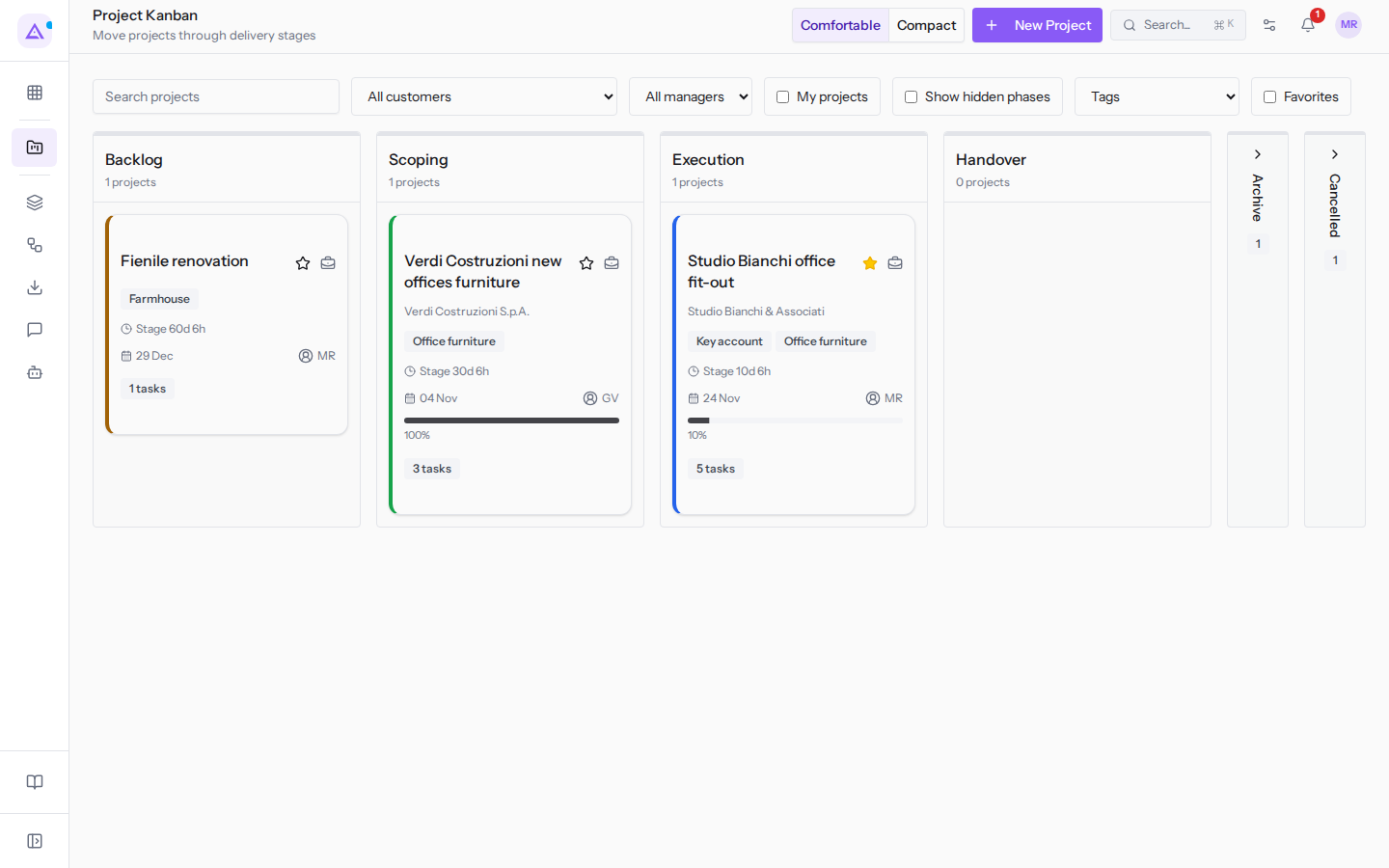
Each card shows:
- the project name and client, for example
Verdi Costruzioni new offices furniturefor Verdi Costruzioni S.p.A.; - the project tags, for example Office furniture and Key account;
- the time spent in the current stage, next to Stage, for example 29d 18h;
- the project deadline, or No deadline if none has been set;
- the manager's initials, for example GV for Giulia Verdi and MR for Mario Rossi;
- the consumed budget bar, only if the project has a budget, for example 10% on
Studio Bianchi office fit-outand 100% onVerdi Costruzioni new offices furniture; - the number of project tasks, for example 5 tasks.
At the top you can choose how to display the cards:
- Comfortable: the card shows all the data listed above.
- Compact: the card shows only the project name, the client, the deadline and the manager's initials.
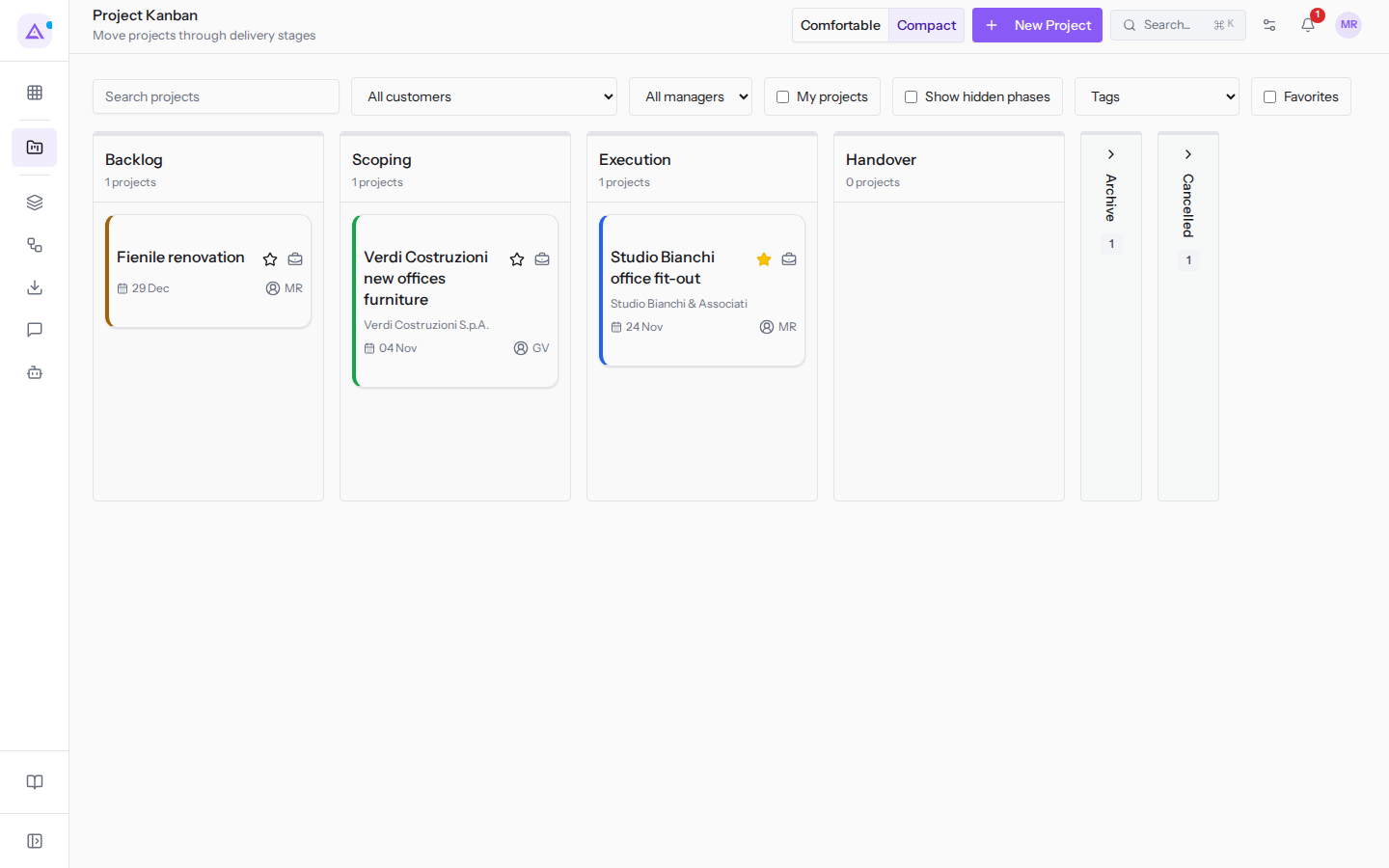
Some columns, such as Archive and Cancelled, appear collapsed into a vertical bar with the project count. Click the bar to expand it, or click the name of an open column to collapse it. Closing stage columns show the Closed label.
From the board you can create a project with the New Project button.
Moving a project to another stage
To change a project's stage, move its card to another column.
- Open Projects › Project Kanban.
- Find the project card, for example
Verdi Costruzioni new offices furniturein the Scoping column. - Drag the card to the new stage column, for example Execution.
The time count in the stage, next to Stage, refers to the stage the project is currently in.
Important: if you move the project to a closing stage, the project is closed. The project status remains separate from the stage.
Filtering the board
The filters above the columns limit the projects shown. Filters can be combined.
- Search projects: searches for a project by text.
- All customers: shows only the projects of the client you choose, for example Studio Bianchi & Associati.
- All managers: shows only the projects of the manager you choose. The options are the project managers, for example Giulia Verdi and Mario Rossi.
- My projects: shows only the projects you are responsible for.
- Show hidden phases: also shows the columns of stages hidden from settings, which are not the collapsed columns.
- Tags: shows only the projects with the tag you choose. The options are Farmhouse, Office furniture and Key account.
- Favorites: shows only the projects you have marked as favourites.
To search for projects in a list instead of on the board, see Searching and filtering projects in the list.
See it on your company, not on a slide deck.
In 30 minutes we map the software you use today.We show you how much work and how much margin Archimedes gives back.
Show me on my business →What industry are you in?
One tap — it lets us prepare the demo around your world.
What tools do you use today?
Pick the ones you recognise — or just type them. It helps us show you how they migrate.
Last step: your details.
We reply within one working day — and right after, if you like, you pick the demo slot yourself.
We couldn't send your request. Try again, or write to us at [email protected].
By sending, you agree to your data being processed so we can get back to you about the demo. Privacy notice.
Preview form — nothing is sent from this page.
Want to schedule the demo now?
Your call: book the slot you prefer yourself, or we'll call you to arrange it.
Live availability, 30 minutes, instant confirmation. The calendar opens in a new tab.
Lock in your slot ↗We'll get back to you within one working day — and we'll join the call already knowing your world.
The calendar is open in another tab: pick a slot and the demo is booked. Can't see it? Reopen it ↗
Preview page: nothing was sent.
Our calendar is live: take the slot that suits you and the demo is booked. 30 minutes, instant confirmation, no waiting.
Lock in your slot ↗