Projects
All modules
Setting project milestones
Projects · 11 of 17 · 4 min read
Milestones are the dates a project must meet, for example a permit, a delivery, or an inspection. In the project's Milestones tab you create milestones, link the tasks that lead to each one, and mark the milestone as reached when the time comes.
Enabling milestones
The Milestones tab appears only if the Use milestones on projects option is enabled. Settings are reserved for the Project Manager group.
The option applies to all projects in the organisation.
- Open Projects › Settings.
- Click the Defaults tab.
- Select Use milestones on projects.
- Click Save defaults.
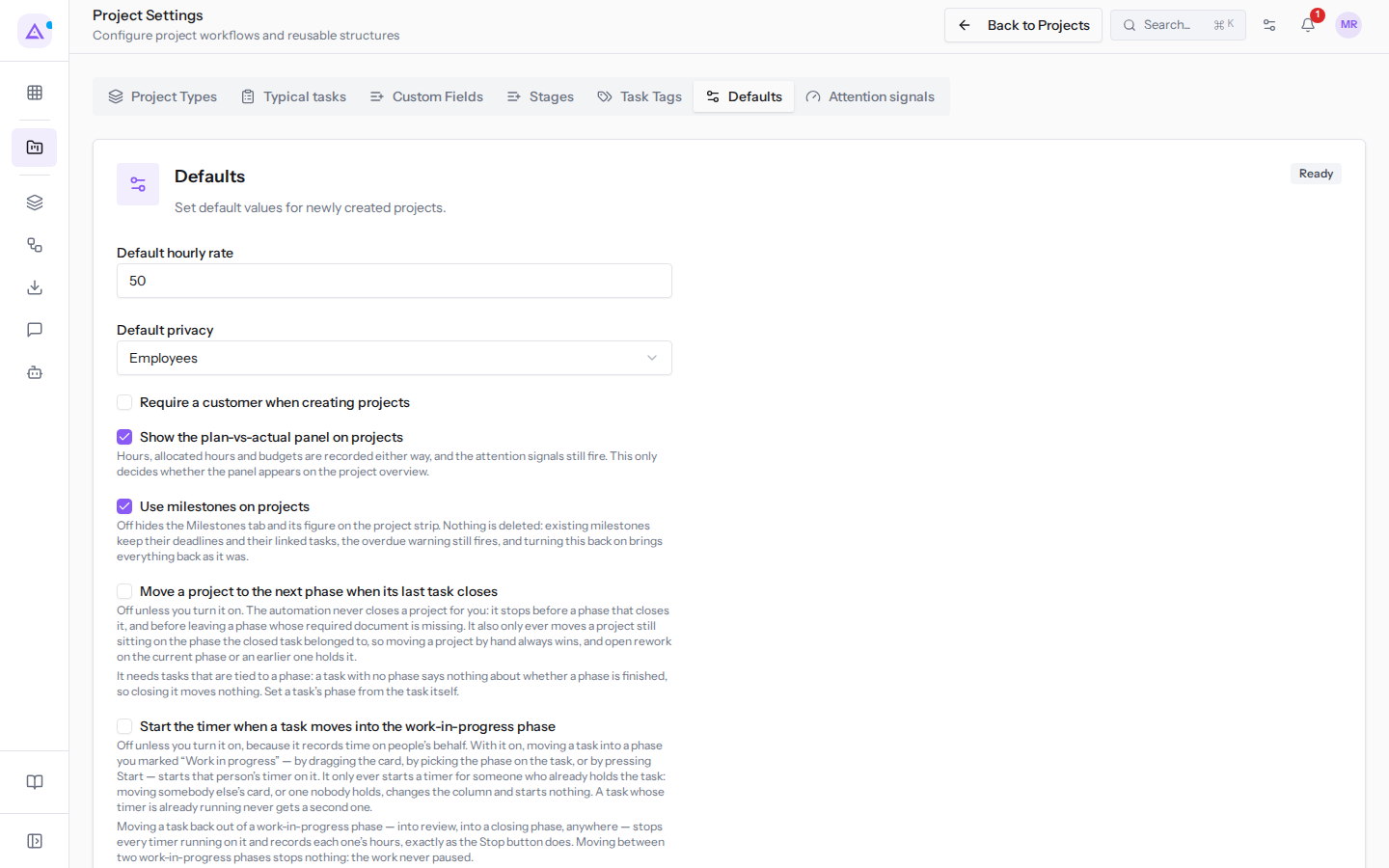
If you disable the option, the Milestones tab and the milestone count in the project strip no longer appear. Nothing is deleted: existing milestones keep their due dates and linked tasks. The overdue alert continues to fire. If you re-enable the option, everything returns to its previous state.
The other options on this tab are described in Adding custom fields and setting default values.
The Milestones tab
The Milestones tab on a project record lists the project's milestones. In the project header the Milestones count shows how many milestones have been reached out of the total, for example 0/2.
- Open the project, for example
Studio Bianchi office fit-out. - Click the Milestones tab.
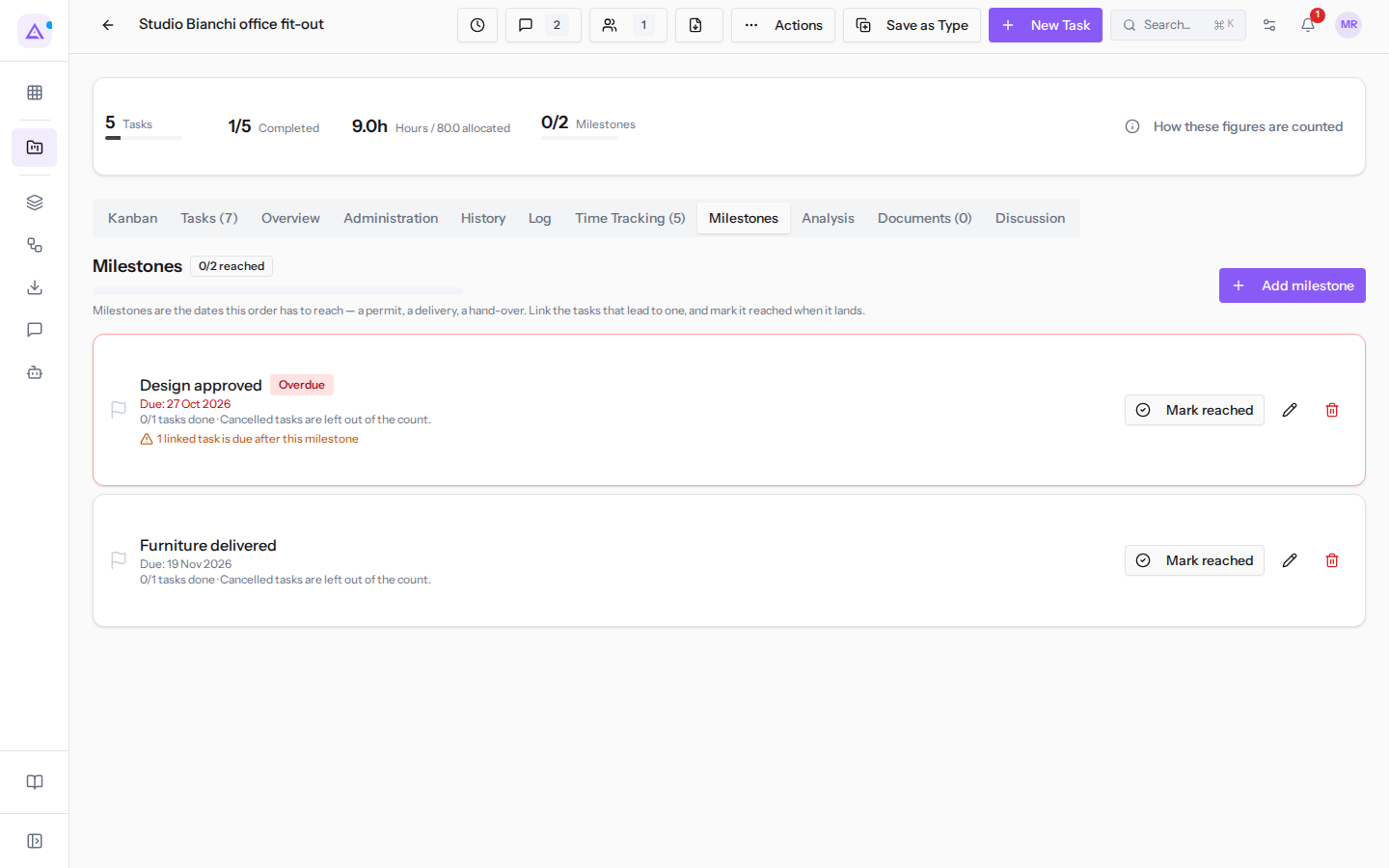
In Studio Bianchi office fit-out there are two milestones: Design approved, due on 25 October 2026 and therefore overdue, and Furniture delivered. Next to each milestone are Mark reached, the pencil icon (Edit milestone), and the bin icon (Delete milestone).
Adding a milestone
Add a milestone for every date the project must meet.
- In the Milestones tab, click Add milestone.
- Fill in the fields.
- Click Create milestone. The Milestone created message appears.
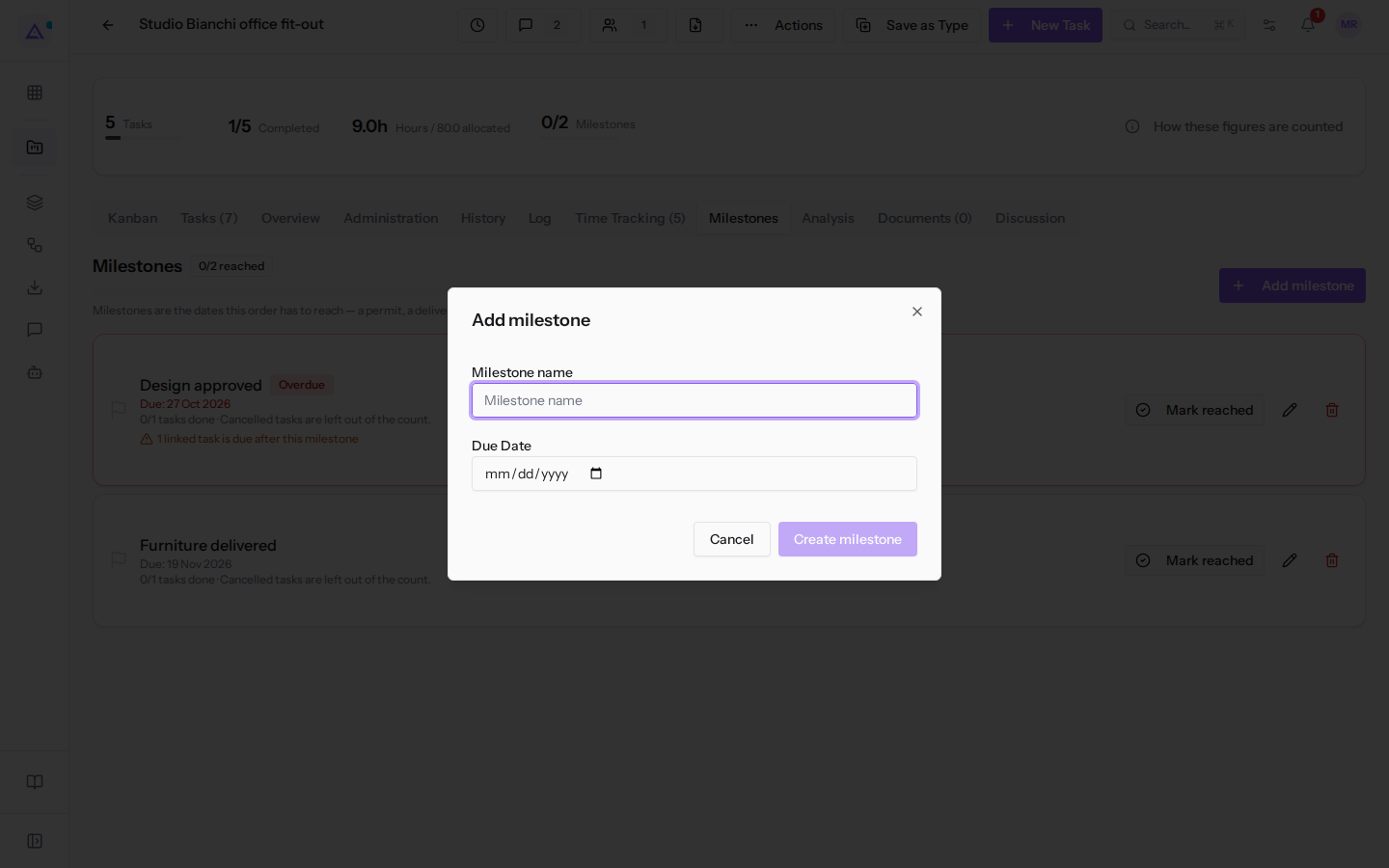
The fields in the Add milestone dialog:
- Milestone name: the name of the milestone, for example
Furniture delivered. - Due Date: the date by which the milestone must be reached.
To close the dialog without saving, click Cancel.
Editing a milestone
Edit a milestone to change its name or move its due date.
- In the Milestones tab, click the pencil icon (Edit milestone) next to the milestone, for example
Design approved. - Change Milestone name or Due Date. The Edit milestone dialog has the same fields as the Add milestone dialog.
- Click Save milestone. The Milestone updated message appears.
Marking a milestone as reached and reopening it
When the date is met, mark the milestone as reached. If you marked it by mistake, you can reopen it.
- In the Milestones tab, click Mark reached next to the milestone.
- The Milestone reached message appears and the Milestones count in the header increases, for example from
0/2to1/2.
To undo the reached status:
- Click Reopen milestone next to the reached milestone.
- The Milestone reopened message appears.
Deleting a milestone
Delete a milestone that is no longer needed for the project.
Deletion is reserved for the Project Manager group.
- In the Milestones tab, click the bin icon (Delete milestone) next to the milestone.
- The Milestone deleted message appears.
Tip: if you only want to remove a milestone from the reached count, use Reopen milestone instead of deleting it.
Linking a task to a milestone
Link to a milestone the tasks that lead to reaching it. The link is set in the Milestone field of the task dialog.
- On the project page, click New Task.
- Fill in Task name, which is required, and any other fields you need.
- In the Milestone field choose the milestone, for example Design approved.
- Click Create Task.
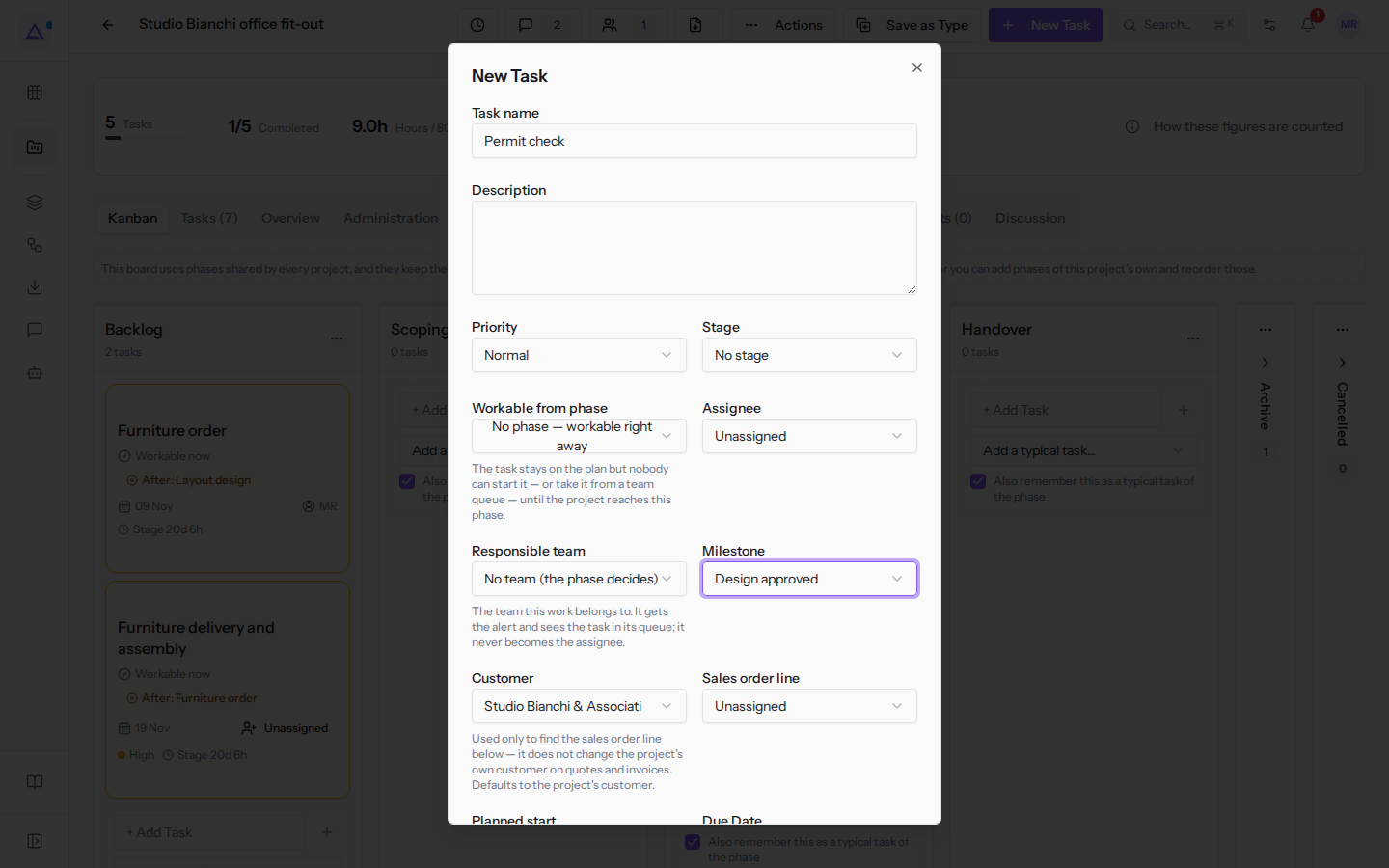
The Milestone field offers:
- No milestone: the task is not linked to any milestone. This is the initial value.
- the project's milestones, for example Design approved and Furniture delivered.
If a linked task is due after its milestone's date, the module flags this with the Due after its milestone warning. The milestone shows how many linked tasks are due after its date, for example 1 linked task is due after this milestone. To resolve the conflict, move the task's due date or the milestone's due date.
Overdue milestones and points of attention
An overdue milestone that has not yet been reached causes the project to appear among the Points of attention, with the reason for the alert. For example, Studio Bianchi office fit-out appears because the Design approved milestone is overdue.
Note: the alert fires even if the Use milestones on projects option is disabled.
See it on your company, not on a slide deck.
In 30 minutes we map the software you use today.We show you how much work and how much margin Archimedes gives back.
Show me on my business →What industry are you in?
One tap — it lets us prepare the demo around your world.
What tools do you use today?
Pick the ones you recognise — or just type them. It helps us show you how they migrate.
Last step: your details.
We reply within one working day — and right after, if you like, you pick the demo slot yourself.
We couldn't send your request. Try again, or write to us at [email protected].
By sending, you agree to your data being processed so we can get back to you about the demo. Privacy notice.
Preview form — nothing is sent from this page.
Want to schedule the demo now?
Your call: book the slot you prefer yourself, or we'll call you to arrange it.
Live availability, 30 minutes, instant confirmation. The calendar opens in a new tab.
Lock in your slot ↗We'll get back to you within one working day — and we'll join the call already knowing your world.
The calendar is open in another tab: pick a slot and the demo is booked. Can't see it? Reopen it ↗
Preview page: nothing was sent.
Our calendar is live: take the slot that suits you and the demo is booked. 30 minutes, instant confirmation, no waiting.
Lock in your slot ↗