Projects
All modules
Tracking project progress from the Summary
Projects · 2 of 17 · 4 min read
The Summary gathers project, task, and hour counts on a single page. At the bottom it shows projects that have signals worth watching. Use it to check at a glance, for example, how many projects are active, how many tasks are overdue, or how many hours have been logged.
Opening the Summary
The Summary is the first entry in the Projects menu; the sidebar's Projects button opens the Project Kanban board instead.
- Go to Projects › Summary. The page shows the Portfolio section. The Mine / Everyone selector at the top appears only to project managers and administrators: everyone else always sees Mine. The Points of attention section at the bottom appears only to the organization's owner and administrators.
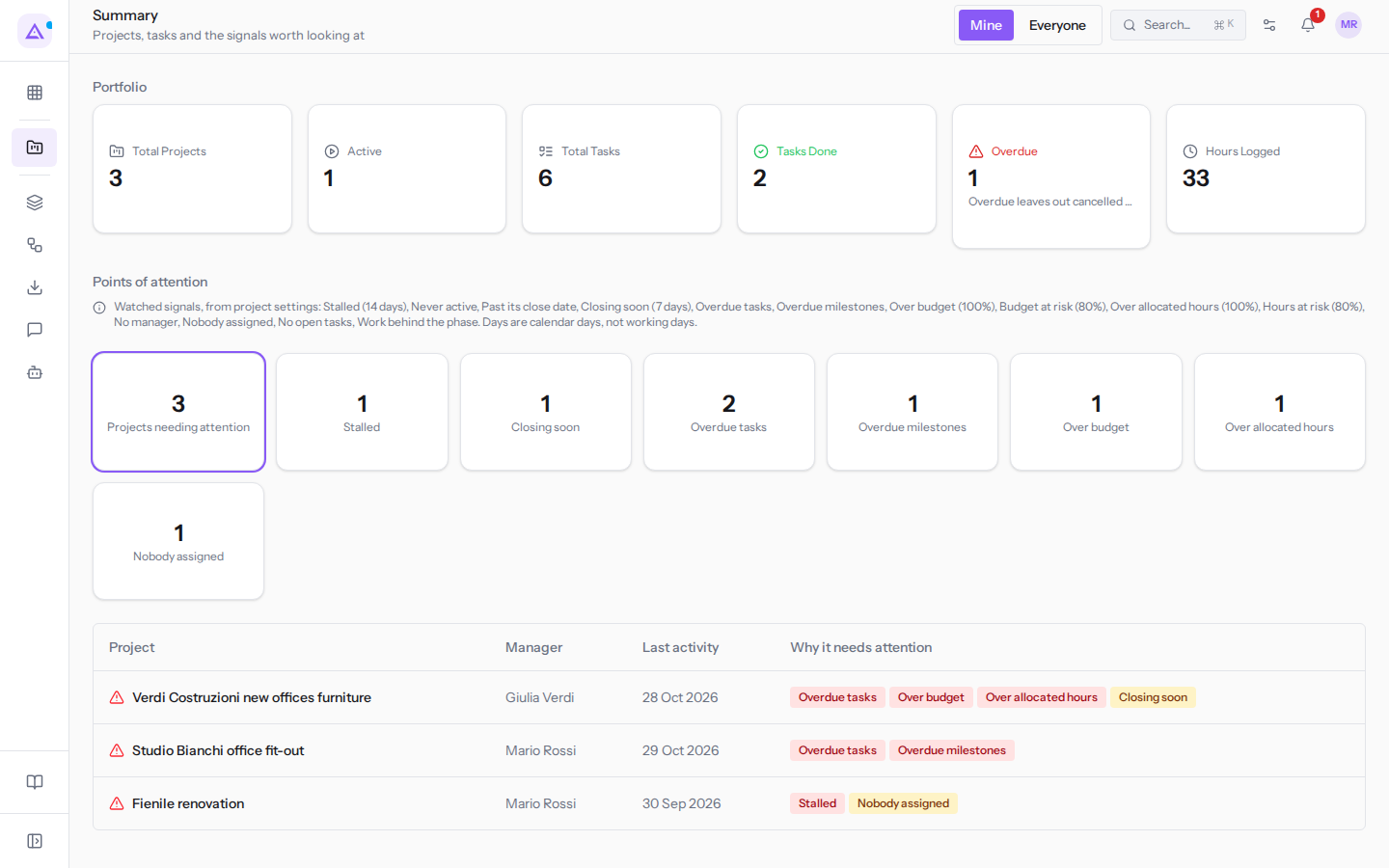
Choosing between your data and everyone else's
The selector at the top determines which data the Portfolio figures are calculated from.
- Mine: the figures count only what concerns you.
- Projects are those you are responsible for. The Total Projects card opens the project list filtered to your name in the Manager field.
- Tasks are those assigned to you. The Total Tasks card opens My Tasks, which shows tasks assigned to you across every project.
- Hours are those you have logged. The Hours Logged card opens My Time, showing hours logged on each project.
- Everyone: the figures count projects, tasks, and hours across the entire organisation.
If you want to check your own workload, choose Mine. If you want to review the overall project landscape, choose Everyone.
For example, for Mario Rossi the Mine view shows Total Projects 3 and Active 1, meaning Studio Bianchi office fit-out. The Everyone view shows Total Projects 5 and Active 2.
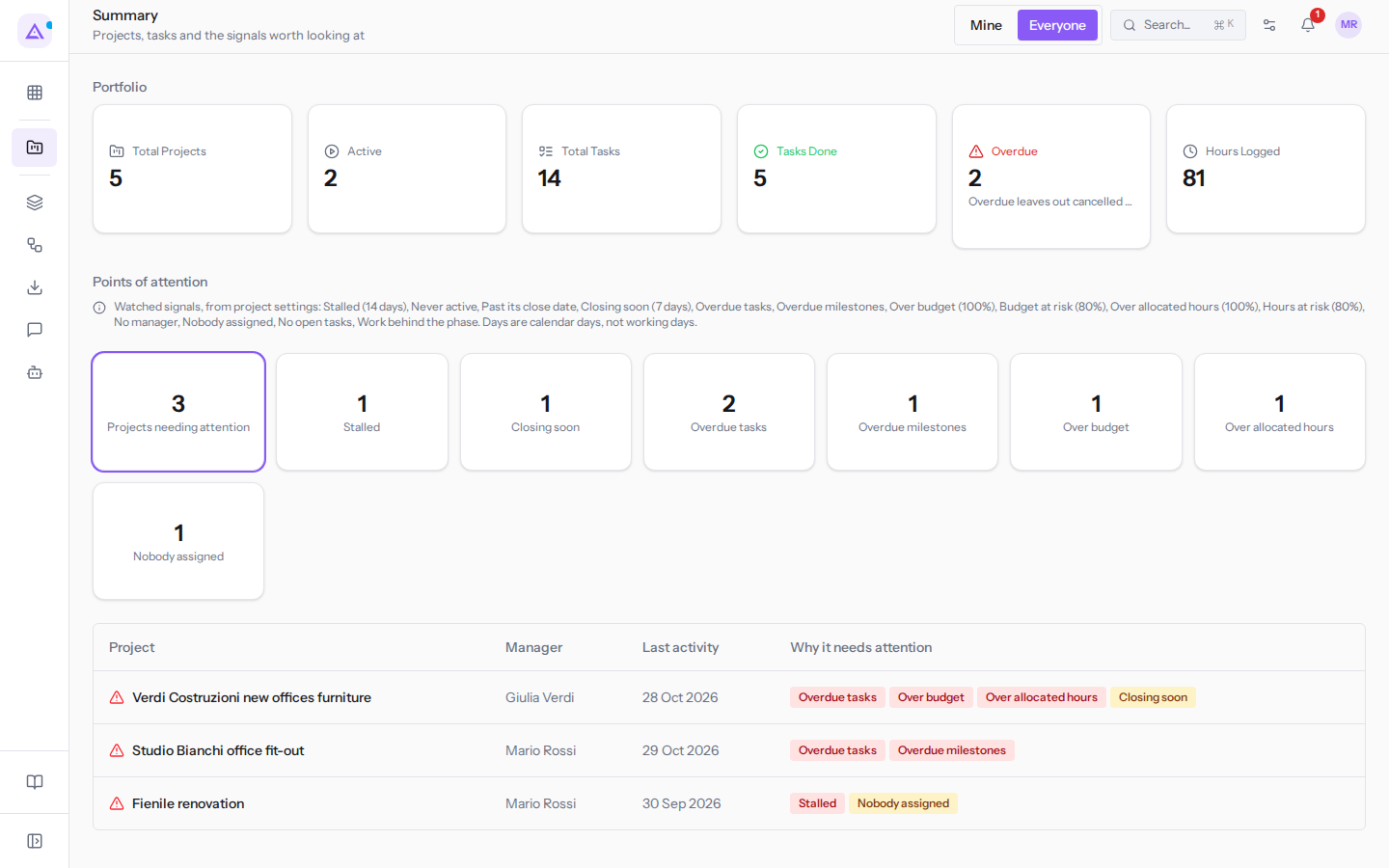
Reading the Portfolio cards
The Portfolio section contains six cards. Each card shows a number, and selecting it opens the list that number comes from.
- Choose Mine or Everyone.
- Select the card you are interested in.
The cards:
- Total Projects: the number of projects. Opens Projects with the Project status filter set to All. With Mine, the Manager filter is set to your name; with Everyone, it is set to All managers.
- Active: projects with the Active status. Opens Projects with the Project status filter set to Active.
- Total Tasks: the number of tasks. With Mine, opens My Tasks showing your tasks. With Everyone, opens the same page showing everyone's tasks.
- Tasks Done: completed tasks. Opens My Tasks with the Status filter set to Done.
- Overdue: overdue tasks. To see which ones, open Projects › My Tasks and select Overdue only. The count excludes cancelled tasks. A task due today is not yet counted as overdue.
- Hours Logged: the total hours logged. With Mine, opens My Time, with From and To to choose the period. With Everyone, opens Project Reports.
Note: the cards are links to lists and do not change any data. To edit a project or a task, open it from the list that appears.
For project list filters, see Searching and filtering projects in the list.
Checking the points of attention
The Points of attention section, at the bottom of the Summary, lists projects that have at least one signal. For each project it shows the name, the manager, a date, and the signals that have triggered.
The signals the section can show include Overdue tasks, Over budget, Over allocated hours, Closing soon, Overdue milestones, Stalled, and Nobody assigned. Above the list, a card for each signal shows how many projects have it; select it to see only those projects.
For example:
- Studio Bianchi office fit-out, manager Mario Rossi: Overdue tasks and Overdue milestones.
- Verdi Costruzioni new offices furniture, manager Giulia Verdi: Overdue tasks, Over budget, Over allocated hours, and Closing soon.
- Fienile renovation, manager Mario Rossi: Stalled and Nobody assigned.
To act on a project:
- In the Points of attention section, select a signal in the project's row. The project opens directly on the tab that relates to that signal: Tasks for overdue tasks or tasks with nobody assigned, Milestones for overdue milestones, Overview for the budget, Log for a stalled project.
- If instead you select the name, the project opens on the Kanban tab.
What each signal means and how thresholds are configured is explained in Understanding which projects need attention.
See it on your company, not on a slide deck.
In 30 minutes we map the software you use today.We show you how much work and how much margin Archimedes gives back.
Show me on my business →What industry are you in?
One tap — it lets us prepare the demo around your world.
What tools do you use today?
Pick the ones you recognise — or just type them. It helps us show you how they migrate.
Last step: your details.
We reply within one working day — and right after, if you like, you pick the demo slot yourself.
We couldn't send your request. Try again, or write to us at [email protected].
By sending, you agree to your data being processed so we can get back to you about the demo. Privacy notice.
Preview form — nothing is sent from this page.
Want to schedule the demo now?
Your call: book the slot you prefer yourself, or we'll call you to arrange it.
Live availability, 30 minutes, instant confirmation. The calendar opens in a new tab.
Lock in your slot ↗We'll get back to you within one working day — and we'll join the call already knowing your world.
The calendar is open in another tab: pick a slot and the demo is booked. Can't see it? Reopen it ↗
Preview page: nothing was sent.
Our calendar is live: take the slot that suits you and the demo is booked. 30 minutes, instant confirmation, no waiting.
Lock in your slot ↗