Projects
All modules
Create a project, blank or from a project type
Projects · 3 of 17 · 4 min read
A project collects the work to be done for a client: tasks, phases, hours, and documents. For example, setting up an office or furnishing a new location. You can create a blank project or start from a project type, which comes with a ready-made list of tasks.
Blank project or project type
The New Project button opens the New project dialog, which first asks how to get started. There are two options: Blank project or one of the project types listed under Start from a template.
- If the work does not follow an already known pattern, choose Blank project. The project is created without tasks and you add them later.
- If the work repeats identically for multiple clients — for example, setting up an office — choose the project type. For example
Office fit-out, with 4 tasks. The project is created with the type's tasks already included, which you can review before creating it.
Project types are set up in Projects › Settings, a menu item shown only to managers. You can also add the tasks of a project type to an already-created project later: existing tasks remain unchanged.
Create a blank project
Note: creating a project requires the «Project User» or «Project Manager» group.
Use this procedure when the project's tasks do not follow a project type.
- Open Projects › All Projects or the Projects › Project Kanban board.
- Click New Project. The New project dialog asks you to choose how to get started.
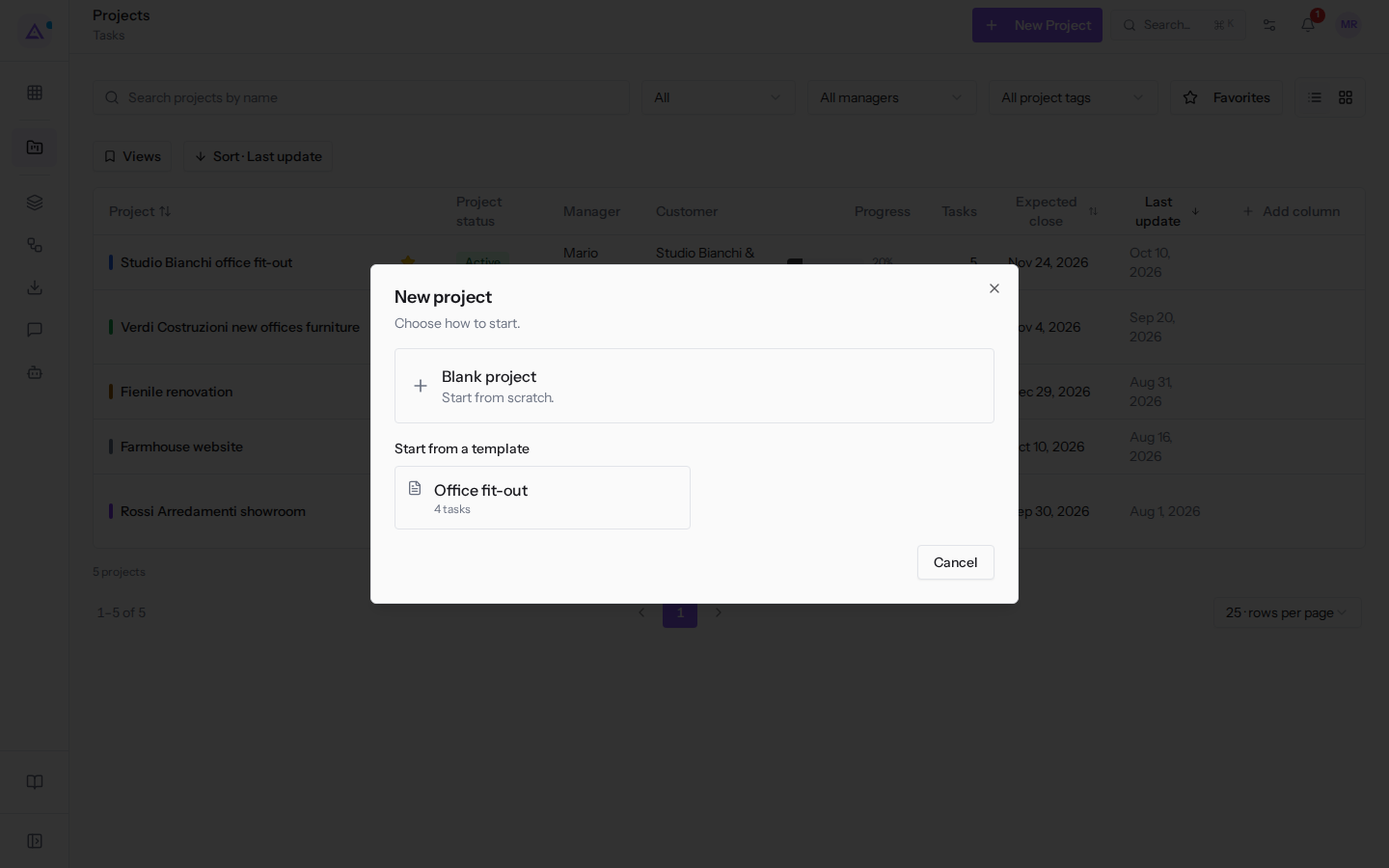
- Click Blank project. The dialog shows the project form.
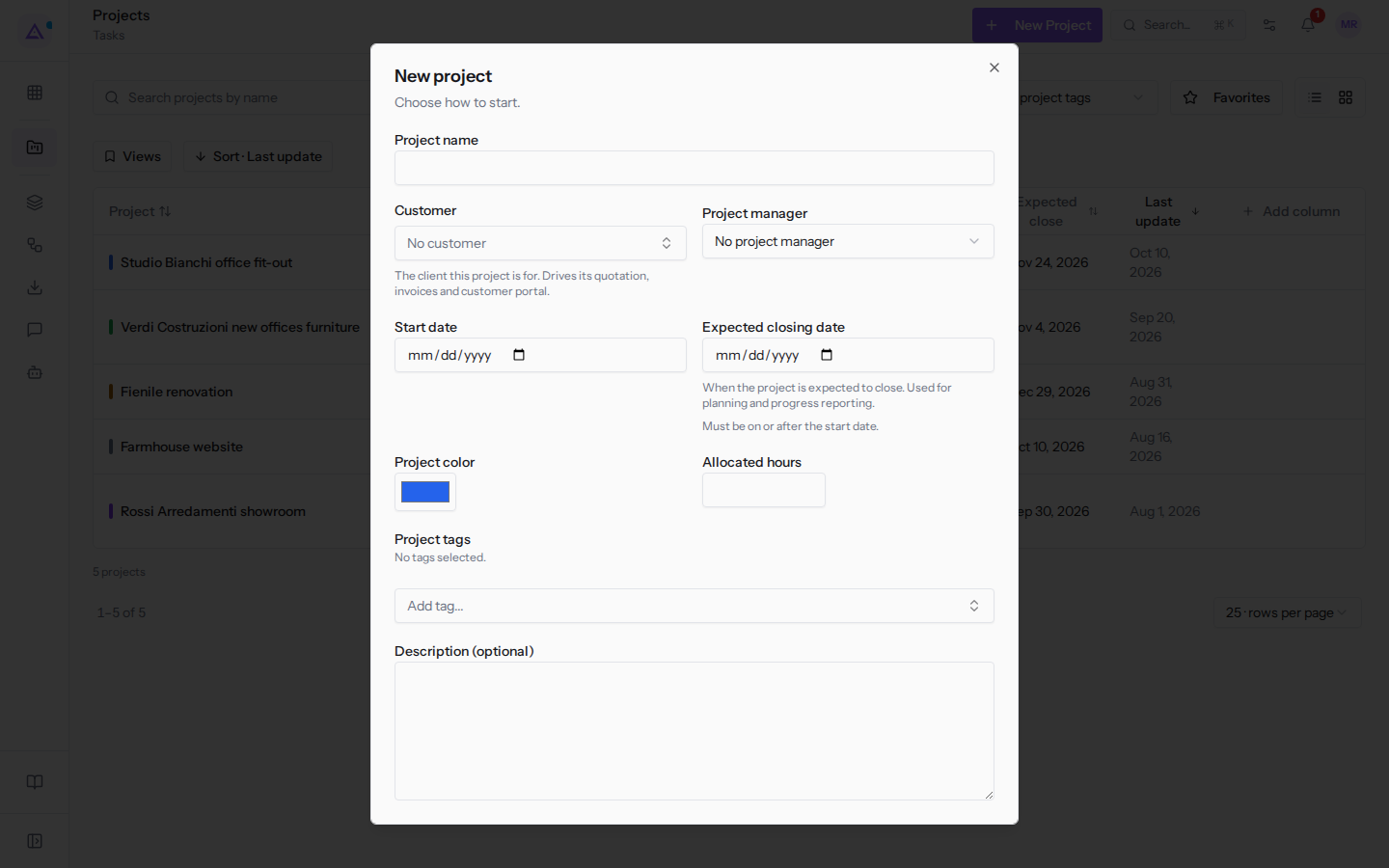
- Fill in the fields described below.
- Click Create project.
To go back to the choice between blank project and project type, click Back. To exit without creating anything, use Cancel on the first screen of the dialog.
Create a project from a project type
Use this procedure when the work corresponds to an already prepared project type.
- Open Projects › All Projects or Projects › Project Kanban and click New Project.
- Under Start from a template, click the project type, for example
Office fit-out. - The Project name field is filled with the name of the project type. Replace it with the project name, for example
Office fit-out Forniture Neri. - Fill in the other project fields.
- Check the Tasks of this order list. The type's tasks appear already checked. In the example these are
Site inspection and measurements,Layout design,Furniture order, andFurniture delivery and assembly. Uncheck the tasks you do not need.
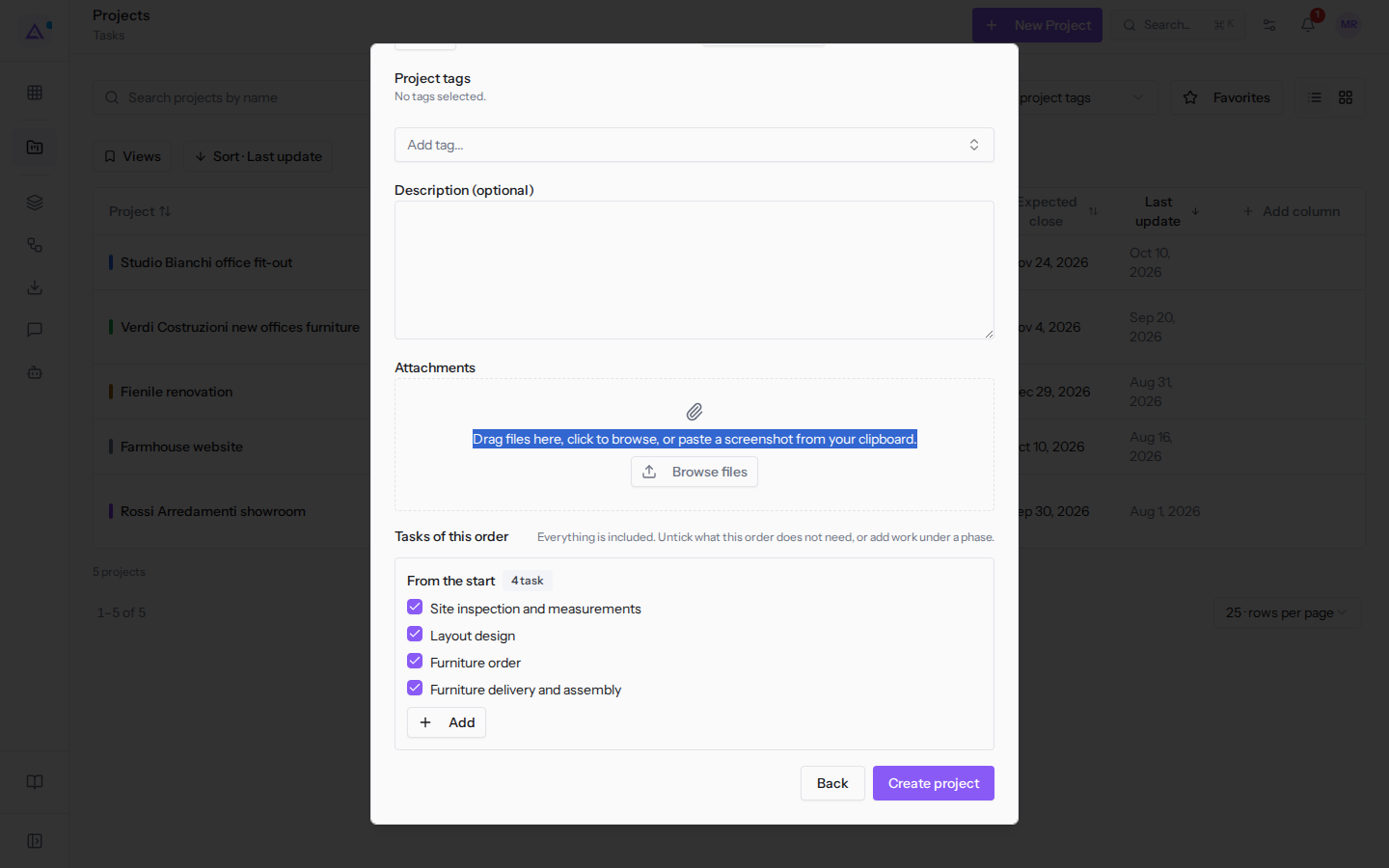
- To add a task that the type does not include, click Add. Enter the Task name and click Add, or Cancel to cancel.
- Click Create project.
Project fields
The fields are the same both in a blank project and in one created from a project type.
- Project name: the name the project has in lists and on the board. If you start from a project type, the field already contains the type's name.
- Customer: the client the project is for. Determines the quote, invoices, and client portal. Choose the client from contacts, which the selector shows with email and phone. The default value is No customer.
- Project manager: the user managing the project, for example
Mario Rossi. The default value is No project manager. - Start date: the date on which the project starts.
- Expected closing date: the date by which the project must be closed.
- Project color: the project's color, with the default value
#2563eb. - Allocated hours: the hours budgeted for the project.
- Project tags: the project's labels. To add them use Add tag..., for example
Office furnitureorKey account. - Description (optional): free-form text about the project.
- Attachments: the files to attach to the project. To select them use Browse files.
Tip: to issue a quote or invoice from the project, a client is required. If missing, the form asks for it first. For this reason it is advisable to specify the Customer already at creation.
After creation
When created, the Project created message appears and the new project's card opens, on the Kanban tab.
- The project starts in the Backlog phase. On the Projects › Project Kanban board, its card shows the client, manager, and number of tasks.
- If you created it from a project type, the tasks are already in their respective columns. In
Office fit-out Forniture Neri, for example,Site inspection and measurementsis in Backlog,Layout designin Scoping,Furniture orderin Execution, andFurniture delivery and assemblyin Handover. - Tasks arrive without an assignee (the card shows Unassigned). If you do not set a deadline, they show No deadline.
To assign tasks, add more, and move them between phases, see Create and organise tasks in a project.
See it on your company, not on a slide deck.
In 30 minutes we map the software you use today.We show you how much work and how much margin Archimedes gives back.
Show me on my business →What industry are you in?
One tap — it lets us prepare the demo around your world.
What tools do you use today?
Pick the ones you recognise — or just type them. It helps us show you how they migrate.
Last step: your details.
We reply within one working day — and right after, if you like, you pick the demo slot yourself.
We couldn't send your request. Try again, or write to us at [email protected].
By sending, you agree to your data being processed so we can get back to you about the demo. Privacy notice.
Preview form — nothing is sent from this page.
Want to schedule the demo now?
Your call: book the slot you prefer yourself, or we'll call you to arrange it.
Live availability, 30 minutes, instant confirmation. The calendar opens in a new tab.
Lock in your slot ↗We'll get back to you within one working day — and we'll join the call already knowing your world.
The calendar is open in another tab: pick a slot and the demo is booked. Can't see it? Reopen it ↗
Preview page: nothing was sent.
Our calendar is live: take the slot that suits you and the demo is booked. 30 minutes, instant confirmation, no waiting.
Lock in your slot ↗