Projects
All modules
Reviewing a project's history: timeline, log, analysis, documents, and discussion
Projects · 12 of 17 · 4 min read
A project card collects the work history across five tabs. You can see when the project changed phase or status, who modified what, how hours and budget are progressing, which documents are attached, and what the team and client have written to each other. For example, you can check when a project moved into execution, who changed a deadline, or how much budget remains.
All tabs are found in the project card, next to Kanban, Overview, and Milestones. The examples on this page use the project Studio Bianchi office fit-out.
Choose the tab based on what you are looking for:
- If you want to know when the project moved from one phase to another or changed status, open History.
- If you want to know who modified a task and when, open Log.
- If you want to understand how work, hours, and budget are progressing, open Analysis.
- If you are looking for a project file, open Documents.
- If you want to read or write a message, open Discussion.
Reviewing the phase and status history
The History tab shows the project's phase and status changes.
- Open the project, for example
Studio Bianchi office fit-out. - Click the History tab.
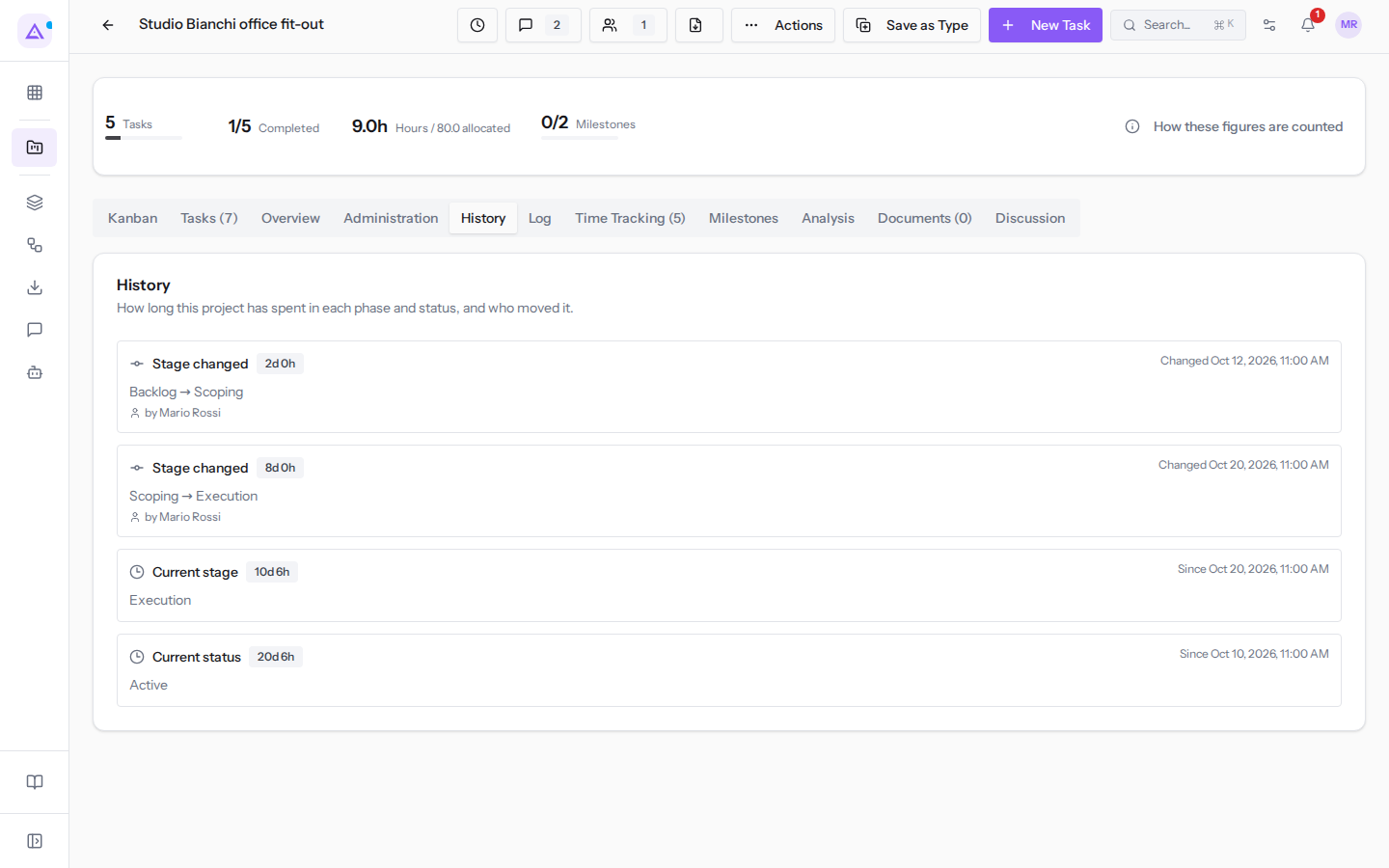
If the project has not yet changed phase or status, the tab shows the message No stage or status history yet.
Note: the project's phase and status are two distinct pieces of information. A project can remain in the same phase and move to the On Hold status.
The history is also used for reports. The time each project has spent in each phase is reconstructed from its History, so the report figures match those of the individual project.
Reading the change log
The Log tab lists the changes and comments recorded on the project and its tasks.
- Open the project and click the Log tab.
- Narrow down the list using the filters at the top.
- Use Previous and Next to browse the list pages.
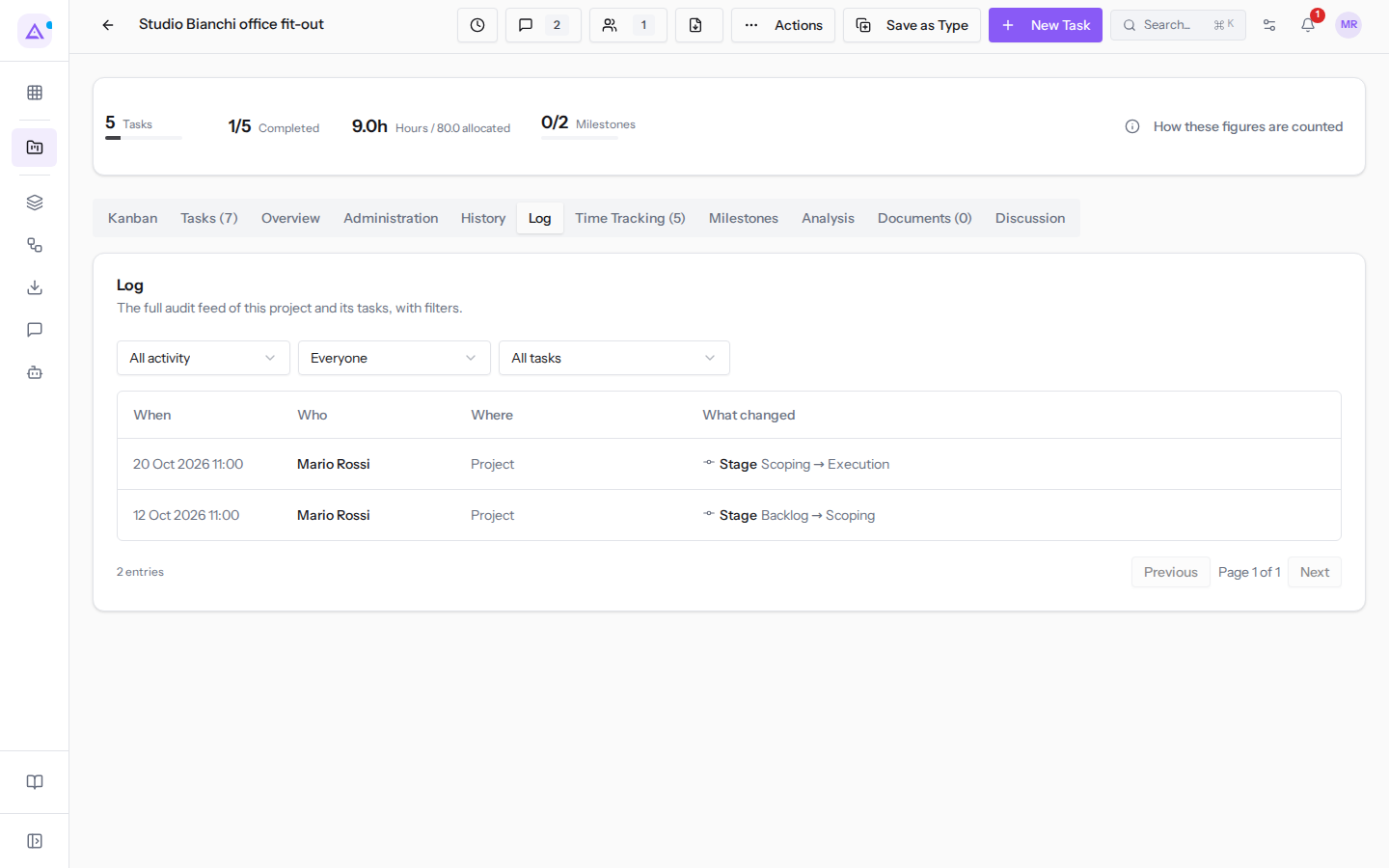
The tab's filters are:
- Type: the type of entry to show.
- All activity: shows all entries. This is the default value.
- Changes: shows only changes.
- Comments: shows only comments.
- Person: shows only the entries of a specific person, for example
Mario Rossi. With Everyone it shows entries for all people. - Task: shows only the entries of a specific project task, for example
Site inspection and measurements. With All tasks it shows entries for all tasks.
The list has the following columns:
- When: the moment the change was made.
- Who: the person who made the change.
- Where: the point in the project where the change occurred.
- What changed: the content of the change.
Analyzing project progress
The Analysis tab brings together charts on the progress of the individual project.
- Open the project and click the Analysis tab.
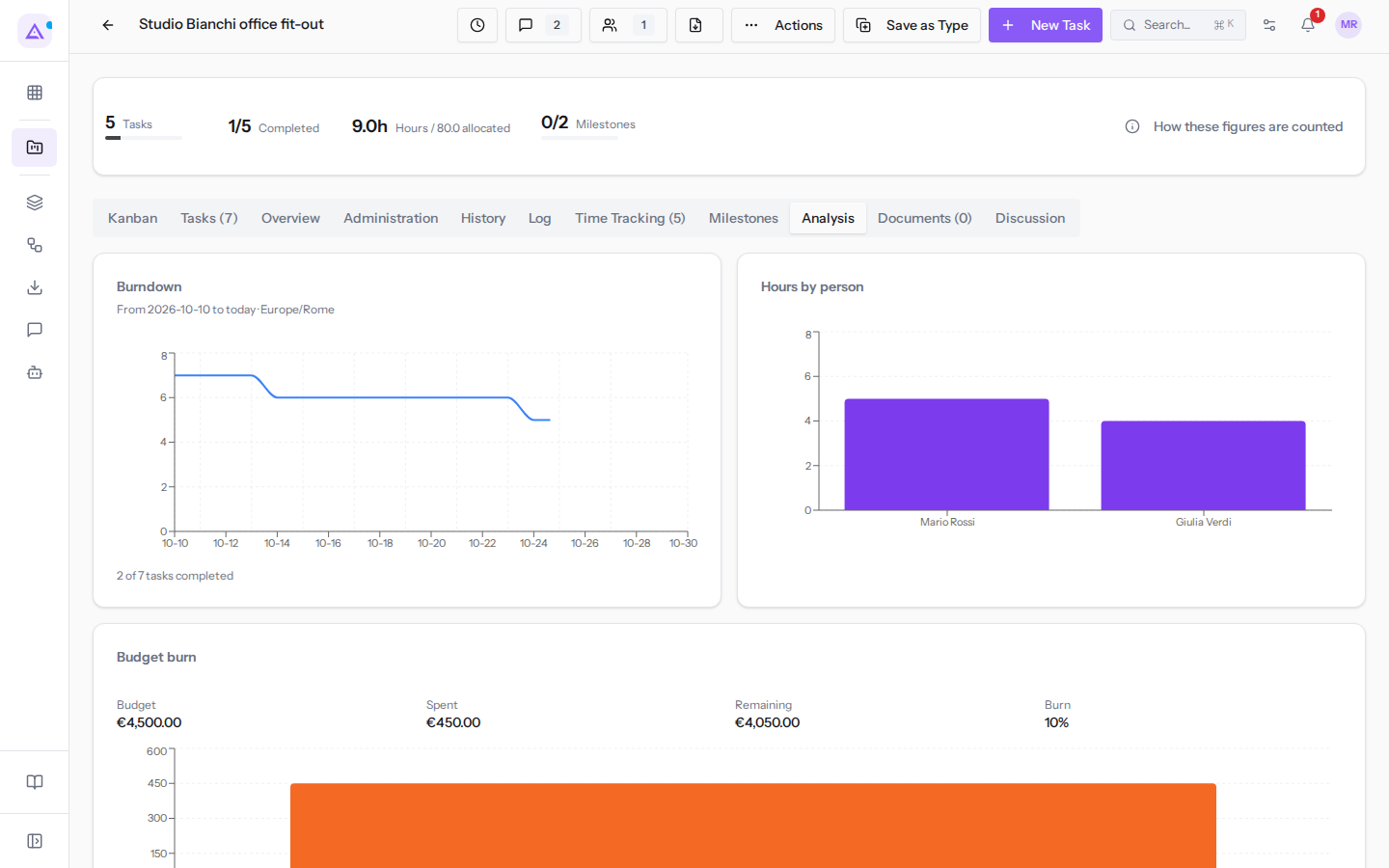
The tab is reserved for project managers and administrators: for other users it shows «The analysis could not be loaded». It contains these charts:
- Burndown: the trend of remaining work in the project.
- Hours by person: the hours logged by each person on the project.
- Budget burn: the portion of the project budget already spent.
Note: hours are included in project counts only after approval. Pending or rejected hours do not count.
Uploading a document
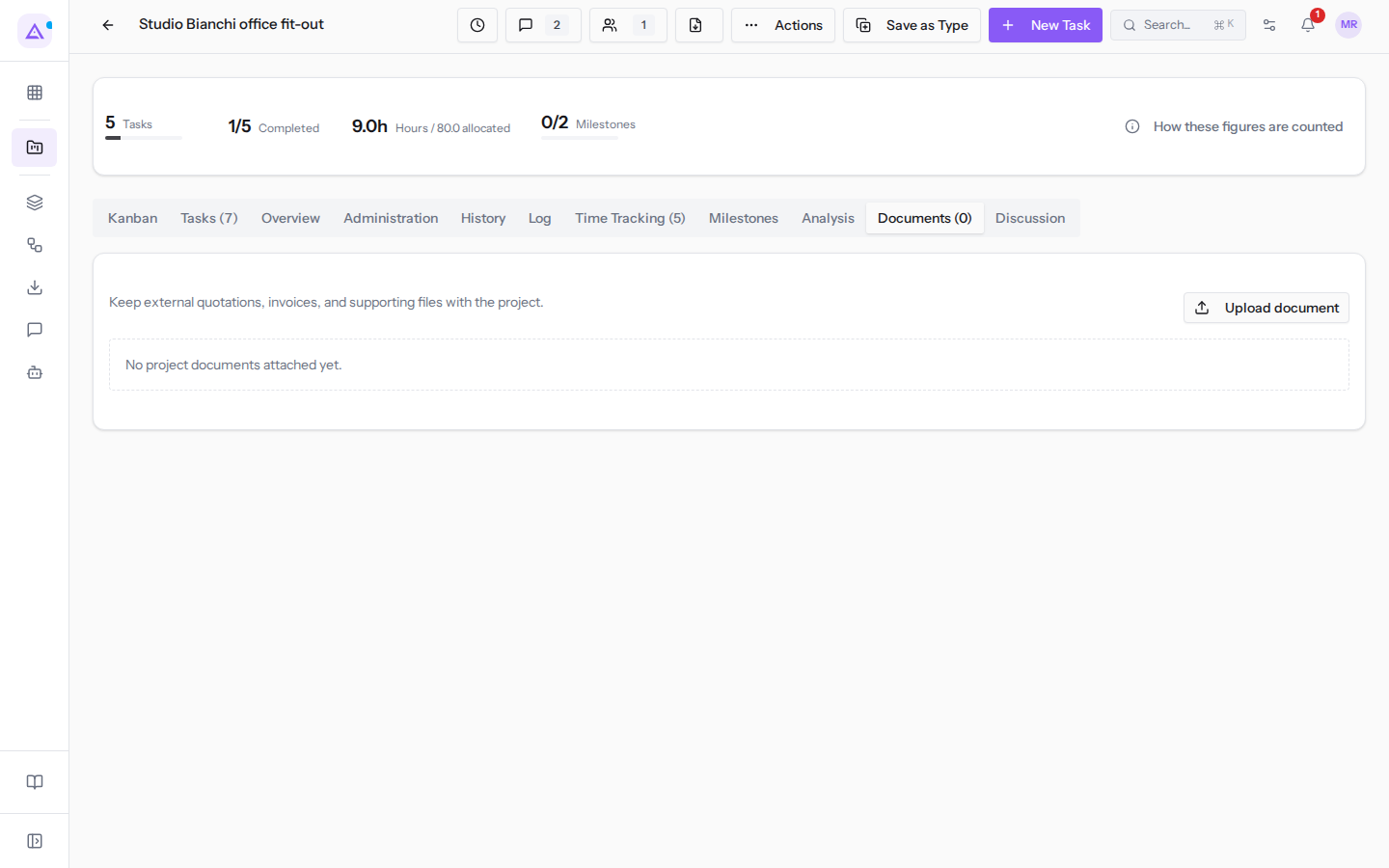
The Documents tab contains the project's files. The number next to the tab name indicates how many documents have been uploaded.
- Open the project and click the Documents tab.
- Use Upload document and choose the file from your computer.
Writing in the discussion
The Discussion tab is the project's single conversation thread. It collects messages from the project and from its tasks.
Choose the type of text based on who needs to read it:
- If you are writing for the people following the project, use Message.
- If you are writing a work note for the team, use Internal note.
To open the discussion, you can use the Discussion tab or the speech bubble button in the project header, which shows the number of messages and is visible from any tab.
- Open the project and click Discussion.
- Choose Message or Internal note above the text field.
- Type the text in the field.
- Click Send.
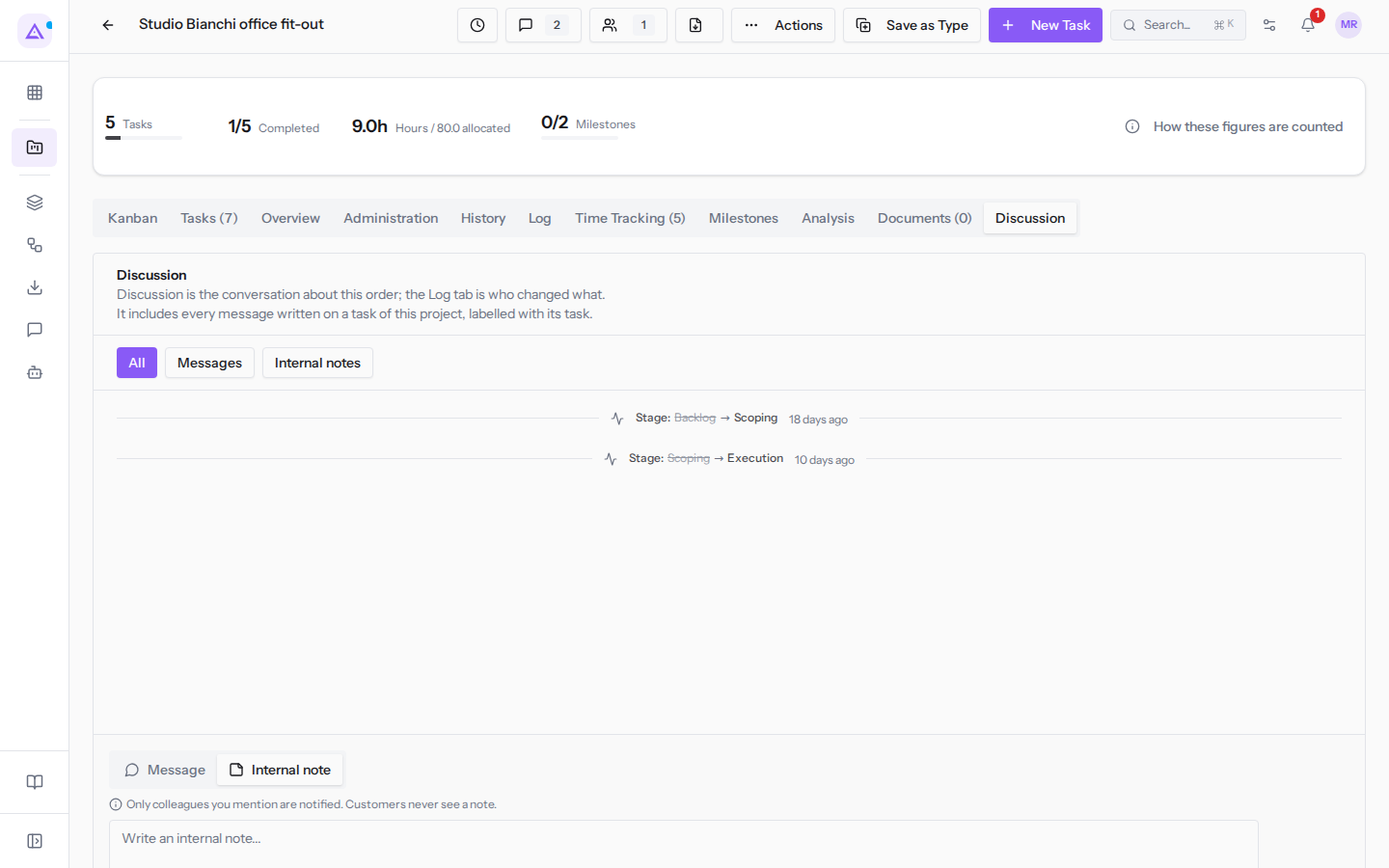
To read only a portion of the conversation, use the filters above the list:
- All: shows messages and internal notes.
- Messages: shows only messages.
- Internal notes: shows only internal notes.
To find a project to consult, see Searching and filtering projects in the list.
See it on your company, not on a slide deck.
In 30 minutes we map the software you use today.We show you how much work and how much margin Archimedes gives back.
Show me on my business →What industry are you in?
One tap — it lets us prepare the demo around your world.
What tools do you use today?
Pick the ones you recognise — or just type them. It helps us show you how they migrate.
Last step: your details.
We reply within one working day — and right after, if you like, you pick the demo slot yourself.
We couldn't send your request. Try again, or write to us at [email protected].
By sending, you agree to your data being processed so we can get back to you about the demo. Privacy notice.
Preview form — nothing is sent from this page.
Want to schedule the demo now?
Your call: book the slot you prefer yourself, or we'll call you to arrange it.
Live availability, 30 minutes, instant confirmation. The calendar opens in a new tab.
Lock in your slot ↗We'll get back to you within one working day — and we'll join the call already knowing your world.
The calendar is open in another tab: pick a slot and the demo is booked. Can't see it? Reopen it ↗
Preview page: nothing was sent.
Our calendar is live: take the slot that suits you and the demo is booked. 30 minutes, instant confirmation, no waiting.
Lock in your slot ↗