Projects
All modules
Finding your work in My Tasks
Projects · 9 of 17 · 4 min read
The My Tasks page collects in a single list the tasks from all projects. From here you can find the tasks assigned to you, those still unclaimed in your teams, and, if you manage projects, the tasks of everyone. For example, you can see what's due this week across multiple jobs, or take on an assembly task assigned to your team.
The three tabs
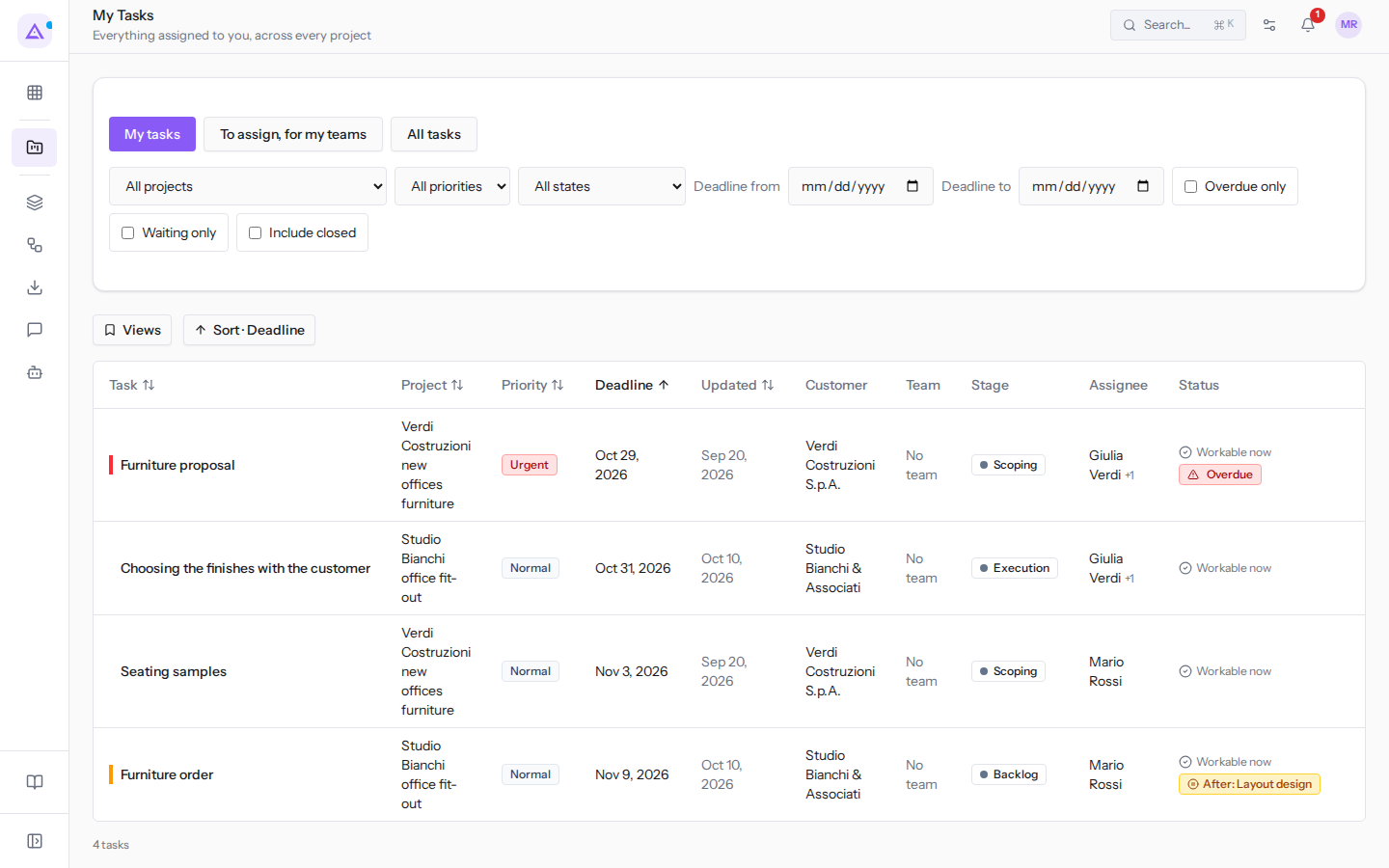
Open Projects › My Tasks. At the top you'll find three tabs, each showing a different set of tasks.
- My tasks: tasks assigned to you, in every project. This is the tab that opens first.
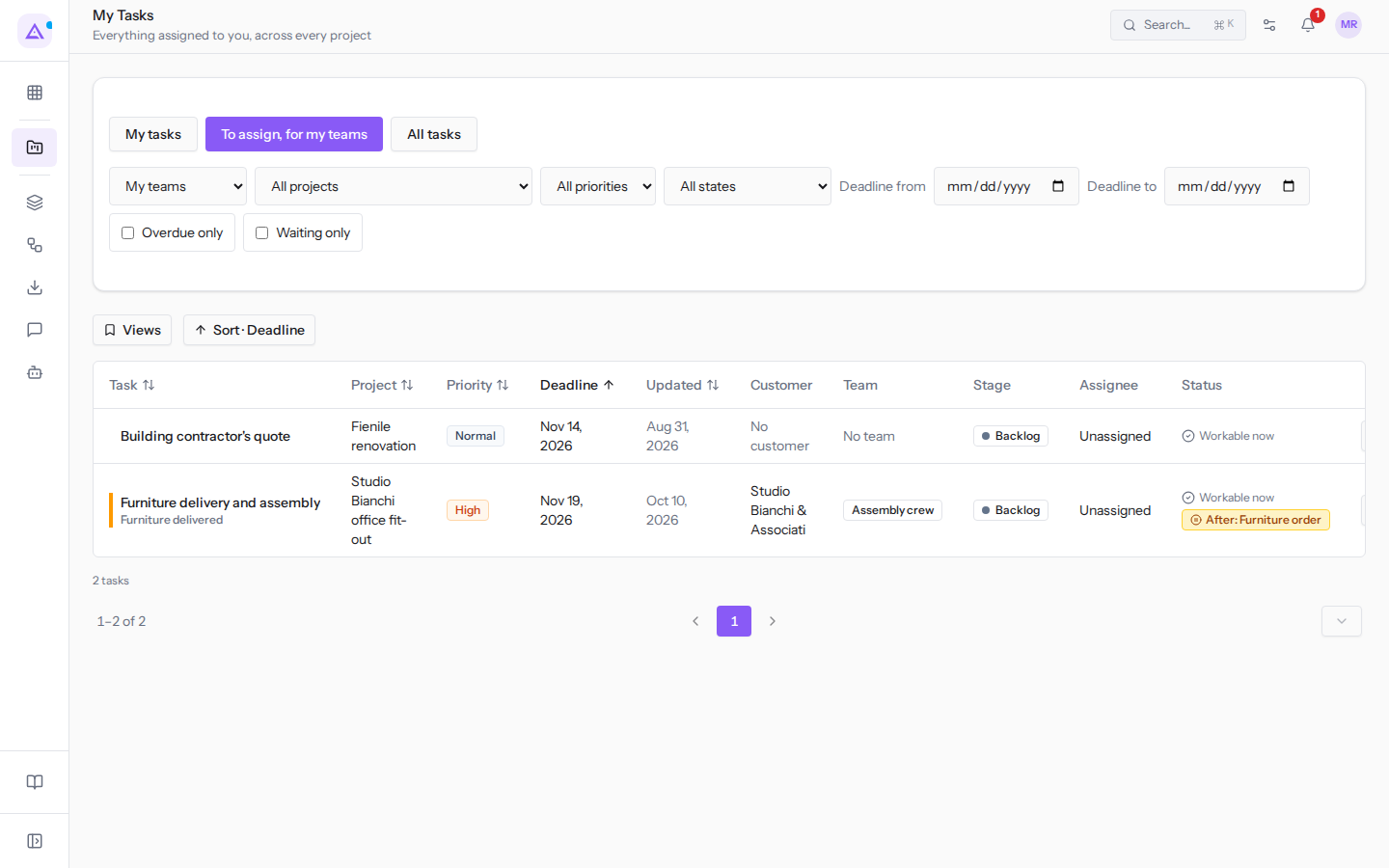
- To assign, for my teams: tasks from projects you can see that don't yet have an assignee. It's useful for choosing your next piece of work, even if you don't manage projects.
- All tasks: tasks from all people.
Note: the All tasks tab only appears for members of the Project Manager group.
If you want to know what you need to do, use My tasks. If you've finished your work and are looking for the next task, use To assign, for my teams. If you're monitoring everyone's workload, use All tasks.
Filtering the list
The filters above the list narrow down the tasks in the open tab. You can combine them.
- Open Projects › My Tasks and choose the tab.
- Set the filters you need. The list updates.
Available filters:
- Project: limits the list to a single project, for example
Studio Bianchi office fit-out. The default value is All projects. - Priority: All priorities, Low, Normal, High or Urgent.
- Status: All states, In Progress, Changes Requested, Approved, Cancelled or Done.
- Deadline from and Deadline to: show tasks with a deadline within the period. The Deadline to date cannot be earlier than the Deadline from date.
- Overdue only: shows only tasks past their deadline.
- Waiting only: shows only blocked tasks. For tasks that are waiting on other tasks, see Working on a task.
- Include closed: adds closed tasks to the list. If not selected, the list shows only open tasks. This filter is present in the My Tasks and All tasks tabs.
- Unclaimed only: appears only in the All tasks tab and shows only tasks that no one has claimed.
Tip: to save a filter combination, open Views and choose Save this view…. To return to the initial settings, choose Default view.
The Team filter
In the To assign, for my teams tab, the Team filter determines which teams' unclaimed tasks you see.
- My teams: unclaimed tasks from your teams and those without a responsible team. This is the default value. If you are not part of any team, you see all unclaimed tasks.
- All teams: unclaimed tasks from all teams.
- The name of a team, for example Assembly crew: only unclaimed tasks from that team.
Claiming a task
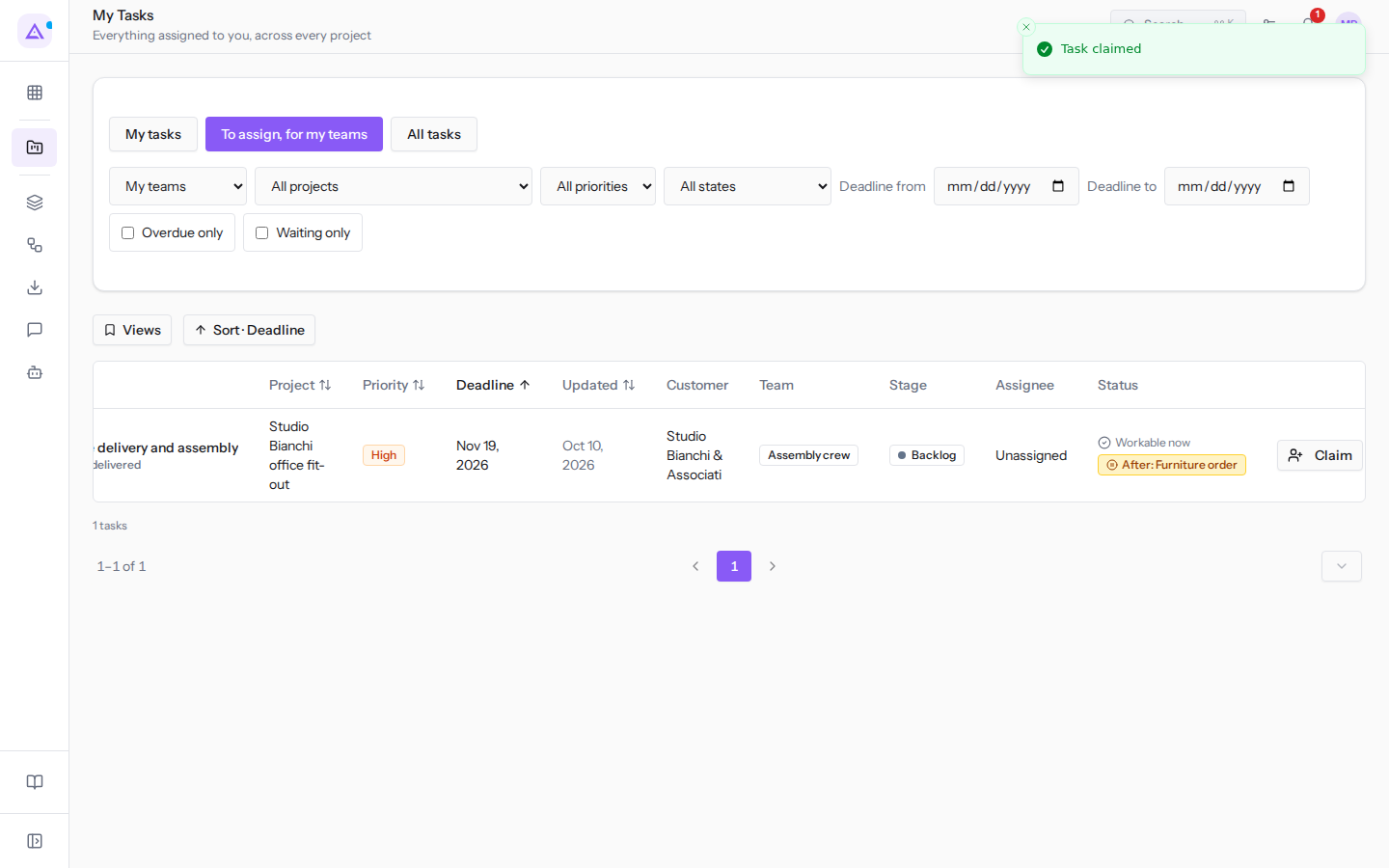
Tasks without an assignee can be claimed from the To assign, for my teams tab. For example, Furniture delivery and assembly is assigned to the Assembly crew team and doesn't yet have an assignee.
- Open Projects › My Tasks and choose the To assign, for my teams tab.
- If needed, set the Team filter.
- On the task row, for example
Furniture delivery and assembly, click Claim. The Task claimed message appears.
The list columns
Each row in the list is a task. The available columns are:
- Task: the task name. Click the name to open it.
- Project: the project the task belongs to.
- Stage: the phase the task is in.
- Priority: the task's priority.
- Deadline: the due date.
- Assignee: the person the task is assigned to.
- Progress: the task's progress.
- Status: the task's status.
- Team: the team the task is assigned to.
- Customer: the task's customer.
- Updated: when the task was last modified.
To choose columns, click Add column. In the menu that opens you can:
- select or deselect each column;
- search for a field in the Search a field… box, or open the list of other fields;
- change the order with Move column left and Move column right;
- return to the initial columns with Reset columns.
Sorting and scrolling the list
When opened, the list is sorted by deadline, as indicated by Sort · Deadline.
- To change the order, use Sort by Task, Sort by Project, Sort by Priority, Sort by Deadline or Sort by Updated.
- To change the number of rows shown, use Rows per page. To scroll through pages, use Previous page and Next page.
See it on your company, not on a slide deck.
In 30 minutes we map the software you use today.We show you how much work and how much margin Archimedes gives back.
Show me on my business →What industry are you in?
One tap — it lets us prepare the demo around your world.
What tools do you use today?
Pick the ones you recognise — or just type them. It helps us show you how they migrate.
Last step: your details.
We reply within one working day — and right after, if you like, you pick the demo slot yourself.
We couldn't send your request. Try again, or write to us at [email protected].
By sending, you agree to your data being processed so we can get back to you about the demo. Privacy notice.
Preview form — nothing is sent from this page.
Want to schedule the demo now?
Your call: book the slot you prefer yourself, or we'll call you to arrange it.
Live availability, 30 minutes, instant confirmation. The calendar opens in a new tab.
Lock in your slot ↗We'll get back to you within one working day — and we'll join the call already knowing your world.
The calendar is open in another tab: pick a slot and the demo is booked. Can't see it? Reopen it ↗
Preview page: nothing was sent.
Our calendar is live: take the slot that suits you and the demo is booked. 30 minutes, instant confirmation, no waiting.
Lock in your slot ↗