Transport
All modules
The drivers
Transport · 8 of 18 · 4 min read
A driver in Archimedes is an address book contact marked as a driver. You assign them to a trip together with the vehicle and the date, for example Davide Marino on the Daily van — GH 412 KM.
Who is a driver
The driver does not have a separate record in Transport. They are a contact in Contacts to which the Transport module adds the driver's data.
For this reason, the driver can be one of your employees or work for an external haulier, which the interface calls a subcontractor: they do not need to have an account or a staff record.
Always mark the person who drives as a driver, never the company: Davide Marino and Roberto Fontana drive your vans, Walter Brambilla drives the rigid truck of Autotrasporti Brambilla S.r.l. The carrier's company remains a company contact and is linked to its vehicles.
For this reason, the driver's data only appears on contacts that are people, not on companies.
The driver's data in the contact
The Transport module adds three fields to a person's contact:
Is a driver: marks the person as a driver. Only people with this field active appear in the Driver list in trips.Driver licenses: the licenses, written as text:B, Cfor Davide Marino,C, CEfor Walter Brambilla.CQC expiry date: the CQC expiry date, the certificate of professional competence required to drive heavy vehicles for work.
Today, however, this data does not appear in the Contacts screens: neither the contact record nor the Edit Contact window shows it, so a new person cannot be marked as a driver from here. If you need a driver who is not in the list, ask Archimedes support to mark them.
Licenses and CQC are just a reminder: Archimedes does not compare them against the vehicle and does not warn you when the CQC expires. Check them yourself before entrusting a heavy vehicle: Walter Brambilla's CQC, for example, expires in 25 days.
Choosing the driver of a trip
The driver is selected in the trip, together with the vehicle and the date.
- Open Transport › Planning.
- Click New trip.
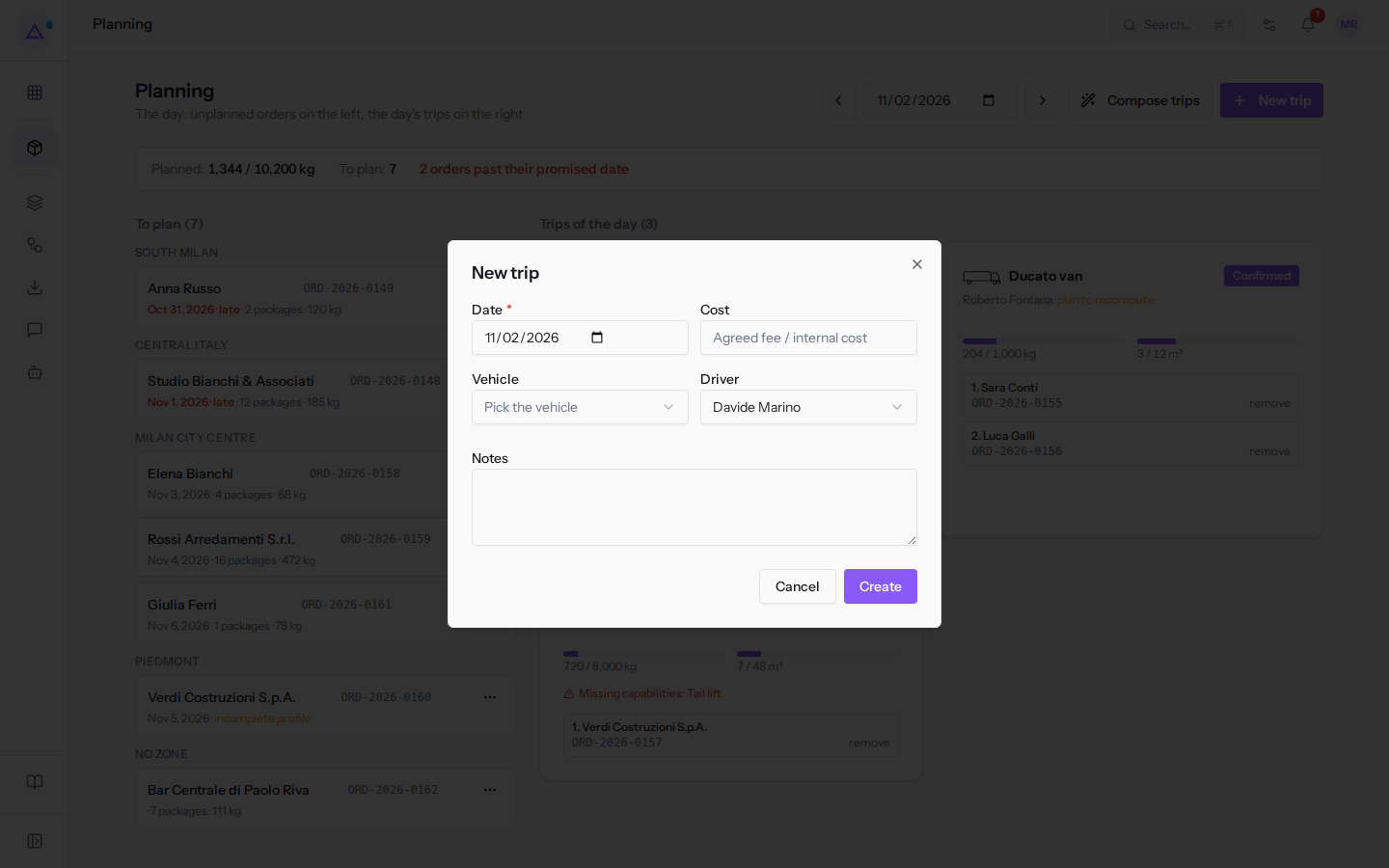
- In the Driver field, open Pick the driver and choose who is driving.
- Fill in the other fields and click Create.
To change the driver of an already created trip, open the trip and click Edit: this is possible as long as the trip is in Draft or Confirmed.
The other fields in the window are explained in Creating trips manually or having them composed. The Driver list shows only contacts marked as drivers: today Davide Marino, Roberto Fontana and Walter Brambilla. If someone is missing, they are not marked as a driver: see above.
A driver on two trips on the same day
Archimedes does not prevent you from assigning the same driver to two trips on the same day: sometimes a driver really does make two runs, one in the morning and one in the afternoon. However, both trip records show the warning "Driver already on another trip the same day". Only trips in Draft, Confirmed or Departed are counted: a closed or cancelled trip does not trigger the warning.
If you see the warning, decide whether the two runs genuinely fit within the same working day; if not, open one of the two trips and change the driver with Edit.
The driver's link
The driver does not need an account. When you confirm the trip, their link is generated: it opens a page with the route for that trip, without a password. The link belongs to the trip, not to the person: if you change the driver after confirmation, send the link to the new driver. Before confirmation the link does not exist.
How to send the link and what the driver does on their page is explained in The driver's page on the phone.
See it on your company, not on a slide deck.
In 30 minutes we map the software you use today.We show you how much work and how much margin Archimedes gives back.
Show me on my business →What industry are you in?
One tap — it lets us prepare the demo around your world.
What tools do you use today?
Pick the ones you recognise — or just type them. It helps us show you how they migrate.
Last step: your details.
We reply within one working day — and right after, if you like, you pick the demo slot yourself.
We couldn't send your request. Try again, or write to us at [email protected].
By sending, you agree to your data being processed so we can get back to you about the demo. Privacy notice.
Preview form — nothing is sent from this page.
Want to schedule the demo now?
Your call: book the slot you prefer yourself, or we'll call you to arrange it.
Live availability, 30 minutes, instant confirmation. The calendar opens in a new tab.
Lock in your slot ↗We'll get back to you within one working day — and we'll join the call already knowing your world.
The calendar is open in another tab: pick a slot and the demo is booked. Can't see it? Reopen it ↗
Preview page: nothing was sent.
Our calendar is live: take the slot that suits you and the demo is booked. 30 minutes, instant confirmation, no waiting.
Lock in your slot ↗