Transport
All modules
The load plan
Transport · 14 of 18 · 8 min read
The load plan shows where each package goes in the vehicle bay, in the order in which the stops are unloaded. You need it to know, before the vehicle departs, whether the load actually fits and in what order to load the packages so that at each stop the driver finds exactly the ones to unload right at the doors.
What Archimedes calculates
Archimedes places each package in the bay as a block with a position and an orientation. The dimensions, weight, stackability and orientation of each package come from the product's logistics family or from its measurements.
The calculation rules:
- Unloading order: stops are loaded in reverse. Packages for the last stop go at the back of the bay, towards the cab. Packages for the first stop stay near the doors and are unloaded first.
- One row per stop: each change of stop opens a new row. Two stops never share the same row.
- Weight: within a stop, heavier packages are placed first.
- Stackability: a package rests on a stack of the same product only if the family is Stackable, if the stack has not already reached Max layers, and if the stack remains below the bay height.
- Orientation: if needed, a package is rotated 90° on the floor. With Orientation locked the package is not rotated. The height of a package always stays as it is: no package is laid on its side.
- Payload: a package that would cause the vehicle's Payload (kg) to be exceeded is not loaded.
- Final position: at the end the load is shifted towards the center of the floor, without changing the relative positions of the packages or the unloading order.
A package that does not fit does not block the calculation: the plan is created anyway and the package appears among the excluded ones, with the reason.
To calculate the plan you need a vehicle with bay dimensions (length, width and height, on the vehicle record) and at least one stop. If either is missing, the section shows You need a vehicle with bay geometry and at least one stop.: complete the vehicle in Transport › Vehicles or add an order to the trip.
Opening the load plan for a trip
The plan is found in the Load plan section of the trip record.
- Open Transport › Planning.
- In Trips of the day click the Ducato van trip.
- Scroll down to the Load plan section.
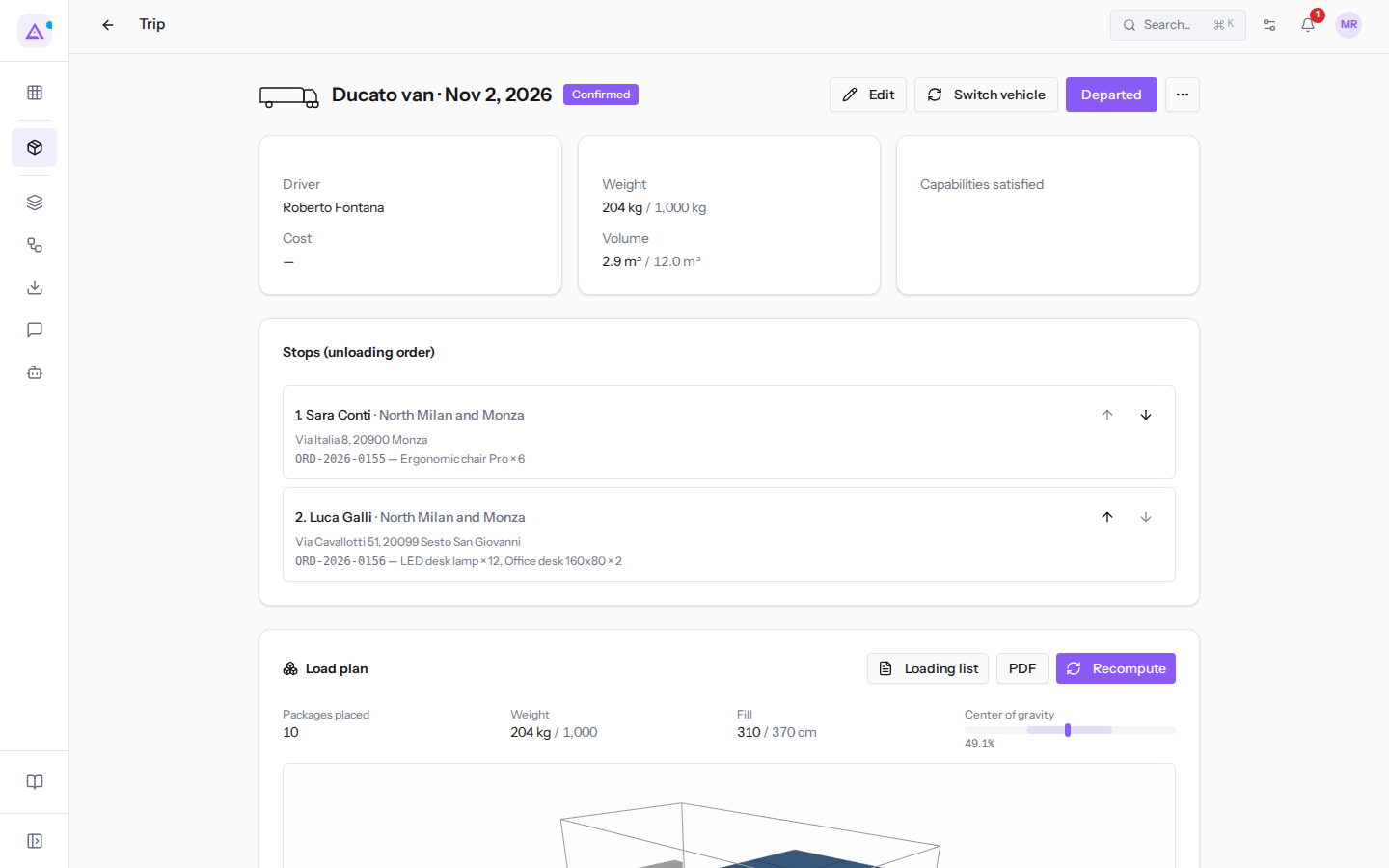
If the trip does not yet have a plan, or if the plan is no longer valid, Archimedes calculates it automatically when you open the record of a trip in Draft, Confirmed or Departed status.
For Closed and Cancelled trips the plan stays as it was: it can be consulted but is no longer recalculated.
At the top right of the section there are:
- Loading list and PDF: the printout for the person loading the vehicle, explained further below. They appear when the plan exists.
- Compute plan or Recompute: the first when there is no plan yet, the second to redo it. They do not appear for closed or cancelled trips.
If the trip has no plan and the requirements are met, the section shows No plan computed yet. The engine places packages in the bay honoring the unloading order.
The plan figures
Above the views the plan shows its values.
- Packages placed: how many packages fit in the bay. If it is fewer than the order's packages, something was left out (see below).
- Weight: the weight of the placed packages against the vehicle's payload; in the Ducato van trip
204 kg / 1,000. - Fill: how many cm of bay the load occupies, from the first to the last package, relative to the bay length:
310 / 370 cmmeans 60 cm remain free in length. - Center of gravity: the balance point of the weight along the bay, as a percentage of the length. The bar shows the position, with the light band from 30% to 70%; the Ducato is at
49.1%, that is, well centered.
At the top of the trip record you also find the Volume of the load relative to the bay volume, for example 2.9 m³ / 12.0 m³.
Off-center center of gravity
If the center of gravity is below 30% or above 70% of the bay length, the marker on the bar turns red and outside the 30–70% band appears next to the value. The weight is concentrated too far towards the cab or too far towards the doors.
If the warning appears, check the order of the stops and the chosen vehicle, then recompute the plan.
Packages that do not fit
Packages that the calculation cannot place appear in a red box headed Doesn't fit, each with its stop and the reason:
- payload exhausted: the package would cause the vehicle's payload to be exceeded.
- too tall for the bay: the package is taller than the bay.
- too wide for the bay: the package does not fit within the bay width, even when rotated. With Orientation locked its width without rotation is used.
- bay length exhausted: no bay length remains for a new row.
If a package does not fit, choose a larger vehicle with Switch vehicle or remove an order from the trip in Planning. Then recompute the plan.
Reading the 3D view and the top view
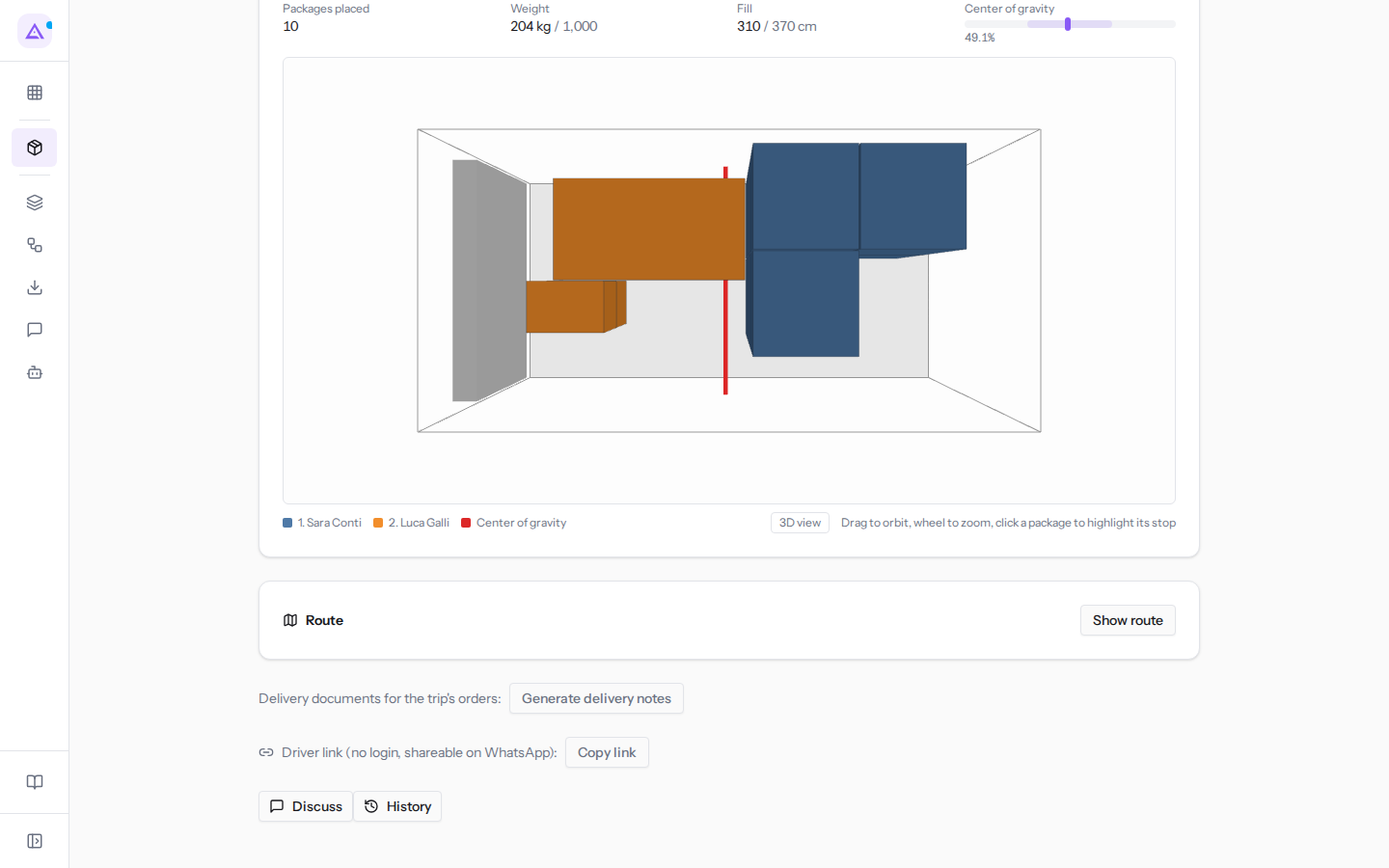
The view shows the bay with the placed packages, each colored according to its stop: the legend below the view matches colors to stops (for the Ducato 1. Sara Conti and 2. Luca Galli). The grey slab marks the cab side, the red line the Center of gravity. This lets you see at a glance that the goods for the last stop are towards the cab and those for the first stop are towards the doors.
Below the view, on the right, a button switches between views: it is labelled Top view when you are in the 3D view and 3D view when you are looking at the bay from above.
In the 3D view:
- Drag to rotate the bay and use the mouse wheel to zoom.
- Hover over a package to read the product, stop, order and weight.
- Click on a package: its stop is highlighted in the Stops (unloading order) list above.
If the device cannot show the 3D view, the section shows The 3D view is not available on this device; the loading list and the metrics above are complete.
When to recompute the plan
The plan describes the trip as it was at the time of calculation. If after the calculation you change the orders, stops or vehicle, the plan is no longer valid.
- If you add or remove an order, the load changes.
- If you change the order of the stops with Move up or Move down, the loading order changes.
- If you use Switch vehicle, the bay dimensions and payload change.
A plan that needs to be redone is flagged in two places:
- In Transport › Planning, below the driver's name in the trip box: plan to recompute. The other indicators are load plan ok and plan to compute.
- In the Load plan section: The trip changed after the plan was computed: recompute it. You usually only see it for a moment, because when you open the record the plan is automatically recomputed.
To recompute the plan:
- Open the trip record from Transport › Planning: a plan that needs recomputing is redone automatically.
- If you want to redo it again, for example after correcting the dimensions of a logistics family, click Recompute in the Load plan section.
The loading list
The Loading list is the printable version of the plan for the person loading the vehicle.
- In the Load plan section of the trip click Loading list.
- Click Print and hand the sheet to the person loading the vehicle.
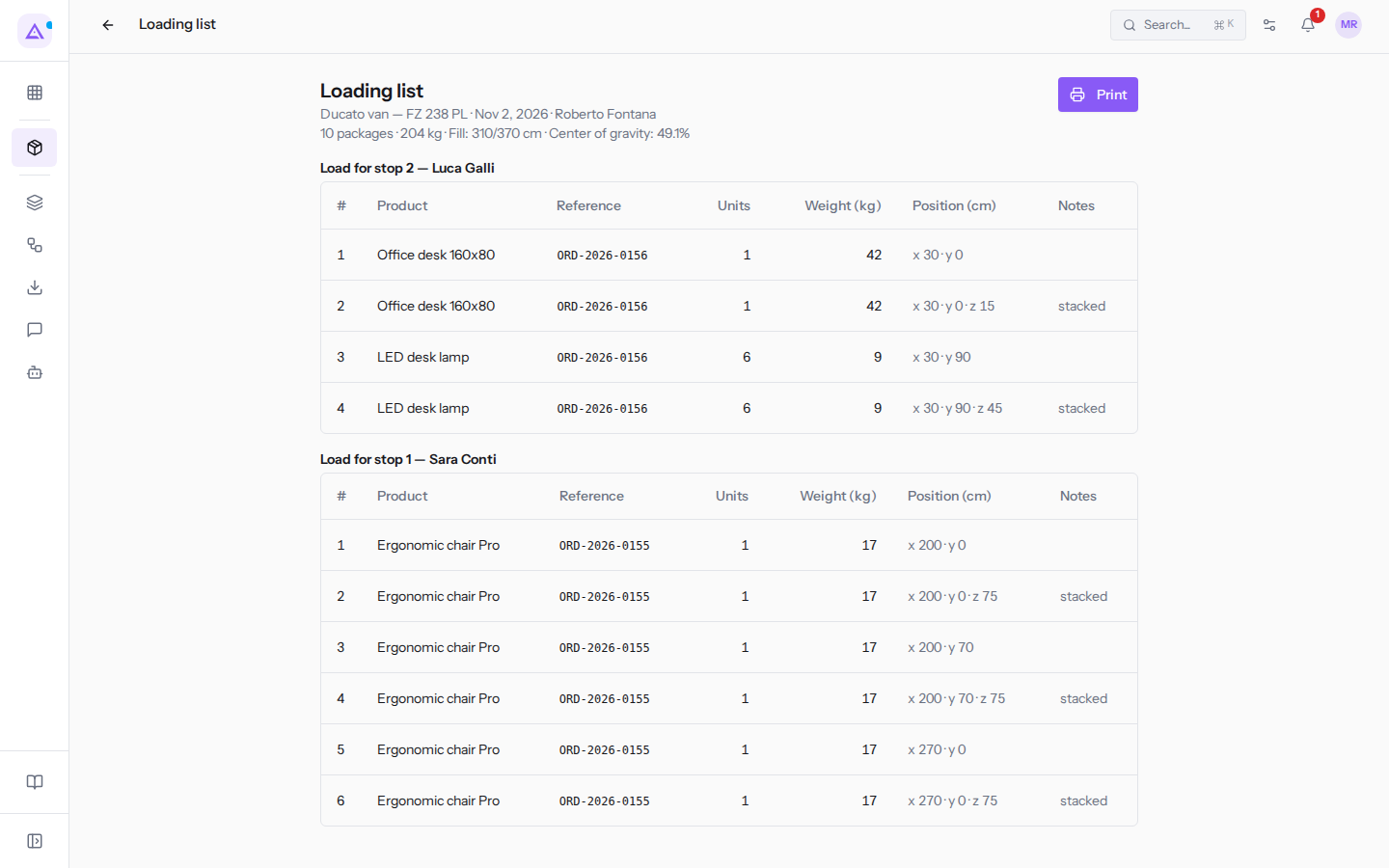
The list contains:
- The trip header: vehicle, license plate, date and driver:
Ducato van — FZ 238 PL · Nov 2, 2026 · Roberto Fontana. - The summary: number of packages, weight, Fill and Center of gravity:
10 packages · 204 kg · Fill: 310/370 cm · Center of gravity: 49.1%. - A table for each stop, in the order it is to be loaded: first the last stop to be unloaded (
Load for stop 2 — Luca Galli, thenLoad for stop 1 — Sara Conti). Each row gives the product, order reference, units, weight and Position (cm) of the package in the bay; stacked in the Notes means the package goes on top of the one in the previous row.
With PDF in the Load plan section you get the list as a PDF.
Why an order stays out of the plan
To place a package Archimedes needs to know its dimensions and weight. A line with a product that has no logistics family and no dimensions has an incomplete logistic profile: the plan does not place it.
In this case the Load plan section shows how many lines are excluded with the text "… lines with incomplete logistic profile", preceded by the number. Excluded lines do not count in either the weight or the packages of the plan: the vehicle might appear emptier than it will be.
To include the line in the plan, assign the product a logistics family or its dimensions, then reopen the trip record.
Important: a line that does not match any product in the catalog also stays out. In the order record it is flagged as product not linked to the registry: this is the case for the Acoustic panels 120x60 line in order ORD-2026-0160. A logistics family is not enough here: the orders system must send the line with the code of a product from the catalog.
See it on your company, not on a slide deck.
In 30 minutes we map the software you use today.We show you how much work and how much margin Archimedes gives back.
Show me on my business →What industry are you in?
One tap — it lets us prepare the demo around your world.
What tools do you use today?
Pick the ones you recognise — or just type them. It helps us show you how they migrate.
Last step: your details.
We reply within one working day — and right after, if you like, you pick the demo slot yourself.
We couldn't send your request. Try again, or write to us at [email protected].
By sending, you agree to your data being processed so we can get back to you about the demo. Privacy notice.
Preview form — nothing is sent from this page.
Want to schedule the demo now?
Your call: book the slot you prefer yourself, or we'll call you to arrange it.
Live availability, 30 minutes, instant confirmation. The calendar opens in a new tab.
Lock in your slot ↗We'll get back to you within one working day — and we'll join the call already knowing your world.
The calendar is open in another tab: pick a slot and the demo is booked. Can't see it? Reopen it ↗
Preview page: nothing was sent.
Our calendar is live: take the slot that suits you and the demo is booked. 30 minutes, instant confirmation, no waiting.
Lock in your slot ↗