Transport
All modules
Route and cost of a trip
Transport · 15 of 18 · 7 min read
Every trip has a route and a cost. The route gives the kilometers and the duration of the round trip. The cost is the value used by transport reports: you can have Archimedes estimate it from the round trip's kilometers, as for the Ducato van to Monza and Sesto San Giovanni, or enter the amount your subcontractor invoices you for a delivery to Rome.
The route of a trip
The route is the vehicle's round trip. It starts from the depot address, passes through the stops in unloading order, and returns to the depot.
Before calculating it, choose based on what you need:
- If you want the kilometers and duration of the round trip, or a cost estimate, use Show route.
- If you already know the trip's cost, for example the amount agreed with your subcontractor, enter it in the trip's Cost field. The route is not needed in this case.
The route depends on two settings in Transport › Settings: the Depot address (trips start here) and the map Provider. If they are not filled in, ask whoever has the Transport Manager group: only they can edit the settings.
To calculate the route:
- Open Transport › Planning and click the Ducato van trip.
- In the Route section of the trip card, click Show route. While the calculation is running, Computing the route… is displayed, then the round trip map.
If the trip already has kilometers, the section shows them next to the title even without calculating, for example Route · 585 km · 7h 10m.
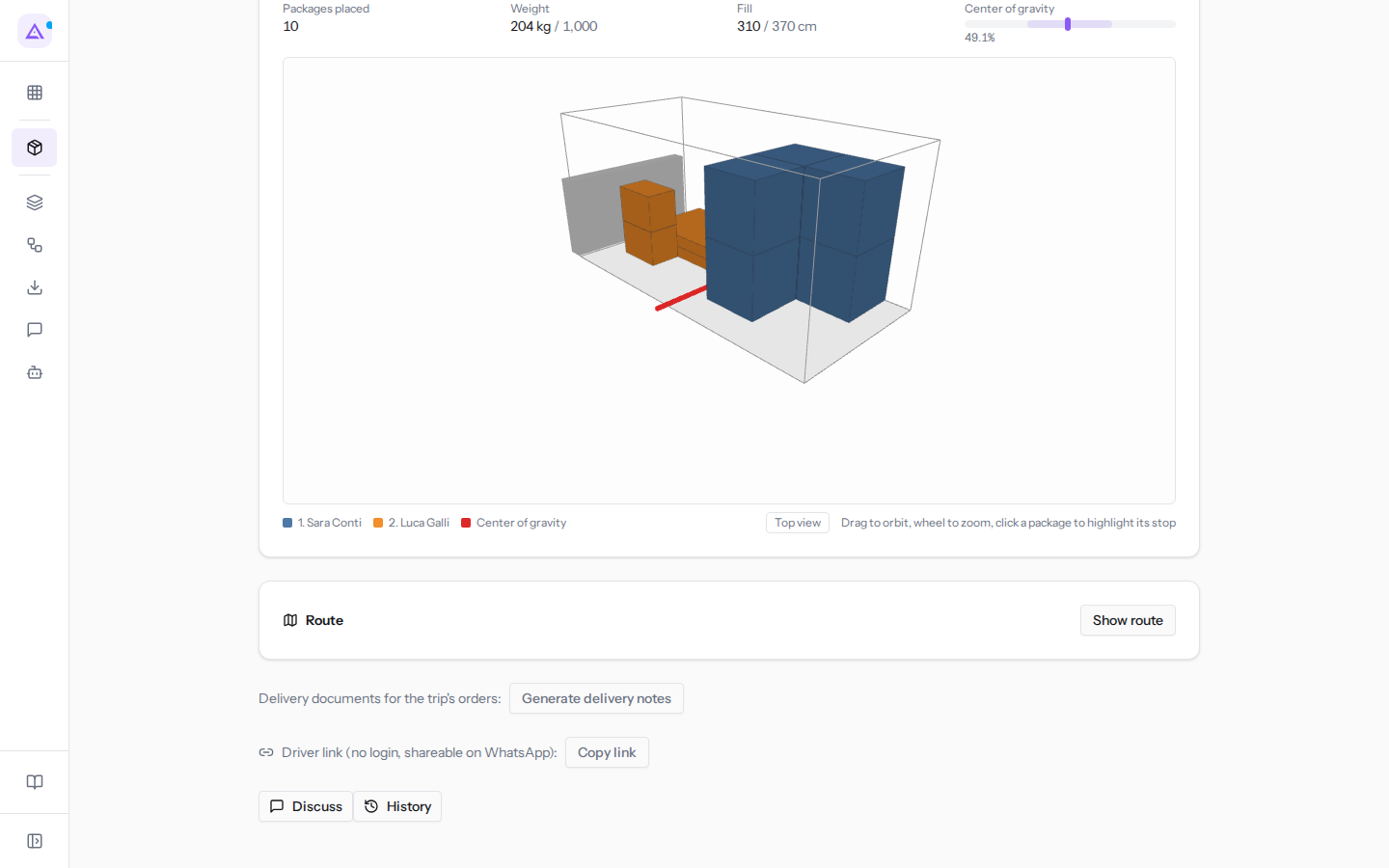
When you calculate the route, Archimedes performs these operations automatically:
- The provider chosen in the settings finds the position of each address and calculates the round trip. OpenStreetMap is free. Google and Mapbox use your organization's key.
- The kilometers and duration of the round trip are saved to the trip.
- Stops with an address the provider cannot find are left out of the round trip and listed under Unresolved addresses (left out of the tour):. The calculation continues with the remaining ones, so the kilometers are lower than actual: correct the order's address and calculate again.
- If the trip does not yet have a cost, the cost estimate described below is shown.
Important: without the depot address the route cannot be calculated and Set the depot address in the transport settings first. is shown. If the provider cannot find the depot address, The depot address could not be geocoded: followed by the address is shown: check it in Transport › Settings.
Note: the route is calculated on the current order of stops. If you change the order with Move up or Move down, recalculate the route.
How the cost estimate is formed
The estimate uses the route's kilometers and duration, the vehicle data, and the prices shared across the entire fleet. The calculation varies based on the vehicle's Ownership.
- If the vehicle is Owned, the estimate sums several items and has the title Parametric estimate.
- If the vehicle belongs to a Subcontractor, the estimate has the title Subcontractor rate and has a single item, Agreed rate × km.
Owned vehicle
Each item is included in the estimate only if its data is filled in.
- Fuel: kilometers ÷ vehicle consumption × diesel price. Uses the vehicle's Consumption (km/l) and the Diesel (€/l) from the cost parameters.
- Driver: route hours × the cost parameters' Driver (€/h).
- Tolls: kilometers × the cost parameters' Tolls (€/km).
- Wear and maintenance: kilometers × the vehicle's Wear (€/km).
- Daily fixed share: the value of the vehicle's Fixed (€/day), counted once per trip.
The Estimated total is the sum of the calculated items.
Note: if the diesel price or consumption, the driver's hourly cost, or the route duration are missing, the item is skipped and the estimate flags it with Missing parameters: followed by the missing items. The value is never guessed.
If no item can be calculated, the estimate uses the vehicle's Cost per km (€), with the title Conventional estimate (€/km) and the item Conventional €/km × km. If that is also missing, no estimate appears below the map: complete the data as explained below.
Subcontractor vehicle
For a Subcontractor vehicle you pay the agreed rate, not its fuel or wear: this is why the estimate only multiplies the route's kilometers by the vehicle's Cost per km (€). If the field is empty, no estimate appears.
Where to enter the missing data
The estimate's data is in two different places. To complete it:
- For the prices shared across the entire fleet, open Transport › Settings and fill in Cost parameters (organization).
- Diesel (€/l): the price of diesel per liter. Used for the Fuel item.
- Driver (€/h): the driver's hourly cost.
- Tolls (€/km): the toll cost per kilometer.
- For the vehicle data, open Transport › Vehicles, then the vehicle's card.
- Consumption (km/l): the kilometers per liter. Used for owned vehicles.
- Wear (€/km): the wear cost per kilometer. Used for owned vehicles.
- Fixed (€/day): the vehicle's daily fixed quota. Used for owned vehicles.
- Cost per km (€): for a Subcontractor vehicle, this is the agreed rate. For an owned vehicle, it is used only when none of the other items can be calculated.
Using the estimate as the trip cost
The estimate does not automatically become the trip cost. Reports use only the trip's Cost.
- Calculate the route with Show route.
- Check the items and the Estimated total.
- Click Use as cost. The total is copied to the trip's Cost.
Note: the estimate is shown only if the trip's Cost field is empty. If the trip already has a cost, Show route updates the kilometers and duration but does not propose another estimate.
Entering the cost manually
You can enter the trip cost manually, for example the amount on a carrier's invoice.
- In the trip card, click Edit.
- In the Edit trip window, fill in Cost.
- Click Save.
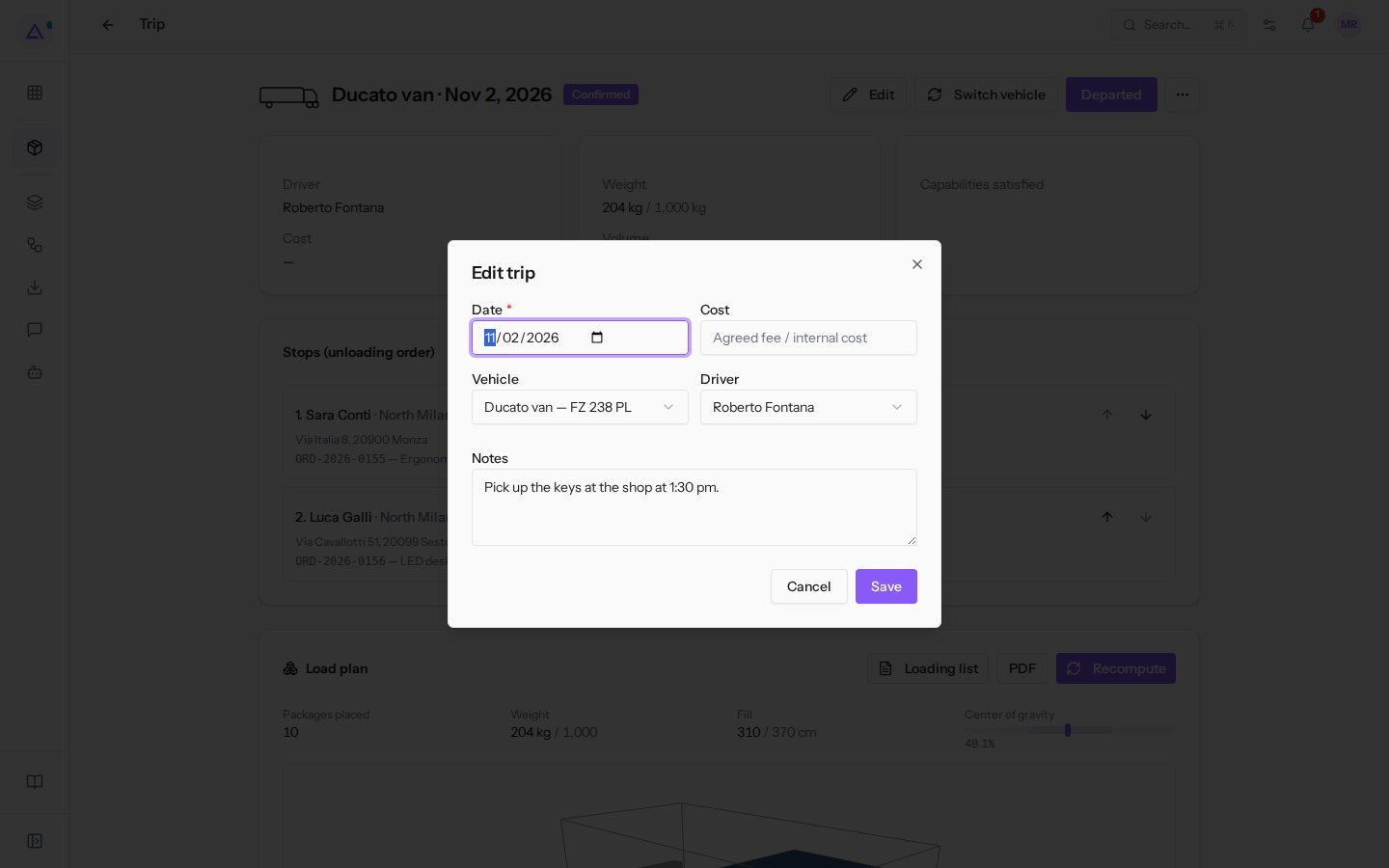
The Edit trip window fields:
- Date: the trip date. The field is required.
- Cost: the trip cost in euros. The field is optional. If it is empty, the card shows Cost —.
- Vehicle: the trip vehicle, here Ducato van — FZ 238 PL.
- Driver: the trip driver, here Roberto Fontana.
- Notes: free text, such as "Pick up the keys at the shop at 1:30 pm."
Important: in reports a trip with no cost counts as a zero-cost trip and makes deliveries appear cheaper than they are. A trip's cost is divided equally among its stops and each share is attributed to the stop's customer and zone: see How much transport costs: reports.
Example on a closed trip
The Brambilla rigid truck trip of Oct 29, 2026 to Rome, with driver Walter Brambilla, is Closed and has a single stop, order ORD-2026-0142. The Route section shows 585 km · 7h 10m and the Cost is 790.50 €. The rigid truck belongs to a subcontractor at 1.35 € per km: the estimate would be 585 × 1.35 = 789.75 €. The recorded cost is instead the amount on the subcontractor's invoice, entered manually: that is the one used in reports.
To see it:
- Open Transport › Planning.
- In the date field, select 10/29/2026, or click the ‹ icon (Previous day) until you reach that day.
- Click Brambilla rigid truck.
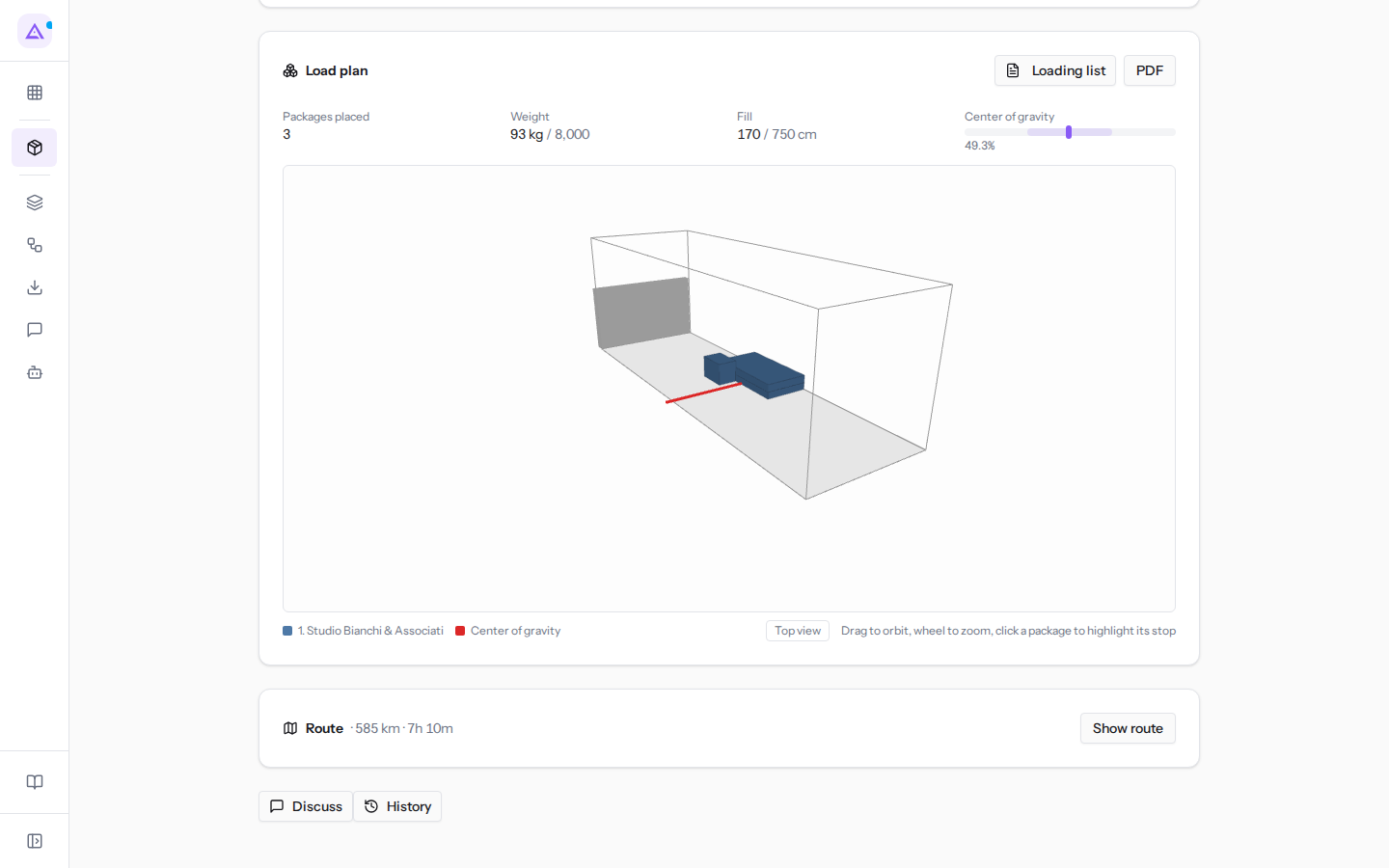
Edit and Switch vehicle disappear as soon as the trip is Departed: enter the cost by hand, such as the carrier's invoice amount, before departure. After that you can only replace it with the estimate, with Show route › Use as cost.
See it on your company, not on a slide deck.
In 30 minutes we map the software you use today.We show you how much work and how much margin Archimedes gives back.
Show me on my business →What industry are you in?
One tap — it lets us prepare the demo around your world.
What tools do you use today?
Pick the ones you recognise — or just type them. It helps us show you how they migrate.
Last step: your details.
We reply within one working day — and right after, if you like, you pick the demo slot yourself.
We couldn't send your request. Try again, or write to us at [email protected].
By sending, you agree to your data being processed so we can get back to you about the demo. Privacy notice.
Preview form — nothing is sent from this page.
Want to schedule the demo now?
Your call: book the slot you prefer yourself, or we'll call you to arrange it.
Live availability, 30 minutes, instant confirmation. The calendar opens in a new tab.
Lock in your slot ↗We'll get back to you within one working day — and we'll join the call already knowing your world.
The calendar is open in another tab: pick a slot and the demo is booked. Can't see it? Reopen it ↗
Preview page: nothing was sent.
Our calendar is live: take the slot that suits you and the demo is booked. 30 minutes, instant confirmation, no waiting.
Lock in your slot ↗