Transport
All modules
The driver's page on the phone
Transport · 17 of 18 · 5 min read
The driver's page shows the route of a trip on the phone: the stops in order, the addresses and the delivery notes. From this page the driver records each delivery with the name of the recipient, the signature and a photo, and in the office you see the delivery as soon as they confirm it. The driver does not need an account: they open a link that you send them, for example on WhatsApp.
Sending the link to the driver
The link is created when you confirm the trip. A draft trip does not yet have a driver page.
- Open Transport › Planning and click the trip, here the Daily van trip of the day, with driver Davide Marino.
- At the bottom of the trip card, next to Driver link (no login, shareable on WhatsApp):, click Copy link. The message Driver link copied appears.
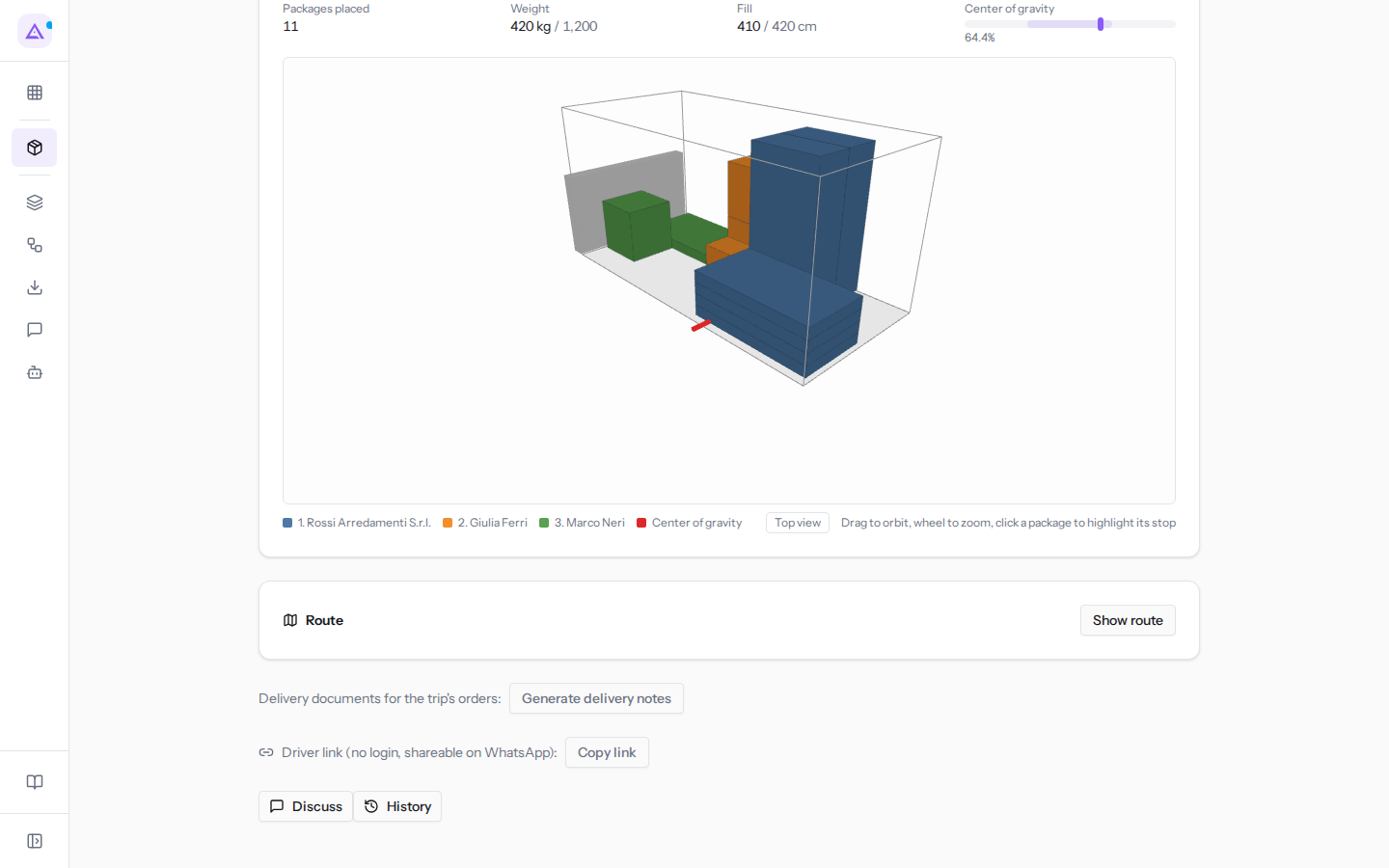
- Paste the link in a message to the trip driver.
Important: the page does not require login. Anyone with the link can see the trip, with customers' addresses and delivery notes, and can record deliveries: send it only to the driver. Each link is valid for one trip only.
The driver is chosen in the trip: see The drivers. For the trip status steps see A trip from draft to closure.
The transport panel on your phone
You too, in the office or on the go, can keep an eye on the day from your phone. On the Archimedes home page on the phone, the transport panel shows how many trips there are today and how many orders are waiting to be planned, for example "3 trips today" and "7 orders to plan · 2 late", with those that are late in red. Tap it to open Transport › Planning.
What the page shows
At the top the page shows the name of the vehicle, the license plate and the date of the trip. Below are the stops in unloading order, which is the same order as Stops (unloading order) in the trip card.
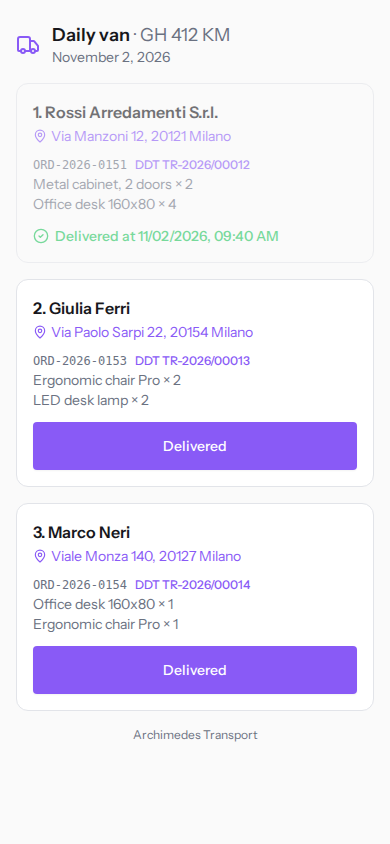
For each stop the page shows:
- the stop number and the customer name, such as 1. Rossi Arredamenti S.r.l.;
- the address. If you tap it, the address opens in Google Maps for directions;
- the orders to unload, with their reference and the product lines;
- next to the reference of each order, the link to its delivery note, like
DDT TR-2026/00012. The delivery note opens as a PDF and the driver shows it to the customer. An order without a delivery note has no link: generate them before departure.
Delivery notes are generated from the trip card: see Delivery notes (DDT).
A stop that has already been delivered appears faded and shows Delivered at with date and time. In the Daily van trip, the first stop, Rossi Arredamenti S.r.l. (order ORD-2026-0151), shows the 9:40 delivery; the stops for Giulia Ferri and Marco Neri still have the Delivered button.
Confirming a delivery
The driver records a delivery as soon as they unload the goods at the customer's. The recipient's name, the signature and the photo serve as proof of delivery.
- In the stop to be delivered, tap Delivered. The proof of delivery panel opens.
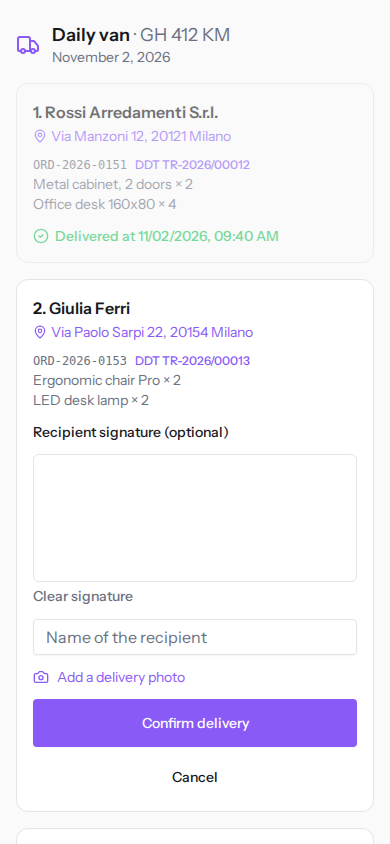
- Have the recipient sign with their finger in the Recipient signature (optional) box. To start over, tap Clear signature.
- Write the name of the person collecting the goods in the Name of the recipient field.
- Tap Add a delivery photo and take a photo with the phone camera. When the photo is attached, Photo attached ✓ appears.
- Tap Confirm delivery. To close the panel without recording anything, tap Cancel.
Signature, name and photo are all optional: the delivery is recorded even without them. Collect them anyway, because they are the only proof you have if the customer disputes the delivery; a photo of the unloaded goods is also useful when the customer is not there.
Note: without a connection the Confirm delivery button remains disabled and the page does not save anything while waiting. The driver keeps the panel open and confirms as soon as the phone is back online.
If the recording fails, the page shows Trip not found or link expired. even when the link is correct: reload the page and check whether the stop is marked as delivered before trying again.
What happens after confirmation
When the driver taps Confirm delivery, the stop is marked as delivered.
- On the phone the stop becomes faded and shows Delivered at with date and time. The Delivered button disappears.
- In the trip card the stop shows Delivered, "signed by" with the name written by the driver and the signature and photo links, like the Rossi Arredamenti S.r.l. stop signed by Paolo Gialli.
- The stop's orders become Delivered.
If the driver has not recorded a delivery from the phone, from the office use Delivered next to the stop in the departed trip card: the stop and its orders are marked as delivered, without a signature. Do not use Mark delivered from the order card for an order that is on a trip: it only changes the order and the stop remains to be delivered. When the round is finished, Close trip marks all remaining stops as delivered (see A trip from draft to closure).
When the page does not allow confirmation
The driver can record deliveries only if the trip is Confirmed or Departed. In other cases the page shows the stops without the Delivered button, with a message:
- Trip completed.: the trip is closed. The driver can still see the stops but cannot record anything more.
- The trip is not confirmed yet.: the trip has been set back to draft or cancelled (the page uses the same message for both). If it is in draft, confirm it again and the link will work again.
- Trip not found or link expired.: the address is wrong or incomplete, for example cut off in the message. Copy the link again with Copy link and resend it.
See it on your company, not on a slide deck.
In 30 minutes we map the software you use today.We show you how much work and how much margin Archimedes gives back.
Show me on my business →What industry are you in?
One tap — it lets us prepare the demo around your world.
What tools do you use today?
Pick the ones you recognise — or just type them. It helps us show you how they migrate.
Last step: your details.
We reply within one working day — and right after, if you like, you pick the demo slot yourself.
We couldn't send your request. Try again, or write to us at [email protected].
By sending, you agree to your data being processed so we can get back to you about the demo. Privacy notice.
Preview form — nothing is sent from this page.
Want to schedule the demo now?
Your call: book the slot you prefer yourself, or we'll call you to arrange it.
Live availability, 30 minutes, instant confirmation. The calendar opens in a new tab.
Lock in your slot ↗We'll get back to you within one working day — and we'll join the call already knowing your world.
The calendar is open in another tab: pick a slot and the demo is booked. Can't see it? Reopen it ↗
Preview page: nothing was sent.
Our calendar is live: take the slot that suits you and the demo is booked. 30 minutes, instant confirmation, no waiting.
Lock in your slot ↗