Transport
All modules
A trip from draft to closure
Transport · 13 of 18 · 7 min read
A trip record collects the vehicle, driver, stops, and load for a delivery round. From here you advance the trip from Draft to Closed: you confirm it when the round is decided, mark it as departed when the vehicle leaves the yard, and close it when deliveries are done.
Opening a trip record
Each trip of the day has its own record, which you open from Planning.
- Go to Transport › Planning.
- Choose the day in the date field, or move one day at a time with the ‹ (Previous day) or › (Next day) icon.
- In Trips of the day click the vehicle name, for example Brambilla rigid truck.
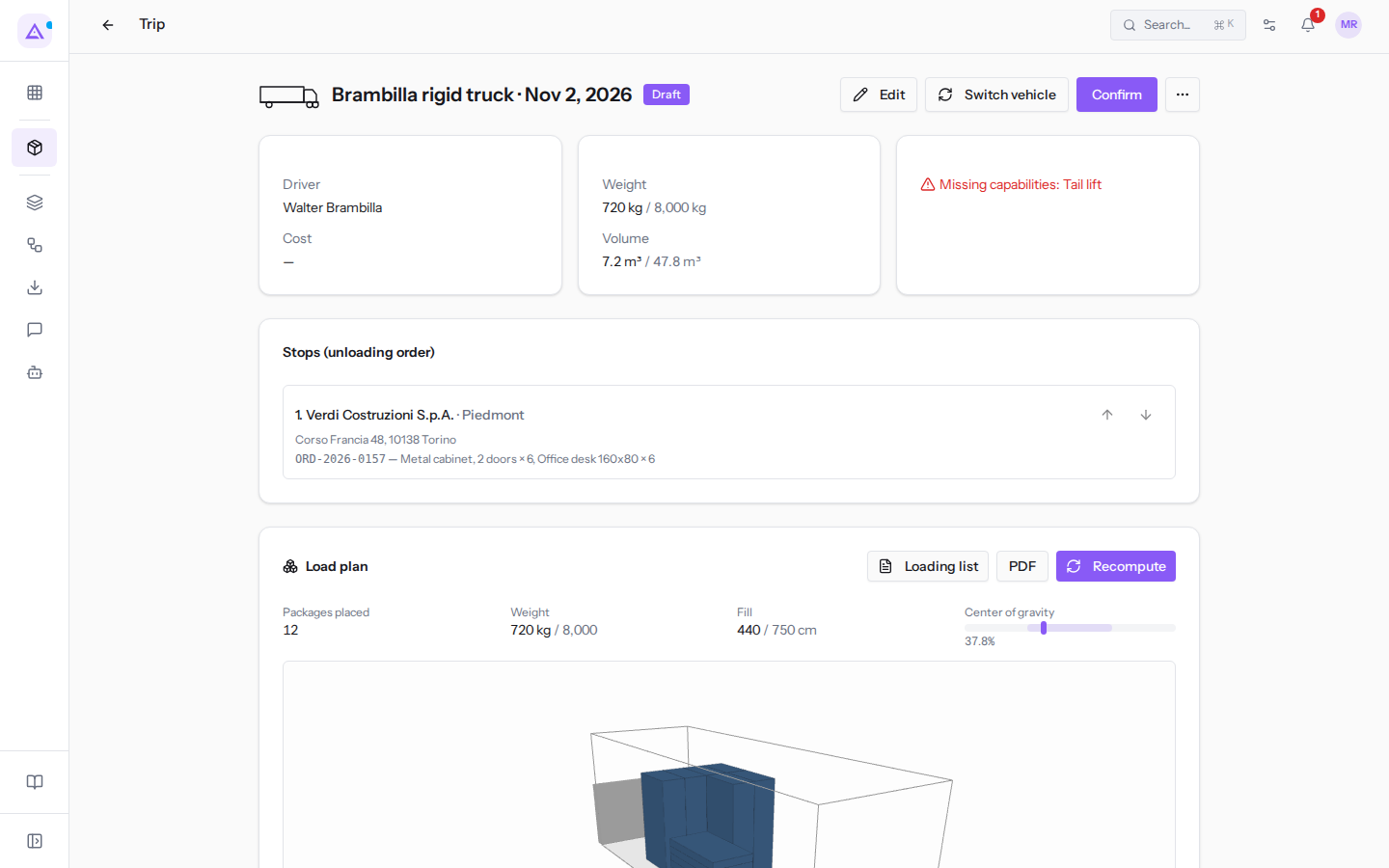
At the top are the vehicle, date, and trip status (Brambilla rigid truck · Nov 2, 2026, Draft). On the right are the available actions for that status: they change as the trip progresses, as explained in the table below.
Driver, cost, weight, and capability
Below the header, three panels show whether the trip is feasible. Check them before confirming: Confirm does not stop you if there is a warning.
- Driver and Cost: who drives and how much the trip costs. A dash means the data is missing. Without a cost the trip counts as zero in reports: how to calculate or enter it is explained in Route and cost of a trip.
- Weight and Volume: the load relative to the vehicle's capacity and cargo space (
720 kg / 8,000 kg,7.2 m³ / 47.8 m³). If the load exceeds the limit, the value turns red: you need a larger vehicle or one fewer order. - Missing capabilities: the equipment that the loaded products require and the vehicle does not have, here
Tail lift. If the vehicle has everything, the panel shows Capabilities satisfied. - Driver already on another trip the same day: appears when the same driver is assigned to two trips on the same day. Change the driver with Edit.
- An orange message "… lines with incomplete logistic profile", preceded by the count, appears when some lines have no measurements or weight: they are excluded from the load calculation (see The load plan).
Stops and unloading order
The Stops (unloading order) section lists the delivery points in the order the vehicle reaches them.
Each stop shows the number, customer, zone, address, and orders with products and quantities. For example, the stop on the Turin trip contains order ORD-2026-0157. Click an order number to open its record.
The order of stops also matters for loading. The load plan places packages in the cargo space following the unloading order.
To change the order of stops:
- Open a trip in Draft or Confirmed.
- Next to the stop, click the ↑ (Move up) or ↓ (Move down) icon. The up arrow is disabled on the first stop and the down arrow on the last.
The load plan and route depend on the order of stops. The plan recalculates automatically the next time you open the record; the route must be recalculated with Show route.
Note: the arrows appear only on trips in Draft or Confirmed. A Departed trip can no longer change the order of stops.
The load plan is explained in The load plan.
Trip statuses
A trip goes through fixed statuses. In each status the colored button advances the trip to the next status; the other actions are in the ⋯ menu next to it.
| Status | Main button | Other actions |
|---|---|---|
| Draft | Confirm | Cancel and, if the trip has no stops, Delete |
| Confirmed | Departed | Back to draft, Cancel |
| Departed | Close trip | none |
| Closed | none | none |
| Cancelled | none | none |
What each transition does:
- Confirm: the trip is decided. The driver link is created (before confirmation the driver has no page) and Copy link and Generate delivery notes appear at the bottom of the record. From this point the driver can already log deliveries from their phone. Confirm does not check the panel warnings: resolve them first.
- Departed: the vehicle has left the yard. Delivered appears next to each stop not yet delivered: use it from the office when you know the goods have arrived but the driver has not logged it. The stop and its orders become delivered, with no signature or photo. See The driver's page on the phone.
- Close trip: marks all stops not yet delivered as delivered and brings their orders to Delivered. Use it only when the round is truly finished: a skipped delivery would show as done. From Departed on, Edit is no longer available, so enter the cost by hand before departure. After that only Show route › Use as cost remains, which replaces the cost with the estimate.
- Back to draft: returns a confirmed trip to Draft, for example to revise the round. The driver link remains, but their page shows The trip is not confirmed yet. and does not allow logging deliveries.
- Cancel: the trip becomes Cancelled and all its orders return to To plan, ready for another trip. For example, the Eurocargo truck trip from two days ago was cancelled before departure.
- Delete: deletes a trip in Draft with no stops. A trip with at least one stop cannot be deleted.
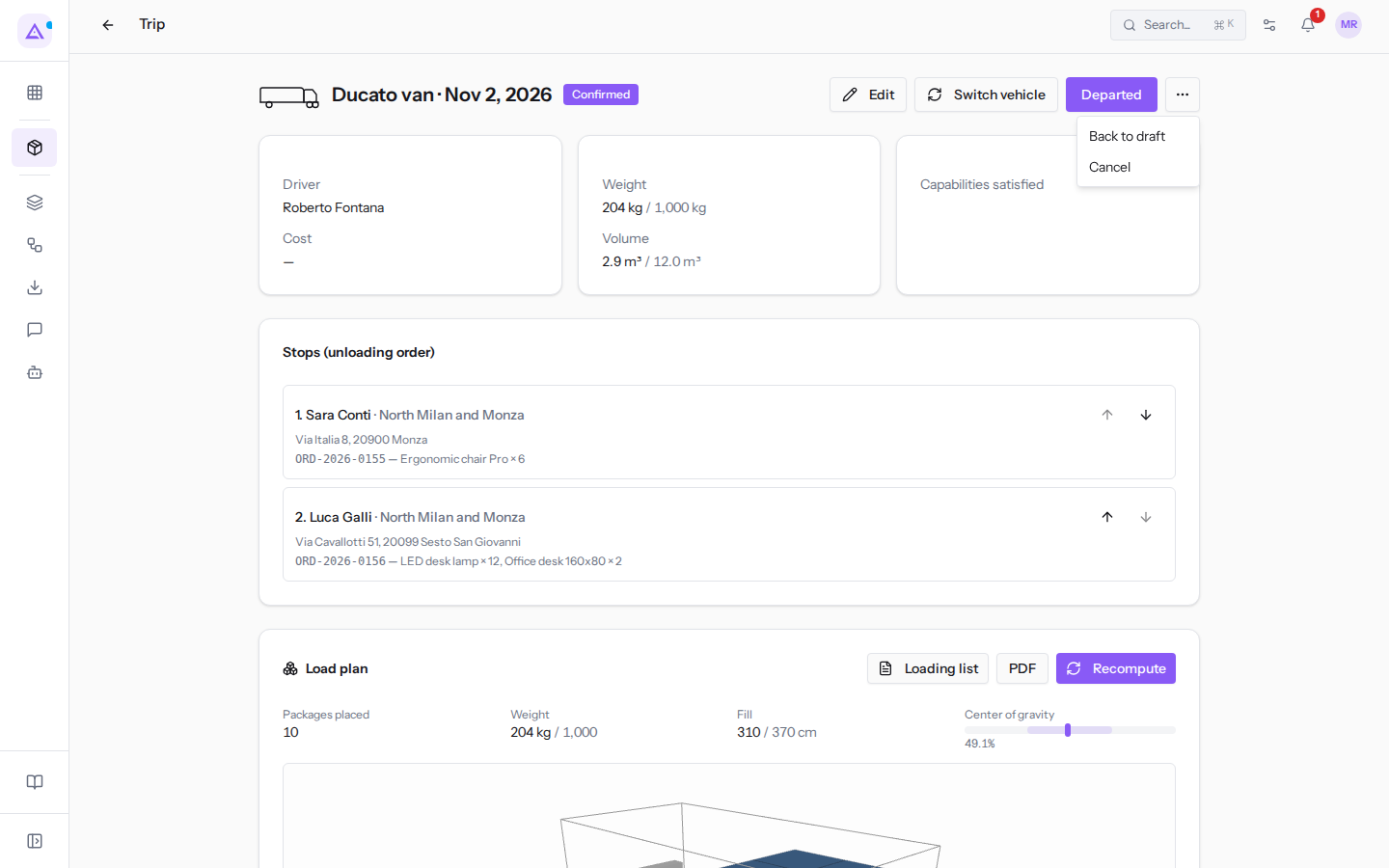
Important: a Departed trip can no longer be cancelled. Closed and Cancelled are final.
Note: orders can only be added or removed on trips in Draft or Confirmed. Edit and Switch vehicle appear only in these two statuses.
Transport documents are explained in Delivery notes (DDT).
Changing the vehicle
Use Switch vehicle when the trip vehicle breaks down or is unavailable, or when it does not have the equipment the load requires.
- Open the trip in Draft or Confirmed.
- Click Switch vehicle.
- In Vehicle choose the replacement.
- Click Reassign.
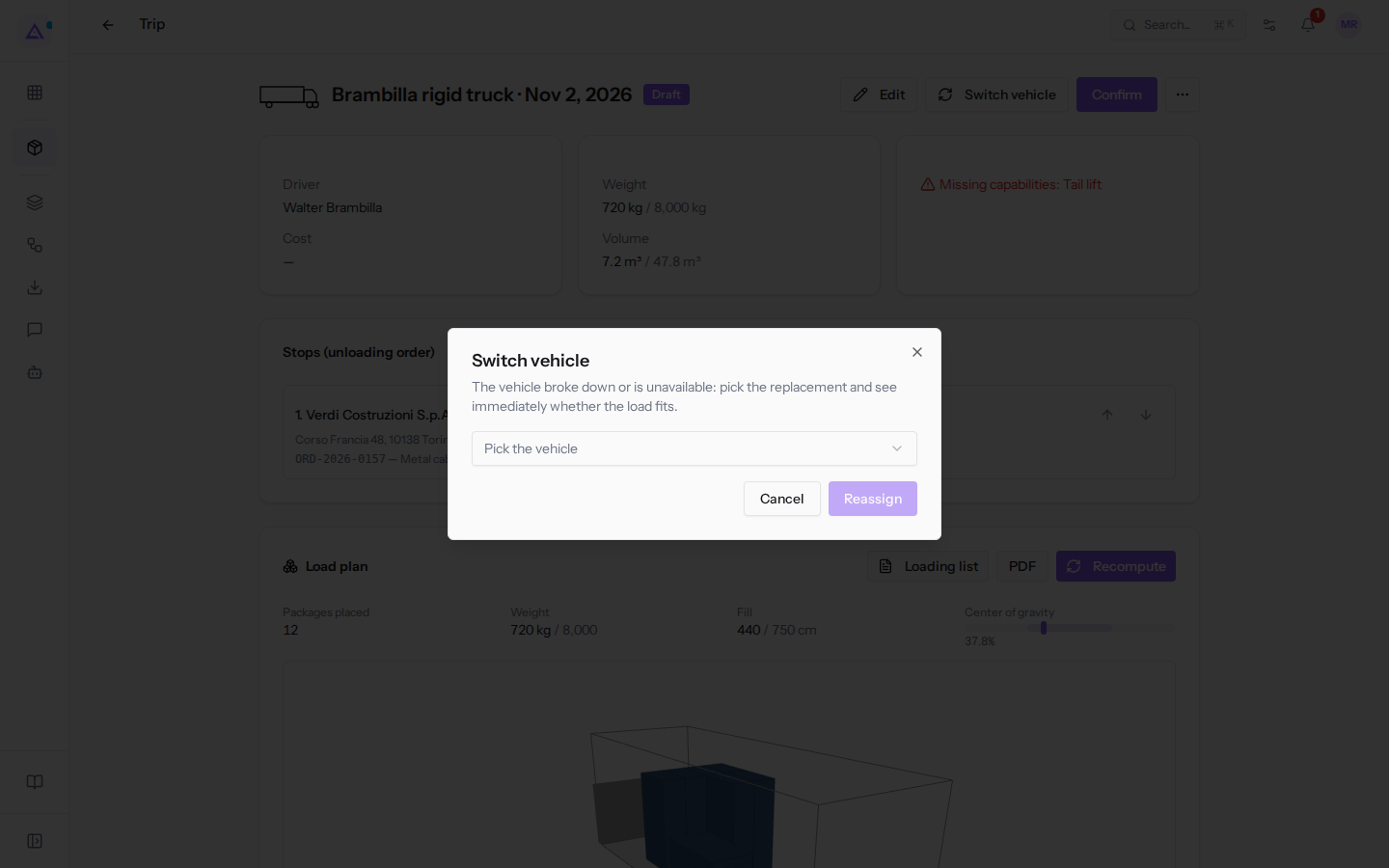
The Vehicle list shows only active vehicles other than the current one: a vehicle under maintenance, such as the Eurocargo truck, does not appear. As soon as you choose a vehicle, the window shows Weight, Volume, and any Missing capabilities for the new vehicle; if everything is fine The load fits on the chosen vehicle appears.
The check looks at weight, volume, and equipment, not the dimensions of individual packages: after Reassign check the load plan, which recalculates for the new cargo space. A package taller than the cargo space appears there among those that do not fit.
Resolving a missing capability
The Brambilla rigid truck trip to Verdi Costruzioni in Turin shows Missing capabilities: Tail lift. The metal cabinets in order ORD-2026-0157 can only be unloaded with a tail lift, and the rigid truck only has a pallet truck on board: without the tail lift the customer cannot unload them.
You can resolve it in two ways:
- Replace the vehicle with Switch vehicle, if an active vehicle has the equipment and the right cargo space. Here the Eurocargo truck would have the tail lift but is under maintenance, so it does not appear in the list.
- Defer the order: in Transport › Planning, in the trip panel, click remove next to the order. The order returns to To plan and you assign it to a trip on another day. If the stop is left without orders, it disappears from the trip.
A delivered stop
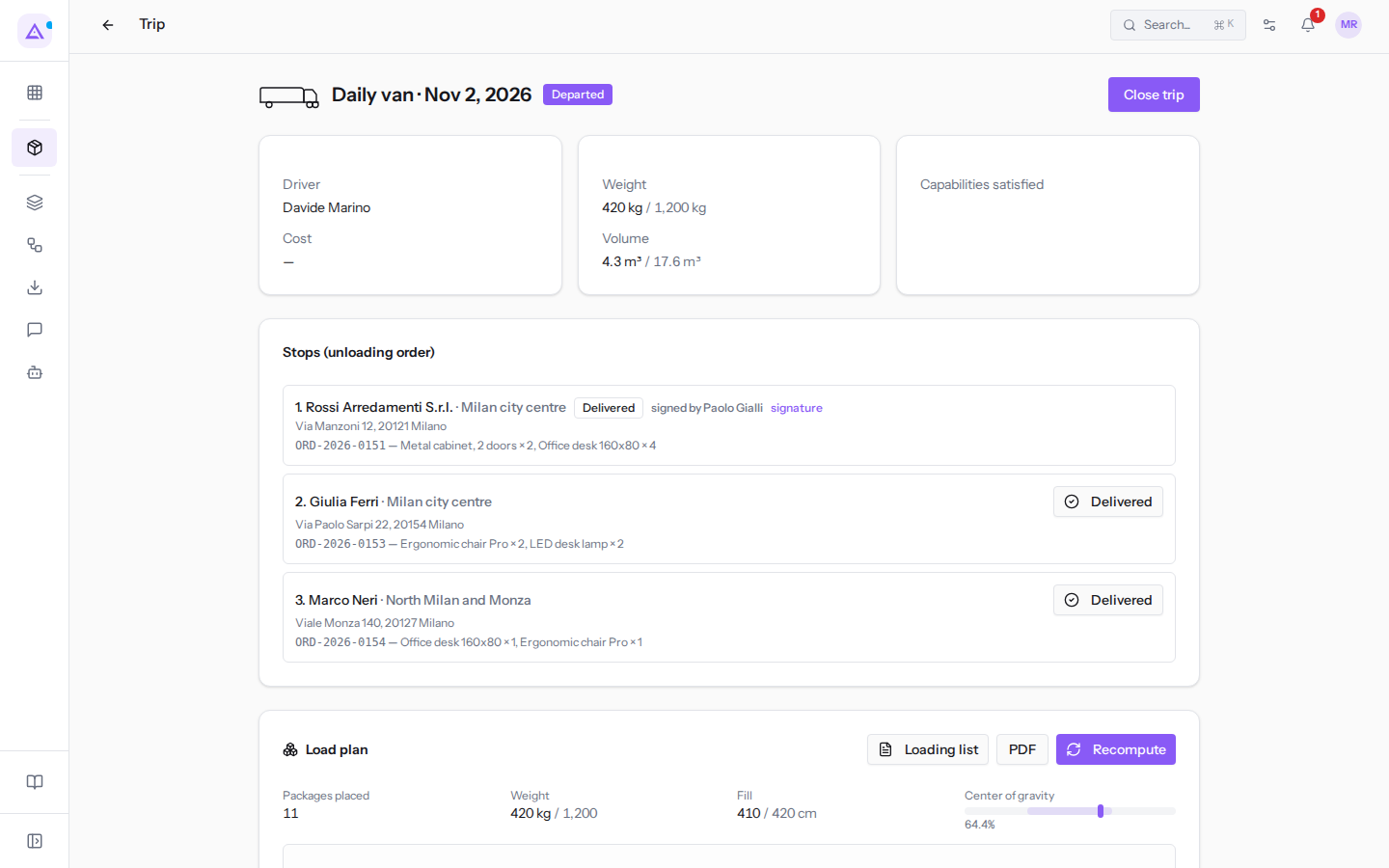
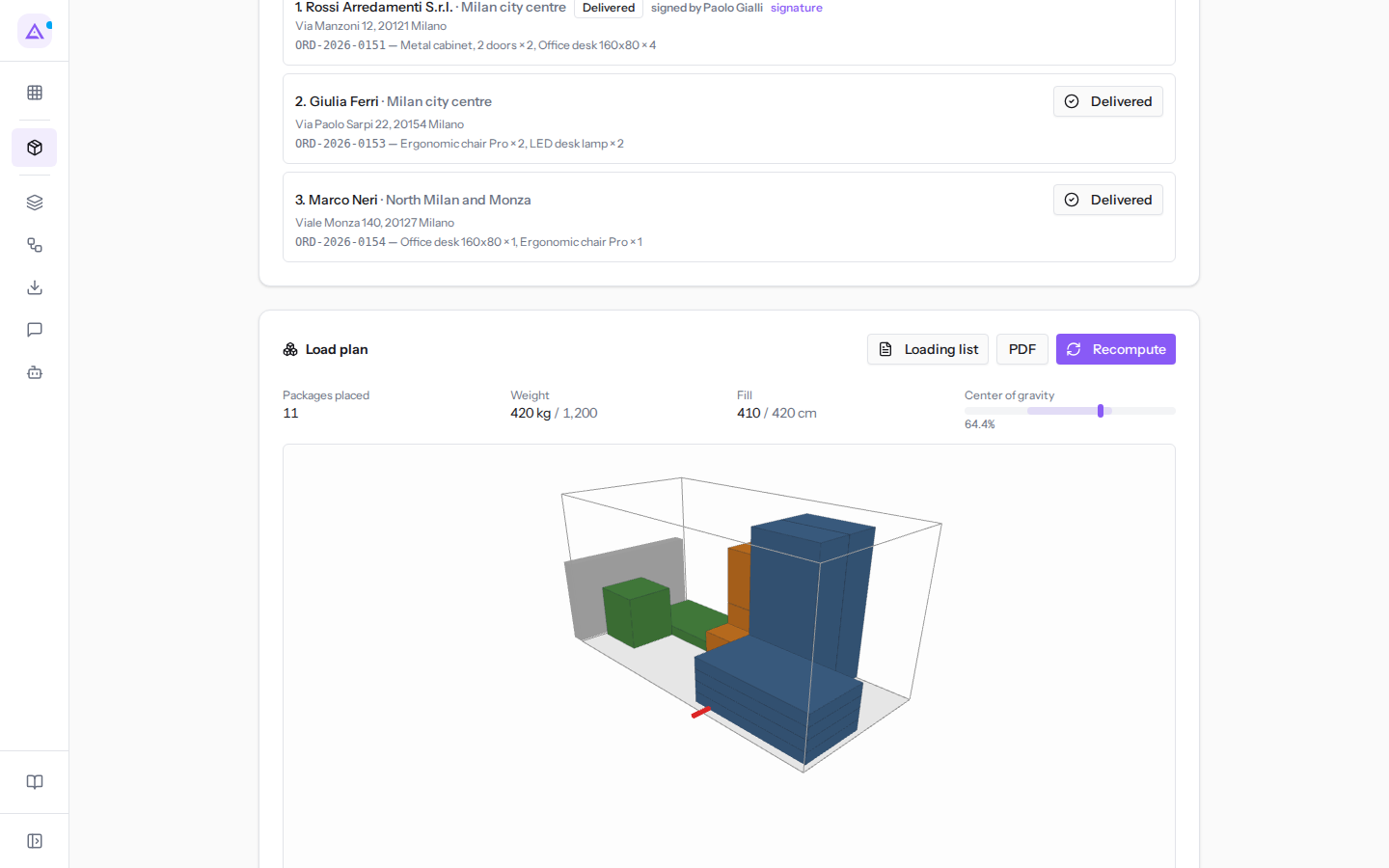
When the driver confirms the delivery from their phone, in the card the stop shows Delivered, the text "signed by" with the name of the person who received the goods, and the signature and photo links, if the driver collected them. The stop's orders become Delivered.
In the trip departed by the Daily van, with driver Davide Marino, the first stop, Rossi Arredamenti S.r.l., was delivered at 9:40 and signed by Paolo Gialli. The other two stops, with orders ORD-2026-0153 and ORD-2026-0154, still show the Delivered button: they are yet to be delivered. The delivery time is shown on the driver's page, not in the trip card.
To view the signature:
- Open the Daily van trip from Transport › Planning.
- Next to the delivered stop, click signature. The signature opens in a new browser tab. If the driver took a photo, photo will also appear next to it.
The signature and photo are proof of delivery: open them when a customer disputes not having received the goods.
At the bottom of the card, Discussion collects messages from colleagues about the trip, and History lists the changes, with who made them and when.
See it on your company, not on a slide deck.
In 30 minutes we map the software you use today.We show you how much work and how much margin Archimedes gives back.
Show me on my business →What industry are you in?
One tap — it lets us prepare the demo around your world.
What tools do you use today?
Pick the ones you recognise — or just type them. It helps us show you how they migrate.
Last step: your details.
We reply within one working day — and right after, if you like, you pick the demo slot yourself.
We couldn't send your request. Try again, or write to us at [email protected].
By sending, you agree to your data being processed so we can get back to you about the demo. Privacy notice.
Preview form — nothing is sent from this page.
Want to schedule the demo now?
Your call: book the slot you prefer yourself, or we'll call you to arrange it.
Live availability, 30 minutes, instant confirmation. The calendar opens in a new tab.
Lock in your slot ↗We'll get back to you within one working day — and we'll join the call already knowing your world.
The calendar is open in another tab: pick a slot and the demo is booked. Can't see it? Reopen it ↗
Preview page: nothing was sent.
Our calendar is live: take the slot that suits you and the demo is booked. 30 minutes, instant confirmation, no waiting.
Lock in your slot ↗