Transport
All modules
Orders to deliver
Transport · 9 of 18 · 6 min read
The Orders page lists transport orders, that is, the deliveries to be made. Here you can see which orders still need to be assigned to a trip, which are already on a trip, which have been delivered, and which have been cancelled.
What a transport order is
A transport order is a delivery to fulfil. It has a customer, a destination address, a zone, a promised date, and lines with the products and quantities. For example ORD-2026-0148 for Studio Bianchi & Associati goes to Via del Corso 101, 00186 Roma, zone Central Italy, with a promised date of Nov 1, 2026.
Orders are not created on this page. They arrive from the source chosen in the transport settings:
- External API (third-party ERP): your order system sends orders to Archimedes on its own, using the organization's API key. There is nothing to press: a new order appears in the list as soon as it arrives, and if the system sends it back modified, Archimedes updates the existing one. Your orders arrive this way: the Source column shows External API.
- Internal Sales module: orders come from confirmed sales orders. In this case the page shows the Sync from Sales button: press it to bring the new orders here. Sales orders with nothing left to deliver are skipped, and the message says how many. The Source column shows Sales.
An order that is already Delivered or Cancelled no longer changes, even if the source sends it again.
The orders list
The list shows all the organization's orders, sorted by promised date.
- Open Transport › Orders.
- Type the name of a customer or an order number in the Search by customer or reference… field, for example
ORD-2026-0160. - Click an order to open its record.
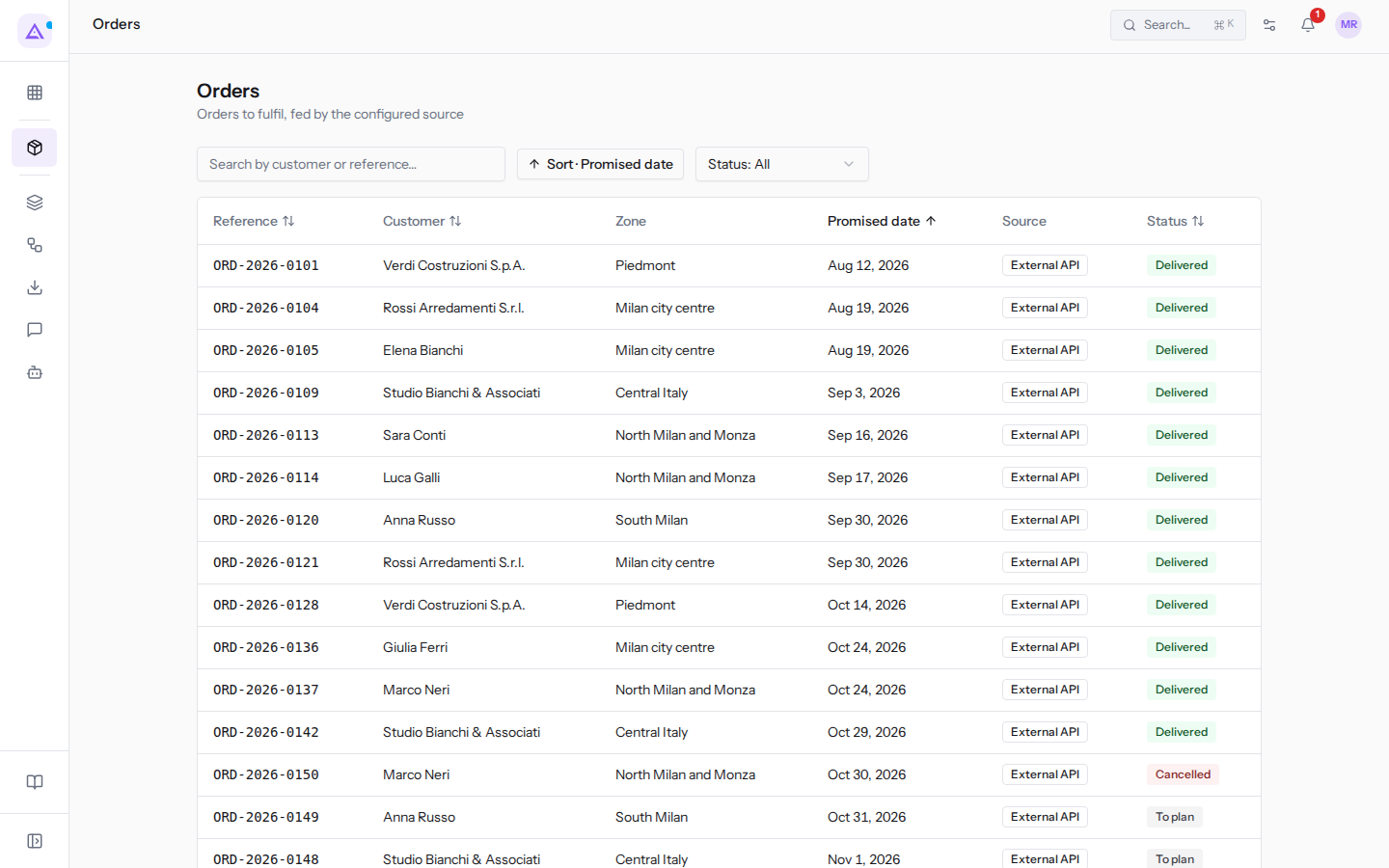
The list columns:
- Reference: the order number in the system it comes from, such as
ORD-2026-0101. Use it to find the order when discussing it with the customer or with whoever entered it. - Customer: the customer's name.
- Zone: the delivery zone. It determines which group the order appears in on the Planning page and which orders it is grouped with by the automatic composition. A dash means the order arrived without a zone.
- Promised date: the day by which the customer expects delivery. A dash means the order arrived without a date.
- Source: where the order came from: External API or Sales.
- Status: the order's status. On a Planned order the label becomes Planned →: a click opens the trip it is on.
Clicking the Reference, Customer, Promised date and Status column headers sorts the list.
At the bottom of the list choose how many rows to see in rows per page (25 by default) and move between pages with the arrows.
Filtering by status
The Status filter shows only orders in one status. Filter on To plan every morning: these are the deliveries that do not yet have a trip.
- Open the Status: All filter.
- Choose the status: To plan, Planned, Delivered or Cancelled.
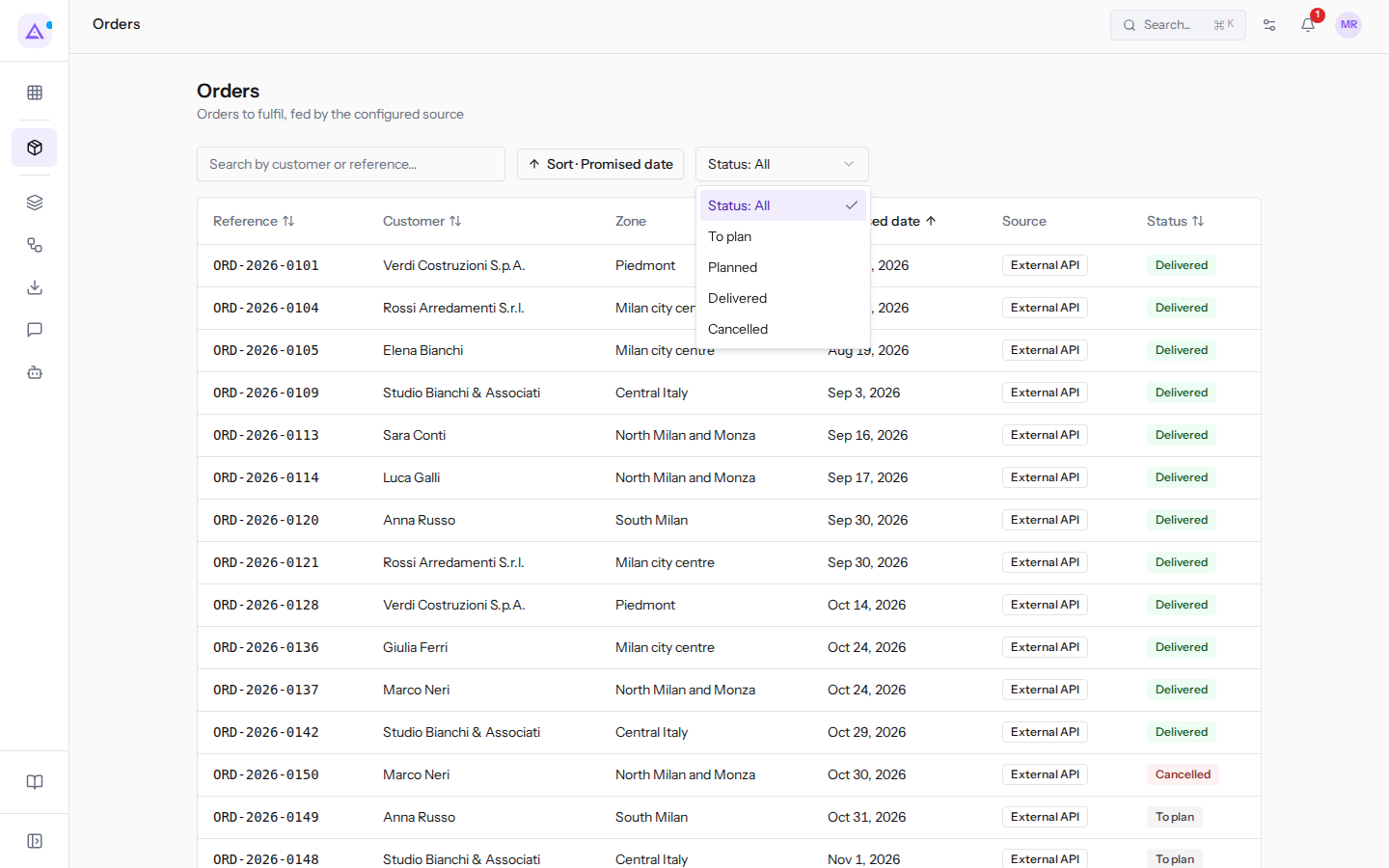
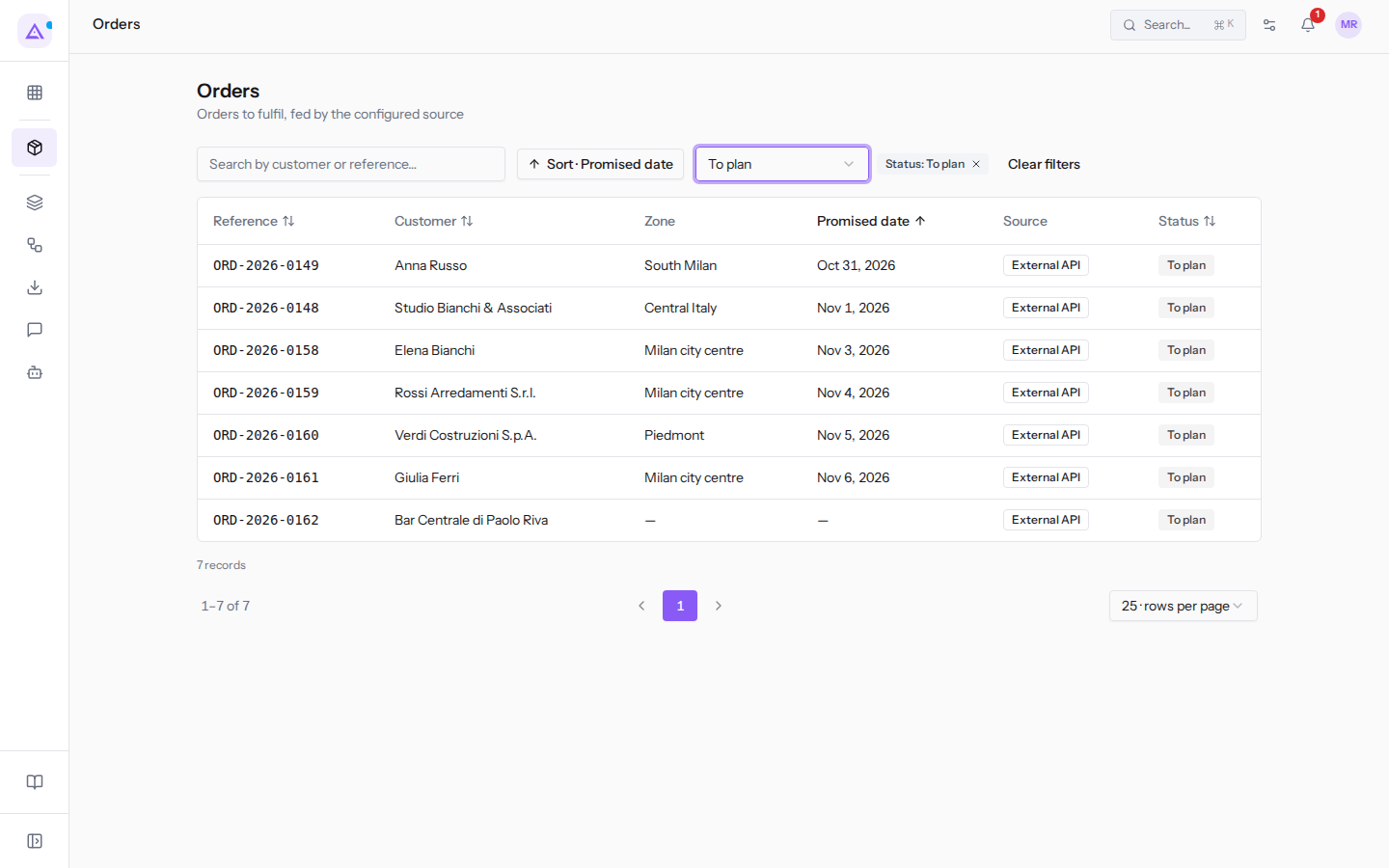
- Next to the filter the label Status: To plan appears. To go back to all orders click the × icon on the label or Clear filters.
An order's statuses
Each status tells the planner what to do with the order.
- To plan: the order is not on any trip. Put it on a trip from the Planning page, as explained in Planning the day. As soon as you assign it, it becomes Planned.
- Planned: the order is on a trip, such as
ORD-2026-0153for Giulia Ferri on today's trip of theDaily van. Click Planned → to open the trip. If you remove it from the trip, it goes back to To plan. - Delivered: the delivery is done. The order becomes delivered when the driver confirms the stop from their page, when the stop is marked delivered in the trip, when the trip is closed with Close trip (all its stops are marked delivered) or when the office presses Mark delivered in the order's record. A delivered order remains in the list as history.
- Cancelled: the delivery is no longer taking place, such as
ORD-2026-0150for Marco Neri, who is collecting from the shop. The order remains in the list but does not appear on the Planning page. There is no command on this page to cancel an order.
When a trip is cancelled its orders are not lost: they go back to To plan and need to be put on another trip. This happened to ORD-2026-0149 for Anna Russo, who was on the Eurocargo truck trip that was cancelled because the truck is in the workshop.
Orders past the promised date
An order to plan whose promised date has already passed is late: the customer was expecting delivery by that day. Plan these orders before the others.
To find them, filter the list on To plan: the list is sorted by promised date, so late orders are at the top. Today there are two: ORD-2026-0149 for Anna Russo (Oct 31, 2026) and ORD-2026-0148 for Studio Bianchi & Associati (Nov 1, 2026). The Planning page also marks them in red with "late" and counts them at the top of the page.
An order without a zone or date
The order system can send an incomplete order. ORD-2026-0162 for Bar Centrale di Paolo Riva arrived with just the customer's name, without a zone or promised date: the customer is not in the address book and in the list the Zone and Promised date columns show a dash. The delivery address is there though: Piazza Garibaldi 3, 20900 Monza.
Such an order can still be planned, but needs to be tracked manually:
- without a promised date it is never late and sits at the bottom of the list, so it risks being forgotten;
- without a zone, on the Planning page it ends up in the No zone group, and the automatic composition can only group it with other orders by address proximity;
- without a contact in the address book, the customer appears only with the name that came in the order.
If you can, have the order corrected in the system it comes from: on resending, Archimedes will update it. Otherwise put it yourself on the trip that passes through Monza.
See it on your company, not on a slide deck.
In 30 minutes we map the software you use today.We show you how much work and how much margin Archimedes gives back.
Show me on my business →What industry are you in?
One tap — it lets us prepare the demo around your world.
What tools do you use today?
Pick the ones you recognise — or just type them. It helps us show you how they migrate.
Last step: your details.
We reply within one working day — and right after, if you like, you pick the demo slot yourself.
We couldn't send your request. Try again, or write to us at [email protected].
By sending, you agree to your data being processed so we can get back to you about the demo. Privacy notice.
Preview form — nothing is sent from this page.
Want to schedule the demo now?
Your call: book the slot you prefer yourself, or we'll call you to arrange it.
Live availability, 30 minutes, instant confirmation. The calendar opens in a new tab.
Lock in your slot ↗We'll get back to you within one working day — and we'll join the call already knowing your world.
The calendar is open in another tab: pick a slot and the demo is booked. Can't see it? Reopen it ↗
Preview page: nothing was sent.
Our calendar is live: take the slot that suits you and the demo is booked. 30 minutes, instant confirmation, no waiting.
Lock in your slot ↗