Transport
All modules
The fleet: adding and managing vehicles
Transport · 7 of 18 · 9 min read
The Vehicles page is the list of vehicles you deliver with: yours and those of external hauliers, which the interface calls subcontractors. For each vehicle Archimedes knows the cargo bay dimensions, payload, capabilities and costs: with this data it checks whether a load fits, calculates the loading plan and estimates how much a trip costs. A vehicle with incomplete data can still be used, but these checks won't work for it.
The vehicle list
Open Transport › Vehicles. The list shows all vehicles, owned and subcontractors', in any state.
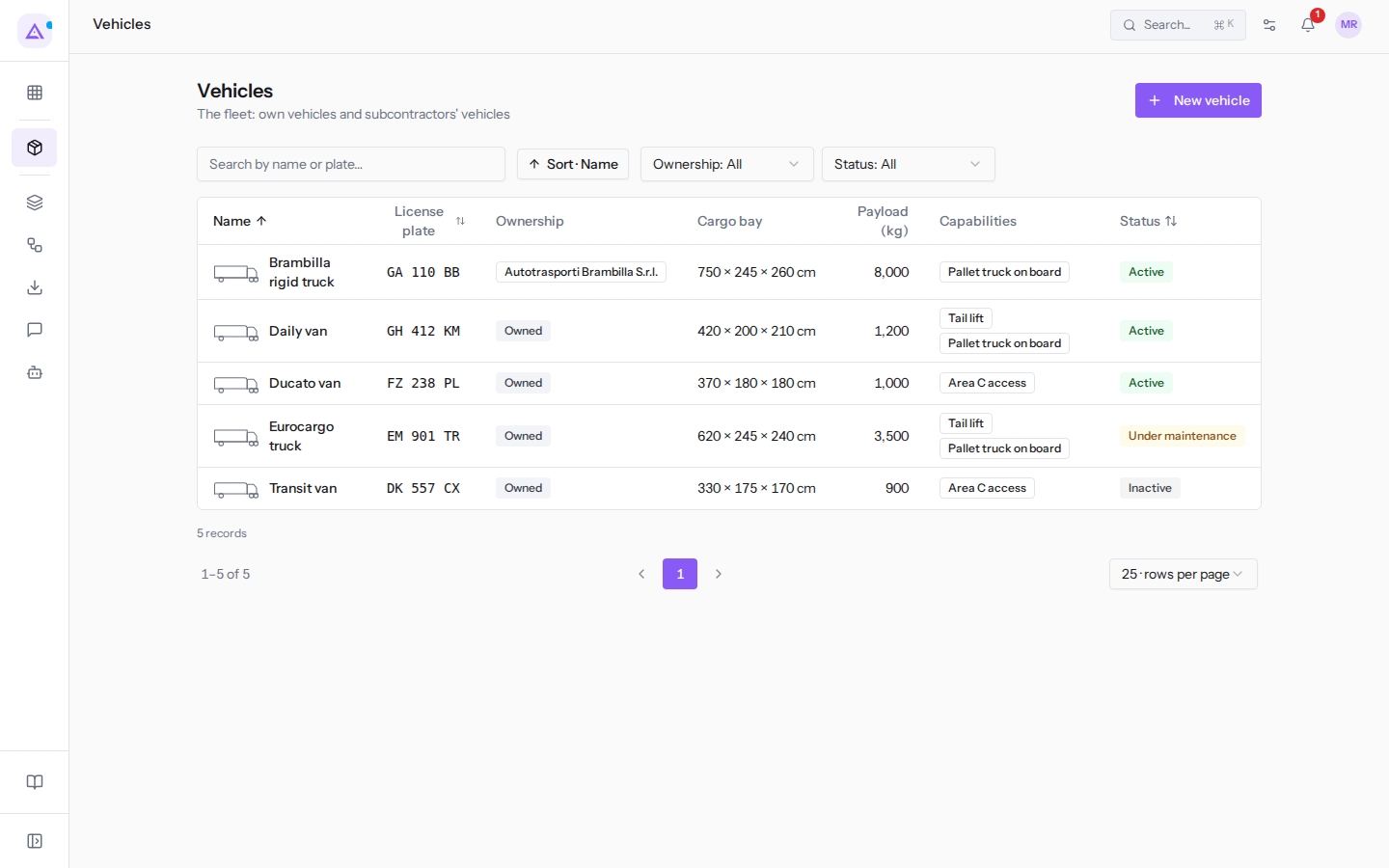
The list columns:
- Name: the vehicle's name.
- License plate: the registration plate.
- Ownership: Owned for a company vehicle; for a subcontractor's vehicle the cell shows the haulier's name, such as
Autotrasporti Brambilla S.r.l.. - Cargo bay: the internal cargo bay dimensions.
- Payload (kg): the maximum weight the vehicle can carry.
- Capabilities: the vehicle's equipment.
- Status: Active, Under maintenance or Inactive.
To find a vehicle, type the name or registration plate in the Search by name or plate… field. To see only part of the fleet, use the Ownership: All filter (choose Owned or Subcontractor) and the Status: All filter (choose Active, Under maintenance or Inactive): before planning a week, for example, filter on Active to see which vehicles you can count on.
The list is sorted by name; clicking on the License plate or Status heading sorts it by plate or by status.
Owned or subcontractor vehicle
Ownership says who owns the vehicle and changes three things: how trip costs are estimated, who appears as the carrier on the delivery note and which vehicle the automatic composition picks first.
- Owned: a company vehicle, such as the
Daily van. Trip cost is estimated from kilometers and route duration, using the vehicle's parameters (consumption, wear, fixed daily rate) and the organization's prices (diesel, driver hourly cost, tolls). On the delivery note the carrier is your company, with the registration plate. - Subcontractor: a vehicle belonging to an external haulier, such as the
Brambilla rigid truckfromAutotrasporti Brambilla S.r.l.. Trip cost is the agreed rate per kilometer for the route. On the delivery note the carrier is the haulier, with the registration plate.
Choose Subcontractor when you entrust deliveries to a haulier you pay per kilometer, and indicate the haulier. In trips, the two types of vehicle are used in the same way; automatic composition, however, fills owned vehicles first and moves to subcontractors only when yours are not enough. The estimated cost is a suggestion: it only becomes the trip cost when you apply it from the trip's route, as explained in Route and cost of a trip.
A vehicle's statuses
Status says whether the vehicle can be used. A new vehicle starts as Active.
- Active: the vehicle is working. It appears in the Vehicle list when creating a trip, automatic composition uses it, and its payload counts in the fleet total at the top of the Planning board.
- Under maintenance: the vehicle is off the road for a period, such as the
Eurocargo truck, in the workshop until Friday. It does not appear in the Vehicle list for trips, automatic composition does not use it, and its payload does not count in the fleet. - Inactive: the vehicle is no longer part of the fleet, such as the sold
Transit van. The same applies as for a vehicle under maintenance, but without a return date; its data and past trips remain.
When a vehicle goes to the workshop, set it to Under maintenance with Edit, so no one plans it by mistake; when it comes back, set it back to Active. The status does not affect already-created trips: if the vehicle has a trip in the coming days, open that trip and use Switch vehicle.
Creating a vehicle
Create a vehicle for every vehicle you deliver with, including those of subcontractors.
- In Transport › Vehicles click New vehicle.
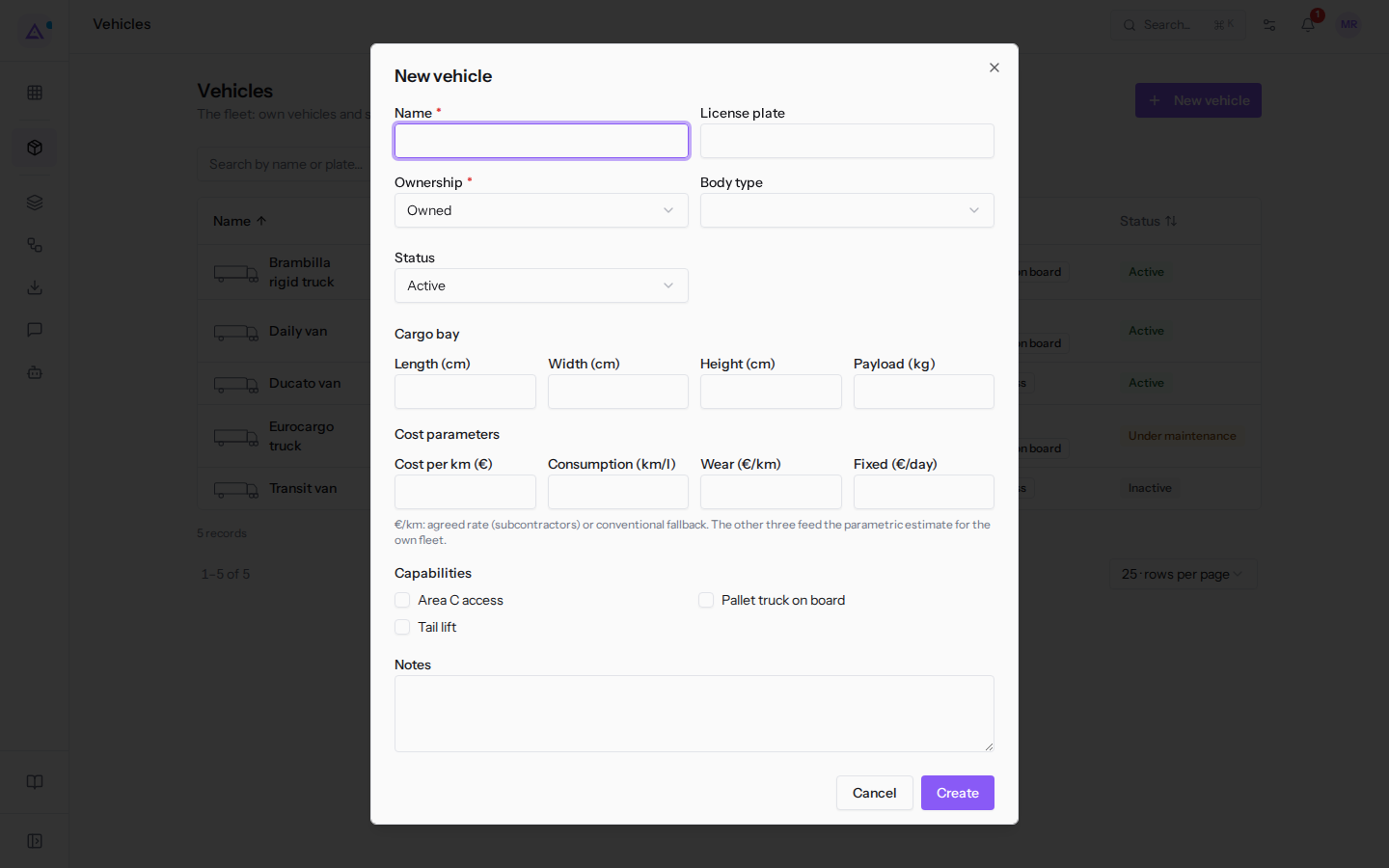
- Fill in the fields and click Create. With Cancel you close the window without saving.
General data
- Name: the name by which the vehicle appears in the list, in trips and on the Planning board. It is required: choose a name that can be recognized at a glance, such as
Daily van. - License plate: appears next to the name when choosing the vehicle for a trip, and on the delivery note.
- Ownership: the field is required. The default value is Owned.
- Owned: company vehicle.
- Subcontractor: a vehicle belonging to an external haulier. Shows the Subcontractor field.
- Subcontractor: the haulier who owns the vehicle, to be chosen from the contacts (Pick the subcontractor). Only appears with Subcontractor ownership. If the haulier is not there, create them first in Contacts as a company.
- Body type: the type of body. Options: Box, Flatbed, Tipper, Flatbed with crane, Tanker, Van. Only determines the vehicle's appearance in lists: does not affect calculations.
- Status: Active, Under maintenance or Inactive. The default value is Active.
Cargo bay
The internal cargo bay dimensions, in centimeters, and the payload in kilograms.
- Length (cm), Width (cm), Height (cm): the internal cargo bay dimensions, where goods rest.
- Payload (kg): the weight the vehicle can carry.
The Daily van, for example, has a cargo bay of 420 × 200 × 210 cm and carries 1,200 kg.
Important: without the three dimensions the loading plan cannot be calculated. Without the dimensions or without the payload, automatic composition does not use the vehicle, and Planning shows the trip's load without the fill bar.
Cost parameters
The vehicle's parameters, used to estimate the cost of a trip. Fill in those relevant to the vehicle type.
- Cost per km (€): for a subcontractor's vehicle this is the agreed rate, the only data needed. For an owned vehicle it is only used if none of the other parameters are filled in: it is a flat-rate estimate.
- Consumption (km/l): how many kilometers the vehicle travels per liter of diesel.
- Wear (€/km): how much tires, servicing and maintenance cost per kilometer.
- Fixed (€/day): the vehicle's fixed costs (insurance, road tax, leasing) divided by working days.
For an Owned vehicle fill in Consumption (km/l), Wear (€/km) and Fixed (€/day): the estimate sums fuel, driver, tolls, wear and fixed quota. If a value is missing, the estimate skips that item and comes out lower than the real figure. A missing consumption is flagged; a missing Wear (€/km) or Fixed (€/day) is not. For a Subcontractor vehicle fill in only Cost per km (€). The note below the fields ("conventional fallback", "parametric estimate") says the same thing in technical terms.
Note: the diesel price, driver hourly cost and tolls are not entered on the vehicle. They are the Cost parameters (organization) in Transport › Settings, under the Source tab, and apply to the whole fleet: see Setting up the depot, costs and order source.
Capabilities
A checkbox for each capability in the catalog: Area C access, Tail lift, Pallet truck on board. Only tick what the vehicle actually has: the Brambilla rigid truck only has Pallet truck on board.
Capabilities are used to avoid sending a load on a vehicle that cannot carry or unload it. If a product in the trip requires a capability that the vehicle does not have, the trip shows the Missing capabilities warning: today the Brambilla rigid truck is carrying cabinets that require a Tail lift. The warning does not block the trip; automatic composition, however, never places an order on a vehicle that lacks the capabilities it requires.
The catalog is managed in Transport › Settings, under the Capabilities tab: see Capabilities: what a vehicle can do and what a product requires.
Notes
Free text for planners: the Brambilla rigid truck note reminds you that it is paid by the kilometer.
The vehicle record
The record shows all the data for a vehicle.
In Transport › Vehicles click on a vehicle to open its record.
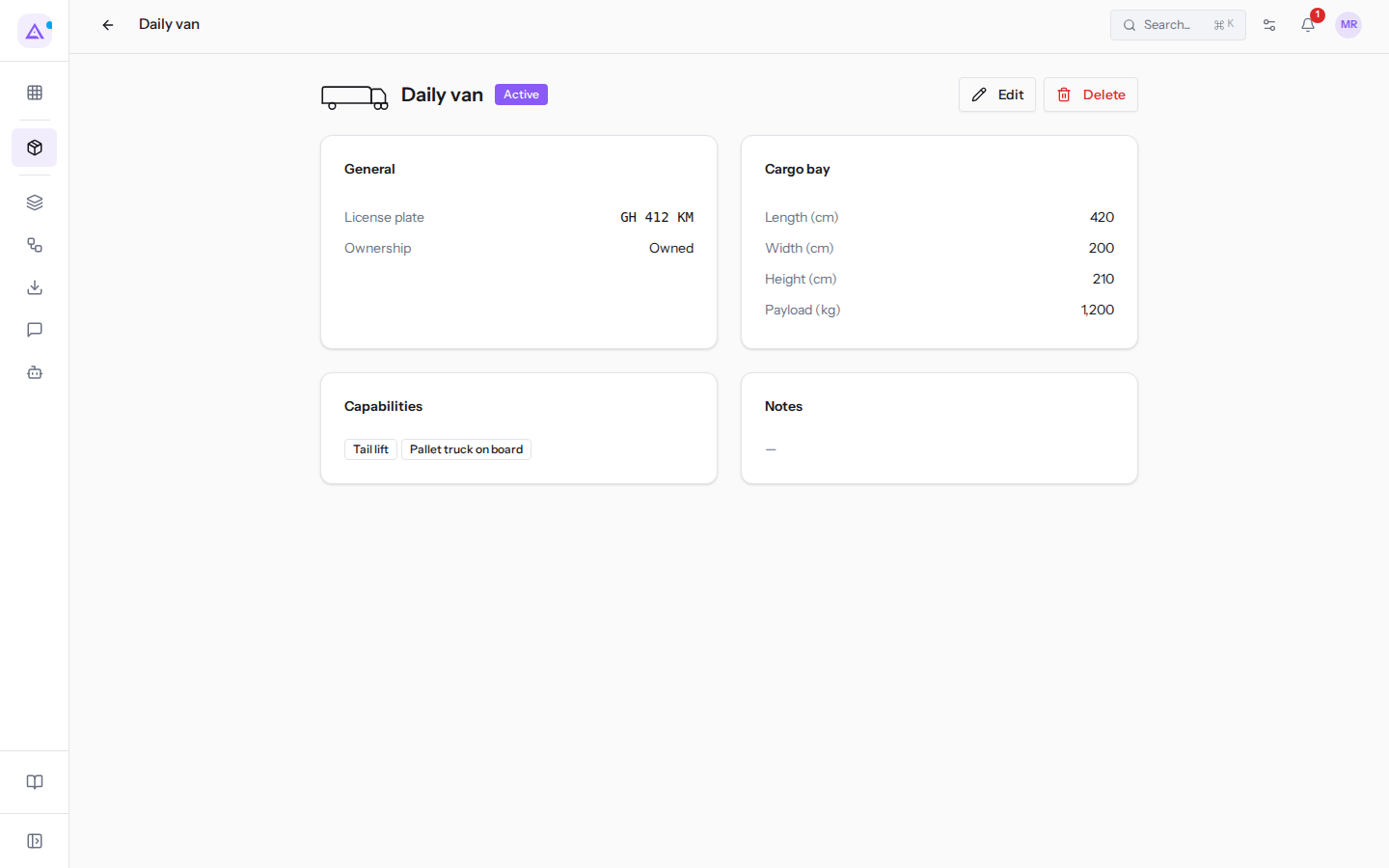
Next to the name the status appears. The record has four panels:
- General: License plate and Ownership. For a subcontractor's vehicle also Subcontractor, with the carrier's name: clicking opens their contact record.
- Cargo bay: Length (cm), Width (cm), Height (cm) and Payload (kg). A missing value appears as a dash.
- Capabilities: the vehicle's equipment, or No capabilities assigned.
- Notes: the note text.
Body type and the cost parameters do not appear in the record: to view or change them click Edit.
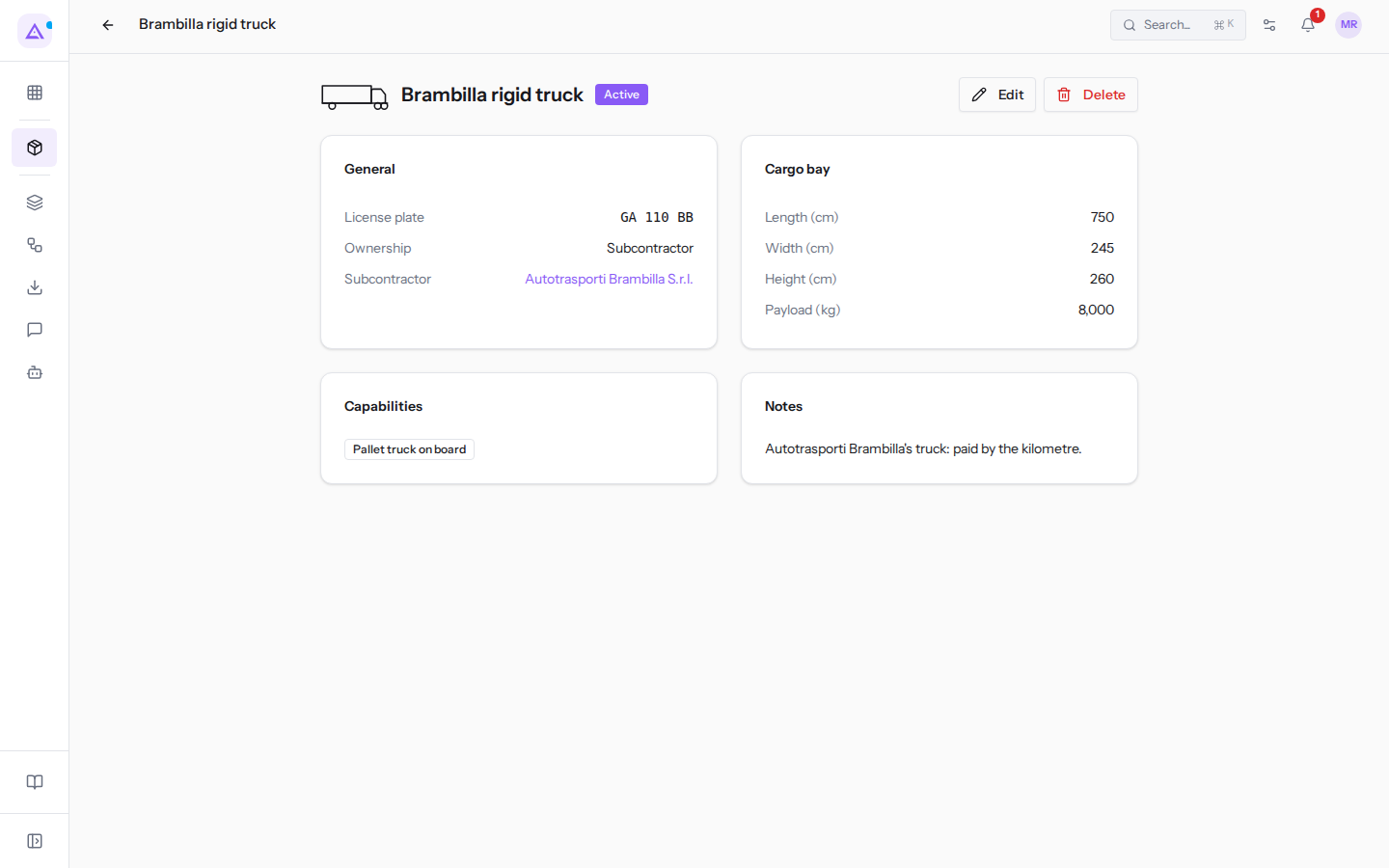
If you opened the vehicle from a filtered, searched, or sorted list, arrows appear at the top to move to the previous or next vehicle in that list. Opened from the unfiltered list, the vehicle does not show them.
Editing a vehicle
Edit a vehicle when its status, a measurement, a cost, or a piece of equipment changes: in the record click Edit, change the fields in the Edit vehicle window, and click Save. The new measurements and equipment apply immediately to trips already created with that vehicle: the Planning view updates bars and warnings. An already-calculated load plan does not update on its own: recalculate it from the trip.
Deleting a vehicle
Delete a vehicle only if you created it by mistake. For a sold or decommissioned vehicle use the Inactive status: it drops out of the planning view and past trips continue to show it.
Deleting requires the Transport Manager group: with only the Transport User group the deletion is refused. In the vehicle record click Delete: the vehicle disappears immediately, with no confirmation prompt, and you return to the list. At the bottom a message appears with the vehicle's name, for example "Daily van deleted", and the Undo button: you have about eight seconds to restore it. After that, trips that used the vehicle, including closed ones, remain but show it as No vehicle.
See it on your company, not on a slide deck.
In 30 minutes we map the software you use today.We show you how much work and how much margin Archimedes gives back.
Show me on my business →What industry are you in?
One tap — it lets us prepare the demo around your world.
What tools do you use today?
Pick the ones you recognise — or just type them. It helps us show you how they migrate.
Last step: your details.
We reply within one working day — and right after, if you like, you pick the demo slot yourself.
We couldn't send your request. Try again, or write to us at [email protected].
By sending, you agree to your data being processed so we can get back to you about the demo. Privacy notice.
Preview form — nothing is sent from this page.
Want to schedule the demo now?
Your call: book the slot you prefer yourself, or we'll call you to arrange it.
Live availability, 30 minutes, instant confirmation. The calendar opens in a new tab.
Lock in your slot ↗We'll get back to you within one working day — and we'll join the call already knowing your world.
The calendar is open in another tab: pick a slot and the demo is booked. Can't see it? Reopen it ↗
Preview page: nothing was sent.
Our calendar is live: take the slot that suits you and the demo is booked. 30 minutes, instant confirmation, no waiting.
Lock in your slot ↗