Transport
All modules
Setting up the depot, costs and order source
Transport · 3 of 18 · 5 min read
The Source tab in the Transport configuration determines where delivery orders come from, which address trips start from, which map service calculates routes, and which shared prices feed into the estimated cost of a trip.
Only the Transport Manager group can edit this tab: with Transport User you can view it, but changes are rejected.
Opening the Source tab
The tab brings together the order source, geography, and cost parameters on a single page.
- Open Transport › Settings.
- Click the Source tab.
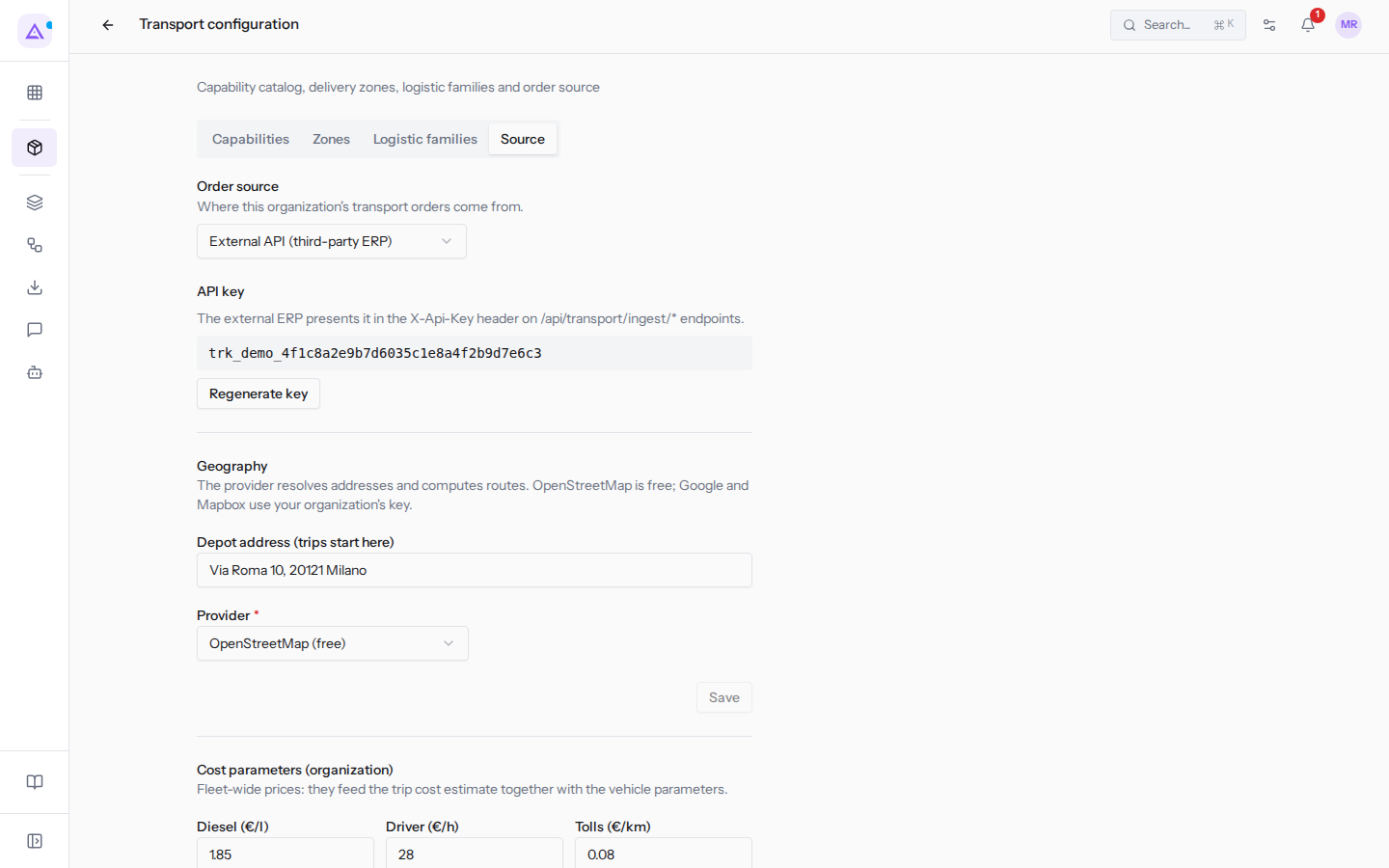
The tab has three parts: Order source with the optional API key, then Geography with the depot address and map service, and finally Cost parameters (organization). Geography and cost parameters each have their own Save.
Choosing the order source
The source indicates where the organization's transport orders come from.
- If orders originate in another management system or on the website, choose External API (third-party ERP): the management system sends the orders to Archimedes. Azienda Demo S.r.l. uses this source.
- If you sell using the Archimedes Sales module, choose Internal Sales module: orders are imported from confirmed sales orders.
To change the source:
- Open the Order source field.
- Choose the option.
Important: the choice is saved as soon as you select the option, without pressing Save.
The fields:
- Order source: where this organization's transport orders come from.
- External API (third-party ERP): orders are sent by the external management system. The API key section appears below the field.
- Internal Sales module: orders are imported from Transport › Orders using the Sync from Sales button, which only appears with this source. Sales orders with no remaining quantity to deliver are skipped. Imported orders have no destination address or zone. The API key section does not appear, but any already-generated key continues to work.
Note: with Internal Sales module the Sales module must be active. If it is not, synchronization is rejected.
Imported orders are described in The orders to deliver.
Managing the API key
With the External API (third-party ERP) source, the external management system uses the API key to send orders, products, and delivery notes to Archimedes and to read order status. The technical text below the heading is for whoever configures the management system.
- If no key exists yet, the section shows No key generated yet. and the Generate key button.
- If a key exists, the section shows it in full and the button becomes Regenerate key.
Treat the key like a password: anyone who knows it can send orders and delivery notes to your organization and read delivery status. Share it only with whoever configures the external management system.
To replace the key:
- Click Regenerate key.
- Confirm in the Regenerate the key? The current one will stop working. window.
Important: after regeneration the previous key no longer works. The external management system cannot send orders until it is configured with the new key. Regenerate the key only if the current one has been shared by mistake.
Setting up the depot and map service
The depot address is the point from which trips start: each trip's route begins here and returns here, so the trip's km include the return leg. Without this address Show route responds "Set the depot address in the transport settings first." The map service resolves addresses and calculates routes.
- If you do not have a contract with a map service, choose OpenStreetMap (free).
- If the organization already has a Google or Mapbox account, choose Google Maps or Mapbox and enter the organization's key.
- In the Depot address (trips start here) field, enter the address, for example
Via Roma 10, 20121 Milano. - In the Provider field, choose the map service.
- If you chose Google Maps or Mapbox, enter the key in the API key field.
- Click Save below these fields.
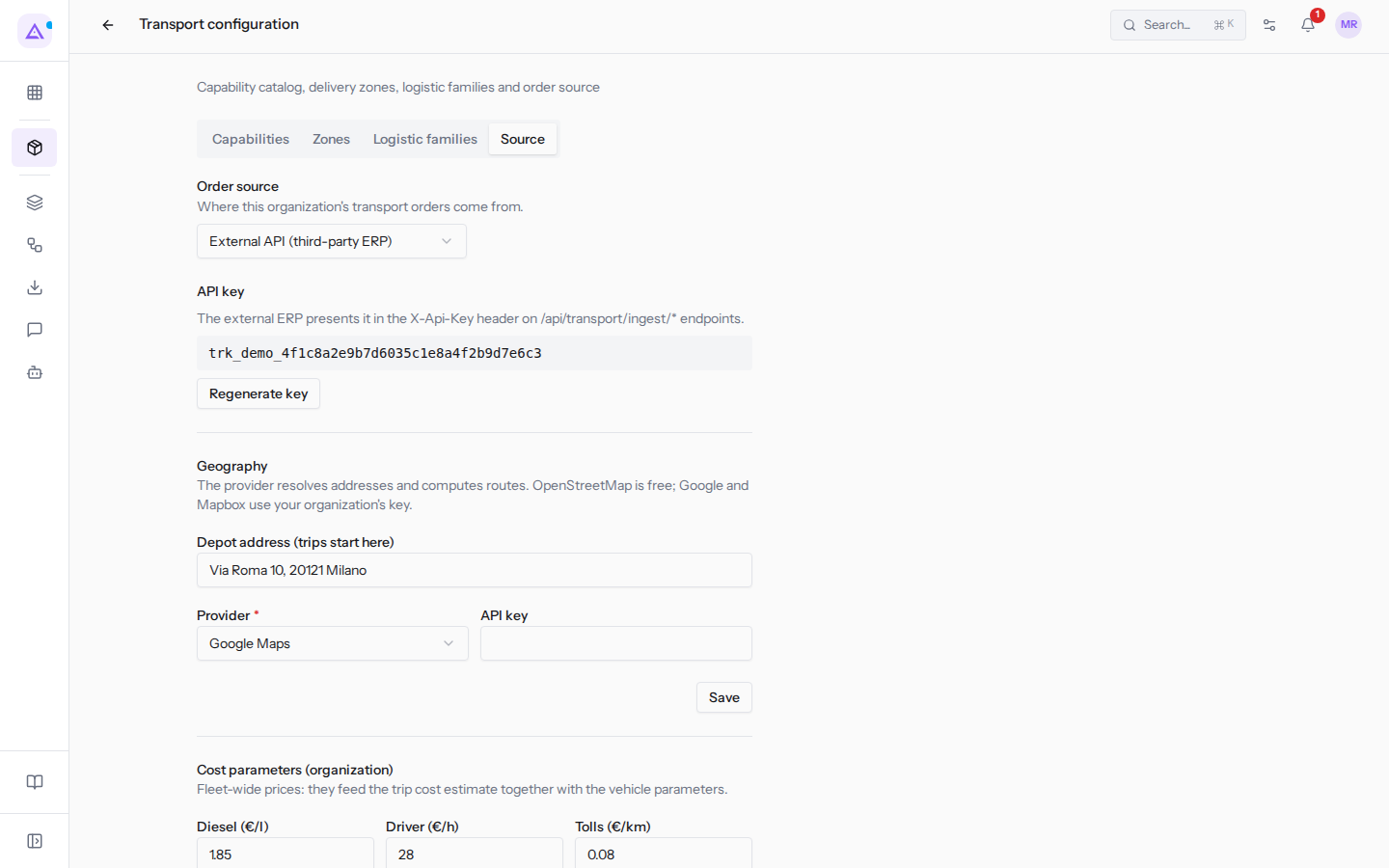
The fields:
- Depot address (trips start here): the address from which trips start.
- Provider: the service that resolves addresses and calculates routes. The field is required.
- OpenStreetMap (free): does not require a key. It is the service used by Azienda Demo S.r.l.
- Google Maps: uses your organization's key.
- Mapbox: uses your organization's key.
- API key: the map service key. It only appears with Google Maps or Mapbox. It is different from the order source key.
Note: addresses that the map service cannot resolve are excluded from the trip's route.
Setting up cost parameters
The Cost parameters (organization) are prices shared across the entire fleet. Together with the vehicle's parameters, they feed the estimated cost of a trip.
- Fill in the Diesel (€/l), Driver (€/h), and Tolls (€/km) fields.
- Click Save below these fields.
The fields accept only non-negative values. The Save button becomes active when you change a value.
- Diesel (€/l): the price of diesel per liter, for example
1.85. - Driver (€/h): the hourly cost of the driver, for example
28. - Tolls (€/km): the cost of tolls per kilometer, for example
0.08.
How they feed into the estimate:
- For an owned vehicle, the estimate adds up fuel (km divided by the vehicle's consumption, multiplied by the diesel price), the driver (route duration multiplied by the hourly cost), tolls (km multiplied by the per-km cost), wear, and the vehicle's daily fixed cost. If a figure is missing, that item is excluded. The route estimate lists only the fuel and driver figures under Missing parameters: missing tolls, wear and fixed cost are skipped without warning.
- For a vehicle belonging to an external carrier (Subcontractor), the cost is the agreed rate: the route km multiplied by the vehicle's Cost per km (€). The organization's parameters are not used.
Consumption (km/l), Wear (€/km), Fixed (€/day) and Cost per km (€) are entered in the vehicle's form. The full calculation is described in Route and cost of a trip.
See it on your company, not on a slide deck.
In 30 minutes we map the software you use today.We show you how much work and how much margin Archimedes gives back.
Show me on my business →What industry are you in?
One tap — it lets us prepare the demo around your world.
What tools do you use today?
Pick the ones you recognise — or just type them. It helps us show you how they migrate.
Last step: your details.
We reply within one working day — and right after, if you like, you pick the demo slot yourself.
We couldn't send your request. Try again, or write to us at [email protected].
By sending, you agree to your data being processed so we can get back to you about the demo. Privacy notice.
Preview form — nothing is sent from this page.
Want to schedule the demo now?
Your call: book the slot you prefer yourself, or we'll call you to arrange it.
Live availability, 30 minutes, instant confirmation. The calendar opens in a new tab.
Lock in your slot ↗We'll get back to you within one working day — and we'll join the call already knowing your world.
The calendar is open in another tab: pick a slot and the demo is booked. Can't see it? Reopen it ↗
Preview page: nothing was sent.
Our calendar is live: take the slot that suits you and the demo is booked. 30 minutes, instant confirmation, no waiting.
Lock in your slot ↗