Transport
All modules
An order record: load, packages and delivery
Transport · 10 of 18 · 7 min read
A transport order record brings together everything needed to deliver it: where it goes, by when, how many packages it consists of, where it stands and which delivery note it travels with. Use it to check an order before adding it to a trip, for example an order with lines that need fixing, or to look up the delivery note of a completed delivery.
Opening an order record
The record opens from the transport orders list.
- Go to Transport › Orders.
- Click the order reference, for example
ORD-2026-0160from Verdi Costruzioni S.p.A.
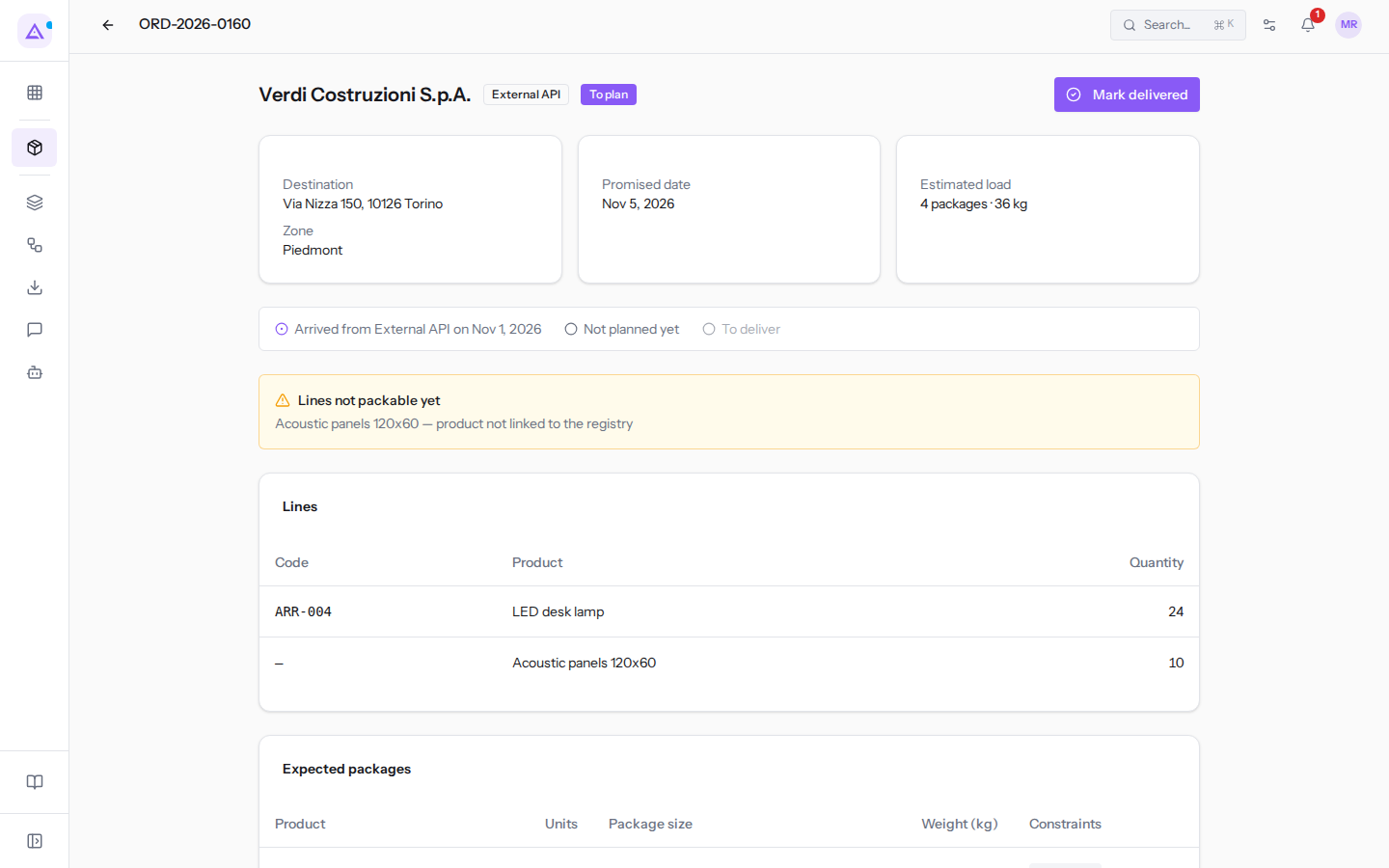
At the top the record shows the order reference and the customer name, with two labels: the source (External API or Sales) and the status.
If the order is on a trip, next to the status a link to the trip appears with the vehicle and the date, such as "on trip Daily van · Nov 2, 2026" for ORD-2026-0151 from Rossi Arredamenti S.r.l. Click the link to open the trip record.
Destination, dates and estimated load
Below the header three panels summarise the delivery.
- The first shows the Destination, the address where the goods are going (
Via Nizza 150, 10126 TorinoforORD-2026-0160), and the Zone. If the order arrived without an address the customer name is shown; without a zone, a dash. - The second shows the Promised date and, when the order is delivered, Delivered on with the delivery date.
- The third, Estimated load, shows how many packages the order consists of and their weight:
ORD-2026-0160shows "4 packages · 36 kg".
The estimated load comes from the logistic profile of each product, that is the package dimensions and weight and how many units fit in it, taken from the product or its logistic family. A line without a complete profile produces no packages and is not counted: this is why the estimated load of ORD-2026-0160 does not include the panels. Families are explained in Logistic families: how a product travels.
Lines and expected packages
The lines table lists the order contents: the product code, product name and quantity. If the line is not linked to a catalog product, a dash appears instead of the code and the description received with the order appears instead of the name.
ORD-2026-0160has line ARR-004 LED desk lamp, quantity 24, and line Acoustic panels 120x60, quantity 10, without a code.ORD-2026-0151has line ARR-003 Metal cabinet, 2 doors, quantity 2, and line ARR-001 Office desk 160x80, quantity 4.
The Expected packages table lists packages one by one: for each package the product, the Units it contains, the Package size, the Weight (kg) and the Constraints. The table only appears if the order has at least one package.
- In Constraints, Stackable means other packages can be stacked on top of it; Orientation locked means the package always travels upright and cannot be laid on its side.
- When the quantity does not fill the last package, that package carries the Partial label: it has the dimensions of a full package and a weight proportional to the units. With 26 lamps, for example, you would have 4 full packages and one Partial package of 2.
Packages depend on the Units per package of the logistic family. The Lamp carton family contains 6 lamps: the 24 lamps in ORD-2026-0160 become 4 packages of 6 units each, measuring 60 × 40 × 45 cm and 9 kg, Stackable.
For ORD-2026-0151 each cabinet is a package of 100 × 50 × 195 cm and 78 kg with Orientation locked, and each desk is a package of 170 × 90 × 15 cm and 42 kg, Stackable.
Line warnings
If a line does not allow packages to be calculated, the record shows the Lines not packable yet panel, with the line's product and the reason.
- "product not linked to the registry": the line arrived without a product code, with only the description, so Archimedes does not know which product it refers to. This is the case for
Acoustic panels 120x60inORD-2026-0160. Have the order corrected in the system it comes from, specifying the product code. - "incomplete logistic profile: assign a family or dimensions": the product exists, but neither the product nor its logistic family specifies the package dimensions or weight. This often happens with a new code: when an order carries a code that does not exist, Archimedes creates the product, but without a profile. Open the product and assign it a logistic family, or enter the package dimensions and weight.
Important: a line with a warning remains outside the estimated load and the trip's load plan. The actual weight and volume of the trip are therefore higher than those calculated, and automatic composition leaves the entire order out.
Order history
A strip below the panels shows where the order stands, in three steps.
- The arrival: where and when the order arrived, such as "Arrived from External API on Nov 1, 2026".
- The planning: the vehicle and trip date, such as "Planned on Daily van for Nov 2, 2026", or "Not planned yet" if the order is still waiting for a trip.
- The delivery: "Delivered on Nov 2, 2026". Until the goods are delivered this step reads "To deliver" and appears in grey.
The order's delivery note
When the order has a delivery note, the delivery note strip appears above the history.
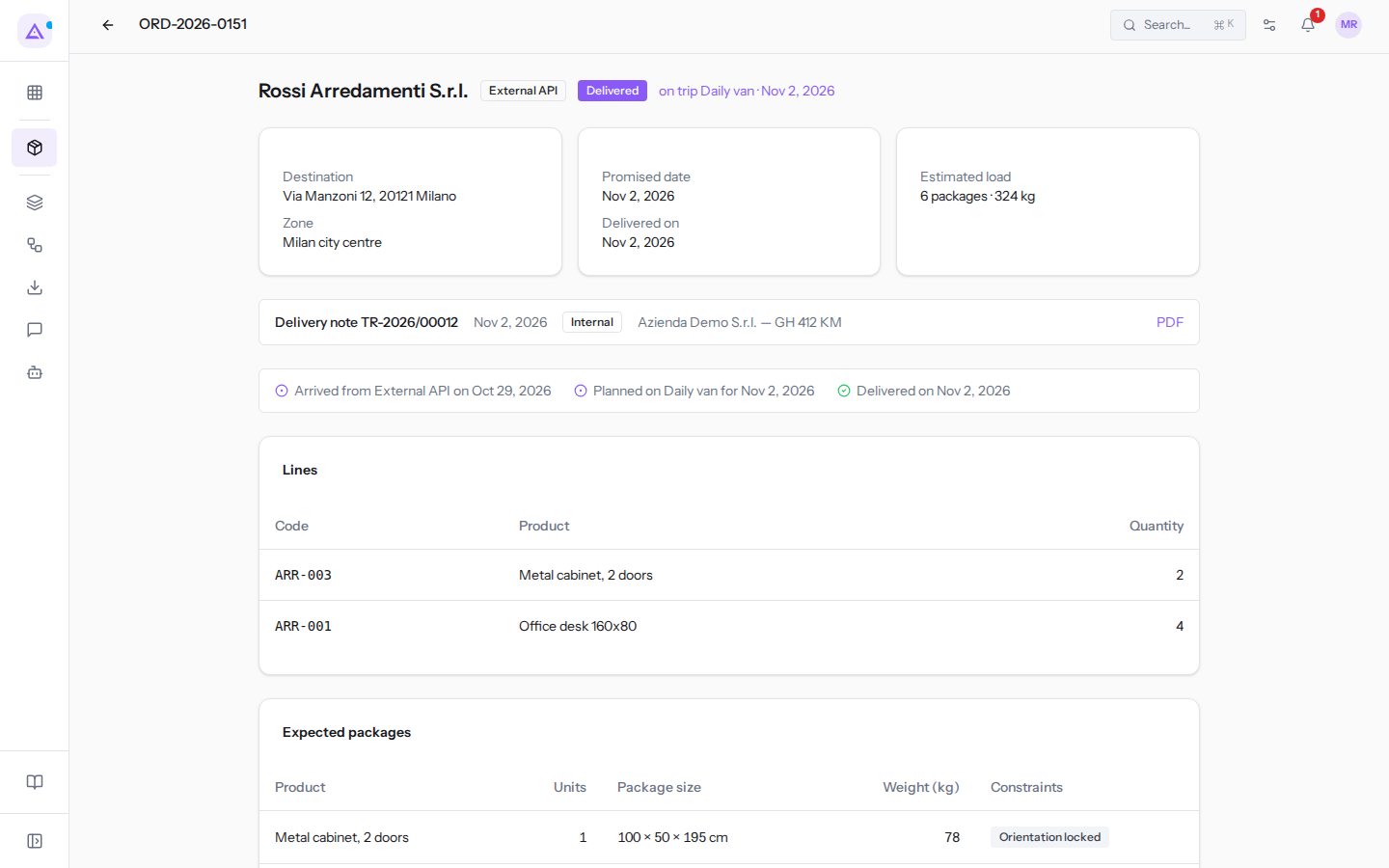
The strip for ORD-2026-0151 reads "Delivery note TR-2026/00012", the date, the Internal label and the carrier, that is your company with plate GH 412 KM. It reads as follows:
- the delivery note number: those generated by Archimedes are numbered TR-year/number; a delivery note received from outside keeps the number given by whoever issued it;
- the document date;
- the origin: Internal if generated by Archimedes, From ERP if it arrived from the order system;
- the carrier, that is who transports the goods: for your own vehicle your company, for a subcontractor's vehicle the haulier, always with the plate;
- PDF: download the document, to print or send to the customer.
Note: the internal delivery note is generated from the trip record with Generate delivery notes, when the trip is Confirmed or Departed: see Delivery notes (DDT). An order not yet on a trip does not have the delivery note strip.
Marking an order as delivered
The Mark delivered button records from the office that the order has been delivered. It is used for deliveries made without the driver page: a customer collecting from the warehouse, a driver without a phone, a subcontractor confirming delivery verbally. When the driver confirms from their page it is not needed: the order is already shown as delivered, with the name of the recipient, the signature and the photo.
The button appears at the top right on every order that is not Delivered or Cancelled, including an order not on any trip: it is there on ORD-2026-0160, not on ORD-2026-0151. One click is enough: the order immediately becomes Delivered with today's date, without asking for confirmation.
Important: press it only when the goods have actually been delivered. There is no way back from the record, the delivery remains without a name, signature or photo, and the trip stop is not shown as delivered. If the order is on a departed trip, mark the stop as delivered from the trip record instead.
Moving to the previous or next order
If you opened the order from a filtered, searched or reordered list, arrows appear at the top next to the title to move to the previous or next order in that list, with the order's position out of the total: filter on To plan and scroll through orders one by one. Opened from the list without filters, the order shows no arrows.
The back arrow next to the title returns to the Transport › Orders list.
See it on your company, not on a slide deck.
In 30 minutes we map the software you use today.We show you how much work and how much margin Archimedes gives back.
Show me on my business →What industry are you in?
One tap — it lets us prepare the demo around your world.
What tools do you use today?
Pick the ones you recognise — or just type them. It helps us show you how they migrate.
Last step: your details.
We reply within one working day — and right after, if you like, you pick the demo slot yourself.
We couldn't send your request. Try again, or write to us at [email protected].
By sending, you agree to your data being processed so we can get back to you about the demo. Privacy notice.
Preview form — nothing is sent from this page.
Want to schedule the demo now?
Your call: book the slot you prefer yourself, or we'll call you to arrange it.
Live availability, 30 minutes, instant confirmation. The calendar opens in a new tab.
Lock in your slot ↗We'll get back to you within one working day — and we'll join the call already knowing your world.
The calendar is open in another tab: pick a slot and the demo is booked. Can't see it? Reopen it ↗
Preview page: nothing was sent.
Our calendar is live: take the slot that suits you and the demo is booked. 30 minutes, instant confirmation, no waiting.
Lock in your slot ↗