Transport
All modules
Planning the day
Transport · 11 of 18 · 6 min read
Planning is used to decide which deliveries go out on a given day and on which trip. On the left you find the orders to plan grouped by zone. On the right you find the day's trips, for example today's rounds for the Daily van, the Ducato van and the Brambilla rigid truck.
Opening Planning and choosing the day
You always work one day at a time. The page opens on today's date.
- Open Transport › Planning.
- To change the day use Previous day and Next day, or choose the date in the Date field using the calendar.
- Read the two columns: To plan with the number of orders waiting and Trips of the day with the number of trips for that date.
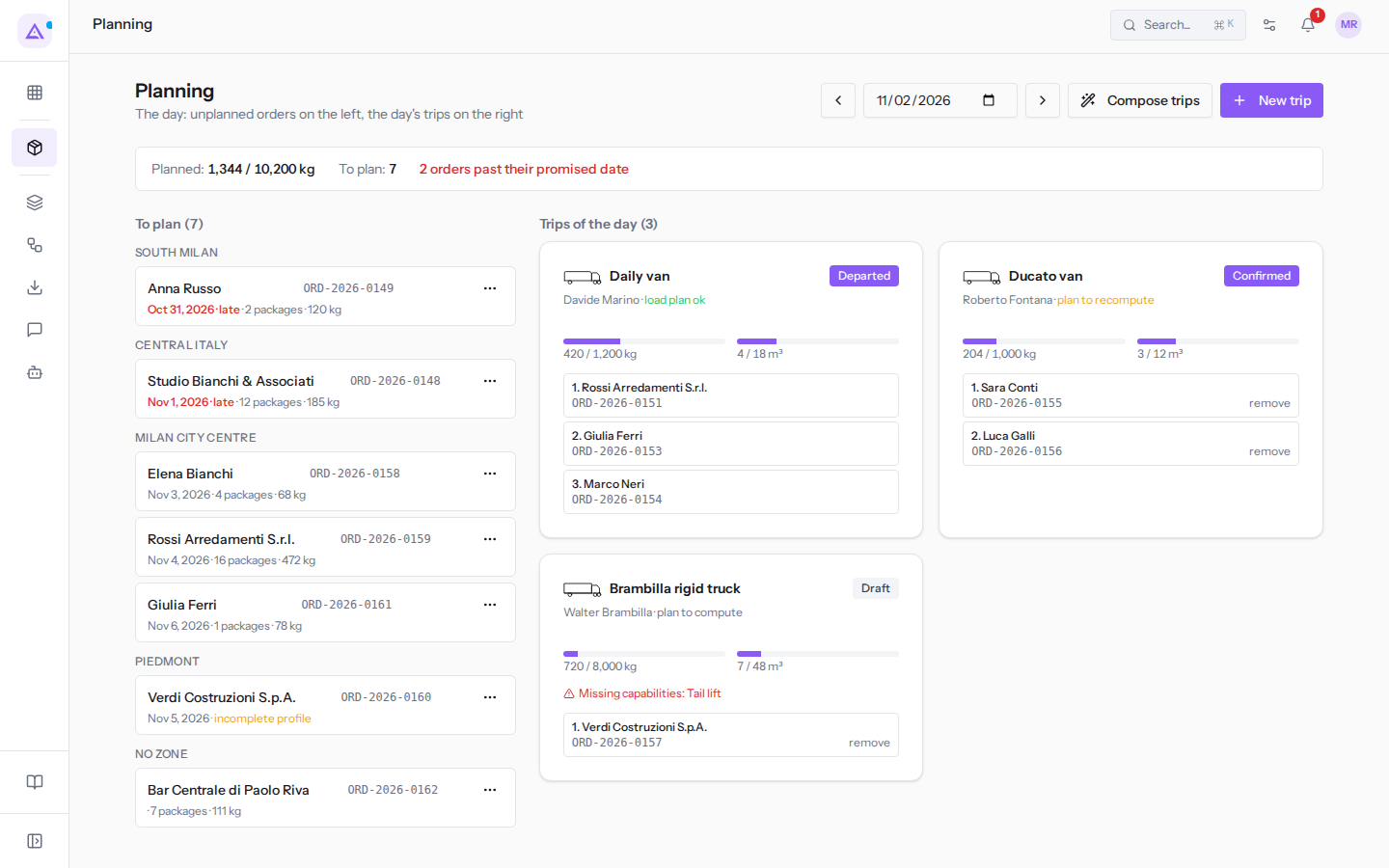
The To plan column does not depend on the day: it always shows all orders waiting for a trip, from the most urgent. The day changes the trips column and the late count: moving to tomorrow, Trips of the day is empty and the orders to plan remain 7.
Note: on mobile the top controls (the day selector, Compose trips and New trip) do not appear: the page stays on today and is used to assign orders to already-created trips, using the order's ⋯ menu. Create and compose trips from a computer.
Reading the top bar
The bar below the title summarises the chosen day.
- Planned: the weight already loaded on the day's trips relative to the capacity of all Active vehicles; today "1,344 / 10,200 kg". The second number does not count vehicles under maintenance or not active, such as the Eurocargo truck. If the first approaches the second, the fleet for that day is almost full: move some deliveries to another day.
- To plan: how many orders are still waiting for a trip.
- "2 orders past their promised date": appears in red only if there are late orders. An order is late when its promised date is before the chosen day. Plan these orders first.
Orders to plan
Each waiting order is a card in the left column, under the name of its zone. Orders without a zone are in the No zone group.
Each card shows:
- the customer and the order reference;
- the promised date, in red with "late" if it is before the chosen day, such as "Oct 31, 2026 · late" for Anna Russo;
- the estimated packages and weight, such as "2 packages · 120 kg";
- instead of the estimate, "incomplete profile" if at least one line of the order does not have a complete logistic profile or is not linked to a product, such as for Verdi Costruzioni S.p.A. (
ORD-2026-0160). The order can still be assigned, but those lines do not appear in the trip bars or in the load plan: if you can, fix the product first, as explained in An order record: load, packages and delivery.
Adding an order to a trip
An order can only be assigned to a trip in Draft or Confirmed. A Departed trip does not accept further orders.
You need at least one trip on the chosen day: if there is none, create one with New trip or Compose trips, as explained in Creating trips manually or having them composed.
On a computer drag the order card onto the trip card. On mobile, or if you prefer not to drag, use the menu:
- In the order card click the ⋯ icon.
- Choose the trip: Assign to Ducato van or Assign to Brambilla rigid truck. The menu lists only the day's trips in Draft or Confirmed: the Daily van, already departed, does not appear. If no trip accepts orders, the menu says "No draft or confirmed trip today".
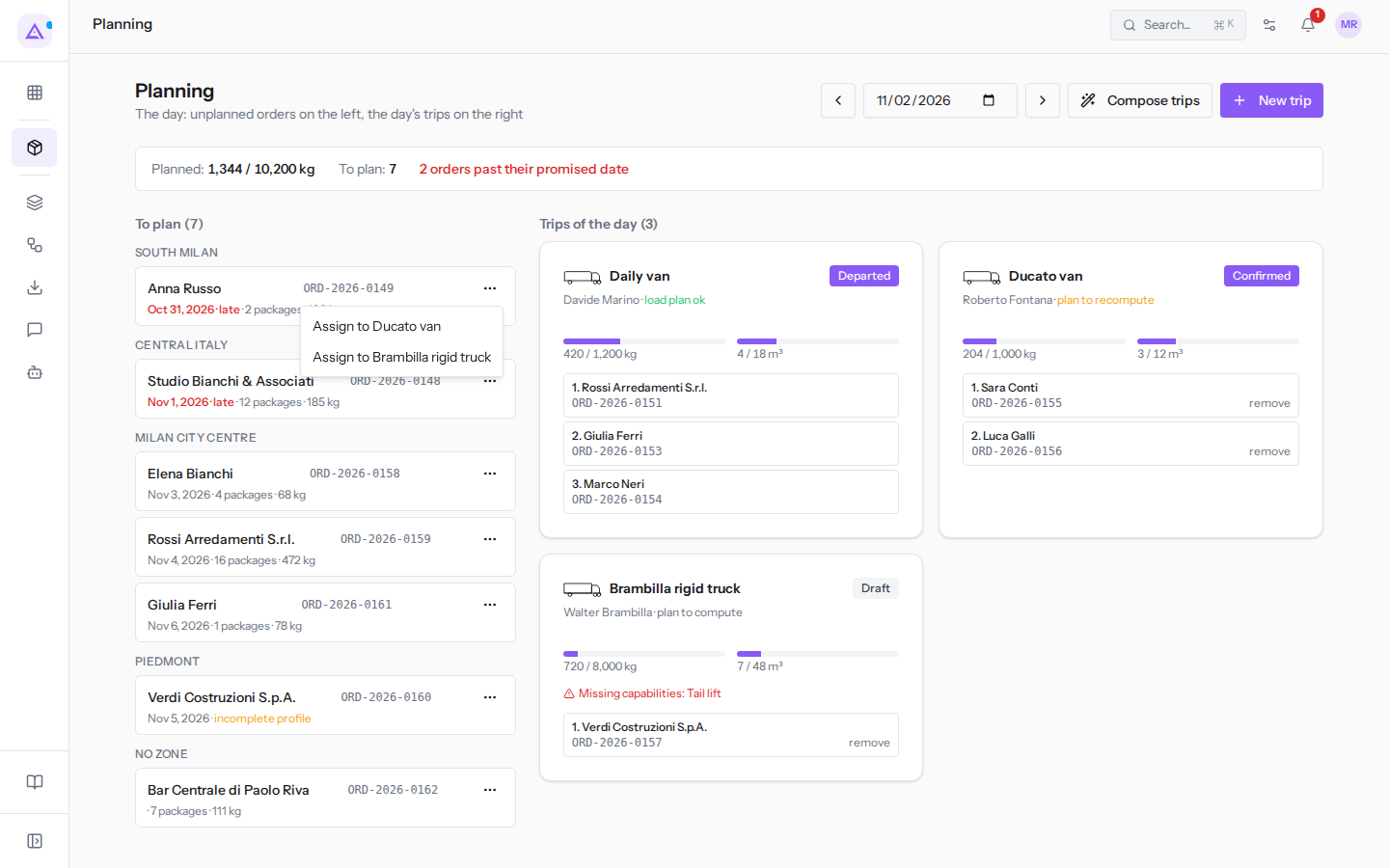
After assignment the order becomes Planned, leaves the To plan column and appears among the trip's stops. Orders from the same customer at the same address end up in the same stop; a new stop goes at the end of the round, and the unloading order is changed from the trip record. If the trip already had a load plan, the indicator changes to "plan to recompute".
Removing an order from a trip
An order can only be removed from a trip in Draft or Confirmed.
Remove an order when it is no longer going with that vehicle, for example because the customer has rescheduled the delivery. In the trip record click remove next to the order reference: the order returns to To plan and reappears in the left column; if the stop is left empty, it is deleted.
After removing an order recalculate the load plan from the trip even if the indicator still says "load plan ok".
Reading a trip card
Each day's trip is a card in the right column. Click the vehicle name to open the trip.
- Vehicle name and trip status: Draft, Confirmed, Departed or Closed. Cancelled trips do not appear.
- Driver and cost: the driver's name, or "Driver to assign", and the trip cost, if it has been entered.
- Load plan indicator:
- load plan ok: the plan is calculated and up to date.
- plan to recompute: the trip or its orders have changed since calculation, for example an order has been added. Open the trip and recalculate the plan.
- plan to compute: the plan has never been calculated.
- Weight and volume bars: the load in kg and m³ relative to the vehicle's capacity and cargo space. The bar turns yellow above 90% and red when the load exceeds the vehicle. If the vehicle has no capacity or cargo space measurements, only the value appears without a bar.
- Warnings, which do not block the trip but must be read before confirming it:
- "Missing capabilities: Tail lift": a product on the trip requires a capability that the vehicle does not have.
- "Driver already on another trip the same day".
- "2 lines with incomplete logistic profile", with the number of lines: lines without packages, which remain outside the bars and the load plan.
- Stops: in unloading order, with the customer name and order references. A trip with no stops shows "Drag an order here".
The load plan is explained in The load plan, the rest of the trip in A trip from draft to closure.
Today's three trips
Today's three trips show the main cases.
- Daily van: departed with Davide Marino, with load plan ok. It does not accept further orders and does not show remove.
- Ducato van: confirmed with Roberto Fontana, with plan to recompute because an order has changed since calculation. Open the trip and recalculate the plan before departure.
- Brambilla rigid truck: in draft for Verdi Costruzioni S.p.A. in Turin, with plan to compute and the warning
Missing capabilities: Tail lift, required by the metal cabinets, which travel upright. Before confirming resolve the warning: change the vehicle to one that has a Tail lift, or agree with the carrier on how to unload the cabinets in Turin.
See it on your company, not on a slide deck.
In 30 minutes we map the software you use today.We show you how much work and how much margin Archimedes gives back.
Show me on my business →What industry are you in?
One tap — it lets us prepare the demo around your world.
What tools do you use today?
Pick the ones you recognise — or just type them. It helps us show you how they migrate.
Last step: your details.
We reply within one working day — and right after, if you like, you pick the demo slot yourself.
We couldn't send your request. Try again, or write to us at [email protected].
By sending, you agree to your data being processed so we can get back to you about the demo. Privacy notice.
Preview form — nothing is sent from this page.
Want to schedule the demo now?
Your call: book the slot you prefer yourself, or we'll call you to arrange it.
Live availability, 30 minutes, instant confirmation. The calendar opens in a new tab.
Lock in your slot ↗We'll get back to you within one working day — and we'll join the call already knowing your world.
The calendar is open in another tab: pick a slot and the demo is booked. Can't see it? Reopen it ↗
Preview page: nothing was sent.
Our calendar is live: take the slot that suits you and the demo is booked. 30 minutes, instant confirmation, no waiting.
Lock in your slot ↗