Transport
All modules
Delivery zones
Transport · 4 of 18 · 4 min read
A delivery zone is a catchment area where deliveries are made, for example Milan city centre, North Milan and Monza, South Milan, Piedmont or Central Italy. Zones are used to group orders when composing trips and to split transport costs in reports.
What zones are for
Every transport order has a destination and, usually, a zone. Three things depend on this zone:
- Planning: To plan orders are grouped by zone, so you can see at a glance what goes on the same route. Orders without a zone are listed separately, under No zone.
- Automatic trip composition: Compose trips groups orders to be planned by zone and distributes them across available vehicles, taking into account capability, load capacity and volume. Orders from different zones do not end up on the same trip.
- Cost reports: the cost and km of a trip are split equally among its stops. Each stop's share is attributed to the customer and the zone of that stop. This is how the report shows cost By zone.
Create a few zones, each equivalent to a route a vehicle covers in a day. Automatic composition works zone by zone: zones that are too small fragment trips, zones that are too large combine distant destinations. Each zone occupies at least one vehicle: if the zones with orders outnumber the available vehicles, the extra orders remain among Not planned.
- If you often deliver in the city centre with a van, use a dedicated zone, such as
Milan city centre. - If you rarely deliver to a distant region, group those destinations into a single zone, such as
Central Italy.
The list of zones
Zones are managed in the Zones tab of Transport › Settings. The Transport User group can also create and edit them; only Transport Manager can delete them.
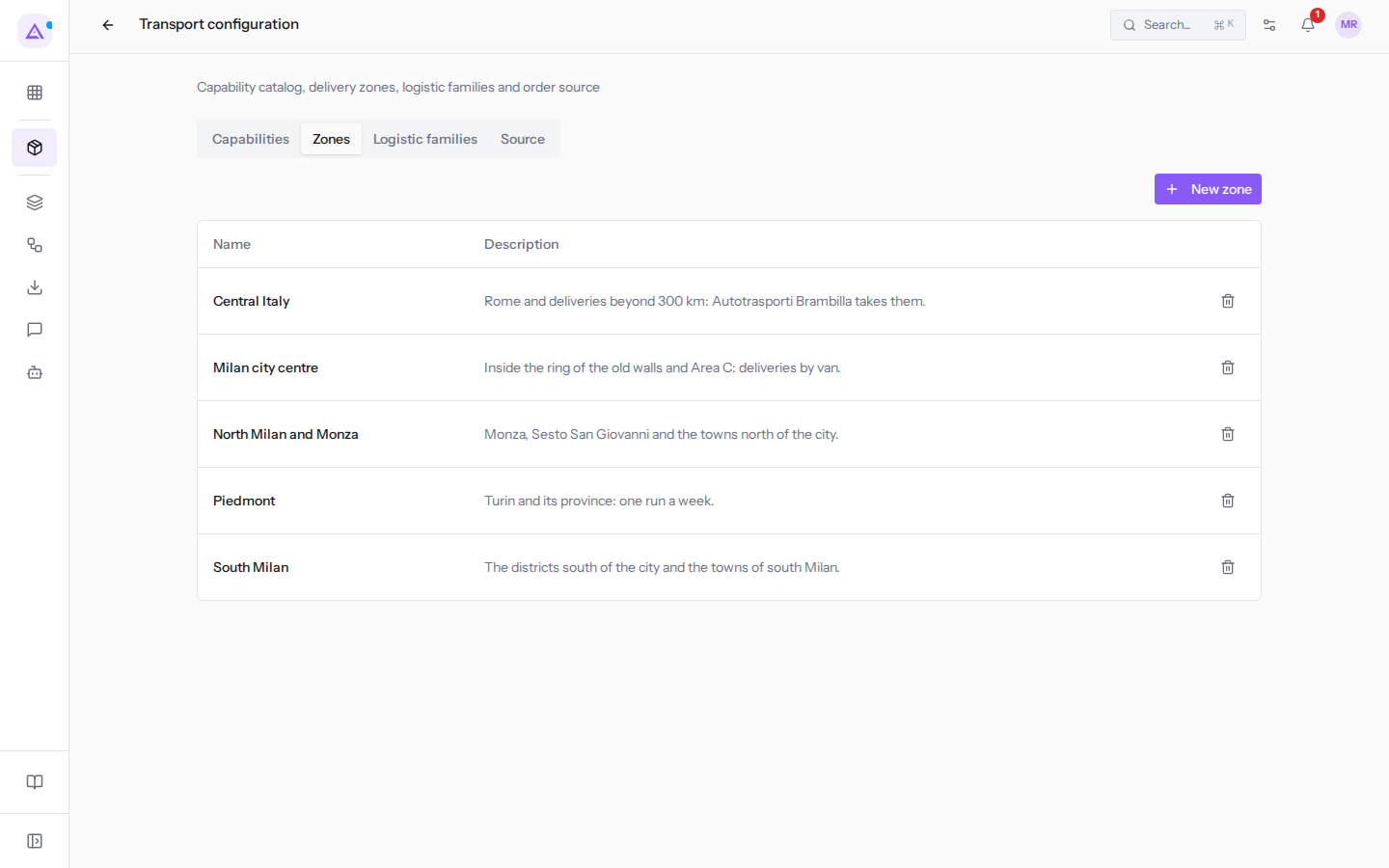
The list shows the Name and Description of each zone. The description is for planners: write the catchment boundaries or the vehicle assigned there, as for Central Italy: "Rome and deliveries beyond 300 km: Autotrasporti Brambilla takes them."
Creating a zone
Create a zone for each delivery catchment area.
- In Transport › Settings, open the Zones tab.
- Click New zone.
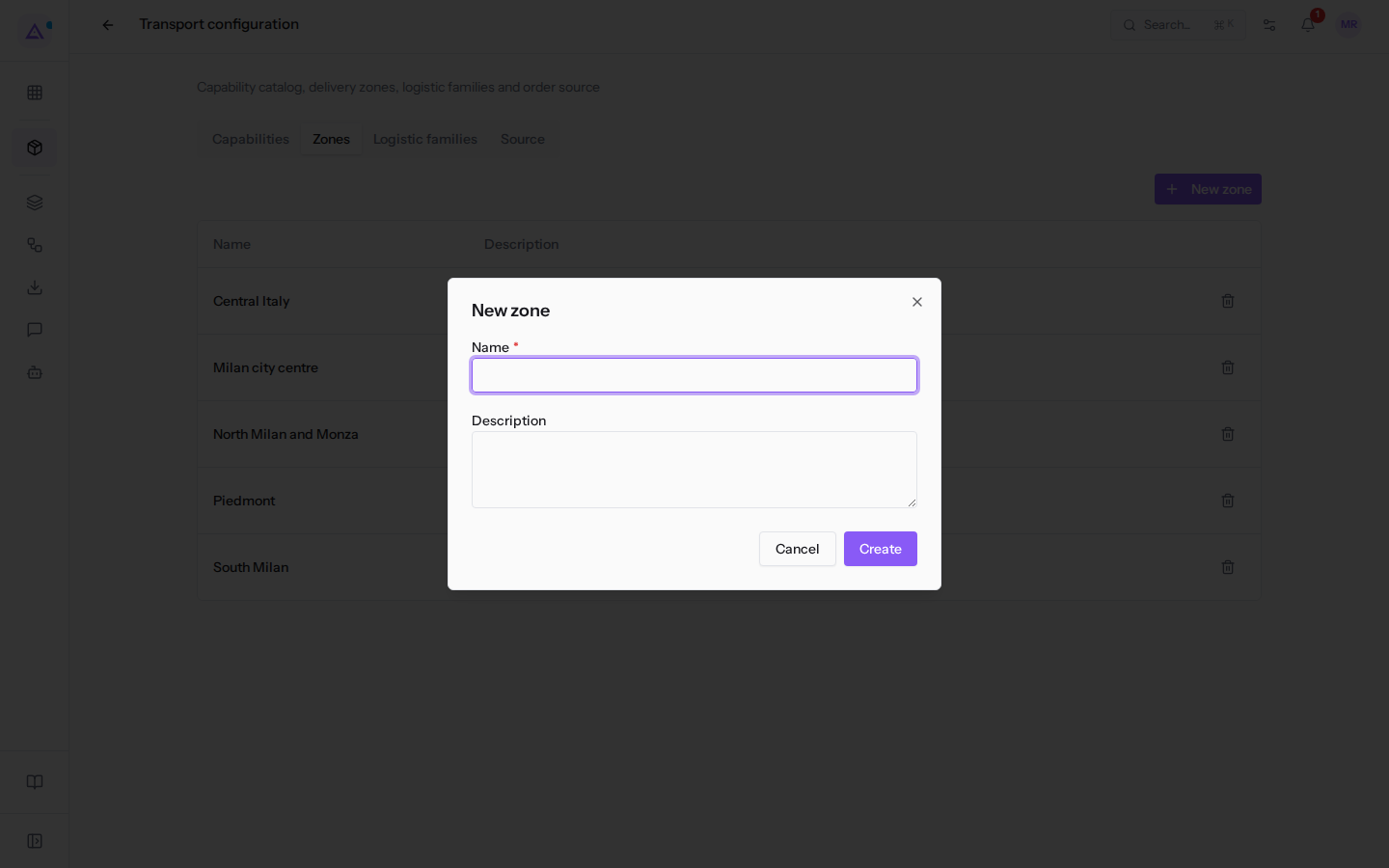
- Fill in the fields and click Create.
The window fields:
- Name: the name of the zone, for example
South Milan. This field is required. - Description: a free-form note about the catchment area. This field is optional.
Renaming or editing a zone
You can change the name and description of an existing zone.
Important: the order system identifies the zone by its name. If you rename a zone, orders that still arrive with the old name will come in without a zone. Before renaming, have the name changed in the system that sends orders too.
- In the Zones tab, click the zone's row, for example
Milan city centre. - The Edit window opens with the Name and Description fields.
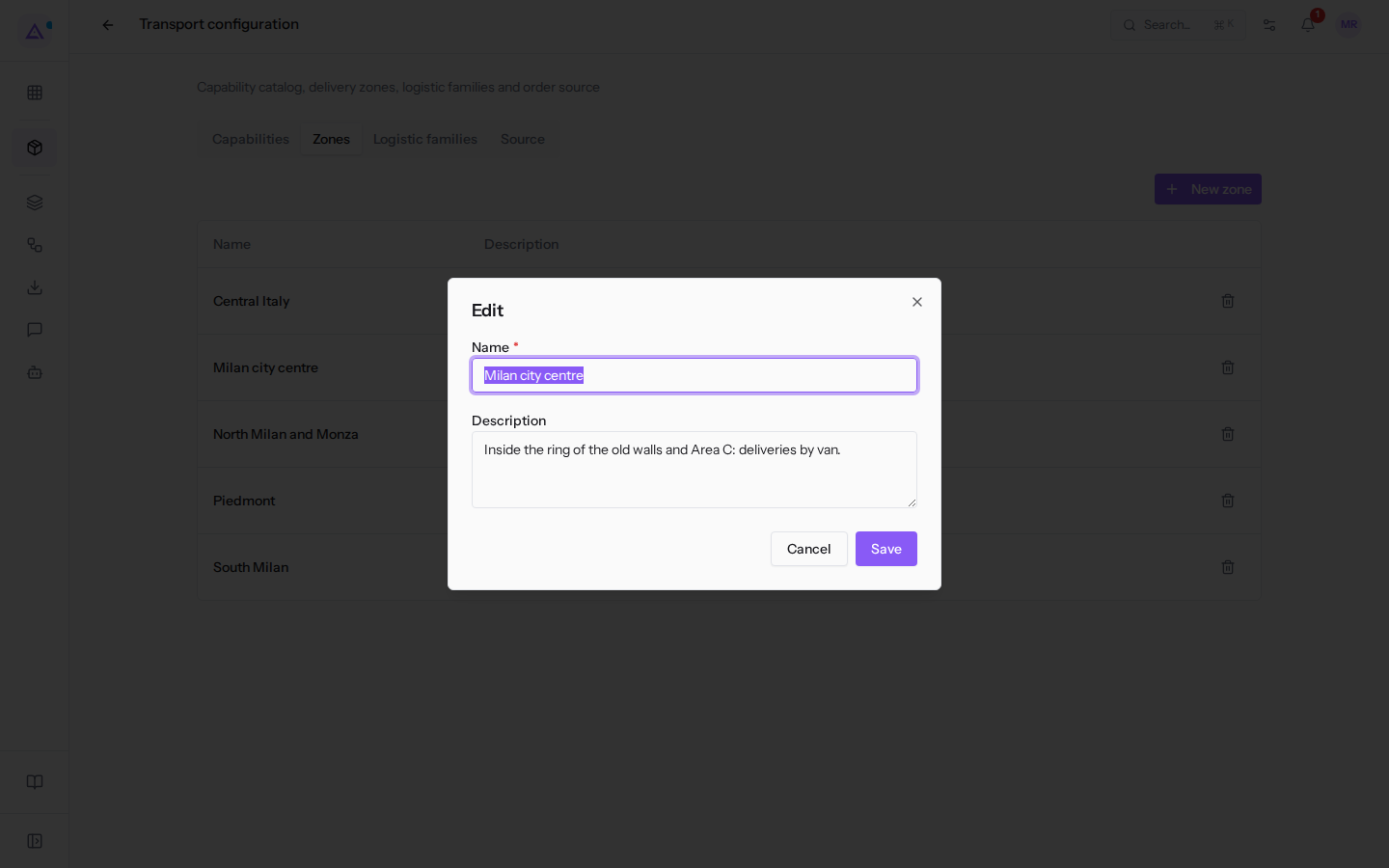
- Edit the fields and click Save.
Deleting a zone
Delete a zone you no longer use.
- In the Zones tab, click the bin icon on the zone's row.
- Confirm the Delete this zone? prompt.
Orders from the deleted zone, including those already on trips, remain without a zone: in Planning they appear under No zone and in the By zone report their share ends up under "—". Only the Transport Manager group can delete a zone.
How a zone reaches an order
Transport orders are not created manually and the zone cannot be changed from the order's tab: it is sent by the order system.
- With the External API (third-party ERP) source, the management system sends the zone name. Archimedes compares it with the names in the Zones tab, ignoring case. If the name does not match any zone, the order arrives without a zone: Archimedes does not create new zones on its own.
- With the Internal Sales module source, orders always arrive without a zone.
An order without a zone is planned like any other, but appears separately under No zone. This is the case with ORD-2026-0162 from Bar Centrale di Paolo Riva in Monza: place it manually on the trip heading in that direction, for example the one for North Milan and Monza.
See it on your company, not on a slide deck.
In 30 minutes we map the software you use today.We show you how much work and how much margin Archimedes gives back.
Show me on my business →What industry are you in?
One tap — it lets us prepare the demo around your world.
What tools do you use today?
Pick the ones you recognise — or just type them. It helps us show you how they migrate.
Last step: your details.
We reply within one working day — and right after, if you like, you pick the demo slot yourself.
We couldn't send your request. Try again, or write to us at [email protected].
By sending, you agree to your data being processed so we can get back to you about the demo. Privacy notice.
Preview form — nothing is sent from this page.
Want to schedule the demo now?
Your call: book the slot you prefer yourself, or we'll call you to arrange it.
Live availability, 30 minutes, instant confirmation. The calendar opens in a new tab.
Lock in your slot ↗We'll get back to you within one working day — and we'll join the call already knowing your world.
The calendar is open in another tab: pick a slot and the demo is booked. Can't see it? Reopen it ↗
Preview page: nothing was sent.
Our calendar is live: take the slot that suits you and the demo is booked. 30 minutes, instant confirmation, no waiting.
Lock in your slot ↗