Employees
All modules
Approve your team's requests
Employees · 15 of 20 · 4 min read
The My team page collects requests from the people who report to you and tells you who is absent. From here you approve or refuse absence requests, for example the leave of someone on your team.
The Team availability page shows the week declared by your team members in a single grid.
Who sees the My team page
The page depends on the org chart, not on a permission. You see it if you are listed as the manager on at least one employee's record.
- If someone reports to you, the page shows how many people report to you, for example
7 people report to youfor Mario Rossi in the example. - If nobody reports to you, the page shows Nobody reports to you.
Note: the people who report to you are those who have you as their manager and, in turn, those who report to them. For Mario Rossi that is 7: 4 direct reports and 3 through Giulia Verdi.
Opening My team
You get there from your personal area.
- Open the user menu and choose My area.
- Under the title, click My team.
At the top, the page shows the description What the people who report to you are waiting on, and who is off.
Approve or refuse a request
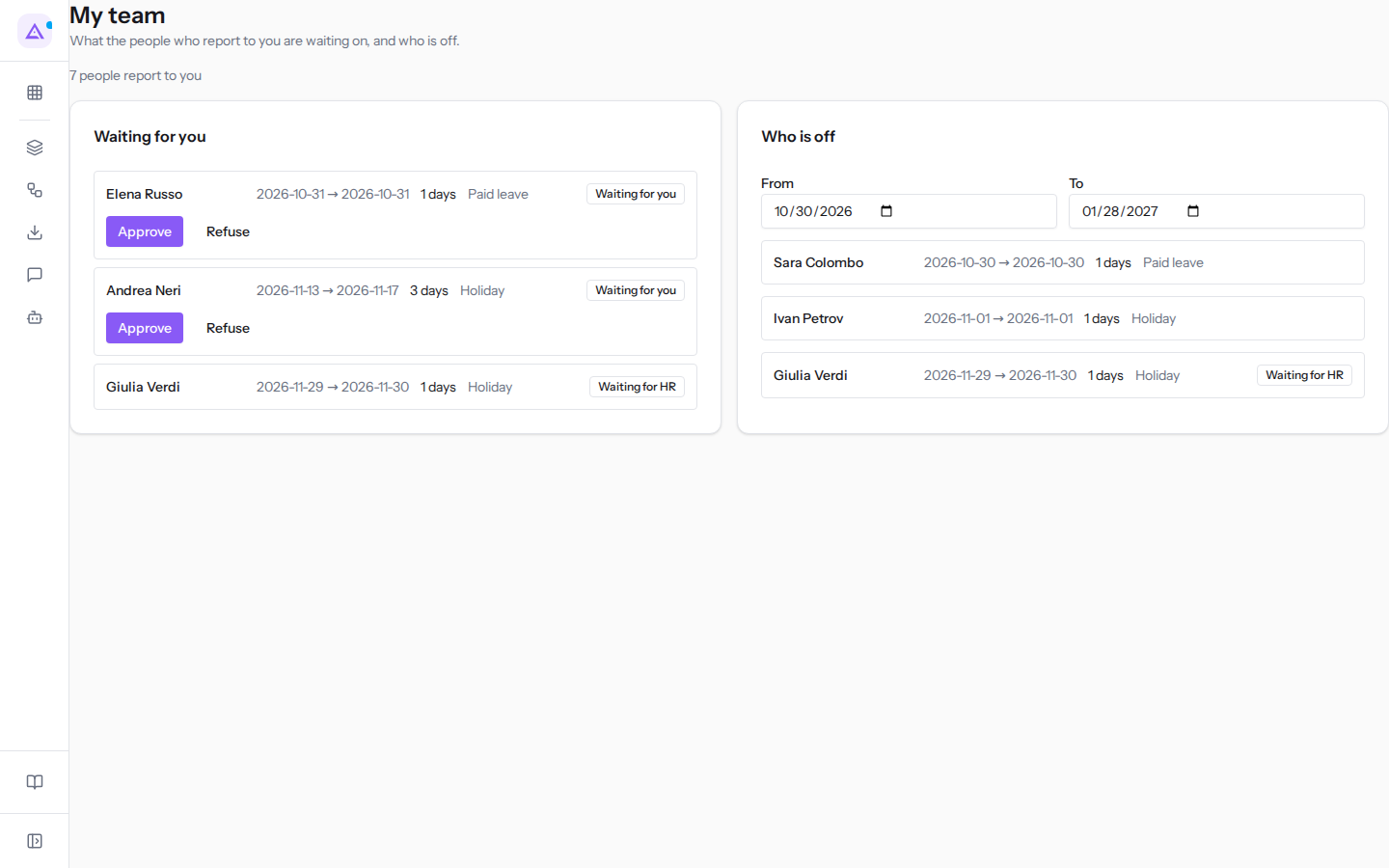
The Waiting for you section lists your team's absence requests. For each request you see the employee, the period, the number of days, and the type of absence. For example: Andrea Neri, from 2026-11-11 to 2026-11-15, 3 days, Holiday.
Each request has a marker that says who must decide:
- Waiting for you: the request is waiting for your decision.
- Waiting for HR: the request is waiting for the decision of the person who manages staff.
To decide on a request:
- In the Waiting for you section, find the request marked Waiting for you.
- Click Approve to accept it, or Refuse to reject it.
The buttons appear only on requests that you can decide. Requests marked Waiting for HR do not have them.
If there is nothing to decide, the section shows Nothing is waiting for your approval.
See who is absent
The Who is off section lists the absences of your team members over a period.
- In the Who is off section, set the period dates.
- Read the absences for the period in the list.
The section's fields:
- From: the first day of the period. When opened, it defaults to today's date.
- To: the last day of the period. When opened, it defaults to 90 days from today, for example
2027-01-26if today is2026-10-28.
If nobody is absent in the period, the section shows Nobody on your team is off in this period.
View team availability
The Team availability page shows the week declared by your team, converted to a single time zone. This way you can read it as a single overview.
Note: the page has no menu entry. Open it from its address,
/hr/team-availability.
- Open the address
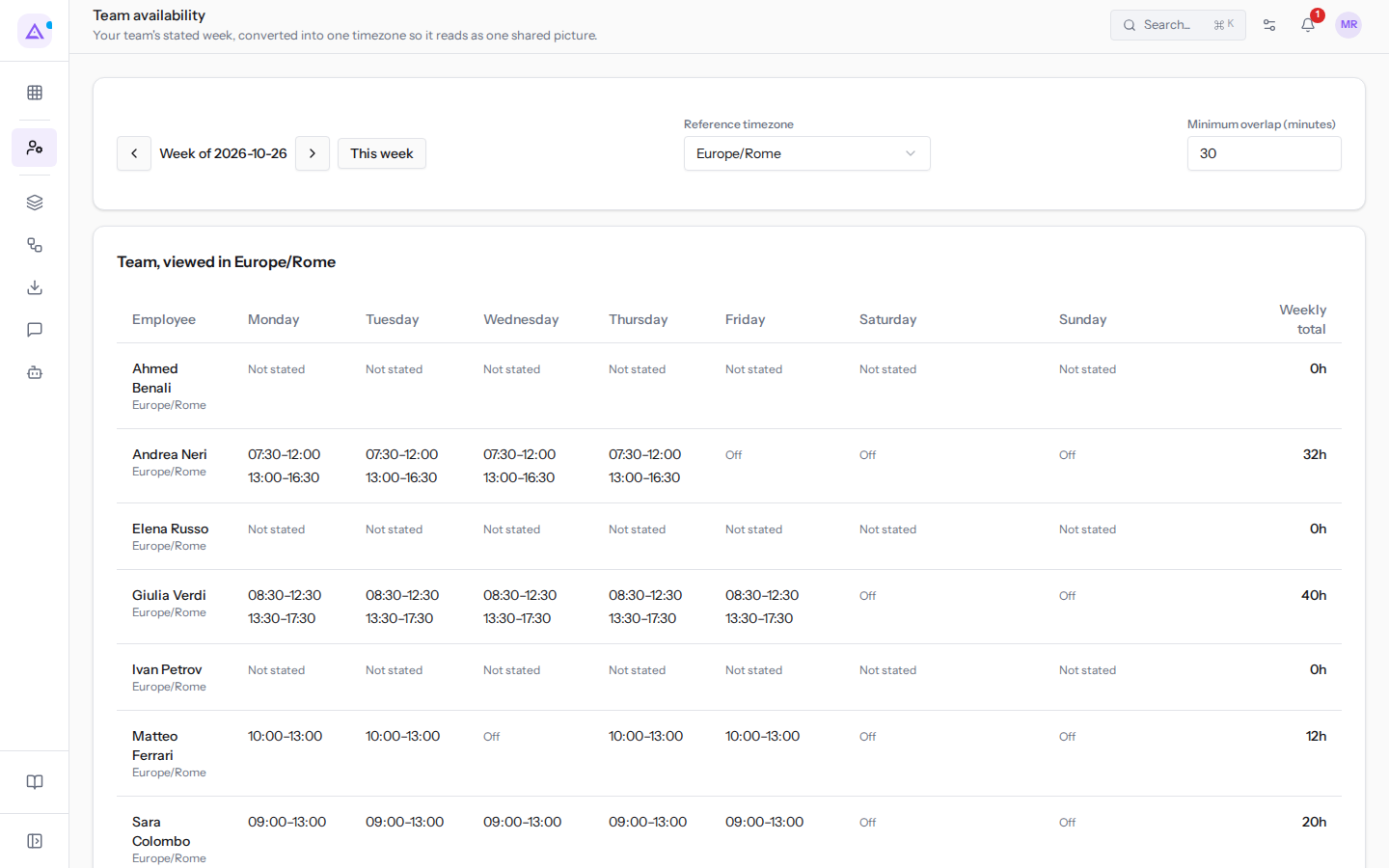
/hr/team-availability. The page starts on the current week, for exampleWeek of 2026-10-26. - To change the week, click the arrows on either side of Week of (Previous week and Next week). To return to the current week, click This week.
- Choose the Reference timezone and set the Minimum overlap (minutes).
The page's fields:
- Reference timezone: the time zone in which the hours of the entire team are displayed. In the example this is
Europe/Rome. - Minimum overlap (minutes): the minimum duration, in minutes, that a common time window must have to appear in the overlap row.
Reading the grid
The grid's title is Team, viewed in followed by the chosen time zone, for example Europe/Rome. The grid has one row for each team member and one column for each day of the week.
- Day columns: the hours the person has declared for that day, in the reference time zone.
- Weekly total: the total hours declared for the week.
- Not stated: the person has not declared their availability for that day.
- Off: for that person, that day is not a working day.
Below the team members, the Team overlap row shows the time windows when the team is available together. If no window lasts at least as long as the minimum overlap, the row shows No window reaches the minimum overlap.
See it on your company, not on a slide deck.
In 30 minutes we map the software you use today.We show you how much work and how much margin Archimedes gives back.
Show me on my business →What industry are you in?
One tap — it lets us prepare the demo around your world.
What tools do you use today?
Pick the ones you recognise — or just type them. It helps us show you how they migrate.
Last step: your details.
We reply within one working day — and right after, if you like, you pick the demo slot yourself.
We couldn't send your request. Try again, or write to us at [email protected].
By sending, you agree to your data being processed so we can get back to you about the demo. Privacy notice.
Preview form — nothing is sent from this page.
Want to schedule the demo now?
Your call: book the slot you prefer yourself, or we'll call you to arrange it.
Live availability, 30 minutes, instant confirmation. The calendar opens in a new tab.
Lock in your slot ↗We'll get back to you within one working day — and we'll join the call already knowing your world.
The calendar is open in another tab: pick a slot and the demo is booked. Can't see it? Reopen it ↗
Preview page: nothing was sent.
Our calendar is live: take the slot that suits you and the demo is booked. 30 minutes, instant confirmation, no waiting.
Lock in your slot ↗