Employees
All modules
Managing employment contracts and deadlines
Employees · 6 of 20 · 6 min read
The Contracts page collects all employees' contracts: employment, collaborations and internships. From here you create a contract, activate it, track its expiration, and then renew, close, or cancel it. For example, a fixed-term contract, a collaboration with a VAT number, or an extracurricular internship.
Before you start: the Contracts item only appears to members of the HR Manager group.
Contract lifecycle
A contract starts as a draft. You activate it when it comes into effect and at the end you close, renew, or cancel it.
- If the contract is still to be signed or completed, leave it as Draft.
- If the contract is in effect, use Activate.
- If the relationship continues after expiration, use Renew on the active or closed contract. A new draft contract is created, which you then complete and activate.
- If the relationship ends, use Close.
- If the contract should not have existed, cancel it with the prohibition icon in the row.
A contract's statuses are Draft, Open, Close and Cancel.
Viewing contracts and deadlines
The list shows each contract with its main data and flags those that are about to expire.
- Open Employees › Contracts.
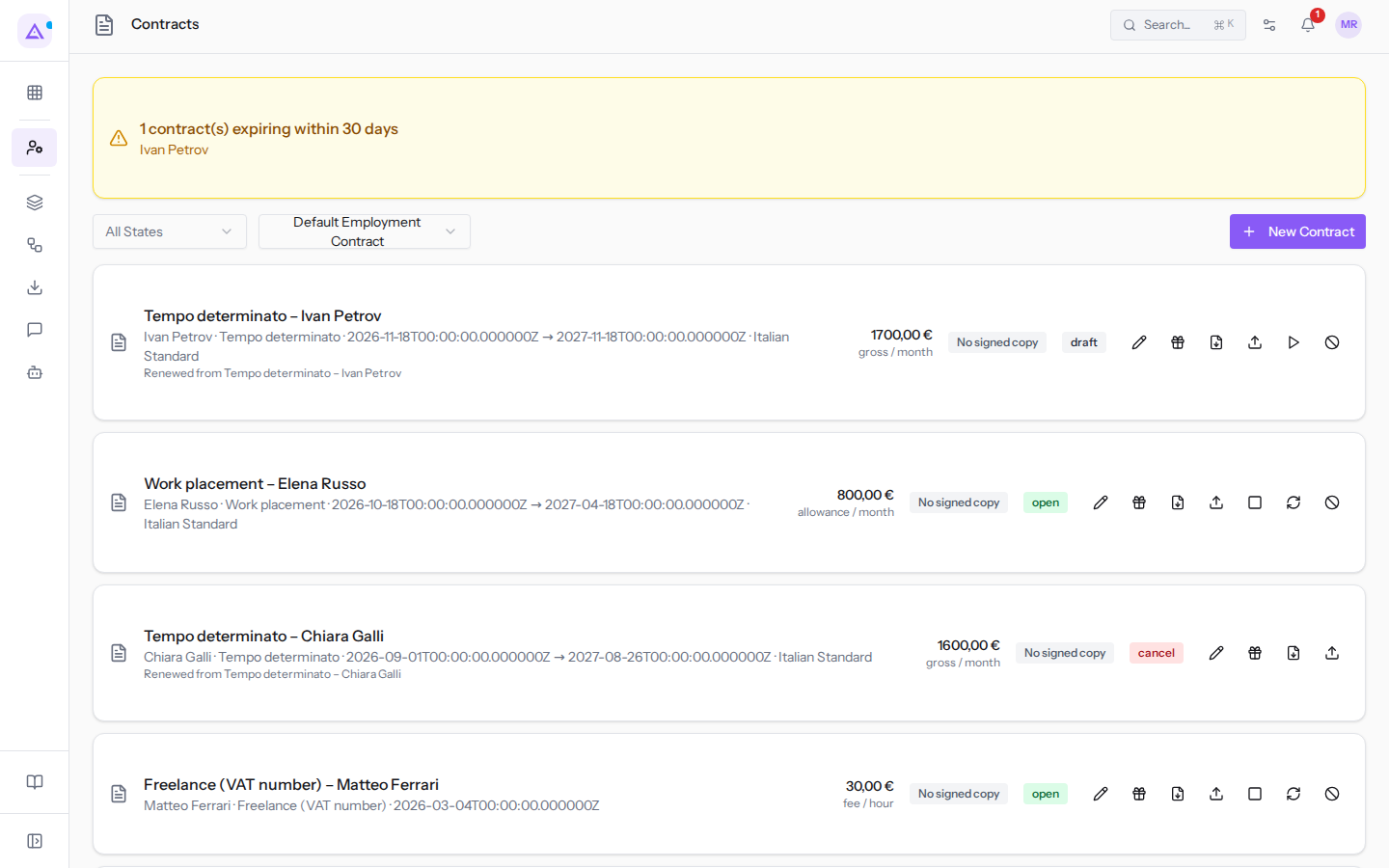
- At the top, read the alert for contracts expiring within 30 days, with the employees' names. For example
1 contract(s) expiring within 30 dayswith Ivan Petrov's name. - To narrow the list, choose a status in the All States filter.
The filter options:
- All States: all contracts.
- Draft, Open, Close, Cancel: contracts in that status.
- Expiring: contracts near expiration, for example
Tempo determinato – Ivan Petrov.
Each row shows:
- the contract name, the employee and the contract type, for example Ivan Petrov with type Tempo determinato;
- the contract dates and, if specified, the trial period end date;
- for contracts created from a renewal, the name of the linked contract;
- the amount, with the period: gross / month or gross / hour for employees, fee / month or fee / hour for contractors, allowance / month for interns;
- Signed copy if the signed copy has been uploaded, otherwise No signed copy;
- the contract status.
Creating a contract
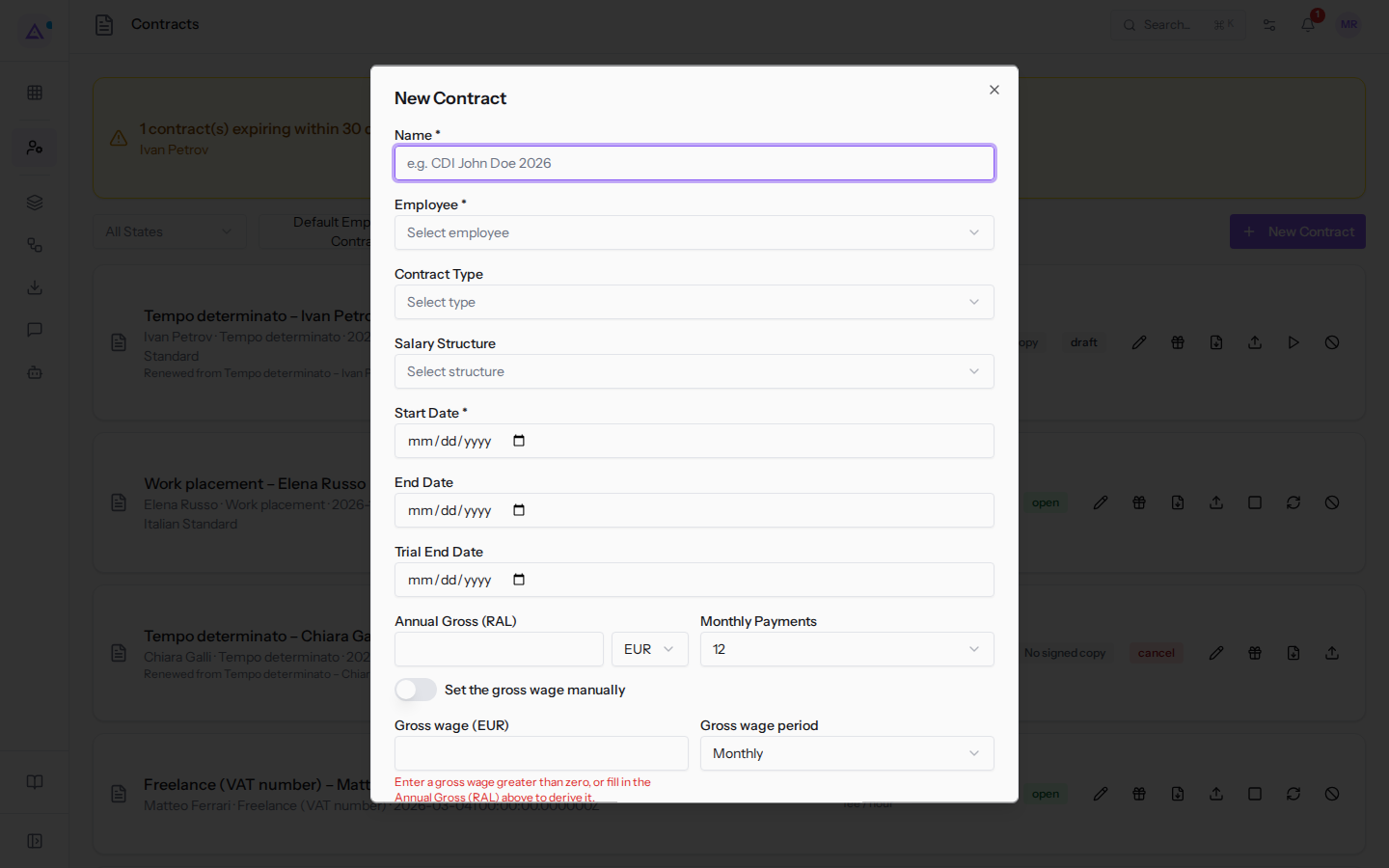
A new contract is always created as a draft. The dialog fields change depending on the contract type selected.
- Open Employees › Contracts and click New Contract.
- Fill in the common fields and those for the contract type, described below.
- Click Create. To exit without saving, click Cancel.
The fields common to all types:
- Name: the contract name, for example
Tempo determinato – Ivan Petrov. The field is required. - Employee: the person the contract refers to. The field is required.
- Contract Type: determines which pay fields appear. In the example the options are:
- Tempo indeterminato, Tempo determinato, Apprendistato, Somministrazione, Lavoro intermittente;
- Freelance (VAT number), Collaborazione coordinata e continuativa;
- Work placement.
- Salary Structure: the structure used for payroll calculation. Appears for employment contracts.
- Start Date: the first day of the contract. The field is required.
- End Date: the last day of the contract. For some types it is required, for example Tempo determinato and Work placement.
- Trial End Date: the date when the trial period ends. Appears for employment contracts.
- The currency is selected in the selector next to the amount (
EUR,USD,GBP,CHF).
Note: contract types are configured in Employees › HR options.
Employment contract
For employment contract types, such as Tempo indeterminato or Tempo determinato, the dialog asks for pay and classification.
- Annual Gross (RAL): the annual pay. From this the product calculates the monthly gross pay, dividing the RAL by the number of monthly payments.
- Monthly Payments:
12,13or14(14in Ivan Petrov's contract). - Set the gross wage manually: to enter the Gross wage directly instead of calculating it from the RAL.
- Gross wage period: Monthly or Hourly.
- CCNL: the collective agreement applied, for example
CCNL Turismo. - Level: the classification level, for example
Level 5. - Qualification: the qualification set by the contract.
- Weekly Hours: the weekly hours, for example
40.00. - Part-Time %: the percentage relative to full time, for example
50. Leave empty for full time.
Important: the contract can only be saved with a gross pay greater than zero. If you do not set it manually, fill in the RAL.
Contractor
With Freelance (VAT number) the dialog asks for the agreed fee instead of pay.
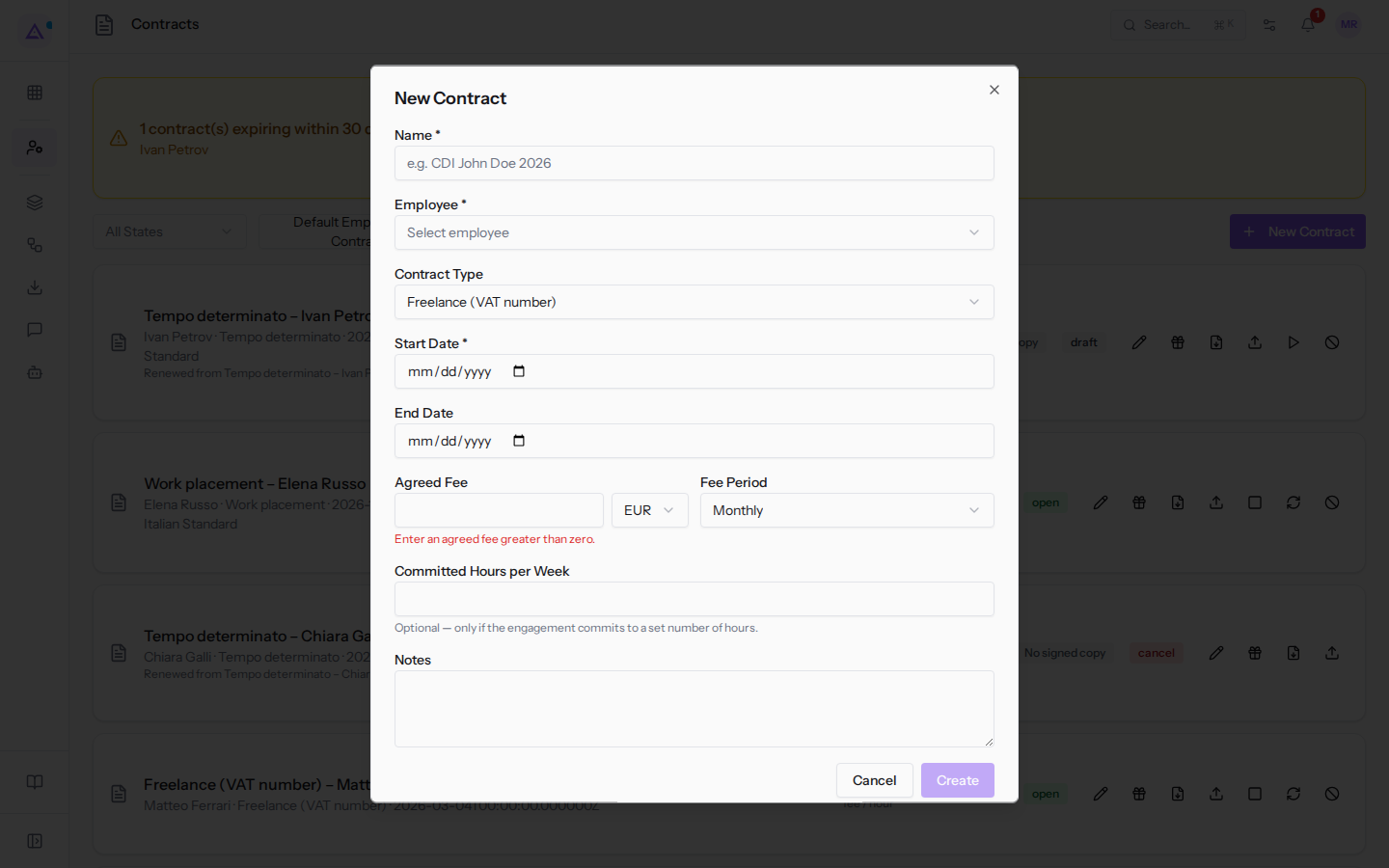
- Agreed Fee: the agreed amount. Must be greater than zero. For example, Matteo Ferrari has €30 per hour.
- Fee Period: Monthly or Hourly.
- Committed Hours per Week: the weekly hours agreed for the collaboration.
- Notes: notes on the contract.
Intern
With Work placement the dialog only asks for the allowance.
- Monthly Allowance: the monthly amount recognized for the intern.
- End Date: required.
- Notes: notes on the contract.
Editing a contract
You can correct a contract's data from its edit dialog.
- In the contract row, click Edit. Edit Contract opens with the same fields as New Contract.
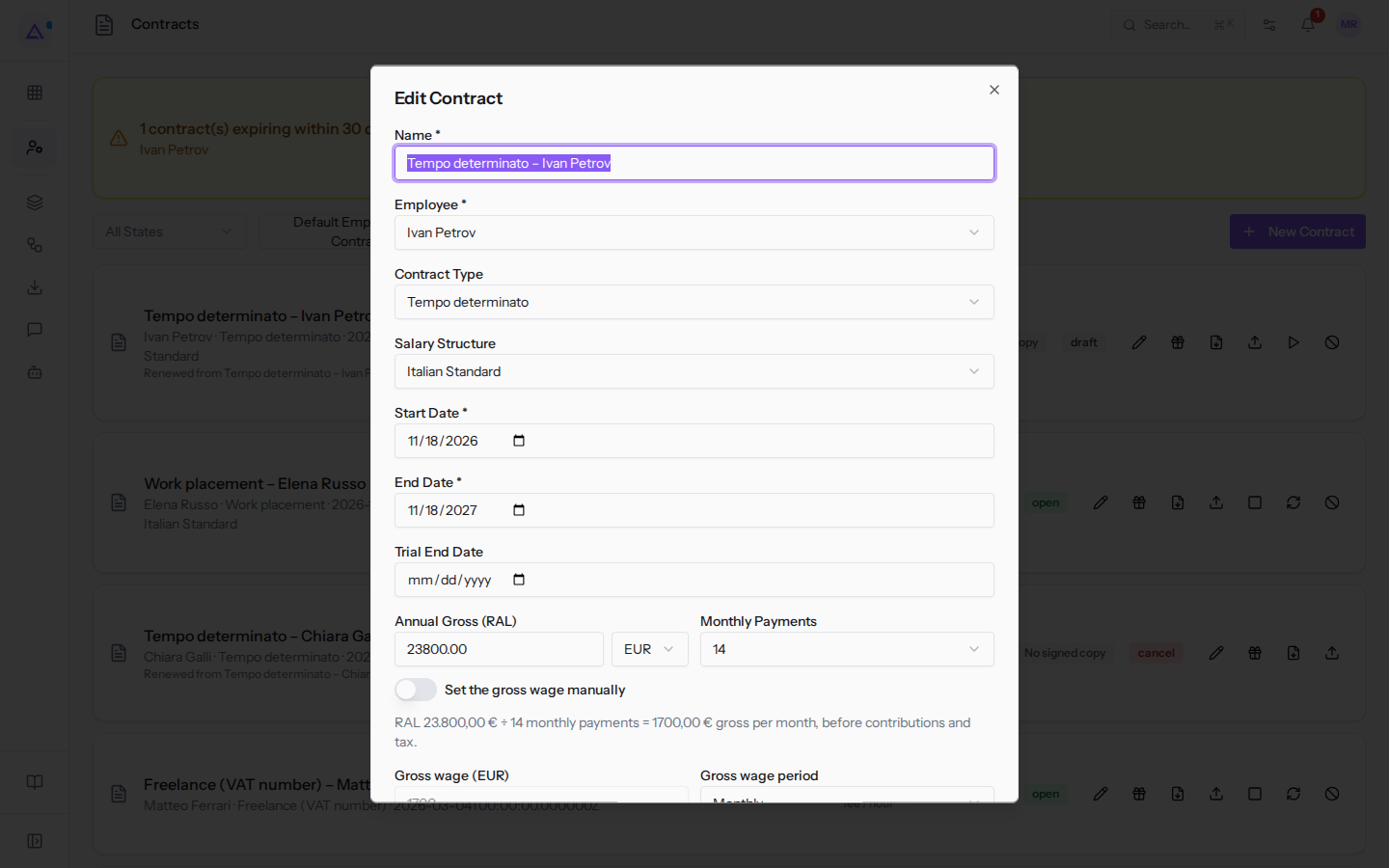
- Change the fields and click Save.
Important: after Close month in Employees › Payroll Handoff, changes to contracts that relate to a closed month are rejected until the month is reopened.
Adding benefits
Benefits are the additional items in the contract, with amount and quantity.
- In the contract row, click the benefits icon. The Benefits dialog opens.
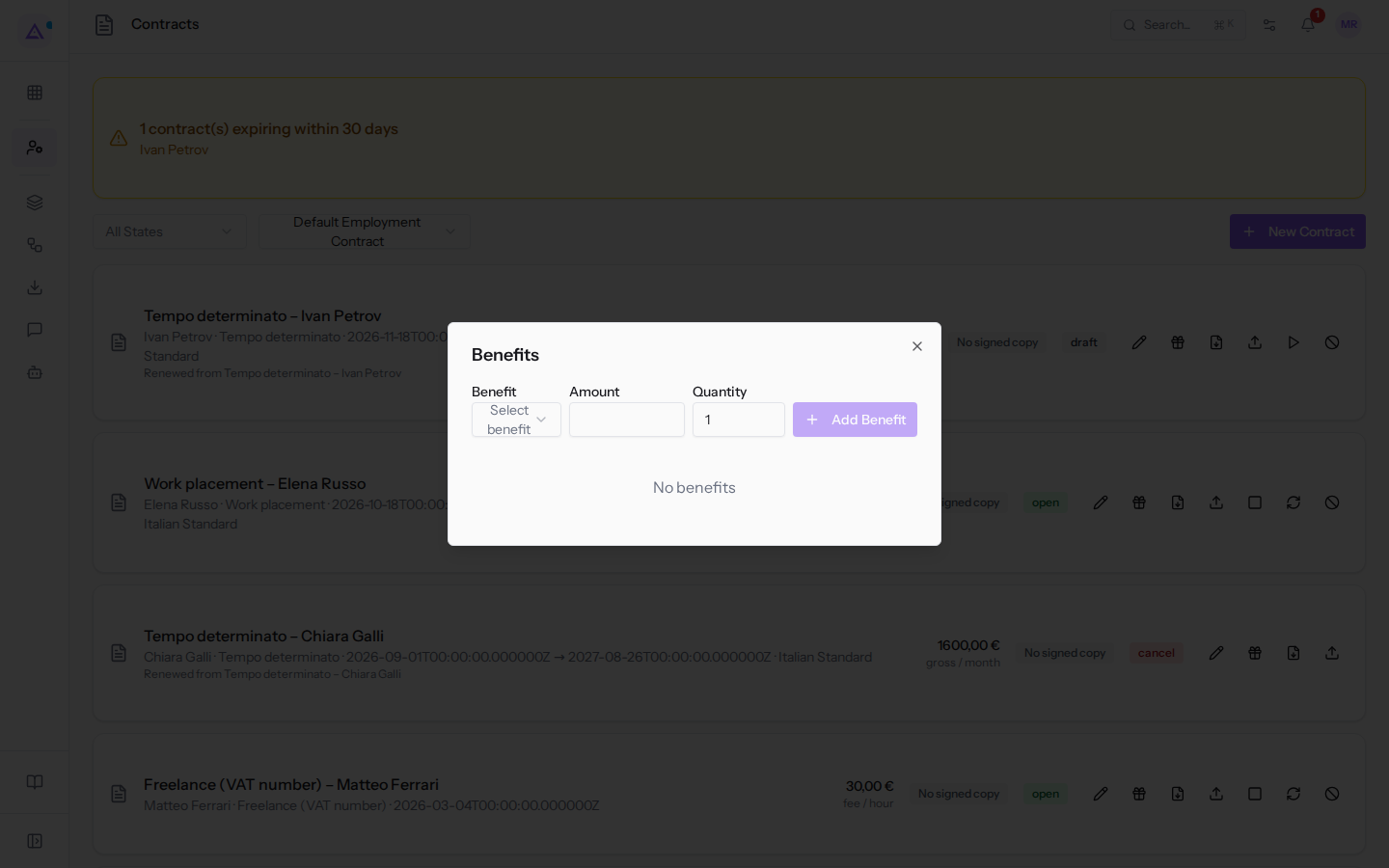
- Choose the benefit in the Benefit field.
- Enter the Amount and quantity, preset to
1. - Click Add Benefit, then close the dialog with the X at the top right.
If the contract has no benefits, the dialog shows No benefits.
Generating the PDF and archiving the signed copy
The contract PDF is generated from a template. The signed copy is uploaded to the contract.
- Choose the template in the selector next to the status filter.
- In the contract row, click the Generate PDF icon: the PDF is downloaded and the PDF generated message appears. If the contract already has a signed copy, that is downloaded instead.
- When the contract is signed, click the Upload signed copy icon in the row and choose the signed PDF.
- To reopen the archived copy, click Download signed copy.
Note: contract templates are managed in Employees › HR options.
Activating, closing, renewing, or cancelling a contract
The status buttons appear in the contract row according to its status.
- On a draft contract, click Activate to put it into effect.
- On an active contract, click Close to end it.
- On an active or closed contract, click the Renew icon. The Contract renewed message appears and a new draft contract is added to the list for the same employee, starting the day after the end of the previous one and with no end date.
- Complete the new contract with Edit, then click Activate.
- To cancel a contract, whether draft or active, click the prohibition icon in the row.
Tip: for an expiring contract, such as Ivan Petrov's, filter by Expiring and use Renew. The renewal stays as a draft until you activate it.
See it on your company, not on a slide deck.
In 30 minutes we map the software you use today.We show you how much work and how much margin Archimedes gives back.
Show me on my business →What industry are you in?
One tap — it lets us prepare the demo around your world.
What tools do you use today?
Pick the ones you recognise — or just type them. It helps us show you how they migrate.
Last step: your details.
We reply within one working day — and right after, if you like, you pick the demo slot yourself.
We couldn't send your request. Try again, or write to us at [email protected].
By sending, you agree to your data being processed so we can get back to you about the demo. Privacy notice.
Preview form — nothing is sent from this page.
Want to schedule the demo now?
Your call: book the slot you prefer yourself, or we'll call you to arrange it.
Live availability, 30 minutes, instant confirmation. The calendar opens in a new tab.
Lock in your slot ↗We'll get back to you within one working day — and we'll join the call already knowing your world.
The calendar is open in another tab: pick a slot and the demo is booked. Can't see it? Reopen it ↗
Preview page: nothing was sent.
Our calendar is live: take the slot that suits you and the demo is booked. 30 minutes, instant confirmation, no waiting.
Lock in your slot ↗