Employees
All modules
Check team attendance and the monthly timesheet
Employees · 12 of 20 · 5 min read
The attendance register shows who was at work on a given day and for how long. The monthly timesheet brings together worked hours, absences, and leave for an employee in a month. Use them to verify hours before passing them to payroll, for example to check a missed clock-out or the hours of a part-time employee.
Both pages only read hours. Clock-ins and clock-outs are recorded in the Attendance module and can only be corrected there.
Before you start: worked hours come from the Attendance module. If the organization has not enabled it, the pages show the Attendance is not enabled notice instead of data. Employees who have a way to record their hours can clock in: an account with an allowed clock-in method, or a clocking station that recognizes them.
Team attendance roster
The register shows the day for all active employees in a single table. Choose the day in the Date field: it is set to today when you open it.
- Open Employees › Team Attendance Roster.
- Read the notice at the top: This page only reads hours. They are recorded in Attendance and can only be corrected there.
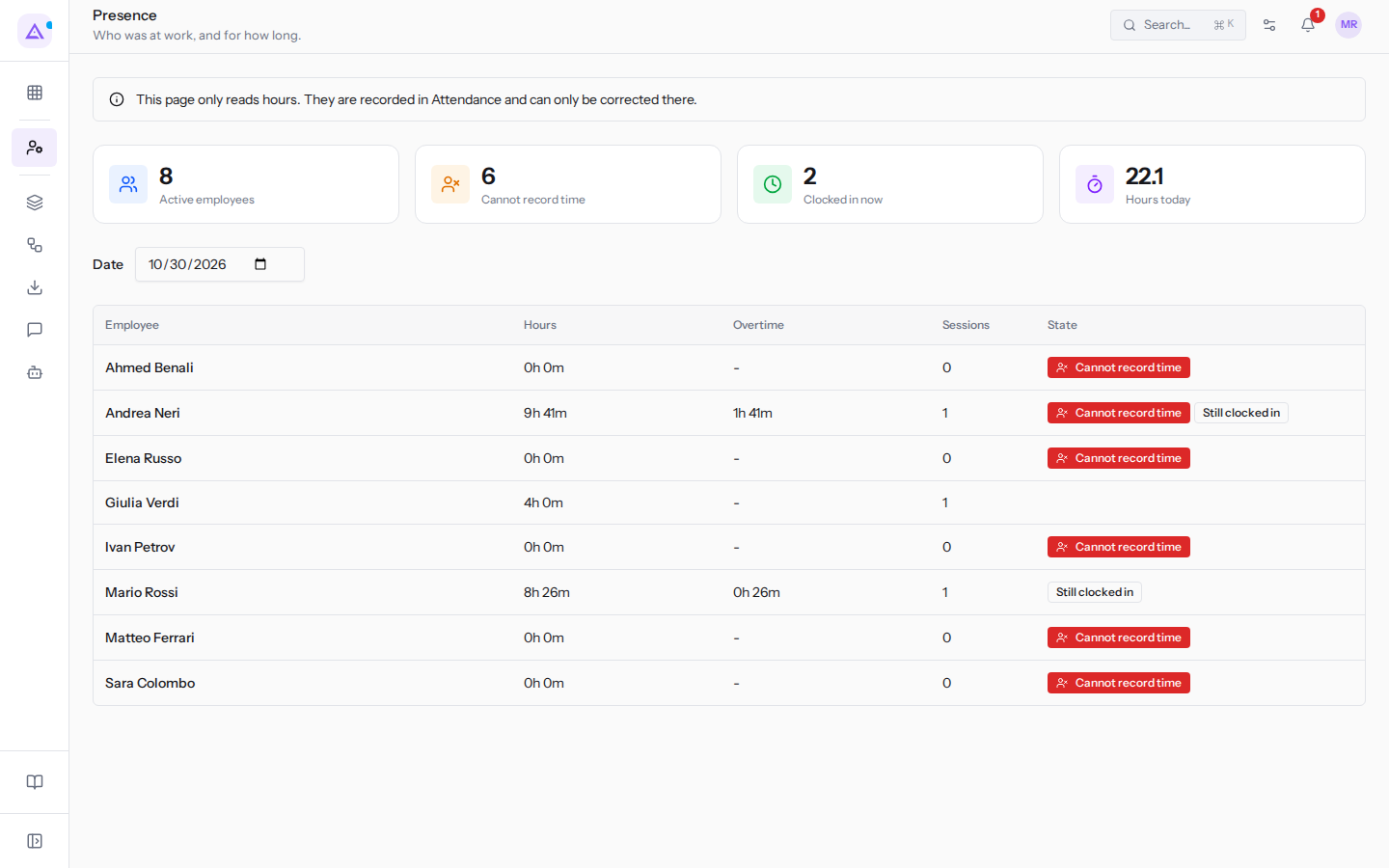
The summary cards at the top:
- Active employees: the number of active employees. In the example there are 8, because Chiara Galli's record is archived.
- Cannot record time: active employees who cannot record their hours because no account is linked to their record. In the example there are 6: only Mario Rossi and Giulia Verdi have an account.
- Clocked in now: who is currently clocked in.
- Hours today: the hours recorded for the day.
The table columns are Employee, Hours, Overtime, Sessions, and State. The following indicators can appear in the State column:
- Cannot record time: the person has no way to record their hours, neither an account with an allowed clock-in method nor a clocking station.
- Still clocked in: the person has clocked in but not yet clocked out, for example Mario Rossi today.
- Auto-closed: a session left open that the system closed automatically, for example the day Ivan Petrov did not clock out.
Note: to correct an incorrect or missing clock-in/clock-out, act in the Attendance module. The register updates accordingly.
Opening an employee's monthly timesheet
The timesheet shows an employee's worked hours, absences, and leave in a single document. It is the month as handed over to payroll.
- Open Employees › Employee Monthly Sheet.
- Choose the person in Employee. Until you choose one, the page shows Pick an employee to see their month.
- Choose Month and Year. They are set to the current month when you open the page.
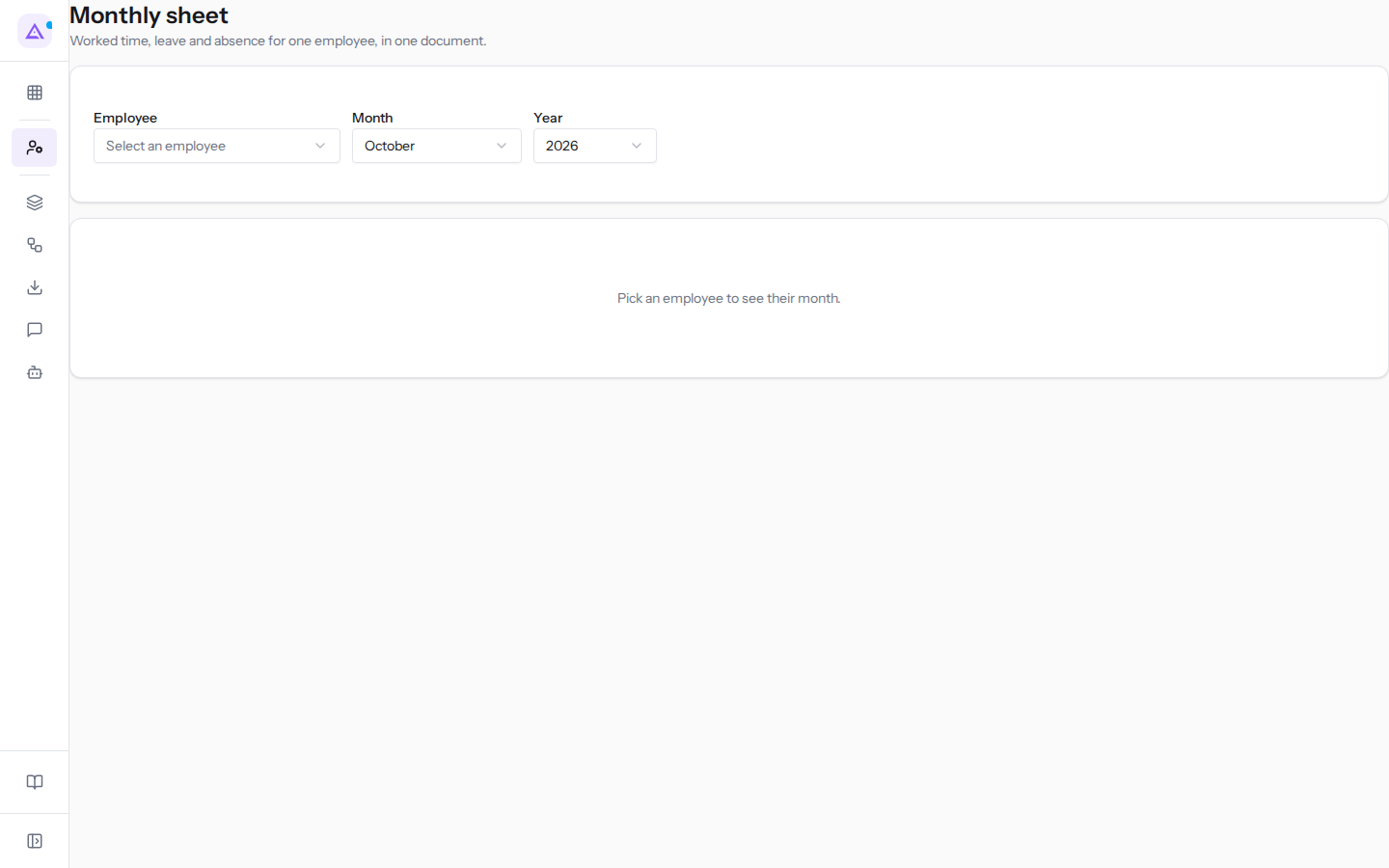
The header fields:
- Employee: the person whose month you are viewing.
- Month: the month to view.
- Year: the year of the month.
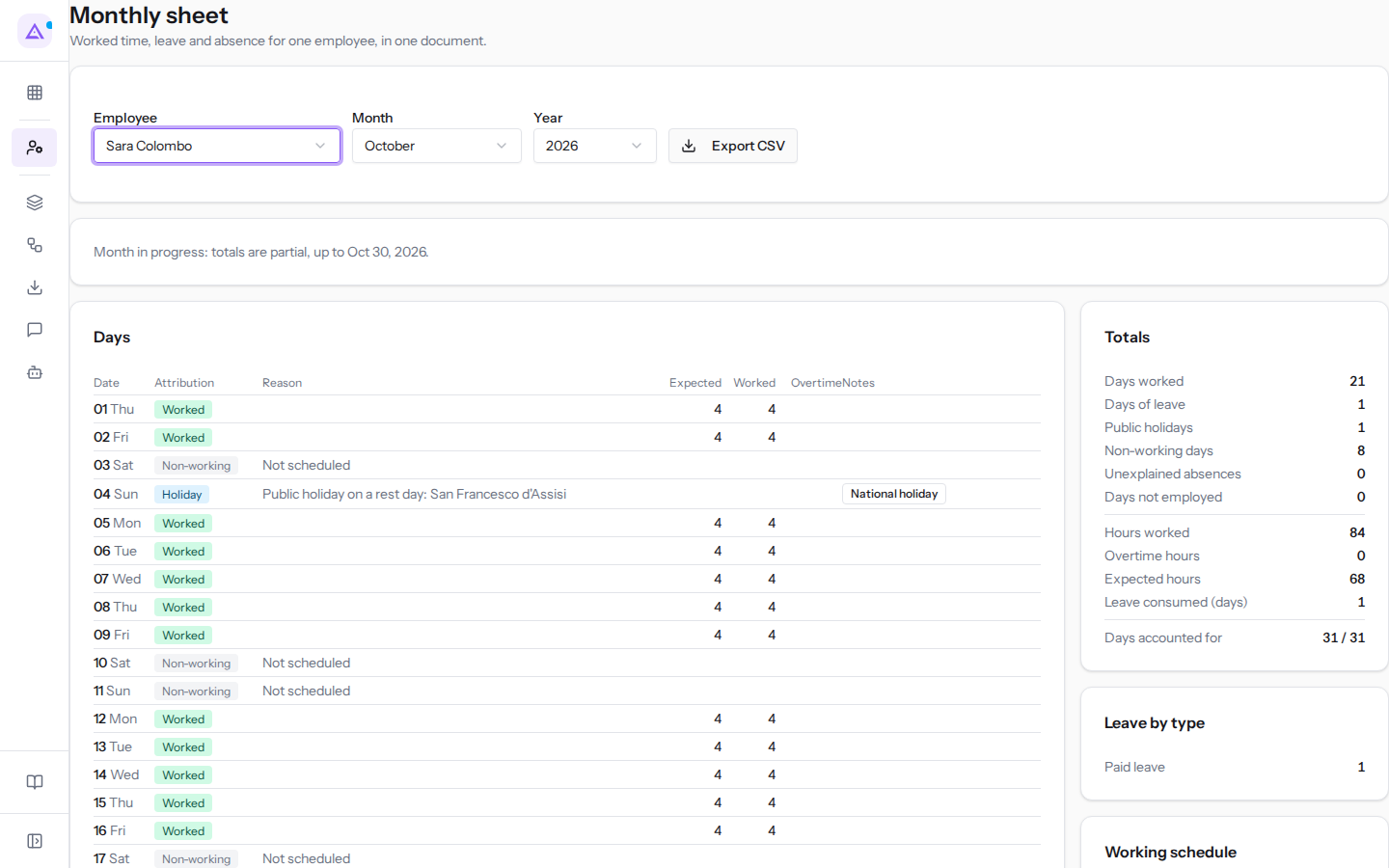
- Export CSV: downloads the timesheet as a CSV file. The button appears after you choose an employee.
If you choose the current month, the page warns that totals are partial, for example Month in progress: totals are partial, up to Oct 28, 2026. for Sara Colombo.
Important: if the person has no way to record their hours, the timesheet indicates it: This person has no way of recording time, so unworked scheduled days are shown as not recorded rather than as absence. In the example this happens for Ahmed Benali, who does not have an account.
Reading the days of the month
The days table has one row for each day of the month.
- Attribution: how the day is counted, for example a worked day, absence, holiday, or non-working day. A scheduled day in the past with no hours or approved absence shows as Absence, or Not recorded if the person has no way to record their hours.
- Expected: the hours that the work schedule expects for that day.
- Worked: the hours recorded in the Attendance module.
- Overtime: the hours worked beyond the expected hours.
Indicators requiring attention can appear next to a day:
- Worked outside schedule: hours recorded on a day the schedule does not include.
- Worked during leave: hours recorded on a day of leave.
- Worked on a holiday: hours recorded on a holiday.
- Session still open: the day has a clock-in without a clock-out.
Expected hours use, for each day, the schedule in effect on that day. A schedule change applies from its start date, so already closed months keep their hours.
Checking totals, pending items, and absences
Below the days, the timesheet summarises the month.
- Not final yet: at the bottom of the Totals box, lists what can still change the totals, such as Days with a session still open, Days closed automatically, and absences pending approval. Days with a leave request still awaiting approval are not counted. If nothing is pending, the Not final yet entry does not appear.
- Leave by type: absence days grouped by type, for example Ahmed Benali's Sick leave from last week.
Tip: before closing the month, resolve the Not final yet items. After closing in Employees › Payroll Handoff, clock-ins, corrections, absences, and contract changes for that month are rejected until the month is reopened.
Checking the work schedule
The Working schedule box shows the schedule the employee follows in the month and the Hours per day. In the example Sara Colombo follows Morning part-time 20 hours, the others Full time 40 hours.
If the schedule's weekly hours and the contract hours differ, Contract and schedule disagree appears. Expected hours follow the schedule: check which one is correct and change the schedule from the employee's record or the contract in Employees › Contracts.
If the person has no contracts or first contract date, the timesheet treats every day as employed and indicates this with Employment period unknown: no contract or first contract date on record, so every day is treated as employed.
See it on your company, not on a slide deck.
In 30 minutes we map the software you use today.We show you how much work and how much margin Archimedes gives back.
Show me on my business →What industry are you in?
One tap — it lets us prepare the demo around your world.
What tools do you use today?
Pick the ones you recognise — or just type them. It helps us show you how they migrate.
Last step: your details.
We reply within one working day — and right after, if you like, you pick the demo slot yourself.
We couldn't send your request. Try again, or write to us at [email protected].
By sending, you agree to your data being processed so we can get back to you about the demo. Privacy notice.
Preview form — nothing is sent from this page.
Want to schedule the demo now?
Your call: book the slot you prefer yourself, or we'll call you to arrange it.
Live availability, 30 minutes, instant confirmation. The calendar opens in a new tab.
Lock in your slot ↗We'll get back to you within one working day — and we'll join the call already knowing your world.
The calendar is open in another tab: pick a slot and the demo is booked. Can't see it? Reopen it ↗
Preview page: nothing was sent.
Our calendar is live: take the slot that suits you and the demo is booked. 30 minutes, instant confirmation, no waiting.
Lock in your slot ↗