Employees
All modules
Recording an employee's departure
Employees · 4 of 20 · 4 min read
The departure closes an employee's employment relationship on their record. Before confirming, you can see everything still open and what will happen to it, for example the current contract or the assigned work location.
How the departure works
The departure happens in two stages: first the review, then the confirmation.
- The dialog always opens on the review. The Confirm departure button can only be used once the review has loaded.
- Until you confirm, nothing changes on the record: Everything still open on this record. Nothing changes until you confirm.
- Some items are closed upon confirmation, others remain open because closing them is a decision for you to make. A typical case is an outstanding sum to be paid.
- The dialog does not ask for the reason for departure. The only fields are Departure date and Note.
- After the departure the record is archived. A record is archived, not deleted.
If the person is leaving the company, use Depart: the review shows you what remains open.
Opening the departure review
Open the review from the employees list.
- Go to Employees › Employees.
- Find the person, also using Search employees..., for example
Ahmed Benali.
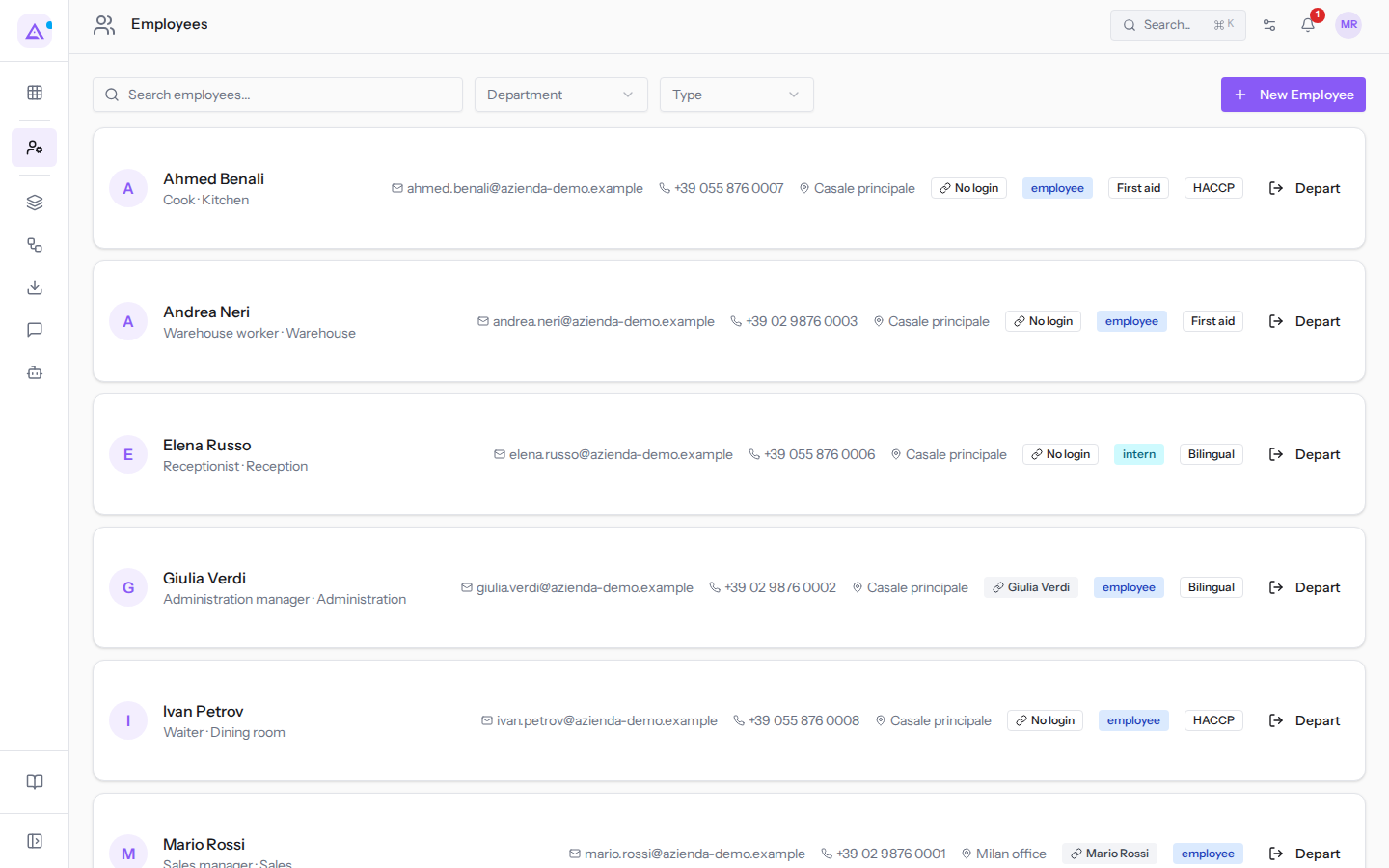
- Click Depart on the person's row. The Offboarding dialog opens.
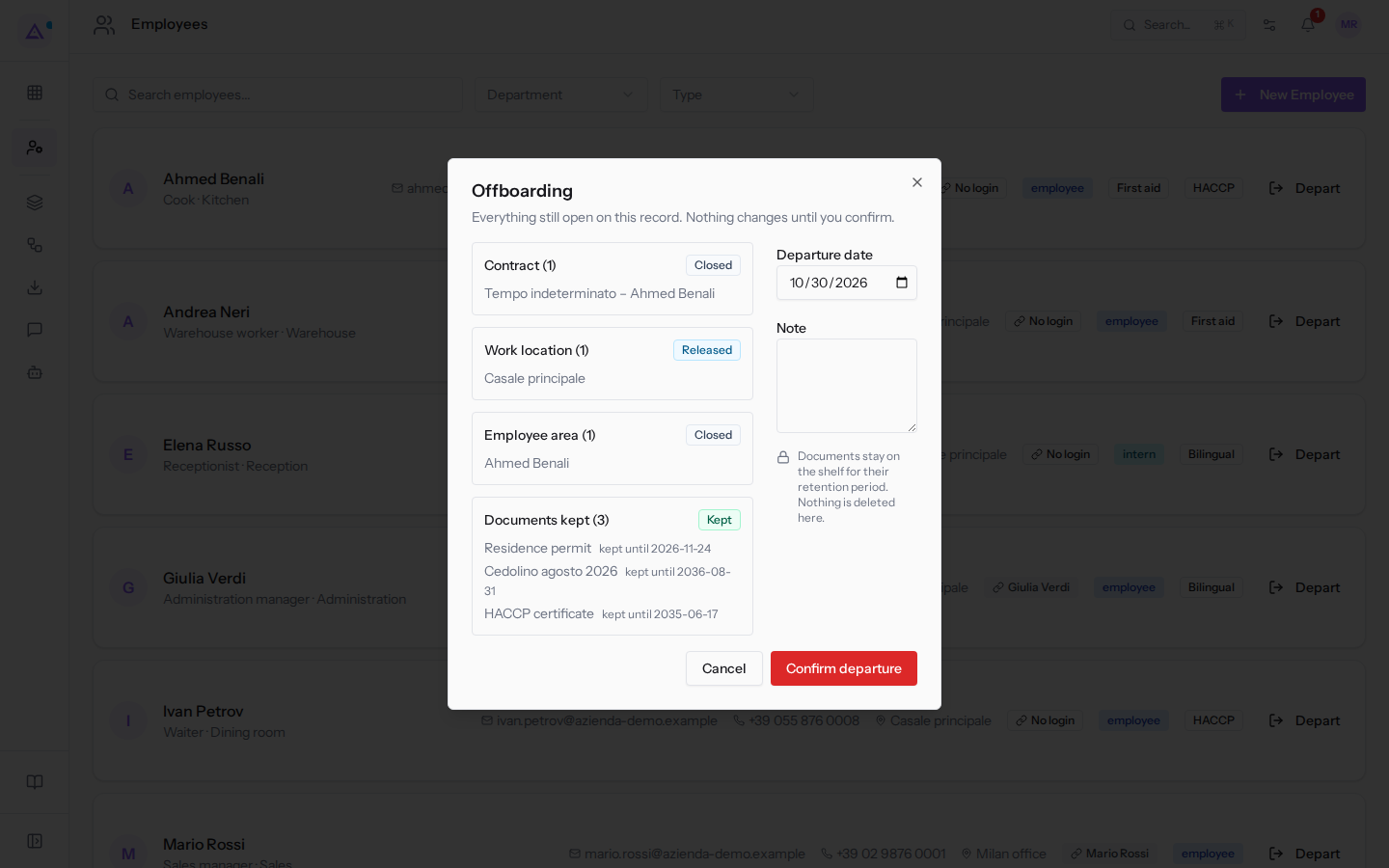
Reading the open items
On the left, the dialog lists what is still open on the record, grouped by item type. Each group shows the number of elements, the expected outcome, and the list of elements.
Some of the possible items:
- Contract: the current contract, for example
Tempo indeterminato – Ahmed BenaliorWork placement – Elena Russo. The outcome is Closed. - Work location: the assigned location, for example Casale principale. The outcome is Released.
- Pending leave request: absence requests not yet approved.
- Documents kept: the person's documents, with the date until which they are retained shown alongside. The outcome is Kept.
- Employee area: the person's access to their own area. The outcome is Closed.
Possible outcomes:
- Closed: the item is closed upon confirmation.
- Released: the item is no longer assigned to the person.
- Revoked: the item is revoked upon confirmation.
- Kept: the item remains in the archive, such as the person's documents.
- Needs a decision: the item is not closed automatically and remains to be handled after the departure.
If at least one item requires a decision, the notice Some items need a decision from you — they are not closed automatically. appears above the list.
Important: items with Needs a decision remain open even after confirmation. Read them before confirming.
Confirming the departure
On the right side of the dialog are the departure details.
- Review the open items.
- Fill in the fields on the right.
- Click Confirm departure. To close without recording anything, click Cancel.
Fields:
- Departure date: the last day of the employment. It defaults to today's date when opened.
- Note: free text about the departure. The field is optional.
Below the fields is the notice Documents stay on the shelf for their retention period. Nothing is deleted here.
If the confirmation fails, the message The departure could not be confirmed. appears and nothing changes on the record.
The summary after confirmation
After confirmation, the dialog shows what actually happened: What was closed when this departure was confirmed.
- On the left: the closed items, each with the item type and the element name.
- On the right: the items that remained open, i.e., those that required a decision.
- At the bottom: who confirmed the departure and on what date, in the form "Confirmed by Giulia Verdi on 2026-10-28".
To exit the summary, click Close.
Note: the summary shows what the system actually did upon confirmation, not what was expected in the review.
After the departure
After the departure, the employee's record is archived. In the example, this is the case for Chiara Galli's record.
- The person's documents remain in the archive for their retention period.
- Documents past their retention period are not automatically deleted. They are listed in HR Checks for review, such as Chiara Galli's identity card.
See it on your company, not on a slide deck.
In 30 minutes we map the software you use today.We show you how much work and how much margin Archimedes gives back.
Show me on my business →What industry are you in?
One tap — it lets us prepare the demo around your world.
What tools do you use today?
Pick the ones you recognise — or just type them. It helps us show you how they migrate.
Last step: your details.
We reply within one working day — and right after, if you like, you pick the demo slot yourself.
We couldn't send your request. Try again, or write to us at [email protected].
By sending, you agree to your data being processed so we can get back to you about the demo. Privacy notice.
Preview form — nothing is sent from this page.
Want to schedule the demo now?
Your call: book the slot you prefer yourself, or we'll call you to arrange it.
Live availability, 30 minutes, instant confirmation. The calendar opens in a new tab.
Lock in your slot ↗We'll get back to you within one working day — and we'll join the call already knowing your world.
The calendar is open in another tab: pick a slot and the demo is booked. Can't see it? Reopen it ↗
Preview page: nothing was sent.
Our calendar is live: take the slot that suits you and the demo is booked. 30 minutes, instant confirmation, no waiting.
Lock in your slot ↗