Employees
All modules
Adding an employee and filling in their record
Employees · 3 of 20 · 4 min read
The New Employee dialog creates the record of a person who works for the organization: for example a hired employee, a contractor, an intern, or an apprentice. The record collects the person's work, personal, and contact data and can be linked to their login.
Before creating the record
Create the record from Employees › Employees with New Employee. First check whether the person already has a login.
- If the person already has a login, choose the account in the Linked login field. Without an active linked employee record, the login cannot clock in.
- If the person does not have a login, leave Linked login empty. The record exists regardless: in the example only Mario Rossi and Giulia Verdi have a login.
Note: an employee record cannot be deleted. When the person leaves the organization, the record is archived.
Adding an employee
The New Employee dialog asks for the person's essential data.
- Open Employees › Employees.
- Click New Employee.
- Fill in the dialog fields, for example a new waitress with department Dining room and type Employee.
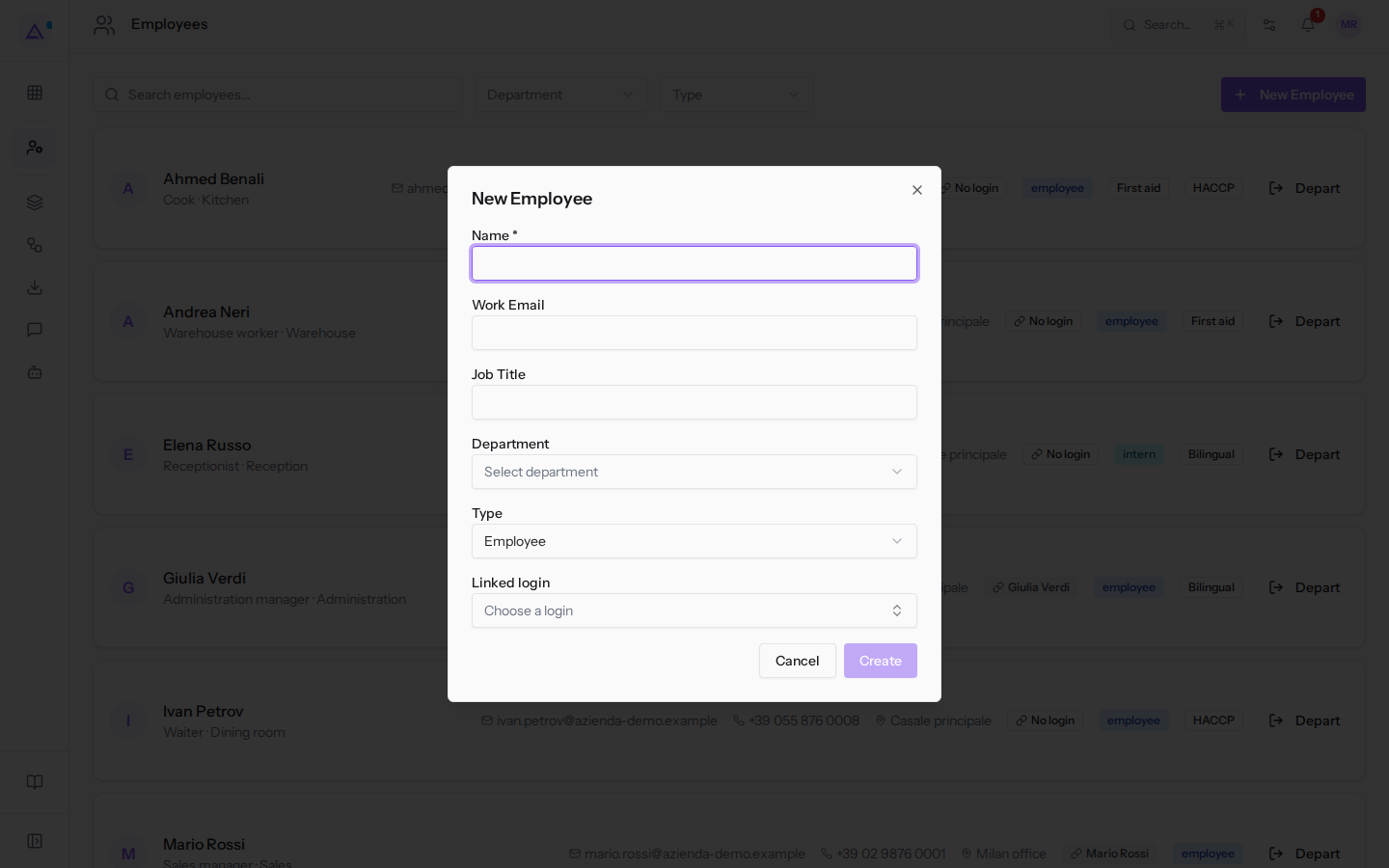
- Click Create. To close the dialog without creating the record, click Cancel.
The dialog fields:
- Name: the person's name. This field is required.
- Work Email: the person's work email.
- Job Title: the person's role, for example
Cook. - Department: the person's department. Until you choose a department, the field shows Select department. In the example the options are:
- Reception
- Administration
- Sales
- Kitchen
- Warehouse
- Dining room
- Type: the type of employment relationship. The default value is Employee. The options are:
- Employee
- Contractor
- Freelance
- Intern
- Trainee
- Linked login: the person's login. Until you choose an account, the field shows Choose a login. The record is linked to the chosen account. The name and email remain those you entered in the dialog.
Note: only accounts not yet linked to a record appear in Linked login. In the example Mario Rossi and Giulia Verdi are already linked, so the field shows No unlinked login is available.
After creation the person appears in the Employees list, with job title and department, email, phone, location, linked account or No login, type and tags. For example: Ahmed Benali, Cook · Kitchen, location Casale principale, No login, tags HACCP and First aid.
The employee record
The employee record collects the person's work, personal, and contact data and their emergency contact. The record is linked to the person's login via Linked login.
The manager indicated in the record determines who approves the person's requests. This cannot be changed from the record. Whoever is listed as manager sees the requests of the people who report to them, in their team area. In the example Mario Rossi is the manager of Giulia Verdi, Andrea Neri, Sara Colombo, and Matteo Ferrari.
Important: two active employees with the same tax code are flagged in HR Checks as a likely data entry error.
Changing the work schedule from a date
The work schedule is the calendar of hours the employee follows. In the example the schedules are Full time 40 hours, the default, and Morning part-time 20 hours, followed by Sara Colombo.
In the employee record, in edit mode, click Change schedule, choose the schedule and the date in Valid from, and click Save. The change takes effect from the chosen date, or from today if the date is missing. If the date falls in an already closed period, it takes effect from the first day still open.
- The days before this date keep the schedule they had.
- The expected hours use, for each day, the schedule in effect on that day. Already closed months therefore keep their hours.
- An already closed month cannot be modified.
Tip: if a person switches to a part-time schedule mid-month, choose as the date the first day of the new schedule. The expected hours for the preceding days remain those of the old schedule.
See it on your company, not on a slide deck.
In 30 minutes we map the software you use today.We show you how much work and how much margin Archimedes gives back.
Show me on my business →What industry are you in?
One tap — it lets us prepare the demo around your world.
What tools do you use today?
Pick the ones you recognise — or just type them. It helps us show you how they migrate.
Last step: your details.
We reply within one working day — and right after, if you like, you pick the demo slot yourself.
We couldn't send your request. Try again, or write to us at [email protected].
By sending, you agree to your data being processed so we can get back to you about the demo. Privacy notice.
Preview form — nothing is sent from this page.
Want to schedule the demo now?
Your call: book the slot you prefer yourself, or we'll call you to arrange it.
Live availability, 30 minutes, instant confirmation. The calendar opens in a new tab.
Lock in your slot ↗We'll get back to you within one working day — and we'll join the call already knowing your world.
The calendar is open in another tab: pick a slot and the demo is booked. Can't see it? Reopen it ↗
Preview page: nothing was sent.
Our calendar is live: take the slot that suits you and the demo is booked. 30 minutes, instant confirmation, no waiting.
Lock in your slot ↗