Employees
All modules
Collecting new hire documents
Employees · 7 of 20 · 4 min read
The Onboarding page shows what each new hire is still missing and which documents you ask from every new person. You can use it to collect, for example, an identity document, a health card, a certificate, or bank details.
The page has two panels. At the top, Still outstanding, the list of new hires with missing documents, from which you send reminders. At the bottom, Requirements, the list of documents requested from every new hire.
- To find out who is still behind and send a reminder, use the Still outstanding panel.
- To change which documents to ask from future new hires, use the Requirements panel.
Seeing what each new hire is missing
The Still outstanding panel shows in parentheses the number of new hires who still have documents to submit. Each new hire occupies one row.
- Open Employees › Onboarding.
- Read the Still outstanding panel.
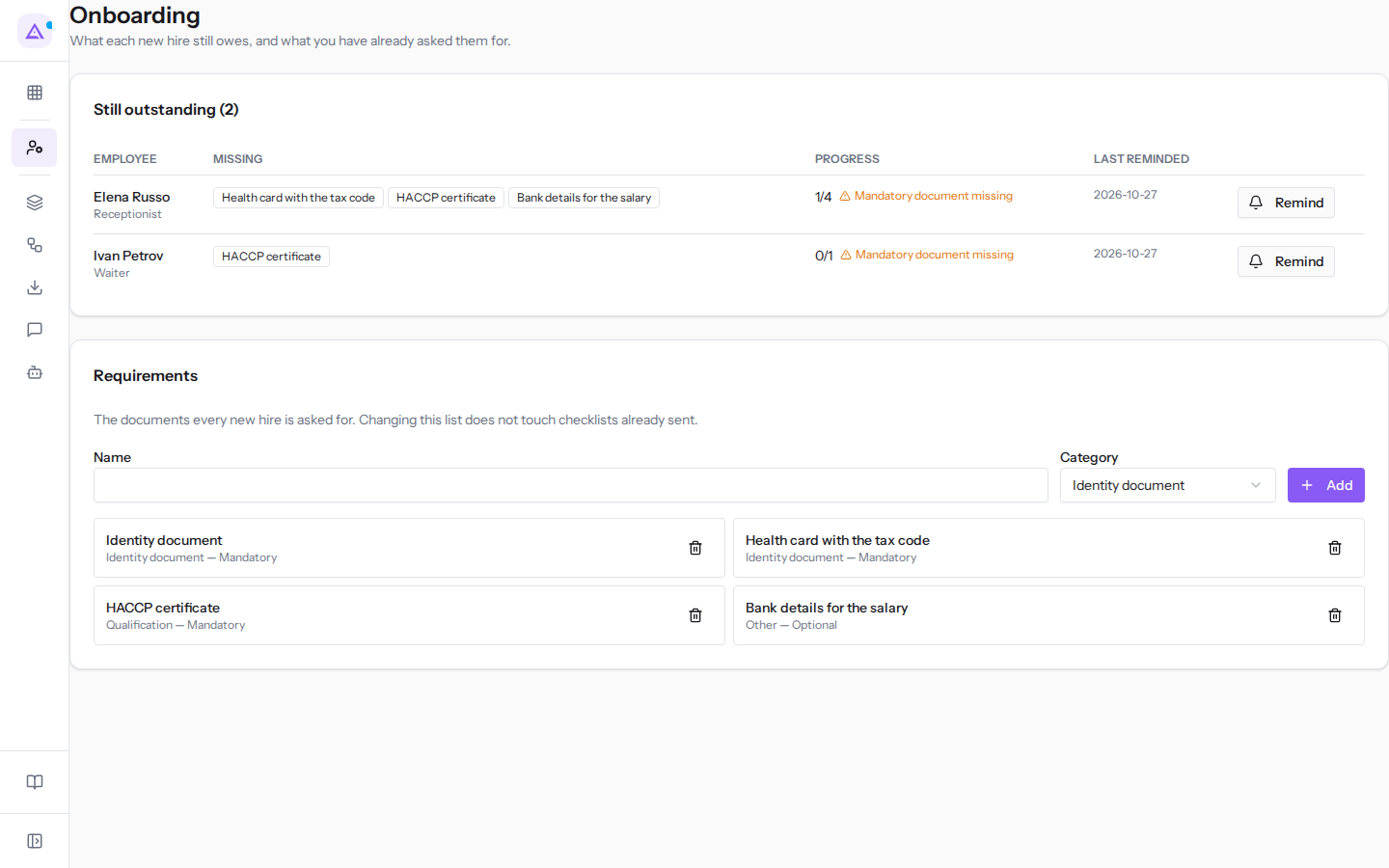
The panel's columns:
- Employee: the new hire's name and, below it, their job title. For example Elena Russo, Receptionist.
- Missing: the documents the new hire has not yet submitted, listed side by side. For example
Health card with the tax code. - Progress: the documents submitted out of the total required, for example 1/4. If at least one mandatory document is missing, the warning Mandatory document missing appears next to it.
- Last reminded: the date of the last reminder sent. If none has been sent, the column shows Never.
In the example the panel shows two new hires. Elena Russo has submitted her identity card and still needs to submit her health card, the HACCP certificate, and her bank details. Ivan Petrov still needs to submit the HACCP certificate.
A new hire leaves the panel once they have submitted all documents. When no one has any more documents to submit, the panel shows Every new hire is up to date.
Reminding a new hire
The Remind button sends the new hire a notification listing the missing documents. The notification is only sent if the new hire's record is linked to an account.
- Open Employees › Onboarding.
- In the Still outstanding panel, find the new hire's row.
- Click Remind.
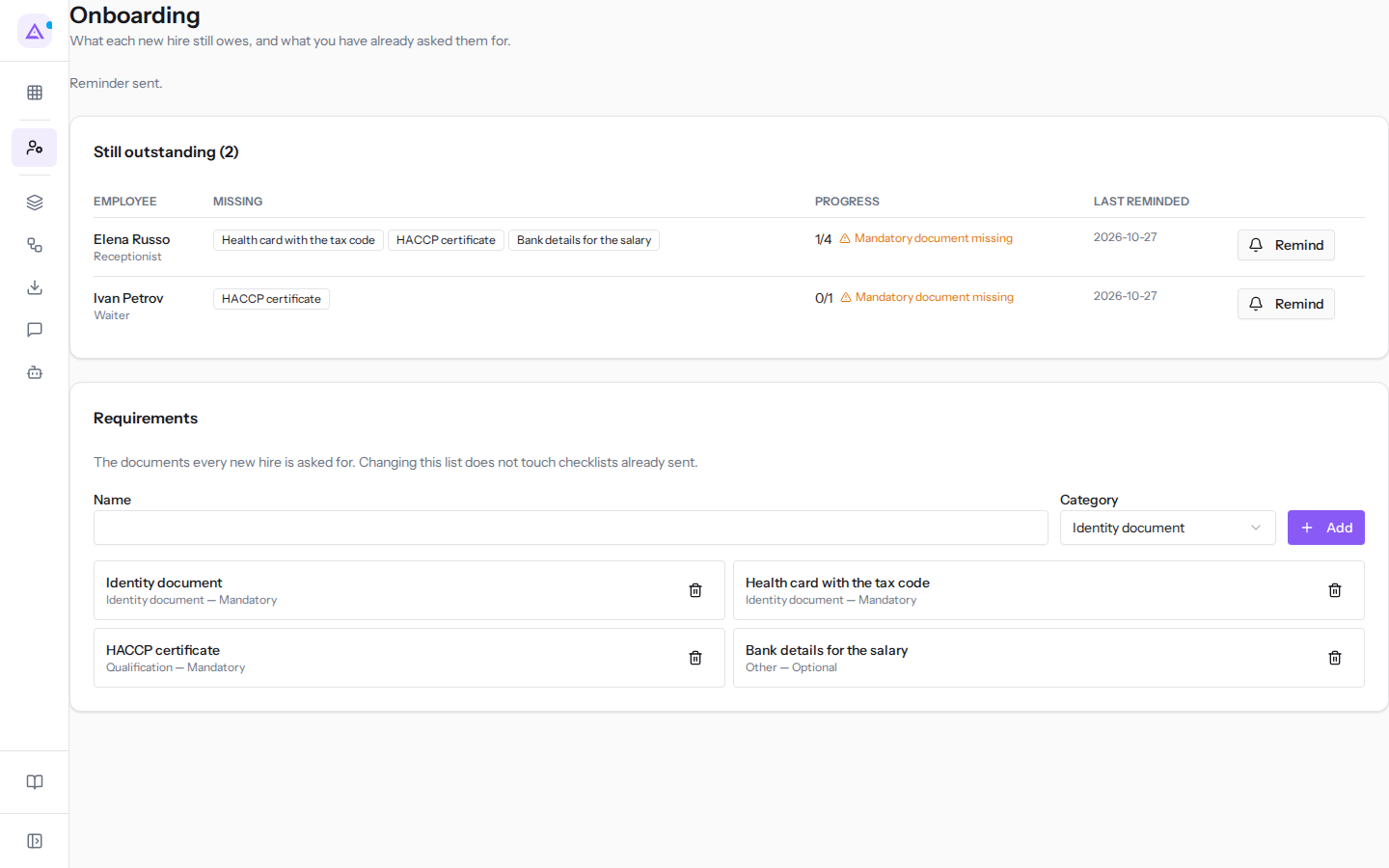
The message Reminder sent. appears below the title. If the new hire has an account, the Last reminded column shows the date of the reminder.
Defining the required documents
The Requirements panel contains the list of documents requested from every new hire. Each entry shows the document name, its category, and whether it is Mandatory or Optional.
Important: changing this list does not change the documents already requested from new hires. A document added or removed applies only to future requests.
Adding a document
- Open Employees › Onboarding.
- In the Requirements panel, fill in Name and Category.
- Click Add.
The document appears in the list.
The fields:
- Name: the document name as the new hire sees it, for example
Health card. Without a name the document is not added. - Category: the category under which the document is filed among the employee's documents. The default value is Identity document. The options:
- Contract
- Identity document
- Qualification
- Payslip
- Medical certificate
- Disciplinary
- Other
Note: a document added from this panel is always Mandatory. Until the new hire submits it, their row shows the warning Mandatory document missing.
Removing a document
- In the Requirements panel, find the document.
- Click the bin icon next to the document.
The document is removed from the list. Documents already requested from new hires remain unchanged.
How new hires submit documents
The new hire uploads documents from their personal area, in the Onboarding section of My area, using the Upload button.
Before you start: to use their personal area the new hire must have an account linked to their employee record. In the example only Mario Rossi and Giulia Verdi have an account.
A submitted document disappears from the Missing column and increases the Progress count.
See it on your company, not on a slide deck.
In 30 minutes we map the software you use today.We show you how much work and how much margin Archimedes gives back.
Show me on my business →What industry are you in?
One tap — it lets us prepare the demo around your world.
What tools do you use today?
Pick the ones you recognise — or just type them. It helps us show you how they migrate.
Last step: your details.
We reply within one working day — and right after, if you like, you pick the demo slot yourself.
We couldn't send your request. Try again, or write to us at [email protected].
By sending, you agree to your data being processed so we can get back to you about the demo. Privacy notice.
Preview form — nothing is sent from this page.
Want to schedule the demo now?
Your call: book the slot you prefer yourself, or we'll call you to arrange it.
Live availability, 30 minutes, instant confirmation. The calendar opens in a new tab.
Lock in your slot ↗We'll get back to you within one working day — and we'll join the call already knowing your world.
The calendar is open in another tab: pick a slot and the demo is booked. Can't see it? Reopen it ↗
Preview page: nothing was sent.
Our calendar is live: take the slot that suits you and the demo is booked. 30 minutes, instant confirmation, no waiting.
Lock in your slot ↗