Employees
All modules
Conducting performance appraisals
Employees · 17 of 20 · 3 min read
Performance appraisals collect an employee's goals and the ratings by which they are judged, for example the annual review of a warehouse worker or a sales associate. From this page you create an appraisal for one person or generate a review cycle for all active staff.
Before you start: the Appraisals item only appears to members of the HR Manager group.
The appraisal list
The Performance Appraisals page lists the organisation's appraisals. Above the list a header shows how many there are, for example 5 Appraisals.
- Open Employees › Appraisals.
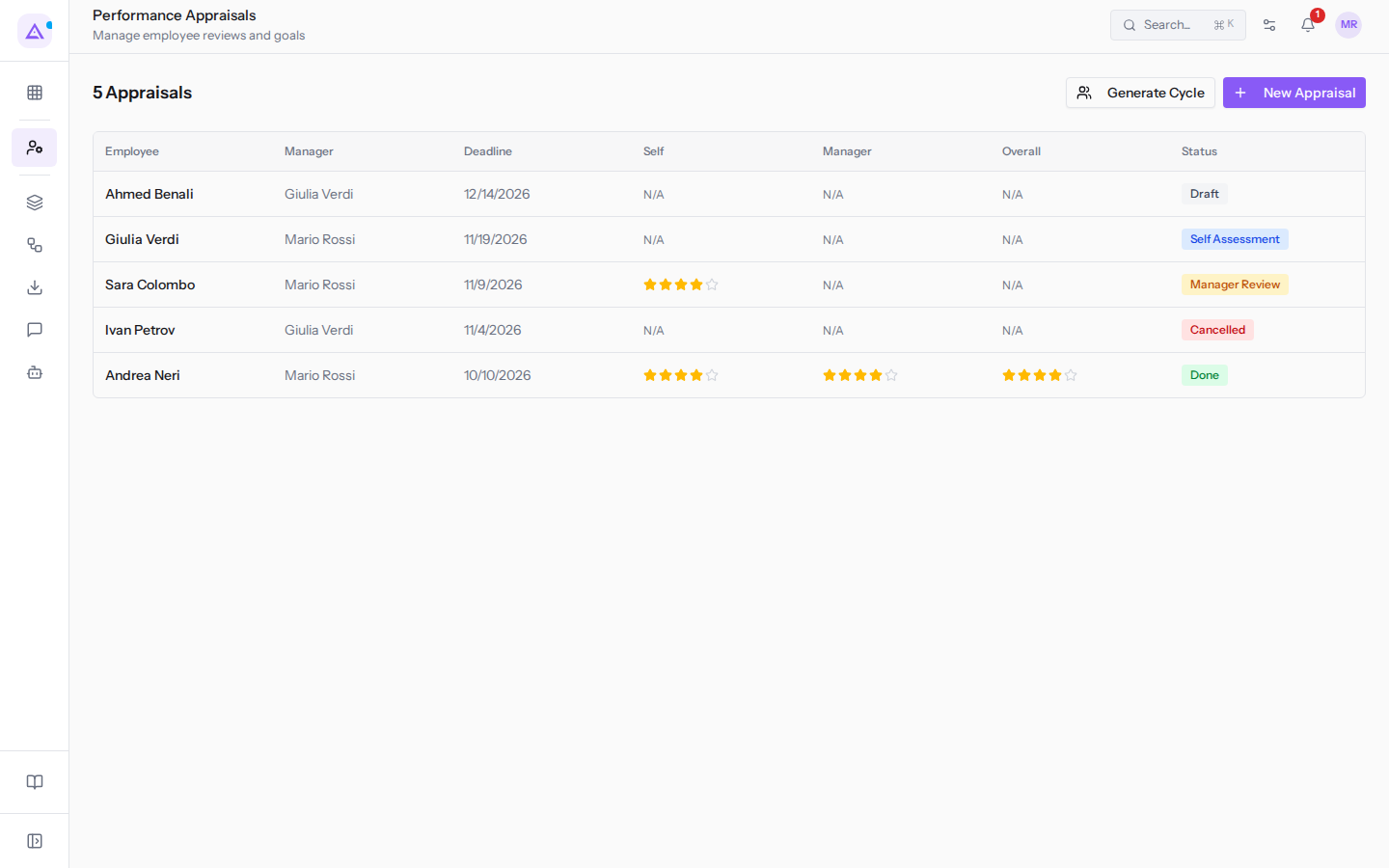
Each row has these columns:
- Employee: the person being appraised.
- Manager: who conducts the appraisal.
- Deadline: the date by which the appraisal must be completed.
- Self: the employee's self-assessment rating.
- Manager: the rating given by the manager.
- Overall: the overall rating of the appraisal.
- Status: the stage of the appraisal.
If there are no appraisals, the page shows No appraisals and the suggestion Create an appraisal or generate a review cycle.
An appraisal can be in one of these stages: Draft, Self Assessment, Manager Review, Done, and Cancelled. A new appraisal always starts in Draft. In the example, Ahmed Benali's appraisal is a draft, Andrea Neri's is complete, Sara Colombo's is in manager review, Giulia Verdi's is in self-assessment, and Ivan Petrov's is cancelled.
When to create an appraisal and when to generate a cycle
The two buttons at the top create appraisals in different ways.
- If you want to appraise a single person, for example a new hire at the end of their probationary period, use New Appraisal. You choose the employee, the manager, and the goals.
- If you want to start the periodic review of all staff, use Generate Cycle. The cycle creates a Draft appraisal for every active employee who does not have a review in progress, with a deadline three months from today.
Creating an appraisal
A single appraisal concerns one employee and has its own goals, each with a weight.
- In Employees › Appraisals click New Appraisal.
- Fill in the fields of the New Appraisal dialog.
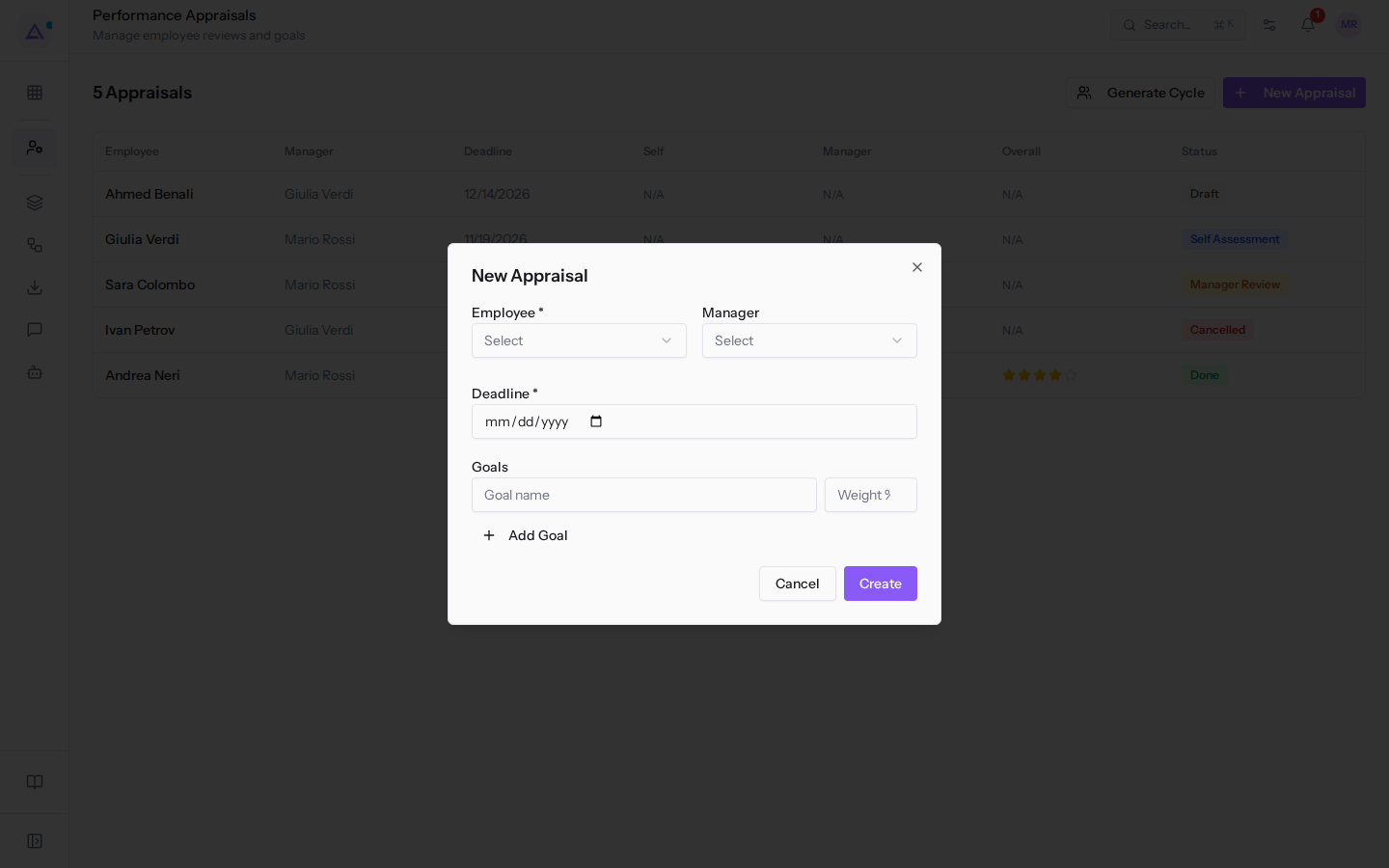
- To add another goal click Add Goal: a new row appears with Goal name and Weight %.
- Click Create. The message Appraisal created appears and the appraisal is added to the list.
To close the dialog without saving click Cancel.
The dialog fields:
- Employee: the person to be appraised, chosen from active employees, for example
Andrea Neri. The field is required. - Manager: who conducts the appraisal, chosen from employees, for example
Mario Rossi. If left blank, the employee's manager is used. - Deadline: the date by which the appraisal must be completed. The field is required.
- Goals: the objectives on which the employee is assessed. Each row has two fields:
- Goal name: the name of the goal.
- Weight %: the weight of the goal on the rating, as a percentage.
Generating a review cycle
A review cycle creates all staff appraisals at once.
- In Employees › Appraisals click Generate Cycle.
- The Generate Review Cycle dialog opens. Appraisals created by the cycle have a deadline three months from today, regardless of the date you enter in Deadline.
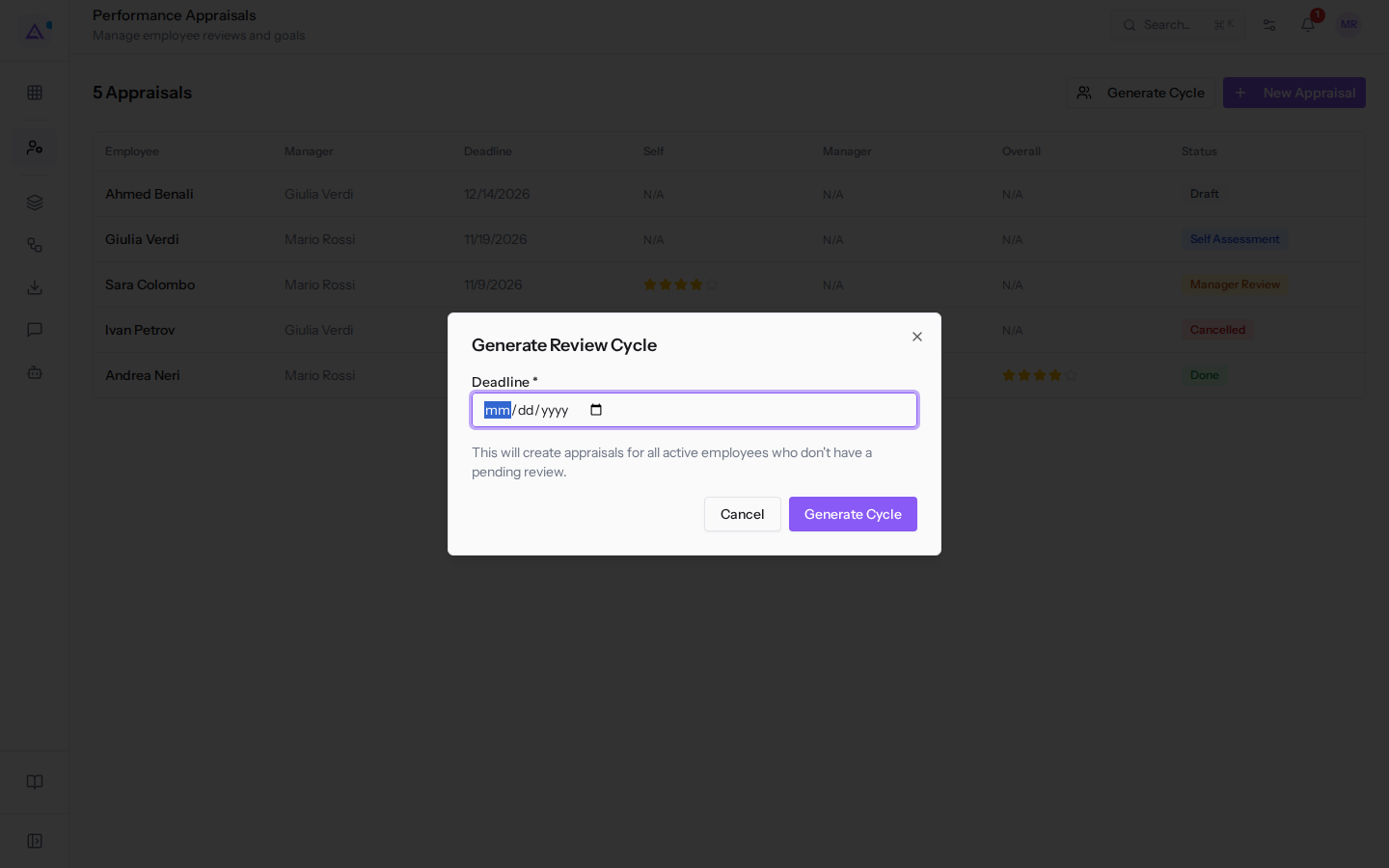
- Click Generate Cycle. To exit without generating anything click Cancel.
The dialog reminds you: This will create appraisals for all active employees who don't have a pending review.
Note: an employee who already has an appraisal in progress will not receive a second one. Archived employees, such as Chiara Galli in the example, are not active and remain excluded.
See it on your company, not on a slide deck.
In 30 minutes we map the software you use today.We show you how much work and how much margin Archimedes gives back.
Show me on my business →What industry are you in?
One tap — it lets us prepare the demo around your world.
What tools do you use today?
Pick the ones you recognise — or just type them. It helps us show you how they migrate.
Last step: your details.
We reply within one working day — and right after, if you like, you pick the demo slot yourself.
We couldn't send your request. Try again, or write to us at [email protected].
By sending, you agree to your data being processed so we can get back to you about the demo. Privacy notice.
Preview form — nothing is sent from this page.
Want to schedule the demo now?
Your call: book the slot you prefer yourself, or we'll call you to arrange it.
Live availability, 30 minutes, instant confirmation. The calendar opens in a new tab.
Lock in your slot ↗We'll get back to you within one working day — and we'll join the call already knowing your world.
The calendar is open in another tab: pick a slot and the demo is booked. Can't see it? Reopen it ↗
Preview page: nothing was sent.
Our calendar is live: take the slot that suits you and the demo is booked. 30 minutes, instant confirmation, no waiting.
Lock in your slot ↗