Employees
All modules
Publishing payroll consultant payslips to employees
Employees · 19 of 20 · 5 min read
The Payslip batches page is used to upload the monthly payslips received from the payroll consultant, to check which employee each file belongs to, and to publish them to employees.
When to use payslip batches
The Employees module provides two ways to manage payslips. Choose based on who prepares them.
- If the payroll consultant sends the payslips ready-made, as PDFs, use Payslip batches.
- If the company calculates payslips itself, use the Payroll Engine.
A batch collects the files for one month. Each file is matched to an employee, and only matched files are published. In the example, the August 2026 batch is published, while the September 2026 batch is still to be published.
Uploading a new batch
Before you start: the Payslip Batches menu item is only visible to users in the HR Manager permission group.
The New batch panel uploads all files for a month in a single operation.
- Open the Payslip Batches menu item in the Employees module.
- In the New batch panel, enter Year and Month.
- In Files, select the payslips to upload.
- Click Upload.
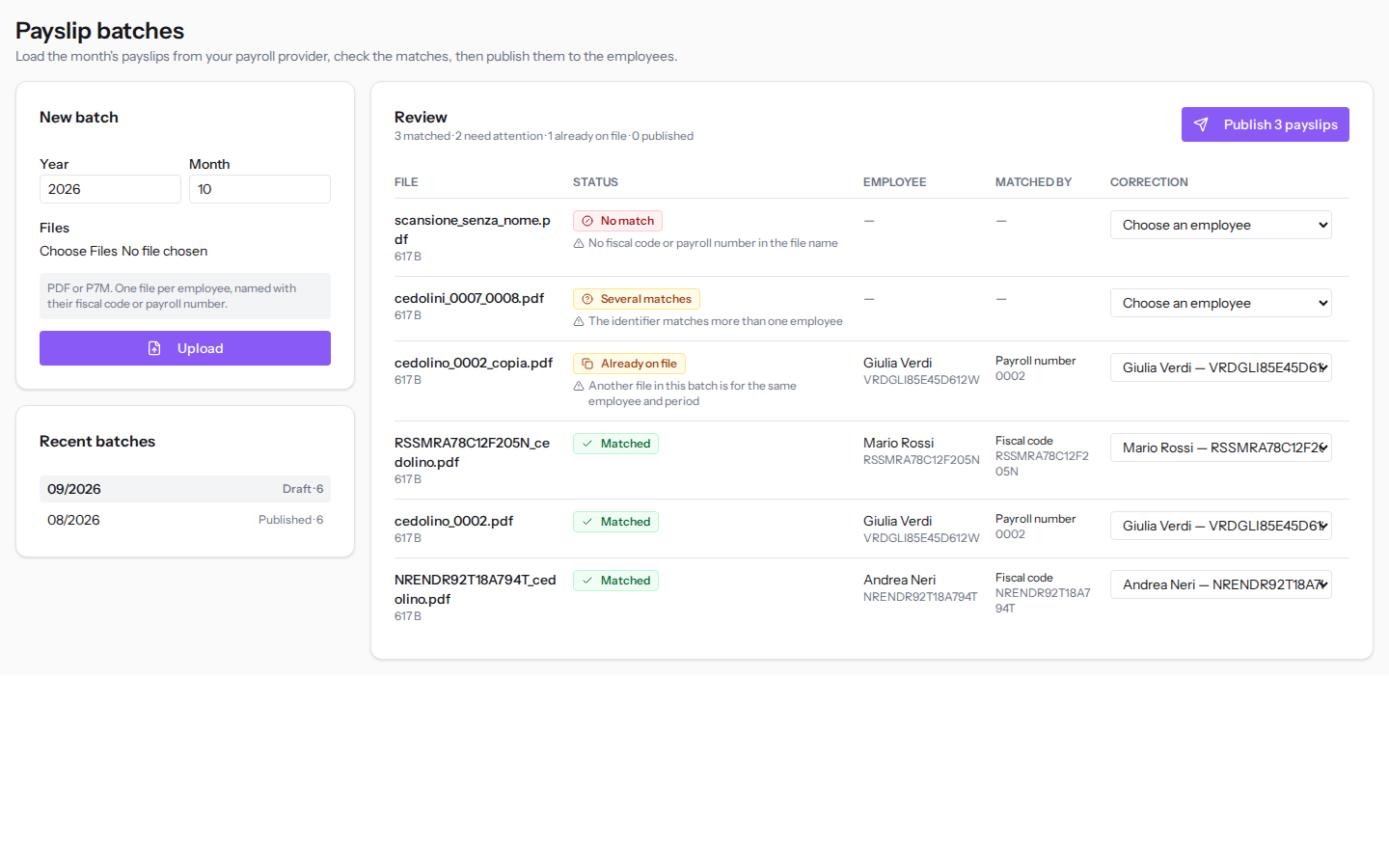
The panel fields:
- Year: the year of the payslips, for example
2026. - Month: the month of the payslips, written as a number, for example
10. - Files: the payslips for the month. The field accepts PDF or P7M files, one file per employee, with the fiscal code or payroll number in the name.
Once the upload is complete, a message appears with the number of payslips uploaded.
Tip: ask the payroll consultant to include the employee's fiscal code or payroll number in each file name. Without either one, the file remains unmatched and must be assigned manually.
Recent batches
Below the New batch panel, the batches already uploaded are listed. Each batch shows the month and year, the status, and the number of files. Click a batch to open its review.
- Draft: the batch is uploaded but not yet published. In the example it is
09/2026 Draft · 6, with six files. - Published: the payslips in the batch have been published. In the example it is
08/2026 Published · 6.
Checking the matches
The Review panel shows, for each file in the batch, which employee it has been matched to and how.
- Click the batch to check, for example
09/2026 Draft · 6. - Read the summary at the top of the panel: the number of matched files, files to check, files already on file, and published files.
- Scroll through the file list and correct any unmatched files, as described in the following section.
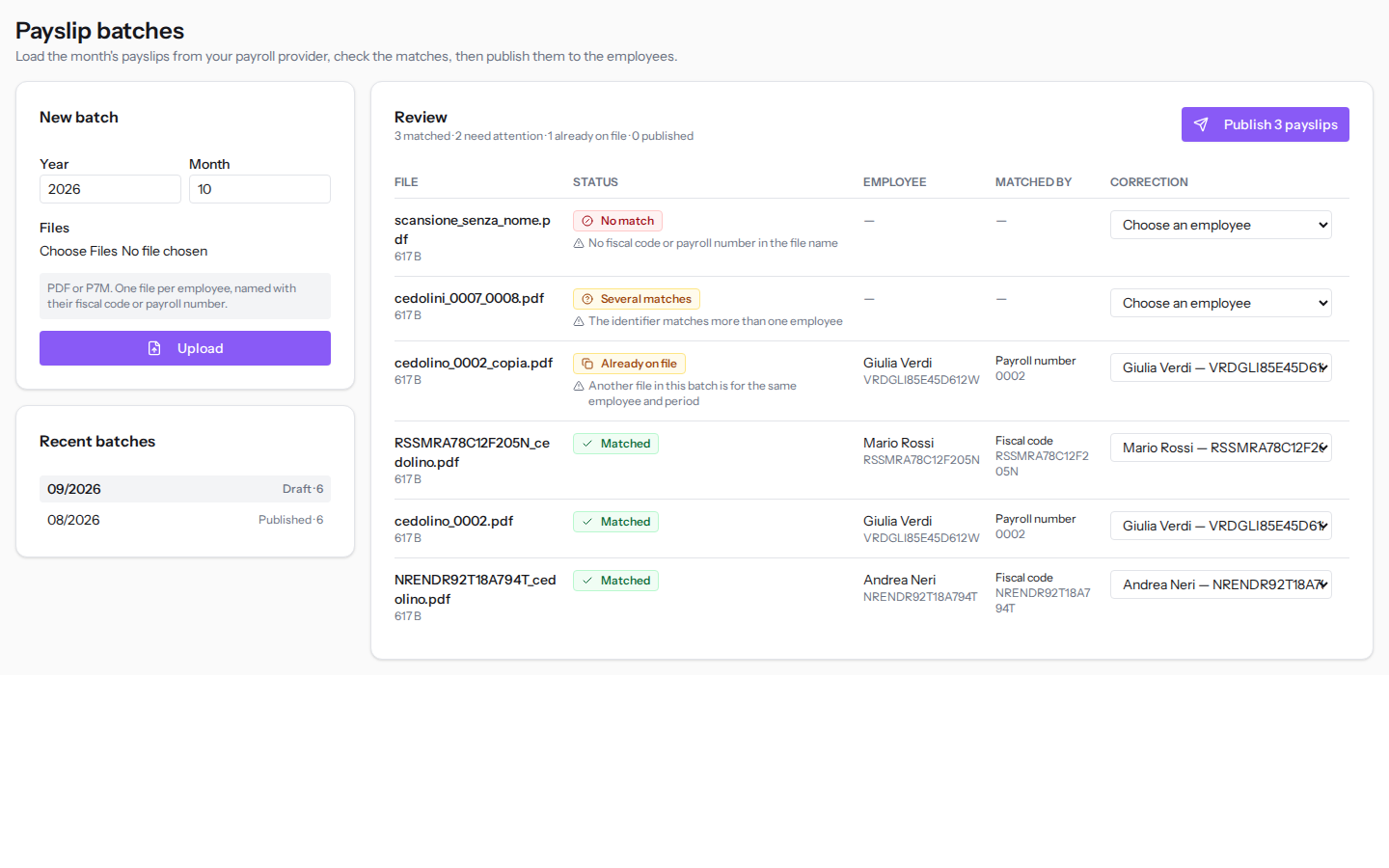
The list columns:
- File: the name of the uploaded file.
- Status: the status of the file, with the reason written below when the file is not matched:
- Matched: the file is assigned to an employee and will be published.
- No match: no employee matches the file. The reason is, for example, No fiscal code or payroll number in the file name.
- Several matches: the file matches more than one employee. The reason is The identifier matches more than one employee.
- Already on file: a payslip for the same employee and the same month already exists. The reason is Another file in this batch is for the same employee and period, This exact payslip is already on the employee's shelf or A different payslip for this period is already on the employee's shelf.
- Published: the payslip has already been published to the employee.
- Employee: the employee to whom the file is matched, with the fiscal code or payroll number shown below.
- Matched by: how the employee was found.
- Fiscal code: from the fiscal code in the file name.
- Payroll number: from the payroll number in the file name.
- Assigned by hand: the employee was selected in Correction.
- Correction: the list of employees, with name and fiscal code, to choose who the file belongs to.
- The trash icon, at the end of the row: removes the file from the batch. It does not appear on already published files.
In the September 2026 batch in the example, Mario Rossi's and Andrea Neri's files are matched by fiscal code, Giulia Verdi's by payroll number. A second copy of Giulia Verdi's payslip is already on file, one file has multiple matches, and one file has no match.
Correcting a match
A file with No match or Several matches will not be published until you assign it to an employee.
- In the file's row, open Correction.
- Select the employee, for example
Mario Rossi — RSSMRA78C12F205N. The initial value is Choose an employee. - Check that Matched by shows Assigned by hand.
If a file does not belong to the batch, for example a duplicate of a payslip already on file, click the trash icon at the end of its row.
Note: Correction shows each employee's fiscal code next to their name.
Publishing the payslips
Publishing sends the matched payslips to the employees.
- Open the Draft batch and check the matches.
- Click Publish 3 payslips. The number in the button is the count of matched files in the batch.
Each matched payslip is placed in the employee's archive, who receives a notification: their monthly payslip is available. The final message reports how many payslips were published and how many were skipped.
Important: before publishing, resolve any No match and Several matches files. Only matched files are published.
See it on your company, not on a slide deck.
In 30 minutes we map the software you use today.We show you how much work and how much margin Archimedes gives back.
Show me on my business →What industry are you in?
One tap — it lets us prepare the demo around your world.
What tools do you use today?
Pick the ones you recognise — or just type them. It helps us show you how they migrate.
Last step: your details.
We reply within one working day — and right after, if you like, you pick the demo slot yourself.
We couldn't send your request. Try again, or write to us at [email protected].
By sending, you agree to your data being processed so we can get back to you about the demo. Privacy notice.
Preview form — nothing is sent from this page.
Want to schedule the demo now?
Your call: book the slot you prefer yourself, or we'll call you to arrange it.
Live availability, 30 minutes, instant confirmation. The calendar opens in a new tab.
Lock in your slot ↗We'll get back to you within one working day — and we'll join the call already knowing your world.
The calendar is open in another tab: pick a slot and the demo is booked. Can't see it? Reopen it ↗
Preview page: nothing was sent.
Our calendar is live: take the slot that suits you and the demo is booked. 30 minutes, instant confirmation, no waiting.
Lock in your slot ↗