Employees
All modules
Viewing and filtering the employee list
Employees · 2 of 20 · 3 min read
The People page summarises what is waiting for you in HR: leave requests to approve, your team's absences, and upcoming deadlines. From here you open the Employees list. In the list you search for a person and filter by department or type, for example everyone in the Dining room department or all interns.
The People page
The People page is the starting point for the module. Below the title, What is waiting for you to act on. appears.
- Open the Employees module. The People page opens.
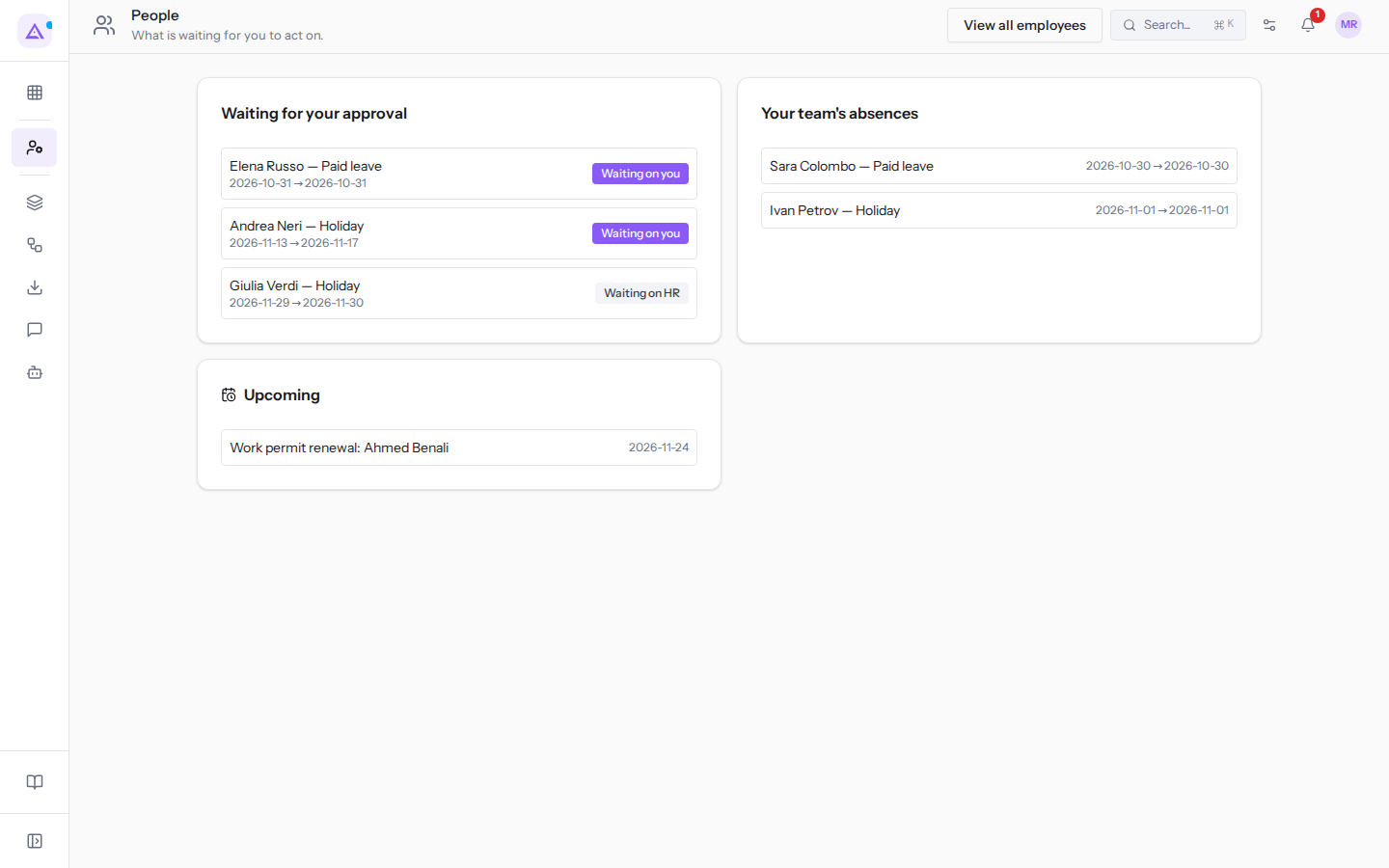
The page only shows panels that have something to list, and only the people you can see: someone who manages a team only sees their own team.
- Waiting for your approval: absence requests still awaiting a decision from people who report to you. Each row shows the employee, absence type, and dates, with a badge indicating who needs to approve.
- Waiting on you: the request is awaiting manager approval. For example
Andrea Neri — Holiday 2026-11-11 → 2026-11-15. - Waiting on HR: the request is awaiting HR. For example
Giulia Verdi — Holiday 2026-11-27 → 2026-11-28.
- Waiting on you: the request is awaiting manager approval. For example
- Your team's absences: absences of people in your team, with type and dates. For example
Sara Colombo — Paid leave 2026-10-28 → 2026-10-28. - Upcoming: employee deadlines, each with its date.
Clicking a request opens My area.
When you have nothing to do, Nothing waiting right now appears in place of the panels.
Opening the employee list
The Employees list shows the people in the organisation, one per row.
- On the People page click View all employees. Alternatively open Employees › Employees.
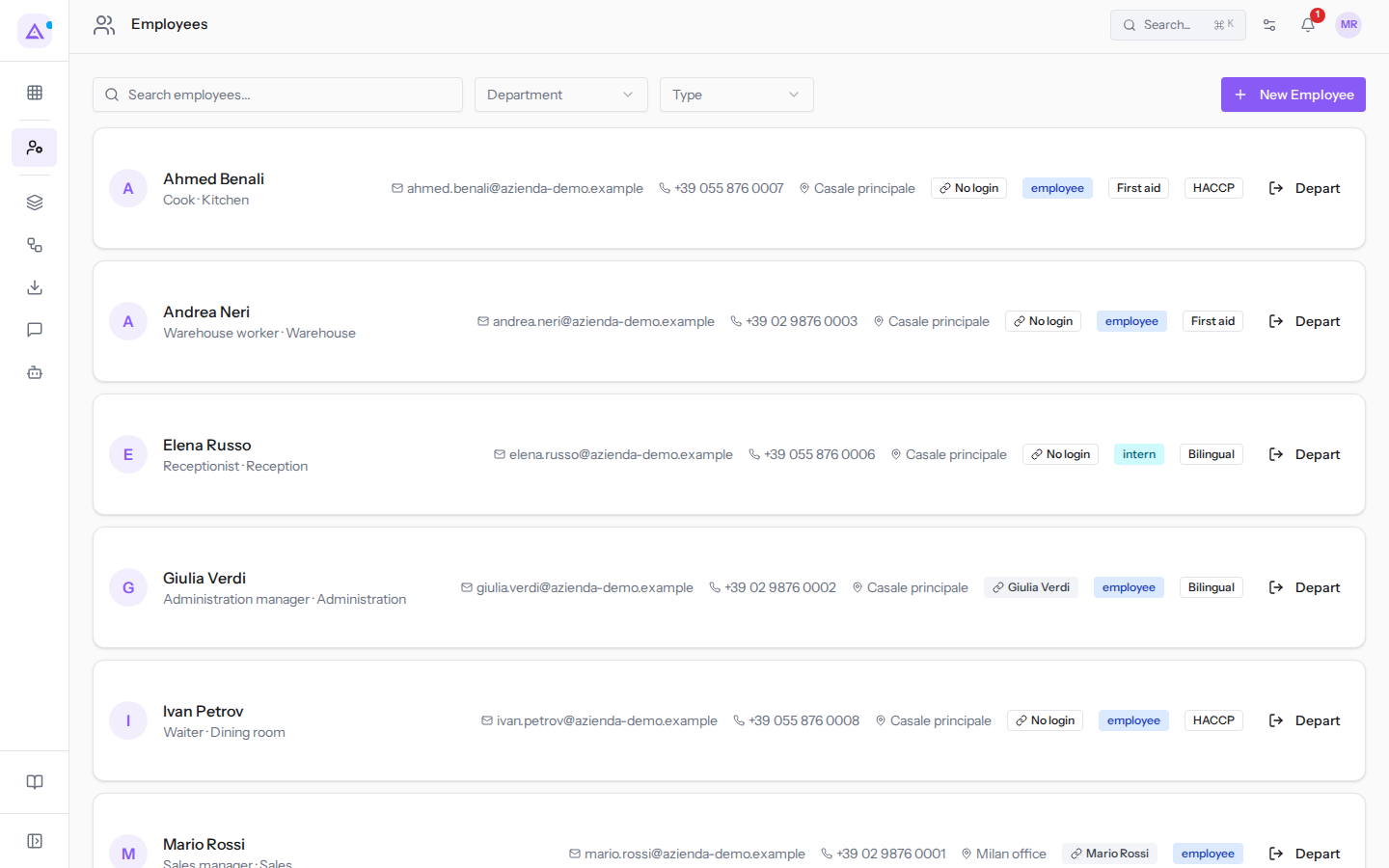
Each row shows:
- the employee's name;
- the job title and department, for example
Cook · Kitchen; - the work email, for example
[email protected]; - the phone number;
- the work location, for example
Casale principale; - the linked account, or No login if the person has no access;
- the employee type;
- the tags, for example
HACCPandFirst aid; - the Depart button, to record the employee's departure.
The list only shows active employees. Archived records do not appear. For example, if you search for Galli, the list shows No employees found: Chiara Galli's record was archived after their departure.
From the same page the New Employee button creates a new record.
Searching for an employee
Use search when you know the person's name.
- In the Search employees... field type the first or last name, for example Neri.
- The list shows only matching people, for example Andrea Neri.
If no one matches, No employees found appears.
Filtering by department or type
Use filters to view a group of people. Filter by department if you need an organisational unit, by type if you need a type of employment relationship, for example all interns. The two filters can be used together and together with search.
- Open the Department filter and choose a department, for example Dining room.
- Open the Type filter and choose a type, for example Intern.
- To remove the Department and Type filters click Clear. The button appears when either is active. The search text remains.
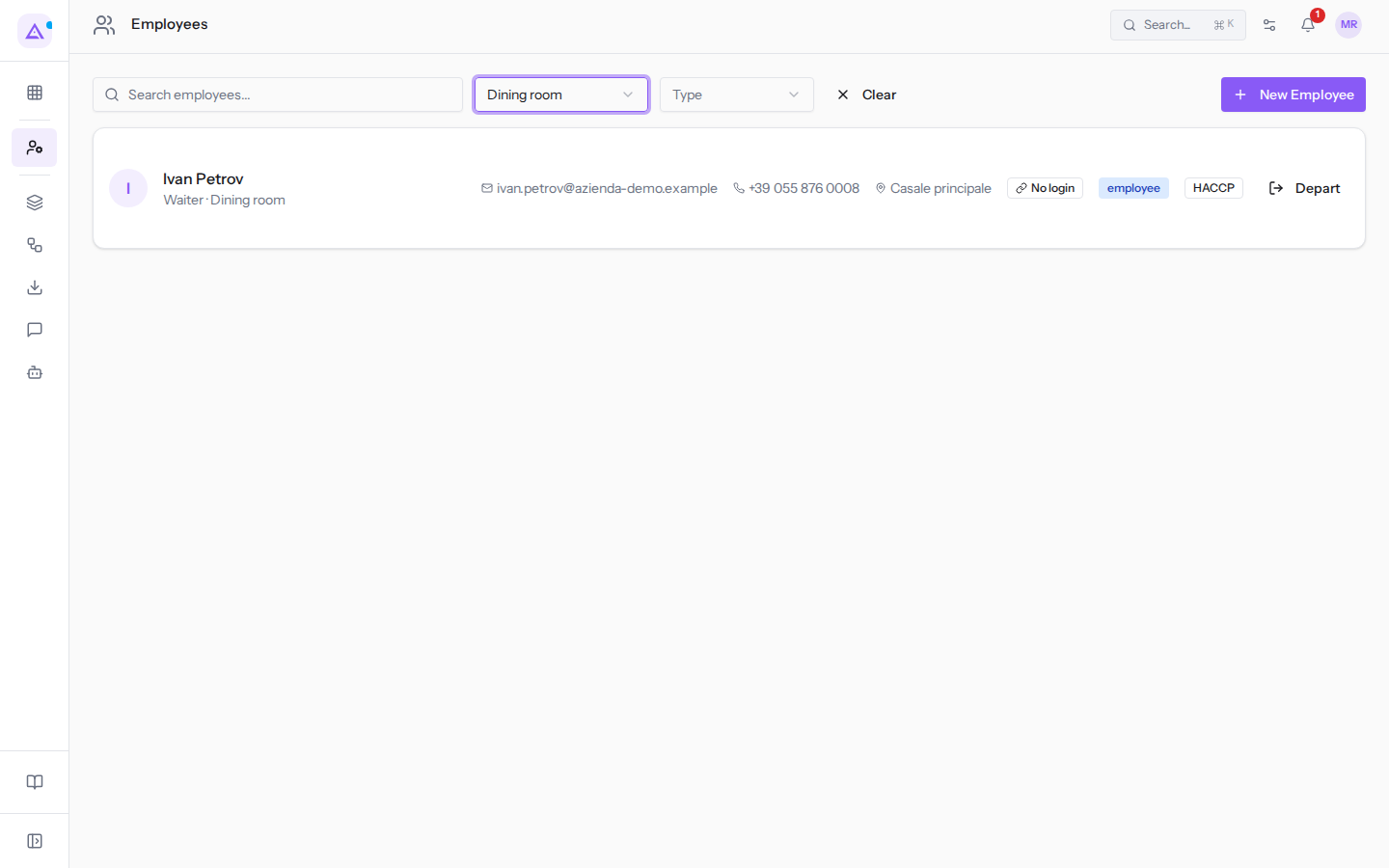
The filters have these options:
- Department: the employee's department.
- All Departments: no filter.
- Reception, Administration, Sales, Kitchen, Warehouse, Dining room: the organisation's departments, including sub-departments. A department only shows those directly assigned to it, not those working in its sub-departments.
- Type: the type of employment relationship.
- All Types: no filter.
- Employee, Contractor, Freelance, Intern, Trainee.
For example, with Department set to Dining room the list shows Ivan Petrov. With Type set to Intern it shows Elena Russo, Receptionist · Reception.
See it on your company, not on a slide deck.
In 30 minutes we map the software you use today.We show you how much work and how much margin Archimedes gives back.
Show me on my business →What industry are you in?
One tap — it lets us prepare the demo around your world.
What tools do you use today?
Pick the ones you recognise — or just type them. It helps us show you how they migrate.
Last step: your details.
We reply within one working day — and right after, if you like, you pick the demo slot yourself.
We couldn't send your request. Try again, or write to us at [email protected].
By sending, you agree to your data being processed so we can get back to you about the demo. Privacy notice.
Preview form — nothing is sent from this page.
Want to schedule the demo now?
Your call: book the slot you prefer yourself, or we'll call you to arrange it.
Live availability, 30 minutes, instant confirmation. The calendar opens in a new tab.
Lock in your slot ↗We'll get back to you within one working day — and we'll join the call already knowing your world.
The calendar is open in another tab: pick a slot and the demo is booked. Can't see it? Reopen it ↗
Preview page: nothing was sent.
Our calendar is live: take the slot that suits you and the demo is booked. 30 minutes, instant confirmation, no waiting.
Lock in your slot ↗