Employees
All modules
Calculate payslips with the payroll engine
Employees · 18 of 20 · 4 min read
The payroll engine calculates monthly employee payslips in the application. With the payroll engine you generate the month's payslips, calculate them based on salary rules, confirm them, and pay them.
Use the payroll engine if the company calculates payslips on its own. If you receive ready-made PDF payslips from the payroll consultant, use payslip batches instead.
Before you start: the Payroll Engine menu item is only visible to users in the HR Manager group.
The Payroll page
The Payroll page collects payslips and salary structures.
- In the Employees module, open the Payroll Engine menu item.
- The Payroll page opens on the Payslips tab. The other tabs are Salary Rules and Structures.
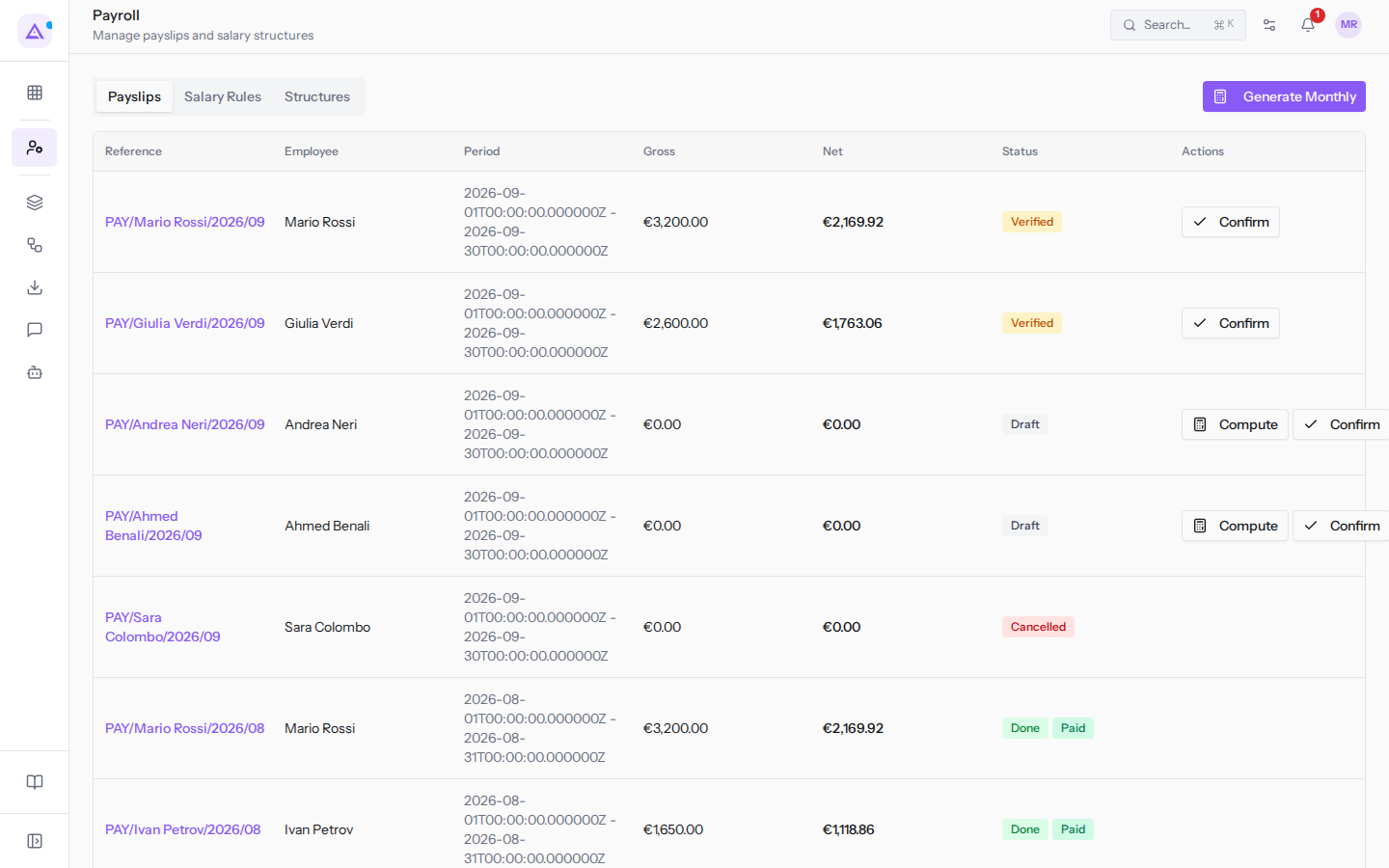
The Payslips tab lists one payslip per row, with these columns:
- Reference: the payslip code, made up of the employee name, year, and month, for example
PAY/Mario Rossi/2026/09. Clicking the reference opens the payslip details. - Employee: the person the payslip refers to.
- Period: the payslip month.
- Gross: the calculated gross total.
- Net: the calculated net total.
- Status: the payslip status.
- Actions: the button for the next action, if there is one.
Payslip statuses
Every payslip goes through several statuses. The status determines which action appears in the Actions column.
- Draft: the payslip has been created but has no computed lines. The details show No lines computed yet. and totals at zero. The available actions are Compute and Confirm: always use Compute first, because Confirm on a draft closes the payslip at zero. For example
PAY/Andrea Neri/2026/09. - Verified: the payslip has computed lines. The available action is Confirm. For example
PAY/Mario Rossi/2026/09. - Done: the payslip is confirmed. Until it is paid, the available action is Pay.
- Cancelled: the payslip is no longer valid and has no actions. For example
PAY/Sara Colombo/2026/09.
In the example, the August 2026 payslips have no more actions. For September 2026, Confirm appears on the payslips for Mario Rossi and Giulia Verdi, Compute and Confirm on those for Andrea Neri and Ahmed Benali, and no action on Sara Colombo's cancelled one.
Generating the month's payslips
With Generate Monthly you create the payslips for a month.
- In the Payslips tab, click Generate Monthly.
- The Generate Monthly Payslips dialog opens. Choose the month and year.
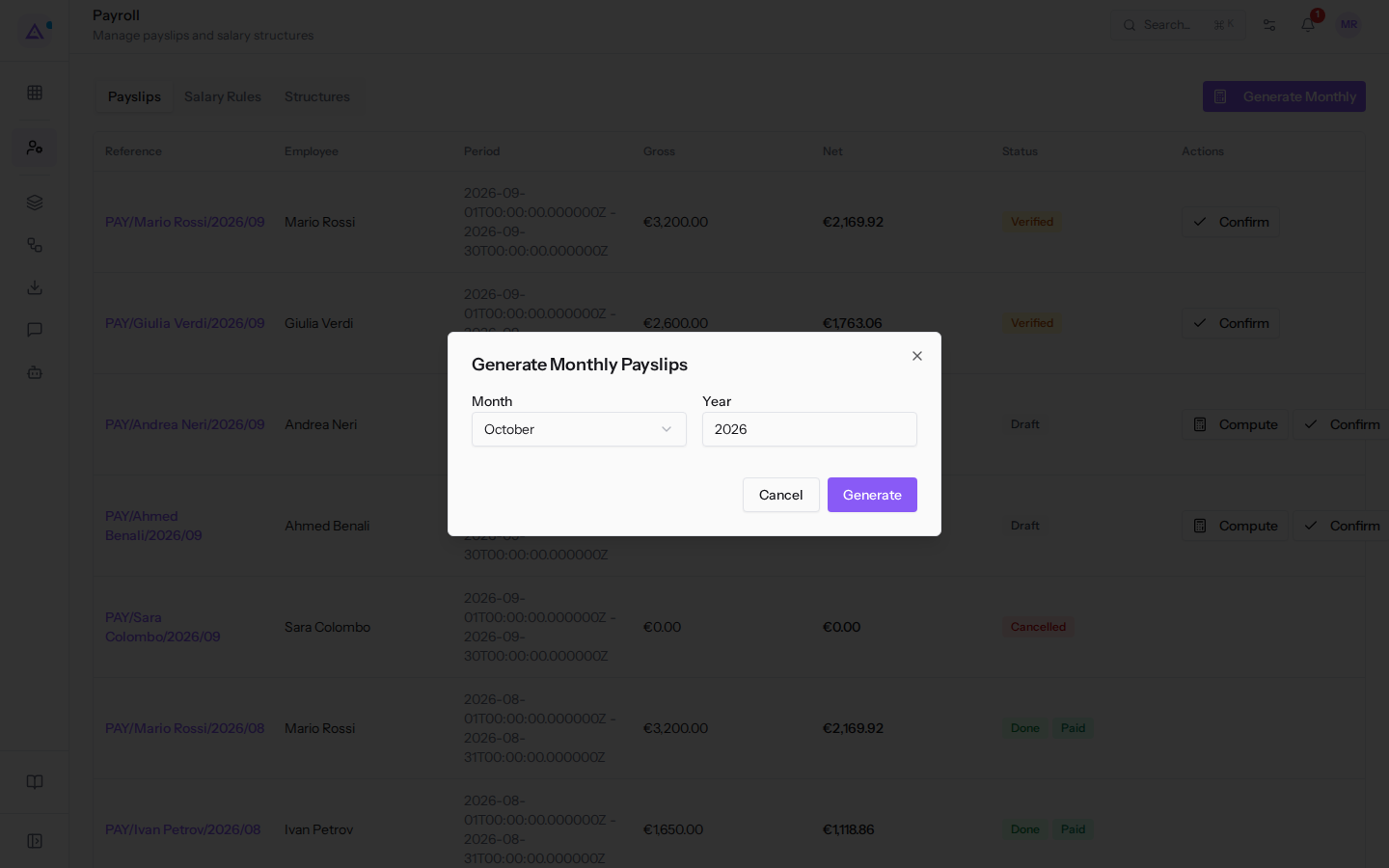
- Click Generate. To close the dialog without generating, click Cancel.
The dialog fields:
- Month: the payslip month, to be chosen from a list.
- Year: the payslip year.
Computing a payslip
The calculation applies salary rules to the payslip and derives lines, gross, and net.
- In the Payslips tab, find a payslip in Draft status, for example
PAY/Andrea Neri/2026/09. - In the Actions column, click Compute.
- The Computed message appears. The payslip moves to Verified status and the details show the computed lines.
Confirming a payslip
Check a computed payslip before confirming it.
- Click the payslip reference to open its details and check the lines and totals. Close the details with Close.
- In the Actions column, click Confirm.
- The Confirmed message appears. Pay appears in the payslip's Actions column.
Paying a payslip
A confirmed payslip that has not yet been paid shows the Pay button in the Actions column.
- In the Payslips tab, find the confirmed payslip.
- In the Actions column, click Pay. The Marked as paid message appears and Paid appears next to the status.
Already paid payslips, such as those for August 2026 in the example, have no more actions.
Viewing payslip details
The details show how the payslip was calculated. They open with a click on the reference.
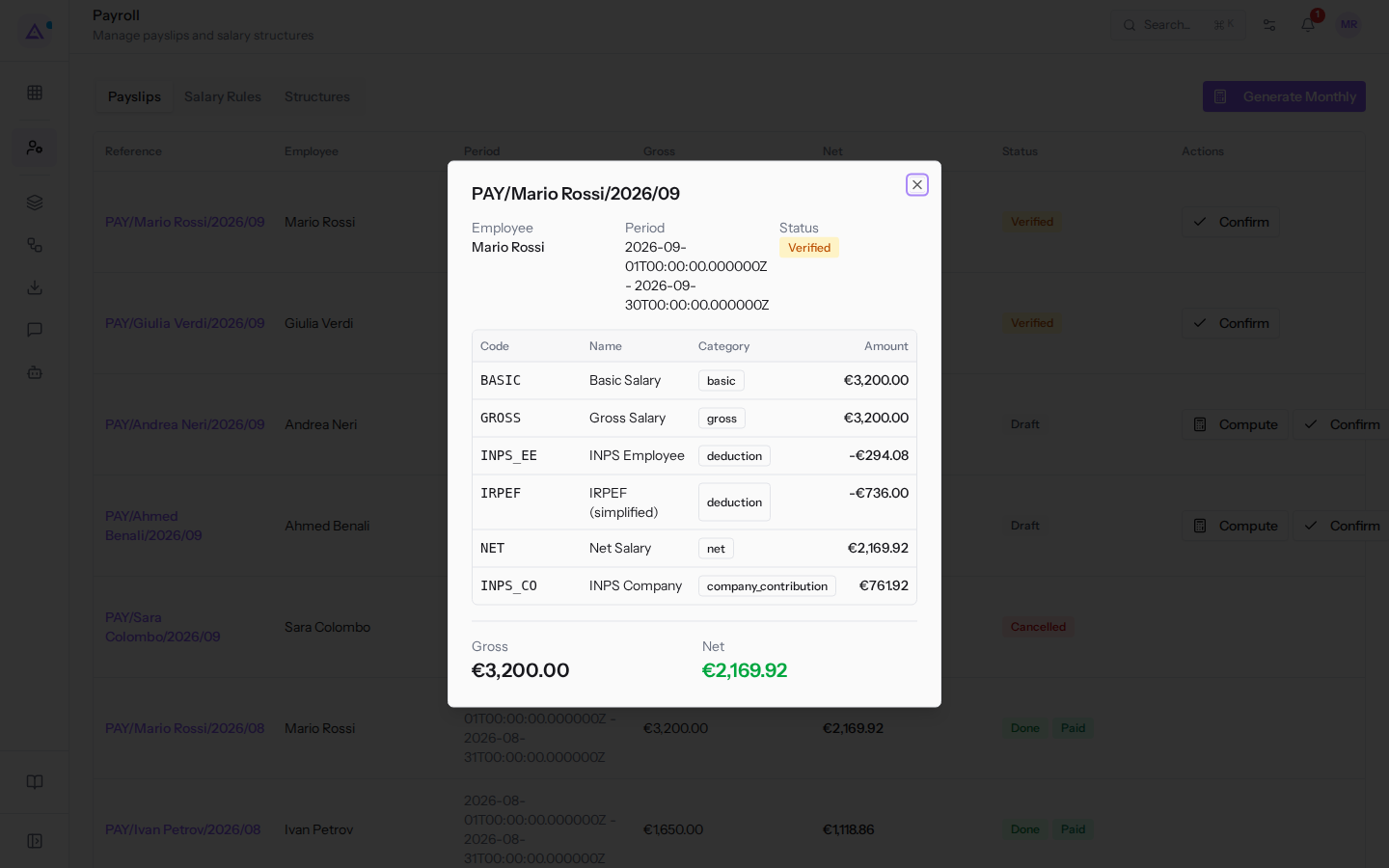
- Employee: the person on the payslip, for example Mario Rossi.
- Period: the first and last day of the month.
- Status: the payslip status.
- The lines, one per applied salary rule, with the Code, Name, Category, and Amount columns. For example, Mario Rossi's
BASICline is €3,200.00. - Gross and Net: the payslip totals.
A payslip in Draft or Cancelled has no lines and shows No lines computed yet.
Salary rules and structures
Salary rules define the items calculated in the payslip. Structures group the rules to be applied.
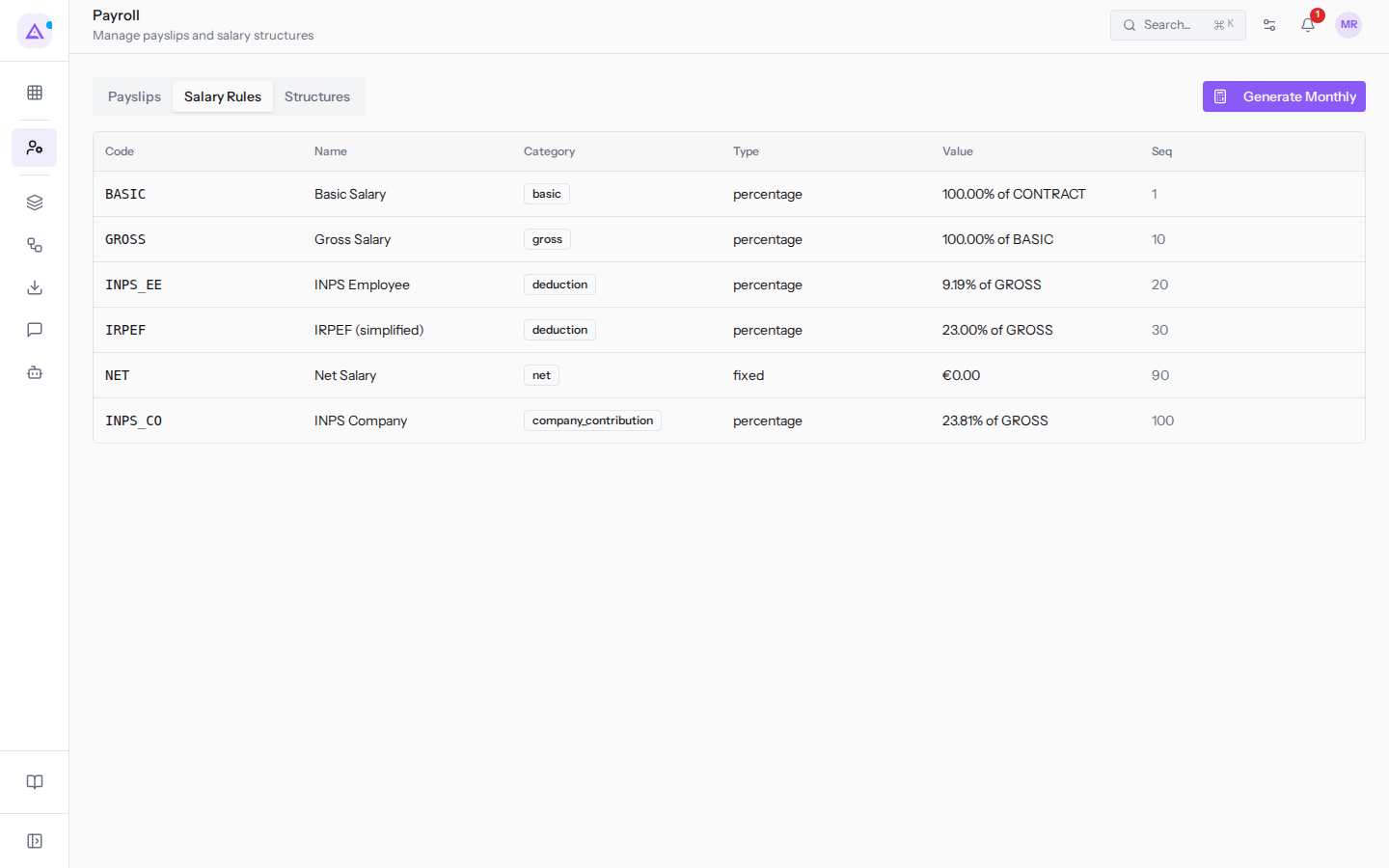
The Salary Rules tab lists the rules with these columns:
- Code: the rule code, for example
BASIC. This is the code that appears in the payslip lines. - Name: the rule name.
- Category: the item category.
- Type: how the value is calculated:
percentage(as a percentage) orfixed(fixed amount). - Value: the rule value and the base it is calculated on, for example
100.00% of CONTRACTforBASIC. - Seq: the order in which the rule is applied.
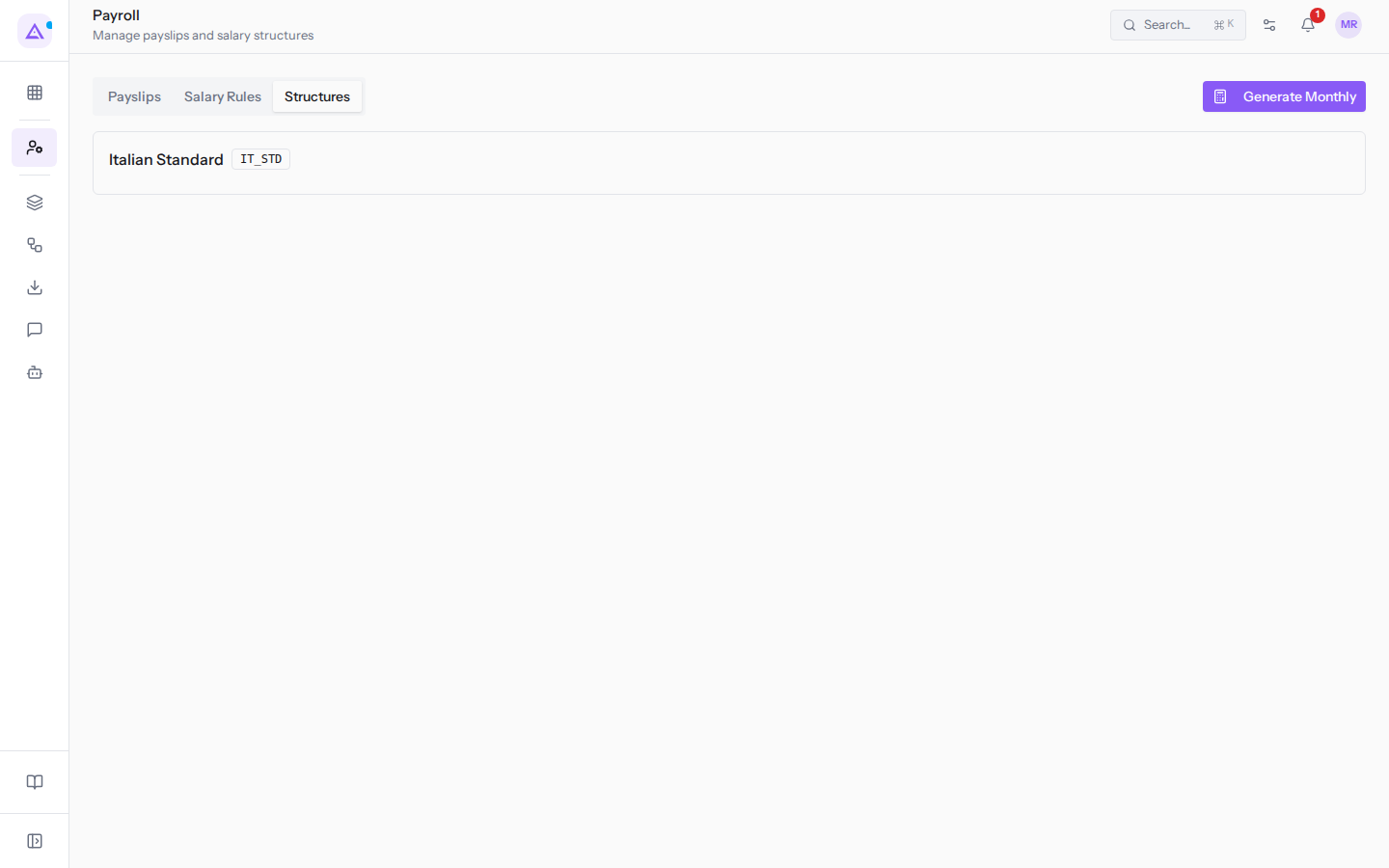
The Structures tab lists salary structures, with name and code. In the example there is the Italian Standard structure, code IT_STD.
Note: an employee's salary structure is chosen in their contract.
See it on your company, not on a slide deck.
In 30 minutes we map the software you use today.We show you how much work and how much margin Archimedes gives back.
Show me on my business →What industry are you in?
One tap — it lets us prepare the demo around your world.
What tools do you use today?
Pick the ones you recognise — or just type them. It helps us show you how they migrate.
Last step: your details.
We reply within one working day — and right after, if you like, you pick the demo slot yourself.
We couldn't send your request. Try again, or write to us at [email protected].
By sending, you agree to your data being processed so we can get back to you about the demo. Privacy notice.
Preview form — nothing is sent from this page.
Want to schedule the demo now?
Your call: book the slot you prefer yourself, or we'll call you to arrange it.
Live availability, 30 minutes, instant confirmation. The calendar opens in a new tab.
Lock in your slot ↗We'll get back to you within one working day — and we'll join the call already knowing your world.
The calendar is open in another tab: pick a slot and the demo is booked. Can't see it? Reopen it ↗
Preview page: nothing was sent.
Our calendar is live: take the slot that suits you and the demo is booked. 30 minutes, instant confirmation, no waiting.
Lock in your slot ↗